







Aftershoot Review (2025 Update): AI Culling & Editing Software
Aftershoot is an AI culling and editing tool designed to save photographers hours. We tested its latest features, including AI Edits, to see how it performs.
Aftershoot | Software | Software Reviews | By Jeff Collier | Last Updated: December 5, 2025
Shotkit may earn a commission on affiliate links. Learn more.
I’d heard Aftershoot mentioned by a few photographer friends but hadn’t taken the time to actually see what all the fuss was about, until now.
What I didn’t expect was how capable it is. Aftershoot isn’t just some lightweight image sorter – it’s a full-fledged AI-powered photo culling and editing tool that can genuinely save you hours of work after every shoot.
It’s simple to use, surprisingly fun once you get going, and removes a ridiculous number of those tiny post-shoot decisions that can drain your creative energy.

Simple, fun and intuitive way to cull and edit thousands of photos in record time.
Use code SHOTKIT10 to save 10%.
The team behind Aftershoot claims it’s the fastest and easiest way to automatically select, rate, and find your best photos… and that nine out of ten users never go back to manual culling again!
Bold claims, right? So, naturally, I decided to test out the latest version (v2.14.2) to see if it would live up to the hype.
Aftershoot Review
- AI culling saves huge amounts of time
- Edits feature produces consistent, natural results
- Easy to use with clear, modern interface
- Cross-platform support including Apple Silicon
- Frequent updates and responsive support
- 30-day free trial with full functionality
- Best results with portraits and people shots
- No option yet to edit only culled images
- Retouching feature still in development
Aftershoot is an AI-powered photo workflow software that helps you cull photos quickly and even edit them automatically in your chosen style.
As a portrait, landscape, and travel photographer, I spent several hours testing Aftershoot (version 2.14.2) on a recent couple’s portrait session to see how its latest features perform in a real-world scenario.
Spoiler alert: the software has come a long way, with several exciting updates that make it more useful than ever for high-volume photographers.
The goal of Aftershoot is to speed up the tedious parts of post-production by using AI to make a lot of your editing decisions for you.
There’s a 30-day free trial available (no credit card needed, with all features enabled), so it’s easy to try it out on your own projects.
You can grab the free trial here >>

The free trial is quick and easy to download.
I tested Aftershoot on my 14” MacBook Pro (M1 Pro, 32GB RAM). To ensure optimal speed, I copied my RAW files (156 Sony ay IV RAW images) onto the internal SSD (rather than my usual NAS storage).
So let’s dive into how Aftershoot performed in terms of importing, culling, editing, and what’s coming next for the software.
1. Getting Started & Importing Photos
One thing I noticed right away is that importing images into Aftershoot is fast. I pointed Aftershoot to a folder of 156 RAW files and the thumbnails appeared almost instantly, ready for culling.
Unlike importing with Lightroom Classic, which takes time to build catalogs and image previews on import, Aftershoot simply references the existing files on your drive, so you can start working immediately.
There’s even a short tutorial video embedded in the import/cull screen, which is a helpful introduction for first-time users on how the AI culling process works.
When starting a new cull, Aftershoot lets you choose the type of shoot (Portraits, Weddings, etc.) and whether to use Automated AI Cull or Customized AI Cull.

You can set everything to be automated for the fastest workflow.
I stuck with the Automated mode, which presents a simple slider to control how many photos the AI will select, ranging from very strict to more generous. I left this slider at the default, trusting the software to do its thing.
The interface makes it easy to tweak these settings upfront, but I found the default worked well and you can always override the AI’s decisions later if needed.
2. AI Culling: Letting the Software Pick Your Keepers
Aftershoot’s AI culling feature is where you really start saving time. The software analyses your images and automatically marks the ones it thinks are the best, using criteria like sharpness, focus, no blinking, good exposure, etc.
I let Aftershoot run on full auto, and it quickly went through the gallery. Impressively, the chosen photos were almost exactly the ones I would have picked myself.

Initial culling screen
It flags obvious problems like blurry shots or subjects with eyes closed, as well as grouping together duplicates so you don’t keep 10 versions of the same pose.
In my test, the only “false positive” was a couple of photos where the subject had intentionally closed her eyes for a pose, but aside from that, the AI’s selections aligned with my judgment about 98% of the time, which is really impressive.
One of Aftershoot’s strengths is how it handles duplicate images. As many event and portrait shooters do, I often fire off a burst of images to catch the perfect moment.
Aftershoot automatically grouped these similar shots into stacks and highlighted what it thought was the best of each series.
This made it super easy to review only the top picks from each burst, rather than wading through every single frame.
I found the duplicate grouping to be very intelligent – it caught sequences of images and let me confirm the best one in each.
The Key Faces panel is another standout feature. It displays a close-up of the subjects’ faces from the selected photo, which is useful for checking focus and expressions at a glance.

The Key Faces provides a zoomed-in close-up of the subjects in each photo.
This combination of grouping duplicates and zooming into faces made culling much faster – I could instantly tell if everyone’s eyes were open and smiles were good without manually zooming in on each image.
Another excellent feature is Highlights. Aftershoot will pick a handful of what it considers the very best shots of the entire shoot and tag them as Highlights. In my case, out of a few hundred images, the AI identified about 20 top Highlight images.
It seems to choose roughly one or two per scene or pose, essentially giving you a quick portfolio of the shoot’s best moments.
This is awesome for those of us who like to quickly pull together a “sneak peek” collection for clients or social media.
It means the day after a shoot (or even the same day), I can have a small set of hero images ready to share, without agonizing over which ones to pick.
I also appreciated that an AI is making these highlight selections, since it removes some of my own emotional bias.

Aftershoot chooses a selection of Highlights which span across your whole shoot to provide adequate variety.
Throughout the culling process, Aftershoot uses colour labels and star ratings to mark the photos.
Although I couldn’t find an explicit “accept selected” button after culling, you can easily filter to only the “Selected” images in Aftershoot and make sure you’re happy with them.
Once you’re done culling, exporting the results to your regular editing software is seamless: you can send the photos straight to Lightroom Classic or Capture One with all the ratings and labels preserved.


I tried exporting to Lightroom Classic, and the flagged picks (and rejects) carried over exactly, which saved me from any manual sorting on the Lightroom side.
If you prefer, you can also export the selected files to a folder on your hard drive. This part of the workflow was smooth and worked without a hitch.
3. AI Editing: Aftershoot Edits in Action
Aftershoot isn’t just about culling; it also includes an AI editing suite called Aftershoot Edits. This feature was introduced in 2023 and has seen continual improvements since.
The concept is similar to using presets in Lightroom, but with a big twist: Aftershoot’s AI edits are adaptive.
Unlike a normal preset that applies the same settings to every photo, an AI Profile in Aftershoot will adjust each image individually to account for differences in exposure, lighting, white balance, etc.
In theory, this means you get a consistent look across all your photos with far fewer manual adjustments afterwards, which is obviously a huge time saver.
Using the Edit tab was straightforward. I simply switched to Edit, where it prompted me to choose an editing Profile or Style to apply to my images.
There are a few different ways you can approach this: Pre-built AI Styles, Professional AI Profiles, or Instant AI Profiles.

You can choose from Professional AI Profiles or Instant AI Profiles.
Pre-built AI Styles are available in the new Marketplace, which includes free and premium styles trained by other photographers. They act like smart presets that automatically adapt per image.
I tried one of the free ones (True to Life), which produced a warm, vivid look that suited my shoot nicely. It was easy to download and preview with a before/after slider before applying.

Aftershoot provides several free Marketplace profiles that you can preview.
Next, I created an Instant AI Profile based on one of my own Lightroom presets. This feature, launched recently, lets you transform any existing Lightroom preset into a dynamic AI-powered editing style.
After choosing my preset, Aftershoot guided me through a quick setup wizard to fine-tune exposure, warmth, and tint preferences.
In about a minute, my Instant AI Profile was ready to go. I named it after my original Lighroom preset and ran it on the full batch of photos.
Processing 156 RAW files on my SSD took roughly three minutes. All the AI processing happens locally, not in the cloud, which means it’s fast and private.
The edits looked excellent – the style matched my preset but with smarter exposure and colour corrections per image. Where a normal preset might over or underexpose, Aftershoot balanced each photo perfectly.
You can see in the Before/After image slider below how Aftershoot also offers optional auto-cropping, straightening and AI masking, which can subtly improve compositions or level horizons. It’s a nice touch and completely non-destructive:


Skin tones were natural, contrast was consistent, and the results felt like my own editing style, just done a hundred times faster.
By default, Aftershoot edits all imported images, not just the culled ones. For small sets this isn’t an issue, but for large jobs you may want to filter first to avoid unnecessary processing.
The app doesn’t yet have an “edit only selected” option, which I hope they add. Even so, the workflow is quick enough that it’s easy to work around by simply letting it run while you take a coffee break.
Another recent addition allows fine-tuning of your AI profiles post-creation – for example, globally warming or cooling results, or slightly brightening the whole batch without retraining the AI.

Overall, I found the AI editing to be a massive time-saver. It’s essentially doing what an outsourced editor or a supercharged preset might do, but in a matter of minutes and with a high degree of consistency.
The real benefit is for large jobs – wedding or event photographers, for example, could cut editing time down from days to hours. The results stay true to your personal style, just far more efficiently applied.
4. AI Retouching (Coming Soon)
In addition to culling and colour editing, Aftershoot has teased a new AI Retouching feature that’s currently in early access.
In the app, there’s a Retouch tab, but it isn’t fully available yet. I couldn’t test it hands-on, but based on the company’s documentation, AI Retouching will handle tasks like skin smoothing, blemish removal, shine reduction, teeth whitening, and even object removal.
The idea is to integrate these retouching steps directly into the workflow so photographers could go from RAW to fully retouched images without ever leaving Aftershoot.
It’s currently free to try when early access opens, with user feedback presumably there to help refine its accuracy.
The AI has reportedly been trained for natural-looking results, with adjustable strength sliders for skin texture, eye enhancement, and overall facial improvements.
There’s also mention of batch retouching and syncing settings across similar portraits for consistent results.
If it works as described, this could eliminate the need for jumping into Photoshop for most portrait retouching.
It could be a huge time saver for wedding, school, and event photographers who process hundreds of faces per session.
Conclusion: Is Aftershoot Worth it?
Aftershoot has proven to be a valuable AI assistant in my workflow. It delivers on its promise of saving time by automating the mundane aspects of photo culling and editing.
(It even sends you a summary email to remind you how much time you’ve saved after each project has been edited!)

For high-volume photographers, this software is almost a no-brainer. Wedding and event photographers can be dealing with thousands of images per shoot – Aftershoot will help narrow down selections in a fraction of the time and apply consistent edits with minimal effort.
In this way, I would especially recommend Aftershoot for portrait studios, wedding photographers, school and sports photographers, family and newborn photographers, and event shooters – essentially anyone who shoots in volume.
Even for landscape or travel photographers, it can help cull similar shots or apply base edits, though it’s currently optimised more for people photos. Hopefully, future versions will expand support for non-portrait genres too.
Beyond the time savings, what I appreciate most is that Aftershoot still gives the photographer control. The AI is like a very efficient first pass that augments your workflow, not a black box that replaces your creative input.
The team is also iterating fast, with frequent updates like Instant Profiles, new AI Styles, and the aforementioned Retouching feature, which I’m particularly excited to try.
All in all, testing out Aftershoot was a fun and slightly surreal experience! Watching the software cull and edit for me felt like having a virtual assistant sitting next to me working at lightning speed.
It’s made culling less tedious and editing more streamlined.
If you’ve ever wished you could delegate your editing or wondered if AI could actually help you work smarter, Aftershoot is definitely worth a try. With the 30-day free trial, there’s no reason not to at least experiment with it.
Simple, fun and intuitive way to cull and edit thousands of photos in record time.
Use code SHOTKIT10 to save 10%.
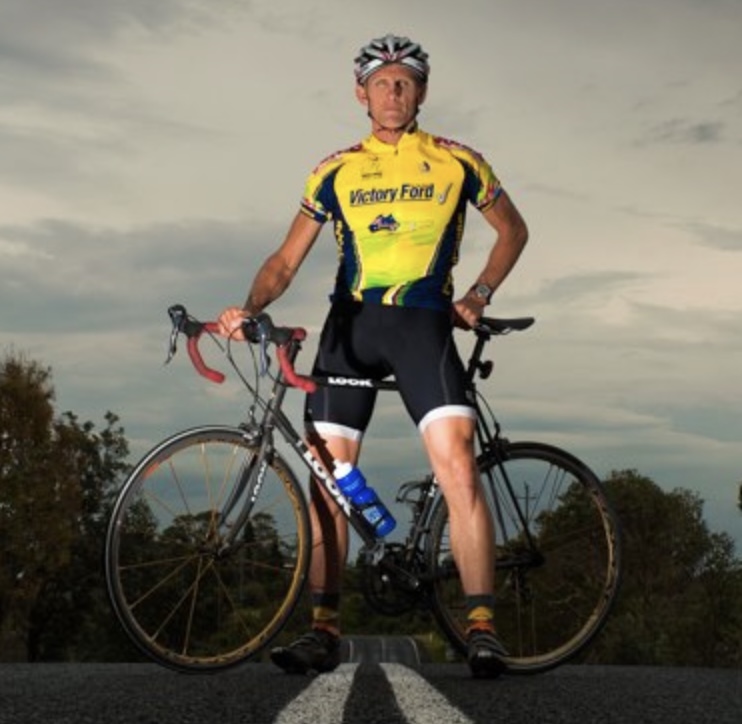
Jeff Collier is an experienced film photographer who enjoys experimenting with modern digital photography equipment, software and apps. He’s also an ex-world champion triathlete and avid cyclist, clocking hundreds of km each week in the beautiful Tweed Valley of northern NSW, Australia.
2 Comments
Leave a Comment
👋 WELCOME TO SHOTKIT!
🔥 Popular NOW:

Pretty sure it’s the other way around with narrative select, it’s only available for Mac OS not windows, and actually has one of the best free plans of all the culling softwares
Thanks for pointing out those typos, Mikki!