







Design.com Review for Photographers
We put Design.com’s logo creation feature to the test to see how it could help photographers with logo creation, branding, and more.
Software | Paid Partnership | By Jeff Collier | Last Updated: June 3, 2026
Shotkit may earn a commission on affiliate links. Learn more.
I recently tested Design.com to see how well it works for photographers who need logos or creative marketing materials.
Specifically, I wanted to see how easy it is to go from nothing to a usable brand.
To make it realistic, I created a logo for a fictitious family photography business called Candid Moments – the kind of brand that needs to feel warm, natural, and trustworthy from the start.
Design.com positions itself as an all-in-one AI branding platform offering a ton of products and features, not just a simple AI logo maker.
For the purposes of this review, I focused on two things:
1. How well the AI-assisted logo process works
2. What happens after you create your logo and start building the rest of your brand
My Experience Creating a Logo with Design.com
I started with a simple prompt on the Design.com homepage:
“Make me a logo for my family photography business called Candid Moments.”
Within seconds, Design.com generated a huge selection of logos. At this point, there's no need to even sign up, making the process feel frictionless and fun.
At first glance, this feels impressive. There’s no shortage of ideas, and you can scroll for a long time without running out of options.
But once I started looking more closely, the results were a bit mixed.

(Click to view larger)
Some logos were genuinely usable, with clean typography, soft icons, and the kind of quality you might expect from a basic freelance designer you could find on Fiverr or Upwork.
However, other designs felt completely off. I saw designs featuring drones, fish, and random abstract symbols that didn’t seem related to family photography at all.
It gave me the impression that Design.com works differently from fully generative AI logo tools.
Rather than generating logos from scratch, the platform uses AI to customise and surface designs from its large library of professionally created logos.
That may explain why some results felt highly relevant while others seemed broader or less connected to the photography brief.
The upside is speed – results appear almost instantly and there are a huge number of options to explore.
Trying a More Detailed AI Prompt
To see if I could improve things, I used ChatGPT to create a much more detailed prompt, like something closer to what you’d give a real (human) designer.
Specifically, here's what I entered into Design.com:
“Design a warm, modern logo for a family portrait photography business called “Candid Moments”.
The logo should feel natural, emotional, and authentic — capturing real, unscripted family connections rather than posed or formal photography. Aim for a clean, timeless style that would appeal to parents and young families.
Include subtle visual elements that suggest photography and family, such as:
* A minimal camera outline or lens
* Soft, organic shapes
* Abstract family silhouettes or gentle human connection
* Natural light or sun-inspired accents
Typography should be:
* Elegant but approachable
* Slightly soft or rounded (not overly corporate)
* Easy to read across web and print
Colour palette:
* Warm neutrals (beige, soft browns, cream)
* Optional muted pastels (sage green, dusty blue, warm peach)
* Avoid harsh or overly saturated colours
Style references:
* Minimalist
* Lifestyle brand aesthetic
* Light, airy, and editorial
The logo should work well in:
* Horizontal and stacked formats
* Black and white
* Watermarks on photos
Avoid:
* Cliché or overly literal camera icons
* Busy or complex designs
* Hard edges or overly tech-focused styles”
In theory, this should have refined the results significantly.
Unfortunately, though, the output was very similar… if not identical!

(Click to view larger)
A few logos leaned slightly closer to the brief, but there wasn’t a dramatic improvement.
That actually makes sense once you understand how Design.com works.
The platform isn’t currently using generative AI to create completely new logos from prompts. Instead, AI is used to customise and match designs from a very large library of professionally created logos.
So unlike image generators where prompt quality can dramatically change the output, more detailed prompts here didn’t significantly alter the results.
That’s not necessarily a negative though. The trade-off is speed — results appear almost instantly and the editing process stays predictable.
Too Many Options, Not Enough Direction?
One thing I kept coming back to was the sheer volume of results.
On paper, having hundreds of logo options sounds great. In practice though, I found it quickly became overwhelming.
I found myself scrolling through page after page of logo designs without a clear sense that things were improving – the ones shown at the start didn’t seem noticeably better than those much later on.
A lot of the designs felt interchangeable.
Instead of refining toward a stronger result, it felt like digging through a huge pile of “okay” ideas, hoping to land on a good one.
Personally, I’d much prefer the opposite approach: give me 10–20 highly relevant, well-tuned options instead of hundreds of average ones.
This is where Design.com starts to feel more quantity-driven than quality-driven.
What Happens After You Create Your Logo
Once I found a logo that felt close enough, I moved into the editor – this is where Design.com shines above many similar AI branding tools.

You can adjust fonts, colours, layouts and icons, much like you could in Photoshop or Canva.
There’s also a chat-style editing feature where you can describe changes in plain English.
For simple edits, I still found manual adjustments faster. However, the AI editor can make broader changes that aren’t always practical through the standard controls, such as swapping icons or reworking larger visual elements.
Getting it to “change the background colour and make the fonts stand out more” took about 30 seconds of waiting, but it did a decent enough job:

After I was happy with the final logo, it was time to create some additional marketing material.
Most logo makers stop once you’ve downloaded your files. Design.com goes much further by turning your logo into a full brand system. This is easily the most impressive part of the platform.
Once your logo is created, you get access to a surprisingly large suite of tools – over 50 in total.
These include:
- social media graphics (*see below for full list)
- business cards
- flyers and print materials
- presentations
- website templates
The thing I liked most is that everything automatically uses your brand colours and fonts from the logo you created.
You don’t need to manually build a brand kit like you might on another platform – it’s already done for you.
That means you can quickly create things photography businesses often need, like Instagram posts, business cards, marketing materials, and even a simple website — all with a consistent look and feel.

Business card generator

Website generator
If I’m being honest though, the logo generator itself is good, but not exceptional.
What makes Design.com more interesting is everything that comes after.
It’s not trying to compete with professional tools like Adobe Illustrator, and it’s not trying to replace human designers.
Instead, it’s solving a different problem – it’s really useful when you need a decent-looking brand quickly and don’t want to spend hours designing it.
For that use case, it works really well.
How Much Does Design.com Cost?
You can explore Design.com for free to generate logos, browse templates, and test the tools.
There’s also a selection of completely free logo templates that can be downloaded in both high-resolution raster and vector formats, even after editing.
Free logos also unlock access to:
- website builder
- link in bio creator
- digital business card maker
These can be published at no cost.
You also get access to the wider branding tools with colours and styling automatically pulled from your logo, although downloading designs created with those tools still requires a paid plan.
If you want access to the broader premium branding features, you’ll need a subscription.
Pricing is subscription-based, with plans roughly in this range:
Starter ~ $15/month
Value ~ $24/month
Premium ~ $29/month

(Click to view larger)
The higher tiers add things like website features, digital business cards, and expanded branding tools.
There are a couple of things worth knowing:
- Purchased logos include ongoing commercial and non-commercial usage rights, even if you later cancel your subscription
- Your logo isn’t fully exclusive unless you pay extra
After all, you’re working with a large pool of shared design assets rather than something completely unique.
So, the big question – is Design.com good value?
Well, it depends on what you need.
Compared to hiring a designer, it’s very affordable. Compared to other logo platforms, pricing feels fairly standard.
Where it starts to make sense is if you actually use the full platform rather than just making the occasional logo.
If you’re creating social content, marketing materials, and maybe a simple website, the subscription becomes much easier to justify.
Final Thoughts
Using Design.com felt a bit like having access to hundreds of very fast, very affordable junior designers.
You get lots of options, a quick turnaround, and decent baseline quality… but not a huge amount of originality or precision.
The logo generation process is convenient, but not especially refined. The large number of options can actually work against you, making it harder to find something strong.
Where Design.com really delivers is in what happens after.
Turning a simple logo into a complete, consistent brand system with social graphics, print materials, and even a website is genuinely useful, especially for photographers who just want to get up and running quickly.
To summarise, if you want something unique and highly polished, you’ll likely hit the limits of Design.com.
However, if you want something fast, simple, and “good enough” across multiple touchpoints, it’s a very practical tool.
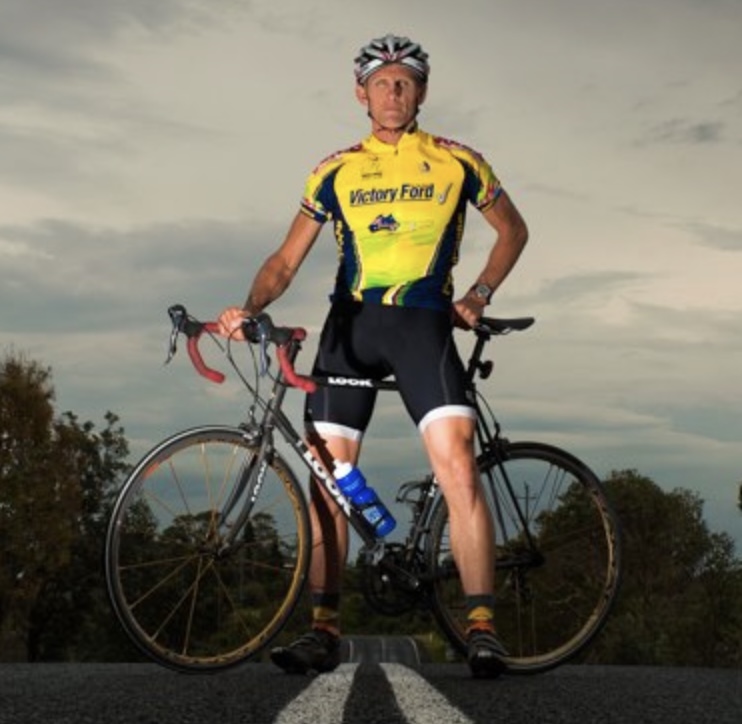
Jeff Collier is an experienced film photographer who enjoys experimenting with modern digital photography equipment, software and apps. He’s also an ex-world champion triathlete and avid cyclist, clocking hundreds of km each week in the beautiful Tweed Valley of northern NSW, Australia.
👋 WELCOME TO SHOTKIT!
🔥 Popular NOW:
