






How to Generate AI Artwork From Text Prompts Using Adobe Firefly
AI | Software | Paid Partnership | By Jeff Collier | Last Updated: November 26, 2026
Shotkit may earn a commission on affiliate links. Learn more.
Adobe Firefly allows you to generate AI artwork from text prompts by describing the subject, composition and artistic style you want to create.
Professional creators can use it to develop visual concepts, create custom backgrounds, design campaign assets and generate supporting imagery for video projects.
In this article, I’ll walk you through how to generate and refine artwork using Adobe Firefly and incorporate the finished image into a Photoshop or Premiere Pro workflow.
Tested on 26 November 2026 with Adobe Firefly Image 5 and Adobe Premiere Pro 26.6 on macOS Tahoe 26.5.1.
How to Generate AI Artwork From Text Prompts Using Adobe Firefly
Step 1. Open Adobe Firefly
Sign in to Adobe Firefly with your Adobe account.
From the homepage, select Image > Generate image. Some interfaces may label this feature Text to image.
Available AI models, features and generative credit allowances depend on your account and subscription plan.
Step 2. Choose an Image Model
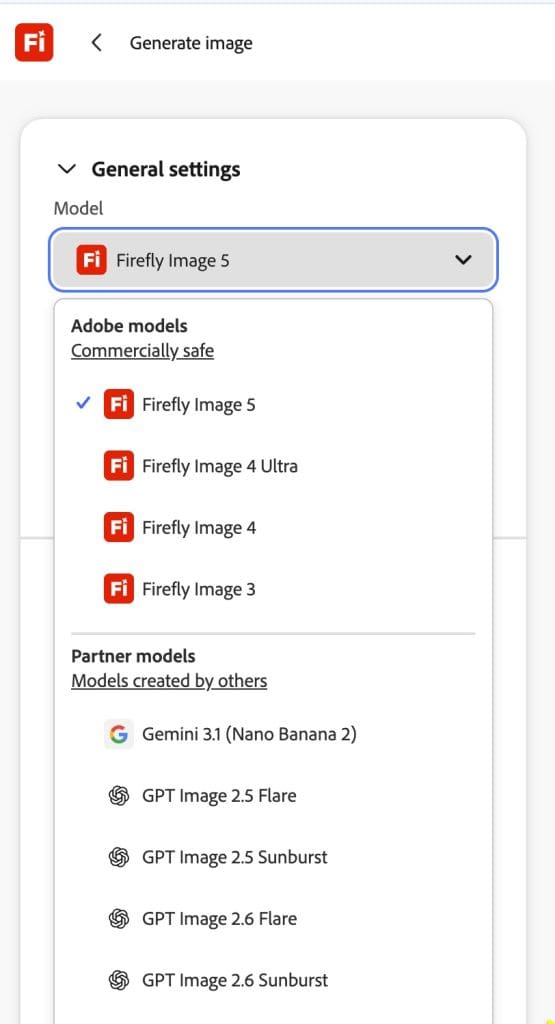
Under General settings, use the Model menu to select an Adobe Firefly image model.
For this tutorial, I selected Adobe Firefly Image 5 to generate the watercolour illustration. Its ability to interpret detailed prompts, including artistic styles, lighting and colour palettes, makes it well suited to creating custom illustrations and visual assets for professional projects.
Firefly also offers third-party partner models, so check your selection if you specifically want to generate artwork using an Adobe model. Available settings and creative controls vary depending on the model selected.
Step 3. Write Your Text Prompt
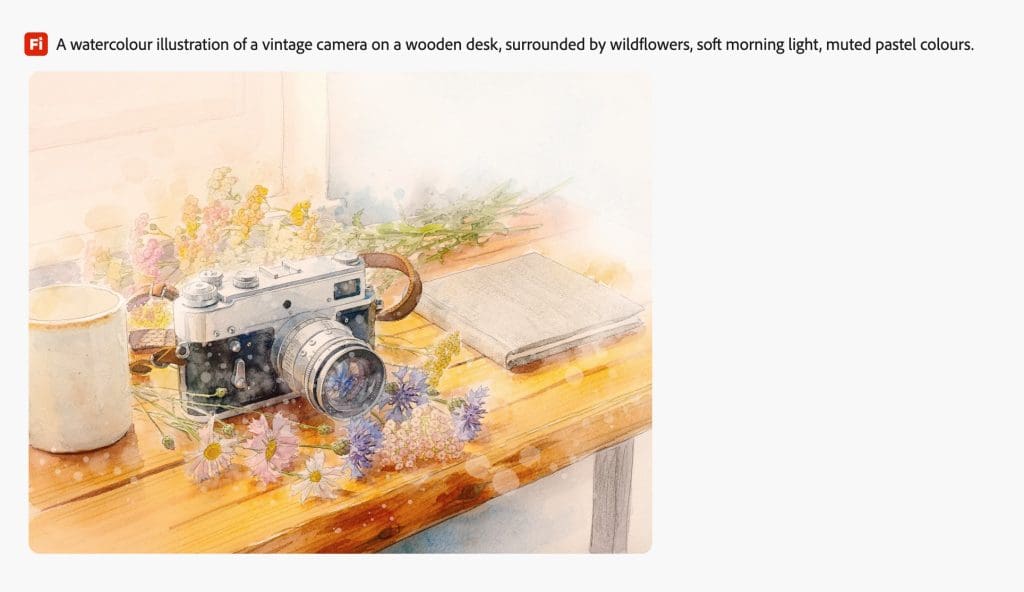
In the prompt field, describe the image you want. Include the subject, setting and artistic style.
For example:
“A watercolour illustration of a vintage camera on a wooden desk, surrounded by wildflowers, soft morning light, muted pastel colours.”
Use clear, specific language. A description such as “a mountain cabin beneath a star-filled sky, painted in gouache” gives Firefly more direction than “a beautiful landscape”.
When creating artwork for a professional project, consider how the image will be used in the final production. Specifying negative space, composition and colour palettes can help accommodate branding, text overlays or other design elements.
Step 4. Adjust the Settings
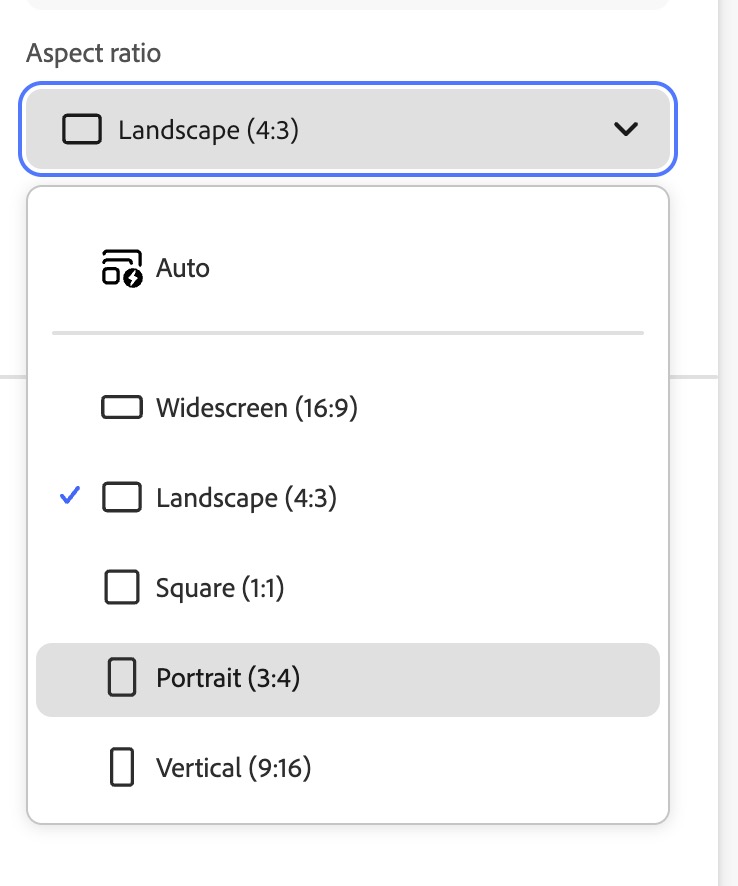
Choose an Aspect ratio that suits your intended project. A square (1:1) composition may suit a social media post, while a widescreen (16:9) composition is better suited to a landscape video project in Premiere Pro.
For vertical video content, such as Instagram Reels or YouTube Shorts, consider a 9:16 aspect ratio.
If available for your selected model, set Content type to Art for an illustrated result.
You can also explore available style effects, lighting and colour controls. Start with a few settings so it’s easier to understand how each choice affects the generated image.
Once you’re happy with your prompt and settings, click Generate.
Step 5. Refine Your Artwork
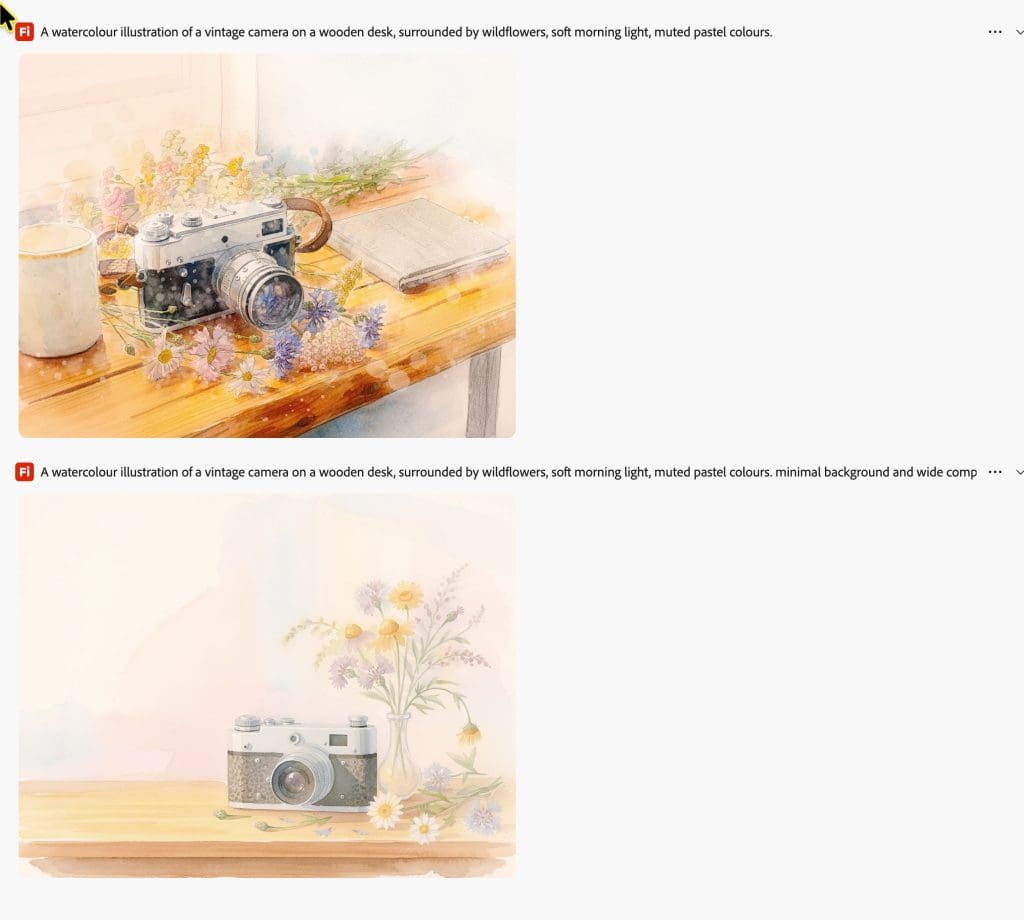
If the artwork doesn’t match your idea, adjust the prompt and generate again. Try changing one detail at a time:
- Specify “minimal background” for a simpler composition.
- Add “warm sunset lighting” to change the mood.
- Request “wide composition with space on the left” to guide placement.
Prompt used: A watercolour illustration of a vintage camera on a wooden desk, surrounded by wildflowers, soft morning light, muted pastel colours. minimal background and wide composition with space on the left.
You can also use a reference image to guide the composition or visual style of your artwork. Look for the reference image options in the left-hand settings panel, where supported by your selected model.
For projects requiring multiple visual assets, reference images can also help maintain a consistent visual style across different generations.
Step 6. Download Your Artwork for Optional Further Editing
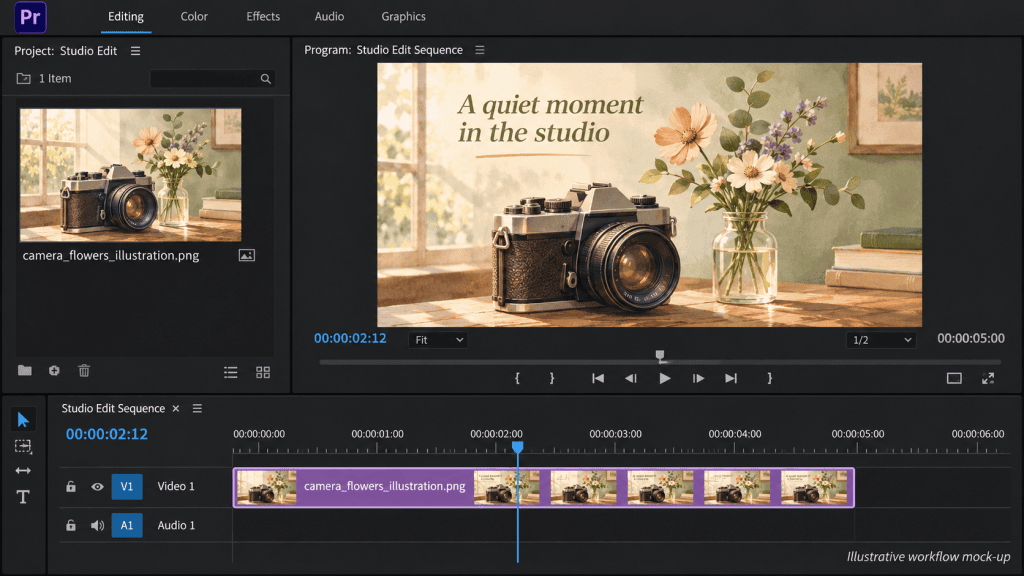
Select your preferred image and click Download to save the file to your computer. You can then open it in Photoshop to refine colours, add text, incorporate branding or prepare the final layout.
Before using your artwork in another application, check that its resolution and aspect ratio are suitable for the intended project.
Keep a copy of your prompt alongside the artwork so you can revisit the idea and create related images for future projects.
How to Use Firefly-Generated Artwork in Premiere Pro
AI-generated artwork can be used in video projects as opening visuals, title cards, backgrounds or supporting imagery.
To incorporate your Firefly-generated artwork into Premiere Pro:
-
Select File → Import and locate your downloaded image.
-
Drag the image onto your video timeline.
-
Adjust the clip duration to suit your sequence.
-
Use Scale and Position keyframes under Effect Controls → Motion to introduce movement.
-
Add text overlays, branding or transitions as required.
The vintage camera illustration created in this tutorial, for example, could be used as an opening title card for a photography tutorial or promotional video.
With more than 40 years of experience developing creative technology, Adobe has built its generative AI capabilities to complement established professional workflows. The ability to generate artwork in Firefly, refine it in Photoshop and incorporate it into Premiere Pro allows creators to experiment with new ideas while maintaining control over the finished project.
FAQs
Can I use Adobe Firefly to generate artwork for commercial projects?
Adobe permits commercial use of Firefly-generated content, subject to the applicable terms and any feature-specific restrictions. Creators using partner models within Firefly should also check the relevant model terms.
Can I use Adobe Firefly without Photoshop?
Yes. Adobe Firefly is available through a web browser, allowing you to generate, refine and download AI artwork without using Photoshop.
Can I use Firefly-generated artwork in Premiere Pro?
Yes. Firefly-generated artwork can be imported into Premiere Pro and used for title cards, backgrounds, animated stills and supporting visuals in professional video projects.
How do I write better text prompts for Adobe Firefly?
Include specific details about your subject, artistic style, lighting, colour palette and composition. Providing more detailed instructions can help Firefly generate artwork that more closely matches your creative vision.
Final Thoughts
Adobe Firefly provides a practical way for professional creators to turn written ideas into visual assets. Whether you’re developing illustrations, exploring creative concepts or producing supporting imagery for video projects, Firefly can complement your existing creative workflow.
Its compatibility with Photoshop and Premiere Pro allows you to take generated artwork beyond the initial concept and refine it for professional delivery.
Ready to bring your creative ideas to life? Explore Adobe Firefly and start creating artwork for your next project.
Jeff Collier is an experienced film photographer who enjoys experimenting with modern digital photography equipment, software and apps. He’s also an ex-world champion triathlete and avid cyclist, clocking hundreds of km each week in the beautiful Tweed Valley of northern NSW, Australia.
👋 WELCOME TO SHOTKIT!

🔥 Popular NOW: