







Shotkit may earn a commission on affiliate links. Learn more.
Handling large volumes of images after a photo shoot requires a practical workflow. This article details steps for photographers to efficiently process, organize, and send large files while maintaining quality and meeting tight deadlines.
Large photo shoots can be demanding for photographers, involving time constraints, a significant number of images, and the need for consistency throughout all files. Managing both creative work and the practical aspects of data organization makes post-shoot tasks challenging.
Whether working on events, commercial projects, or editorial assignments, the way you process, sort, and send large files influences your workflow speed, reliability, and overall client satisfaction.
Preparation Before Shooting
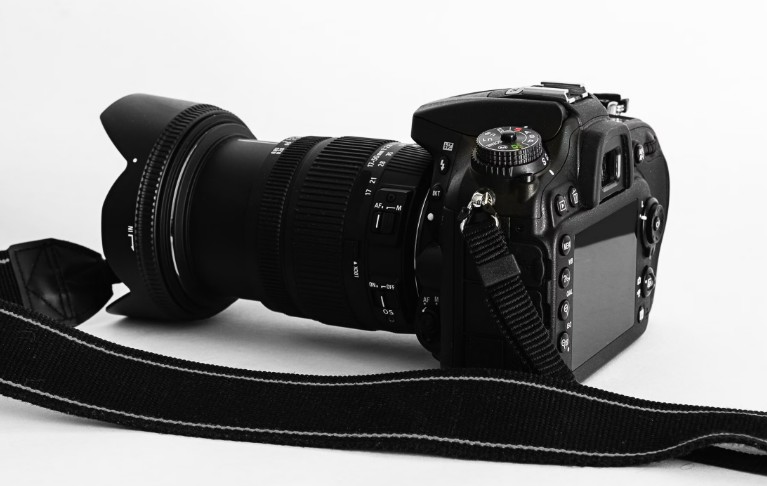
An efficient workflow starts before the shoot. Setting in-camera organization by adjusting file naming to assign unique names for each shoot helps reduce confusion once files are imported. Using dual memory cards in backup mode provides immediate redundancy, offering protection against accidental card failure.
Planning with a shot list and keeping exposure, white balance, and lighting consistent can minimize correction time during editing. The more systematic your approach while shooting, the smoother the subsequent selection and editing process.
Importing and Creating Backups

Fast and secure image ingest is important. High-speed card readers and reliable cables help transfer images more quickly, while SSD drives can provide faster performance when handling large amounts of data. Organize your folders in a way that can scale, such as by job name, date, camera, and including subfolders for selects or RAWs to keep files easily accessible.
It is best to create a second backup immediately after downloading your images. Relying on a single copy, even temporarily, can increase risk. For longer shoots or travel, using portable drives for an immediate duplicate improves data security.
When managing cloud backups or organizing large digital collections across mobile devices and desktop storage, learning how to recover deleted photos on Android can help protect against accidental media loss during transfers.
Streamlined Culling Strategies
Working through large batches of photos requires discipline. Start with a quick first pass to tag technical failures, clear rejects, and duplicates for removal. Avoid reviewing every image at full size unless it is a potential keeper, as this can save time without impacting your selection quality.
Make use of a simple rating or flag system, such as assigning one star or a pick status for maybes, and marking rejects for clear deletions. Delay smaller decisions until the best images are identified. This culling method helps you focus on images that are most likely to be delivered.
Editing at Scale
Once you have selected your best images, begin by making reference edits on a few key examples. Sync these adjustments, like white balance, exposure, and lens corrections, across similar shots to ensure consistency and reduce repetitive tasks.
Presets or profiles can be useful for speeding up editing, but always check results, especially if lighting changes throughout a shoot. Make manual adjustments only for images that require it, while standardized edits streamline the majority of the process.
If you are comparing cloud storage solutions to archive your processed catalog, reading reviews like Google Photos vs Amazon Photos can guide your long-term storage strategy.
Retouching, Output, and Archiving
Separate editing tasks into global adjustments (such as overall exposure, color, and cropping) and local retouching (like fixing specific blemishes or removing distractions). Prioritize detailed retouching for images destined for print or publication, rather than applying to every photo.
Set up export recipes and naming conventions for different output types, proofs for clients, web versions, or print files, to prevent confusion between drafts and finals. To maintain accessibility and safety, develop an archiving plan that includes keeping essential RAWs, catalogs, and final exports, along with regular file integrity checks.
When managing web galleries or organizing large client delivery folders in cloud interfaces, learning Google Photos: how to select all can save you time when batch-downloading or moving items.
Final Thoughts
Adopting a reliable workflow allows you to process and send them more efficiently, reducing mistakes and keeping project turnaround times manageable while delivering results suited to client needs. A disciplined approach to file management ensures your creative energy stays focused on capturing great imagery rather than fighting cluttered directories.

Check out these 8 essential tools to help you succeed as a professional photographer.
Includes limited-time discounts.
👋 WELCOME TO SHOTKIT!
🔥 Popular NOW: