






How to Cull Photos Fast: A Simple Workflow in Zoner Studio
Learn how to cull hundreds of photos faster in Zoner Studio. Reject obvious misses, rate promising images, compare similar shots, and build a shortlist for editing.
Software | Zoner Studio | Paid Partnership | By Mark Condon | Last Updated: November 2, 2026
Shotkit may earn a commission on affiliate links. Learn more.
A big shoot can leave you with hundreds or thousands of frames to review.
The quickest way through them is to make a few simple decisions in stages: remove the obvious misses, mark the promising photographs, then compare the strongest candidates.
Trying to judge every image as a finished portfolio piece from the start is a good way to slow down and face burnout.
Zoner Studio’s Manager module gives you a place to browse, rate, compare, and organise the shoot.
Here’s a straightforward workflow for getting from a full card to a manageable edit list.
1. Get the shoot into one place
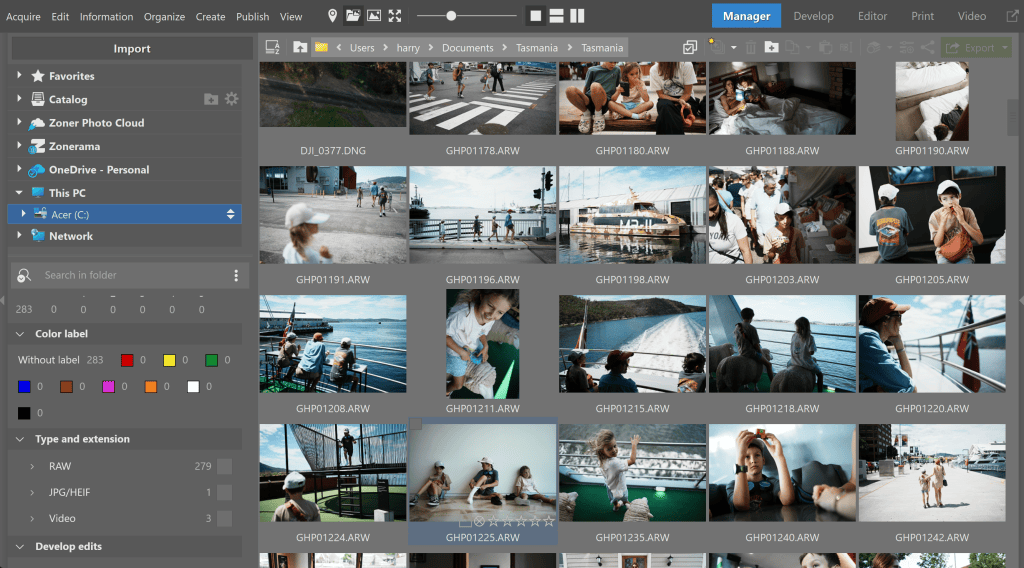
Getting images into Zoner Studio is as easy as finding the relevant folder on your computer hard drive.
Copy the files from your memory card to a clearly named folder on your computer, ideally on a drive with enough room for the original files and any backups.
A folder structure such as 2026-10-04_ClientName_Shoot makes the job easier to pick up later.
Open the shoot in Zoner Studio’s Manager module.
Start with the whole folder in Browser or Preview mode, where you can move through the images and check details such as star ratings and EXIF information.
Zoner Studio’s importing and browsing guide covers its browsing and selection tools.
Before you begin, decide what your ratings will mean. For example:
- No stars: not reviewed or not selected
- 1 star: worth keeping
- 3 stars: strong candidate
- 5 stars: final pick
You can use a simpler system, too – the important thing is to keep the scale consistent.
2. Make a quick first pass
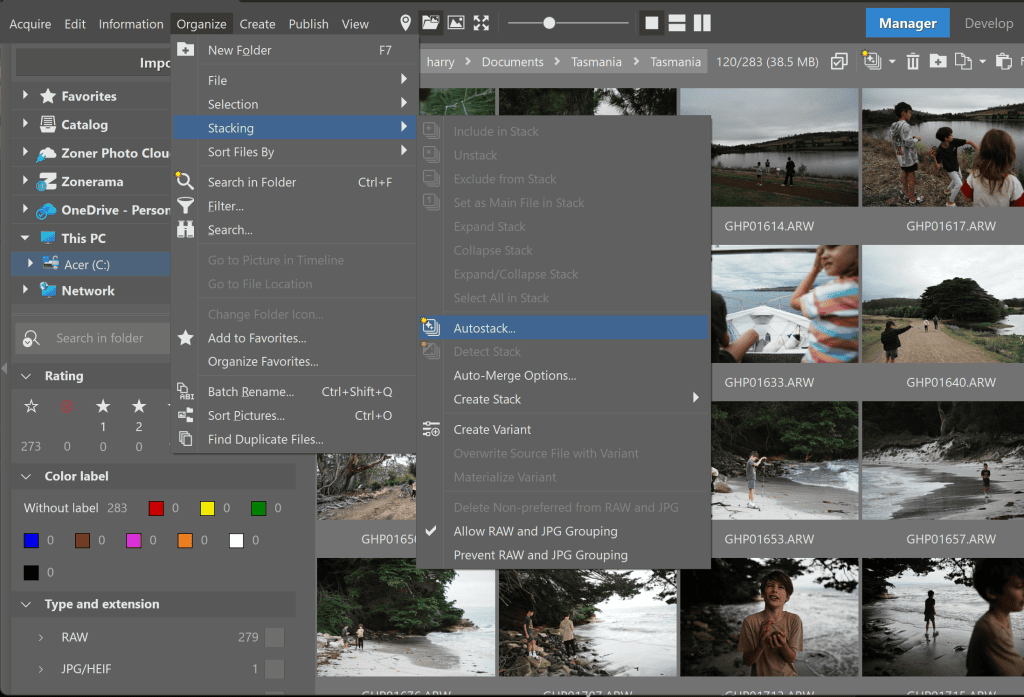
Autostack is another handy AI feature that groups similar images together to aid with faster culling and organisation.
The next thing to do is to move through the shoot at a steady pace.
On this pass, look for clear reasons to reject an image: missed focus, accidental frames, unflattering expressions, a poor exposure you can’t use, or a near-duplicate that adds nothing.
Don’t stop to edit, zoom in on every detail, or decide which of two good frames is perfect.
The goal is to remove the easy “no” decisions and keep moving. If you’re unsure, leave the image for the next pass.
For bursts or repeated takes, Zoner Studio’s Autostacking feature can group similar images together.

Auto-stacked images appear like this in the browser and expand when you double-click them.
That makes it easier to review a sequence as a set instead of repeatedly scanning the entire folder.
Zoner’s guide to Autostacking and AI Close-ups explains how to expand stacks and select several images for closer review.
3. Mark the promising photographs
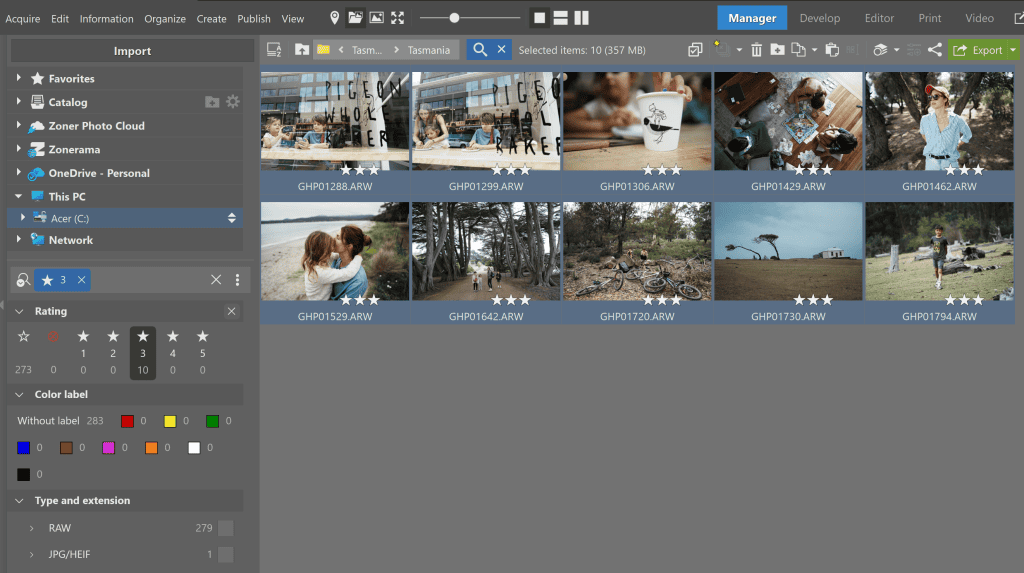
Adding star ratings to images can help with culling.
Now look through the remaining images and rate the photographs you’d consider editing or delivering.
Don’t try to rank every image against every other one yet. Ask a simpler question: “Is this worth keeping in the selection?”
Stars make those choices easy to revisit. You can filter by rating later, so you don’t have to move files around just to create a shortlist.
In Zoner Studio, ratings can also be used to sort or filter a large batch; its metadata guide describes filtering images by star rating.
For a fast workflow, give a photograph your keeper rating when it clears your bar. Save the higher ratings for the images that stand out.
This keeps the first shortlist broad enough that you don’t accidentally discard a useful moment too early.
4. Compare similar frames
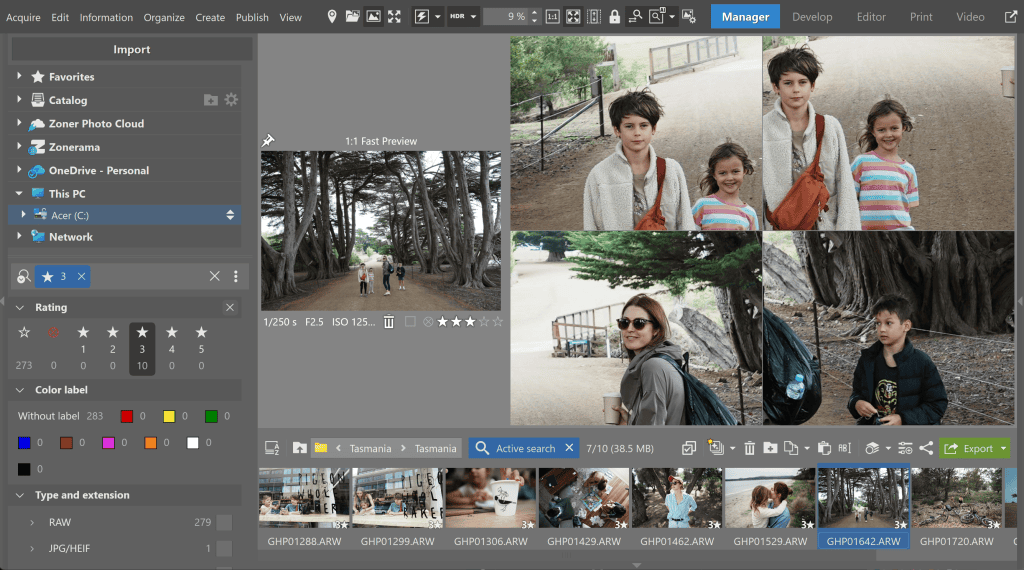
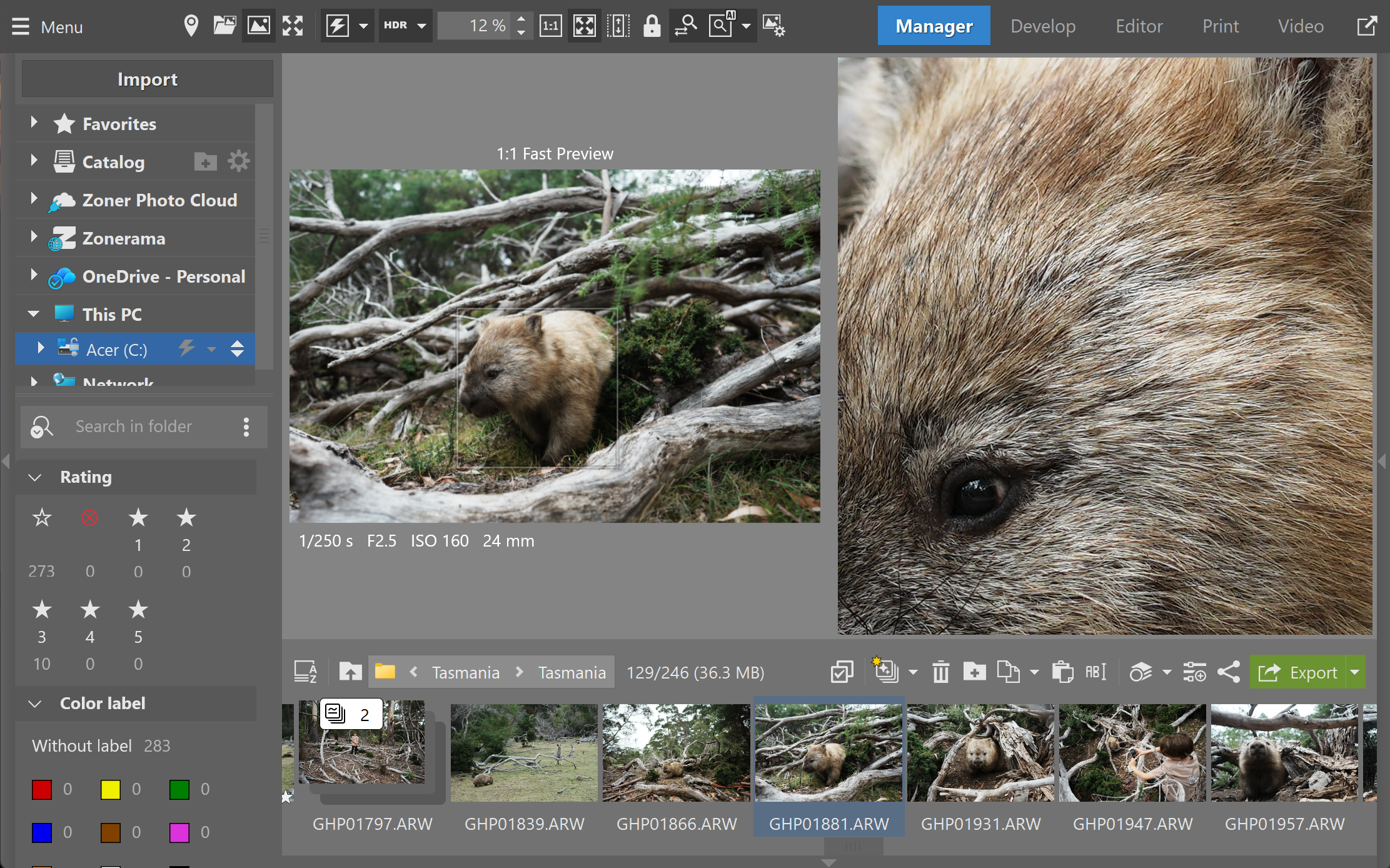
The AI Close-Up feature is a simple and effective way to view close-ups chosen by the AI.
The hardest choices are often between several nearly identical photographs. Select the contenders and use Zoner Studio’s multi-preview to compare them side by side.
Look for the frame with the best expression, gesture, timing, composition, and focus – not just the one that looks most polished at thumbnail size.
For portraits, events, sports, and wildlife, small differences can matter.
Thankfully, Zoner Studio’s AI Close-ups can show detected details alongside the full image, helping you compare faces, animals, or other important parts of a series.
You can also click into a preview to inspect sharpness at 1:1. See Zoner’s AI Close-ups overview for the feature’s supported subjects and workflow.
Use this stage to narrow the shortlist rather than to edit. If two frames tell the same story, keep the stronger one for now.
You can always return to the lower-rated image if the first choice doesn’t work during editing.
5. Filter the final selection and move on
When you’ve finished comparing, filter the folder by your keeper rating.
That gives you a focused set to edit, export, or deliver, while the original shoot remains together for reference.
If useful, sort the filtered images by capture time to preserve the sequence of an event.
A quick cull works because each pass has one job: reject obvious misses, mark potential keepers, then compare the close calls.
Keep the decisions simple and save detailed judgments for the smaller group that earns your attention.
Once the selection is manageable, you can move on to editing with a clearer view of the photographs that matter.
Final Words
A fast culling workflow doesn’t require you to make every decision at once.
All you need to do is reject the obvious misses, mark the images worth considering, and compare similar frames only when you’ve narrowed the field.
With a clear rating system in Zoner Studio, you can turn a full shoot into a focused edit list and spend more time on the photographs you want to share.

Mark Condon is a British wedding photographer and editor of Shotkit. When he’s not taking photos or reviewing the latest camera gear and software, Mark can be found cycling around the northern rivers.
👋 WELCOME TO SHOTKIT!
🔥 Popular NOW: