






Zoner Studio vs Capture One: Which Photo Editor Is Better?
We compare features, photo stacking, RAW editing, tethering, pricing, and workflows to find the best photo editor for your needs.
Capture One | Software | By Jeff Collier | Last Updated: August 18, 2026
Shotkit may earn a commission on affiliate links. Learn more.
Zoner Studio and Capture One are both capable photo editors, but they’re aimed at rather different photographers.
Zoner Studio is a Windows-only all-in-one package that covers photo asset management, RAW editing, retouching, layers, sharing, and printing at a very attractive price.
Capture One is the more professional-focused option, best known for its excellent colour tools, portrait workflow, and industry-leading tethered shooting.
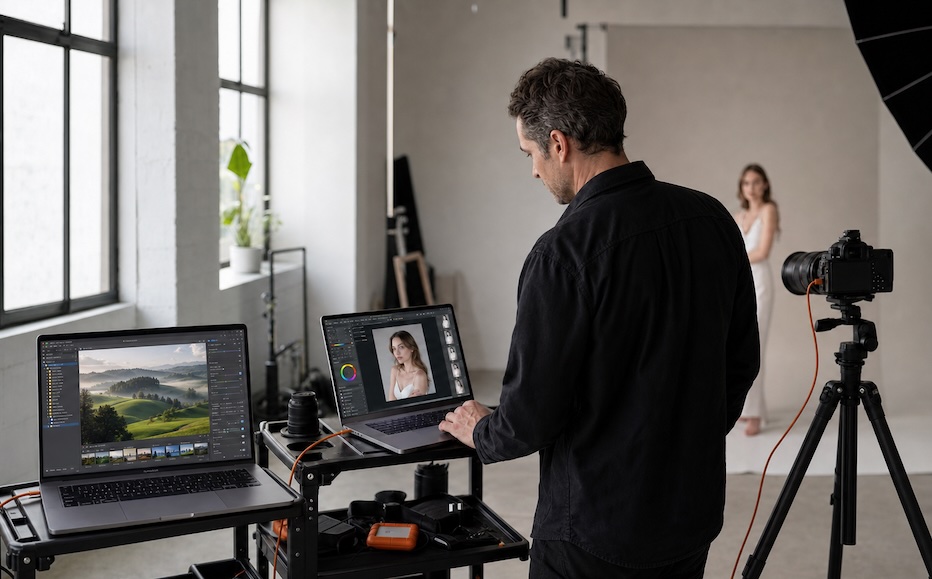
I tested Zoner Studio on a borrowed Windows laptop and Capture One on my Mac.
This meant that I had to avoid making a direct speed comparison between the two, since the operating systems and hardware were different, but the feature and workflow differences are clear.
Here’s how Zoner Studio vs Capture One compares in 2026.
What Is Zoner Studio?
Zoner Studio is a Windows-based photo management and editing suite developed by Zoner.
It combines several jobs that normally require separate software: browsing and organising photos, RAW editing, retouching, layer-based image editing, printing, and sharing online galleries.
The main application is divided into modules: Manager for browsing and culling, Develop for non-destructive RAW editing, and Editor for more advanced pixel and layer work.
We wrote a full Zoner Studio review where you can read up on it, although it doesn’t cover the latest Summer Update, so I’ve written a bit about it below.
At US$5.99/month or $59/year, Zoner Studio is considerably cheaper than Capture One Pro. It also includes 20GB of cloud storage, access to Zonerama galleries, and 15 free photo prints each year.
The obvious limitation is that Zoner Studio is Windows-only.
If you’re a Mac user, you can stop reading here and download the Capture One trial instead!
What Is Capture One?
Capture One is professional RAW editing and tethering software for Mac and Windows.
Like Zoner Studio, it can organise, edit, and export RAW files.
However, its strength is less about being an affordable all-in-one photo suite (aimed at hobbyists and photographers not making a living from photography) and more about providing a refined workflow for portrait, fashion, commercial, product, and studio photographers.
Capture One offers detailed colour controls, adjustment layers, retouching tools, AI masks, Catalogues, and job-based Sessions.
It’s also one of the best tethered-shooting applications available. Connect a supported camera to a computer and images arrive on screen as you shoot, making it ideal for working with clients, stylists, and art directors.
Capture One Pro subscriptions start at around US$18.25/month or $179/year.
A perpetual licence is also available for around US$299, although it does not include ongoing major updates and new camera support.
You can read more in our full Capture One review.
Interface and Getting Started
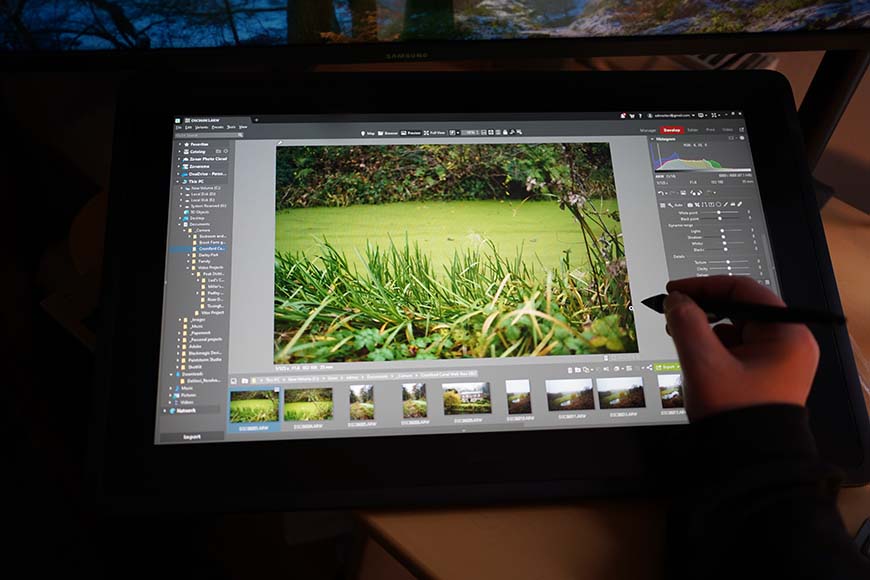
The Zoner Studio user interface may not break new ground, but its familiar style makes it easy for all types of users to adopt.
Although I’ve used both software before, I have to say that for beginners, Zoner Studio is easier to understand than Capture One. And that may very well be an attractive trait for many.
The three main modules in Zoner make sense: Manager for finding and organising files, Develop for RAW edits, and Editor for pixel layered work.
It’s very customisable with items like shortcuts, panel shifts, custom keyboard shortcuts and batch applications to match your workflow as just some of the possibilities.
Anyone coming from Lightroom Classic will recognise the general layout quickly (see Lightroom vs Zoner Studio).
Capture One keeps more tools in a single workspace. It is also highly customisable, letting you move panels, create workspaces, add shortcuts, and build a layout around the type of work you do.
That flexibility is excellent for experienced photographers, but it creates a steeper learning curve. Even though Zoner Studio has these options, it’s still easier to learn compared to Capture One.
Capture One also uses terminology that may be unfamiliar at first.
Catalogues are similar to a traditional photo library, while Sessions are self-contained folders for individual shoots.
They are very useful for commercial work, but can feel like overkill if you just want to import family photos from an SD card.
Zoner Studio is quicker to learn. Capture One gives you more control once you understand its workflow.
For hobbyists and newer photographers, Zoner Studio’s layout is likely to feel friendlier. For professionals spending all day in the software, Capture One’s customisable workspace is worth the effort.
RAW Editing and Colour
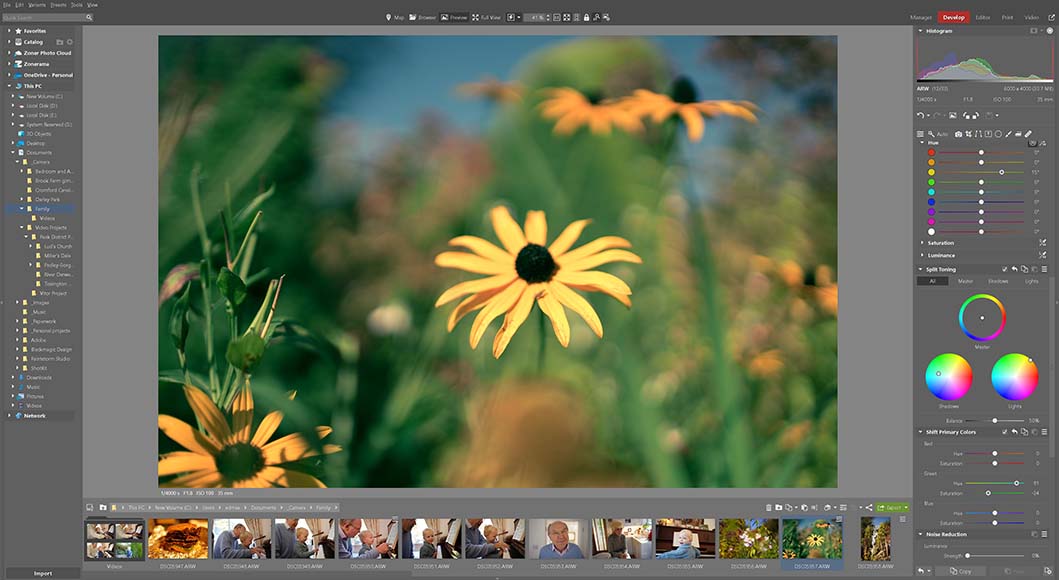
Great auto settings are complemented by everything from lens profiles and noise reduction tools, delivering impressive results in Zoner Studio.
Both programs handle the essentials well: exposure, white balance, curves, HSL adjustments, cropping, sharpening, lens corrections, noise reduction, and local adjustments.
Zoner Studio’s Develop module is straightforward and fast. Its controls are sensibly laid out, it has useful presets, and it’s more than capable of producing polished results from RAW files.
Capture One is the stronger choice for photographers who need fine colour control.
Its Color Editor lets you isolate a narrow range of colour and adjust hue, saturation, and lightness with impressive precision. The Skin Tone tool is especially useful for portraits, allowing you to even out skin colour while keeping the result natural.
Capture One’s Color Editor is one of its standout features, letting you isolate narrow colour ranges and make precise hue, saturation, and lightness adjustments. The Skin Tone tool is especially useful for portraits, allowing you to even out skin colour while keeping the result natural
Zoner Studio also offers advanced targeted colour adjustments through its Advanced Color Shift tools, including controls for hue, saturation, luminance, and colour uniformity. In other words, you’re not limited to broad global HSL sliders in either application.
This is not to say every image will automatically look better in Capture One. That depends on your camera, your preferred style, and how you like to edit.
However, for portrait, fashion, product, and food photographers, Capture One’s colour tools can save a lot of time.
However, for portrait, fashion, product, and food photographers, Capture One’s colour workflow remains particularly refined. Tasks like matching skin tones, maintaining consistent brand colours, or fine-tuning studio backdrops can often be completed more quickly and with greater precision, which is one reason Capture One has become a favourite among commercial photographers.
Zoner Studio offers capable colour editing tools alongside its AI-assisted features, but Capture One still has a slight edge for photographers whose workflow depends on highly precise colour grading and consistency across large shoots.
AI Tools, Retouching, and Layer Editing
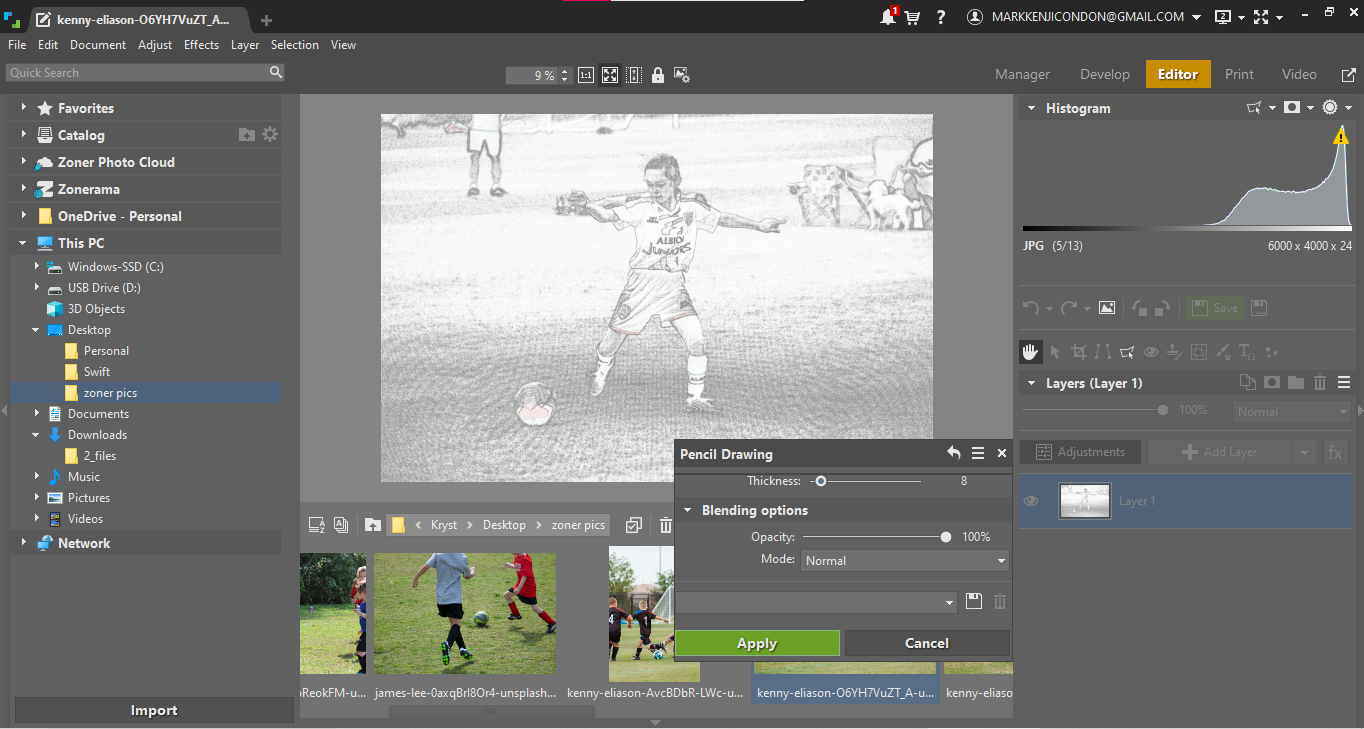
Layer editing is where Zoner Studio genuinely separates itself from Capture One, making it more like a mini Photoshop.
Zoner Studio includes AI Masking for subjects, skies, backgrounds, and other objects, plus face retouching tools and AI Resize.
Its Editor module also offers proper layer-based pixel editing, with blending modes, text, masks, and compositing tools. That makes Zoner Studio feel like a small Lightroom-and-Photoshop package in one application.
Capture One uses adjustment layers throughout its editing workflow. Like Zoner Studio, you can create separate layers or masks for exposure, colour, healing, and other local adjustments, then fine-tune each one independently by adjusting its opacity and settings.
It’s not a Photoshop replacement for full compositing or graphic design work, but it is a very polished way to build up a non-destructive edit.
Capture One’s portrait retouching tools are particularly good. Retouch Faces includes controls for skin, blemishes, eyes, and teeth, which fits naturally into a high-volume portrait workflow.
Zoner Studio’s new Smart Healing tool, introduced in the Summer 2026 update, is designed for everyday fixes. Mark a blemish, dust spot, crumb, or small background distraction and Zoner fills it using nearby pixels.
You can generate an alternative result with one click if the first attempt is not right.
Capture One is better for controlled portrait retouching while Zoner Studio still gives you multiple-purpose editing tools for the money.
Neither program has Adobe-style generative object replacement built into the standard workflow as it doesn’t seem to be a philosophy of theirs. If you specifically want generative remove or AI-created backgrounds, you will need another application.
Zoner Studio’s Summer 2026 Update
Zoner Studio’s Summer 2026 update is a meaningful one, particularly for photographers who work with multiple images of the same scene.
The headline addition is Photo Stacking Tools.
These bring several multi-image workflows together in one place:
- Focus Stacking for combining multiple focus distances into one sharp image.
- Exposure Bracketing for merging multiple exposures into a single image with improved highlight and shadow detail.
- Panorama stitching for wide landscapes, interiors, and architecture.
- Long Exposure for combining a sequence of images to create motion blur or flowing water effects.
- Animation from Photos for turning a sequence into an animation or video.
- Remove Moving Objects for removing people, cars, or other distractions by analysing the entire series.
Capture One can merge exposure brackets and stitch panoramas, but Zoner Studio’s new Photo Stacking Tools bring together a broader range of multi-image workflows in one place.
Focus stacking, long-exposure simulation, animation, and automatic moving-object removal are especially useful additions for landscape, macro, travel, and architecture photographers.
The update also improves Autostack. Zoner Studio can now group similar photos and recognise likely photo series more accurately, making it easier to turn a burst or bracketed sequence into a panorama, focus stack, merged exposure, or other final result.
The new Search replaces Quick Search and adds more detailed filtering across metadata. You can combine criteria, find files by date, location, rating, or file type, and search inside or outside the Catalogue.
For photographers with growing archives, this is a welcome improvement. Capture One’s filtering and Smart Albums are very capable, but Zoner Studio has made its own Manager module substantially more useful with this update.
Tethered Shooting

This is the easiest category to call – Capture One is the clear winner for tethered shooting.
It supports more than 550 cameras and gives photographers a mature on-set workflow, including live view, camera controls, capture naming, metadata, adjustments applied on import, and client review options.
Its 2026 updates added Enhanced Denoise, Assisted Review for automatically filtering obvious misses, and second-generation wireless tethering for supported Canon cameras.
Zoner Studio supports tethered capture, but it is not the reason most photographers buy it. It works for simple setups, but Capture One is actually built around this kind of work.
If you shoot portraits, fashion, products, food, or commercial work tethered to a laptop, Capture One is worth the additional cost.
If you never connect a camera to a computer while shooting, this advantage may not matter at all.
Organisation and Workflow

Capture One workflow | Image: Athol Hill
Zoner Studio’s Manager module is practical for everyday photo organisation. You can browse folders, rate and label images, work with metadata, create albums, GPS locations where photos were taken and now use the much more powerful Search tool. You can also work with files locally on your drive without using the Catalogue.
Its improved Autostack is also useful for large shoots. Similar images can be grouped automatically, helping you keep bursts, brackets, and sequences organised.
Capture One gives you two main ways to work: Catalogues and Sessions.
Catalogues are suitable for an entire photo library. Sessions are better for separate jobs, with individual Capture, Selects, Output, and Trash folders for every shoot.
Sessions can feel overly structured for casual use, but they make a lot of sense for working photographers. A commercial shoot stays separate from the next one, with its own adjustments, exports, and client files. Of course it all comes down to what type of organizing you prefer and what your workflow demands.
Overall, Zoner Studio offers a flexible and feature-rich approach to photo management, while Capture One stands out for photographers whose workflow revolves around separate client shoots and Session-based organisation.
Cloud, Mobile, and Sharing
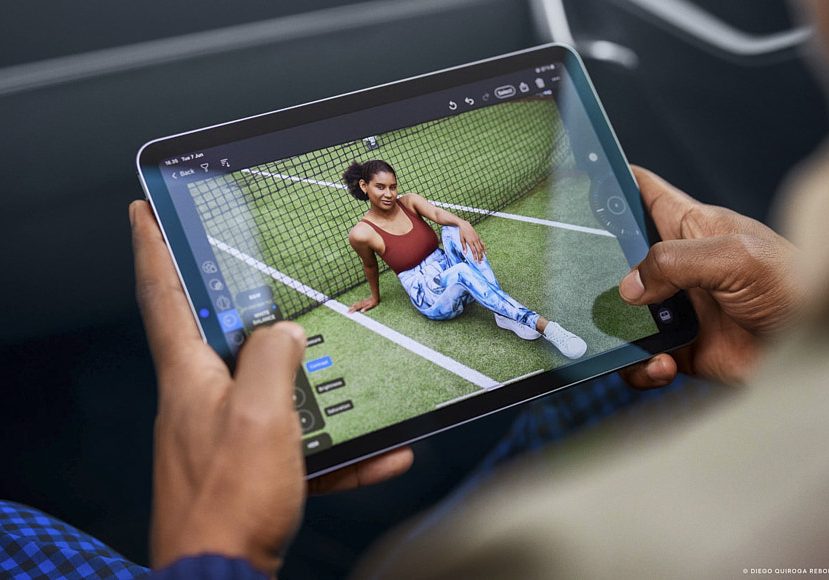
Zoner Studio includes 20GB of cloud storage and access to Zonerama, its free online gallery service.
Zonerama lets you create public, private, and password-protected galleries. It is a nice extra, particularly for photographers who want to share albums with family or clients without paying for another gallery service.
Capture One has iPhone and iPad apps, although there is currently no Android version – we reviewed the Capture One for iPad app and found it to be an appealing option when working on the go.
The mobile apps support RAW editing, masks, layers, tethering, and the transfer of Catalogues and Sessions between mobile and desktop. Capture One’s All-in-One and Studio plans add more sharing and cloud workflow features.

Capture One shows thumbnails to help you during the selection process for importing.
Capture One Studio is aimed at larger client-facing productions. It adds offline collaboration, multiple viewer screens, tool locks, automated backups, and Live for Studio, an iPad app for on-set review over a local network.
For most photographers, Capture One Studio will be far more than they need, but for busy commercial studios, it could be an advantage.
Pricing Breakdown
| Zoner Studio | Capture One Pro | |
|---|---|---|
| Monthly | US$5.99/month | From around US$18.25/month |
| Annual | US$59/year | From around US$179/year |
| 3-Year Cost | ~US$177 | ~US$537 |
| Perpetual licence | No | Yes, around US$299 |
| Photo stacking | Focus, HDR, panorama, long exposure, animation, object removal | HDR merge and panorama stitching |
| Layer editing | Yes, Develop and Editor | Yes, adjustment layers |
| Tethered shooting | Basic support | Industry-leading workflow |
| Mobile app | No dedicated mobile editing app | iPhone and iPad |
| Platform | Windows only | Mac and Windows |
| Free trial | 7 days | 7 days |
*Prices are US list prices at the time of writing and may vary by country, plan, and promotion.
Zoner Studio is undeniably better value for your money than Capture One.
For roughly one-third of the annual cost of Capture One Pro, it gives you a capable RAW editor, digital asset manager, layer editor, online gallery, printing tools, and now a very useful set of photo-stacking features.
Capture One costs more because it is clearly aimed at a different market.
Its colour tools, tethering workflow, and studio options are valuable if you use them professionally.
They are much less valuable if you mainly edit travel photos, family photos, landscapes, or casual social-media images at home.
Feature Comparison
| Feature | Zoner Studio | Capture One Pro |
|---|---|---|
| RAW processing | Fast, capable, and easy to use | Excellent, especially for colour-critical work |
| Colour editing | Excellent everyday controls | Outstanding Colour Editor and Skin Tone tools |
| AI masking | Subjects, skies, backgrounds, and objects | Subjects and detailed layer-based masks |
| Retouching | Smart Healing, retouching tools, face adjustments | Excellent portrait and face-retouching tools |
| Photo stacking | Extensive new multi-image tools | HDR merge and panorama stitching |
| Layer editing | Non-destructive adjustment layers + Full pixel layer editing in Editor | Non-destructive adjustment layers |
| Organisation | Manager (catalog), improved Search, Autostack | Catalogues, Sessions, Smart Albums |
| Tethered shooting | Basic | Best-in-class |
| Mac support | No | Yes |
| Cloud and mobile | Zonerama galleries and 20GB storage | iPhone/iPad apps and advanced studio collaboration |
Who Should Choose Zoner Studio vs Capture One?
Choose Zoner Studio if you use Windows and want a capable, affordable program that can handle every stage of a normal photography workflow.
It’s particularly appealing for hobbyists, enthusiasts, landscape photographers, travel photographers, and anyone who wants a capable, single program for all of their photography.
Focus stacking, long-exposure simulation, automatic moving-object removal, and animation are genuinely useful features, not just AI gimmicks.
Zoner Studio is also a good choice if you want basic layer editing without paying separately for Photoshop.
Choose Capture One if you are a portrait, fashion, commercial, product, or studio photographer who needs precise colour control and professional tethered shooting.
Capture One is also the only realistic choice if you use a Mac, and I would say that it’s the better specialist tool too.
However, for most photographers, Zoner Studio is the better all-round value package.
Final Words
Zoner Studio and Capture One are both excellent, but they do not really compete on equal terms.
Zoner Studio gives Windows photographers an enormous amount for very little money. Its Summer 2026 update makes it even more appealing, especially for anyone who works with panoramas, exposure bracketing, focus stacks, bursts, or travel and landscape sequences.
Capture One remains the better choice for photographers whose work depends on refined portrait editing, tethered capture, and a professional studio workflow.
If you are choosing purely on value, Zoner Studio is hard to beat.
If photography is your business and your shoots involve clients, lights, a tether cable, or demanding colour work, Capture One’s higher price starts to make much more sense.
Both offer a 7-day trial so you can see if you agree with my opinions before subscribing.
Jeff Collier is an experienced film photographer who enjoys experimenting with modern digital photography equipment, software and apps. He’s also an ex-world champion triathlete and avid cyclist, clocking hundreds of km each week in the beautiful Tweed Valley of northern NSW, Australia.
2 Comments
Leave a Comment
👋 WELCOME TO SHOTKIT!
🔥 Popular NOW:
Good breakdown, Jeff — especially the point that these two aren’t really competing on equal terms. The Windows-only thing is the whole ballgame for a lot of people; no amount of value beats “it doesn’t run on my machine.”
One thing I’d add from the retouching side: the Smart Healing vs Retouch Faces comparison undersells how different the intent is. Zoner’s healing is a spot-fixer — dust, crumbs, a stray branch. Capture One’s face tools are built for volume, where you’re pushing 300 frames from one session and need skin/eyes/teeth to stay consistent across all of them. Different problem, not just different quality.
Curious how Zoner’s new Photo Stacking handles ghosting on handheld brackets — the Remove Moving Objects feature sounds like it shares the same alignment pass. Did you get to test that with any messy real-world sequences, or mostly tripod work?
So I’d frame the distinction this way: the alignment itself looks promising for handheld sequences, but Remove Moving Objects isn’t necessarily a magic solution for conventional handheld HDR brackets containing people, vehicles, foliage or other movement. That’s exactly the sort of real-world test I’d want to see before putting it on the same level as a mature HDR/stacking workflow.
And I agree with your earlier point about retouching: comparing Smart Healing with Capture One’s facial tools really is comparing two different jobs rather than two competing implementations of the same job. Zoner’s new Smart Healing is explicitly aimed at quick removal of small distractions, whereas its broader retouching tools handle more involved work.