






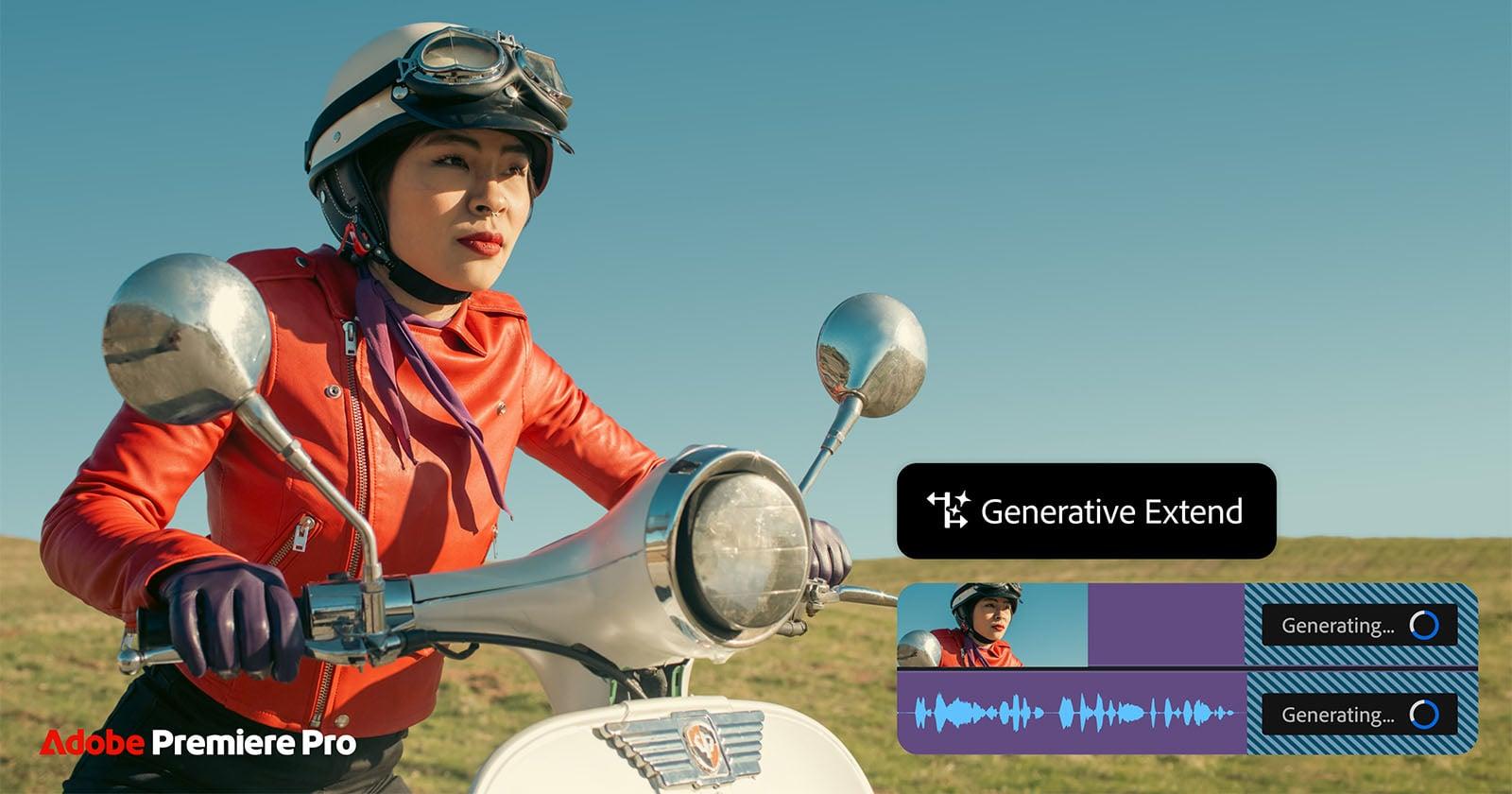
How Adobe Premiere AI Tools Speed Up Video Editing in 2026
Discover how Adobe Premiere's AI tools speed up video editing, from finding footage and building sequences to simplifying time-consuming tasks.
Premiere Pro | Software | Paid Partnership | By Andrew Dilks | Last Updated: November 10, 2026
Shotkit may earn a commission on affiliate links. Learn more.
Adobe Premiere AI tools have evolved into a powerful suite that enhances the editing process in multiple ways.
From searching large libraries for specific shots to refining edits, these tools free editors from routine tasks so they can focus on crafting a compelling story.
In this guide, I’ll show you practical ways to use Adobe Premiere’s AI features to streamline different stages of the editing process.


Download the latest version of Adobe Premiere to follow along with this guide to AI-assisted editing.
Start a free 7-day trial today
How Adobe Premiere AI Tools Speed Up Video Editing
Adobe Premiere’s AI features can streamline editing by assisting with repetitive tasks, from locating footage to tracking subjects and generating supplementary media.
Whether you’re a professional editor, an aspiring content creator, or someone producing videos for social media, you’ve likely encountered similar editing challenges.
Finding a specific shot, tracking down a particular line of dialogue, and dealing with awkward transitions are universal.
When a shot is missing or a sequence needs additional footage, searching manually through your media library interrupts the editing process.
Premiere’s AI features can help you overcome some of these obstacles, leaving more time to refine the visual style, pacing, and narrative of your final cut.
Find Footage Faster with Media Intelligence

Premiere’s Media Intelligence feature uses AI-powered visual analysis to locate specific shots and save time manually scrubbing through footage.
Arguably the most laborious aspect of editing is tracking down specific shots from potentially hundreds of video clips.
Traditionally, editors must wade through these clips, checking file names and metadata and scrubbing footage to find the moment they need.
Media Intelligence provides an alternative by analysing visual content so editors can search for clips using descriptive text queries.
Instead of manually reviewing shots, you can search for them using descriptions that reflect the content you’re looking for.
The process of finding footage with Media Intelligence is straightforward, encompassing the following steps:
- Import your footage into your Premiere project.
- Allow Media Intelligence to analyse the project’s video clips.
- Open the Search panel by selecting the magnifying glass icon in the upper-right corner of the main Premiere window.
- Enter a descriptive query.
- Assess the results, inspect promising sections, and add footage to your project’s sequence.
You can search across the project or narrow your results using the available categories, including Visuals, Audio, Text, Metadata, and Markers.
Once media analysis is complete, search results appear in the relevant categories. Processing time varies depending on the amount of footage and your system.
Double-click a visual search result to open it in the Source Monitor, where the relevant section is marked with In and Out points. You can review the footage before adding it to your sequence.
I tested Media Intelligence on two projects, beginning with a narrated video of historical sites in the UK intended for YouTube.
Drawing on the project’s video files, Media Intelligence delivered a variety of specific shots, from picking out sunrises to collecting footage of various animals.
I also searched for specific actions to pinpoint key moments in the footage, such as subjects crossing bridges or animals exhibiting particular behaviours.
For my second project, a video essay exploring cinematic epochs, I pushed the descriptive queries further by analysing a selection of full-length movies.
I searched for specific camera angles, compositions, and subjects to build sequences that juxtaposed the themes of these movies.
The results consistently delivered clips that matched my intentions, significantly reducing the time I would otherwise have spent manually scrubbing through footage.
There are some limitations to be aware of: visual search currently supports English-language queries, does not identify individual people, and cannot read text in images using optical character recognition (OCR).
Despite these limitations, Media Intelligence can be useful across a range of editing workflows, particularly when searching large collections of footage.
For a wedding video containing hours of footage from multiple cameras, Media Intelligence can help locate relevant moments from the preparations, ceremony, and reception.
If you’re looking for a particular moment, queries such as “couple walking in a garden” or “bride and groom kissing” will surface relevant clips.
The Search panel can also be used for transcribed dialogue, which is particularly useful when editing interviews and dialogue-heavy productions.
In this regard, Adobe Premiere’s AI features also assist with the transcription process, which I’ll cover in the next section.
Create Rough Cuts Faster with Text-Based Editing
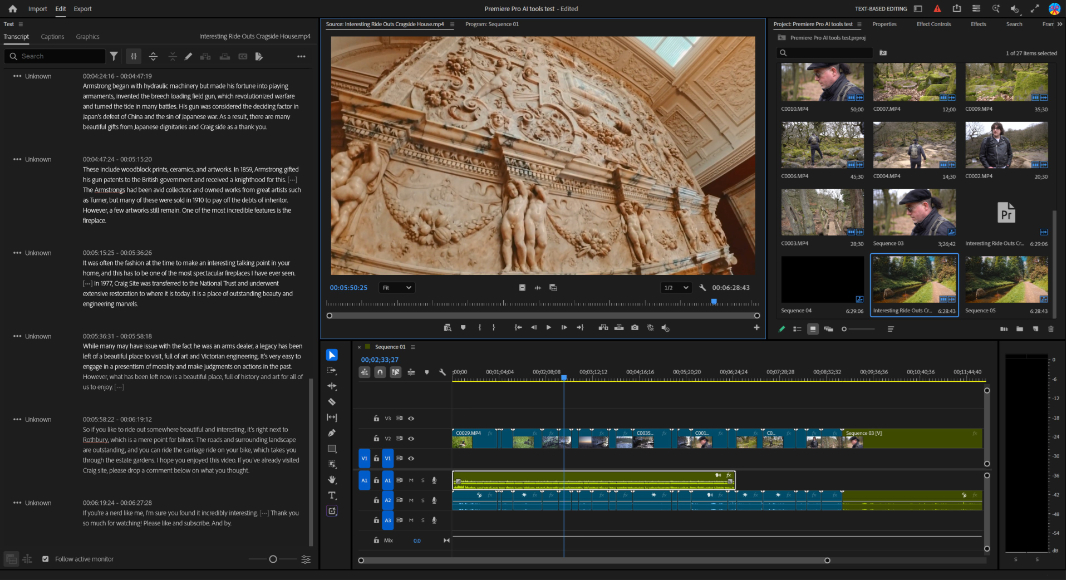
Automatic transcription and Text-Based Editing make it easier to edit interviews and dialogue-heavy videos.
Interview footage and other dialogue-heavy content can be time-consuming to edit, but Premiere’s Text-Based Editing tools can help streamline the process.
Text-Based Editing links a transcript to its source audio and video, allowing editors to select and edit dialogue through text.
The process for using Text-Based Editing is as follows:
- Import the interview footage and open the Text panel.
- Select the relevant clip or sequence, then generate a transcript using the available transcription controls.
- Search for relevant words or phrases, select the passages you want to use, and add them to your sequence.
- Repeat across the interview footage to build a rough assembly.
- Refine the edit in the timeline.
When you edit the transcript using the supported Text-Based Editing controls, the corresponding edits are reflected in the timeline.
Interview footage often contains pauses, filler words such as “like”, false starts, and unrelated conversation, making it cumbersome to locate and edit the strongest passages by listening alone.
With Text-Based Editing, these unwanted elements can be searched for, selected, cut, and rearranged directly on the transcript text.
Human oversight remains essential, as not every hesitation needs to be removed. However, Text-Based Editing can help establish a rough assembly that the editor can refine into a coherent narrative.
Once the relevant clips are processed, editors can focus on fine-tuning each cut and ensuring selected passages flow.
I used Text-Based Editing on my YouTube voice-over project to locate specific sections of narration and assess which visuals would best complement them.
This helped me assess the narration’s delivery and context before selecting suitable supporting footage.
I could remove lengthy pauses and filler sounds such as “um” and “ah”, and rearrange sections of dialogue to improve pacing and narrative flow.
Text-Based Editing can also help distinguish speakers in a transcript, making it easier to review interview recordings and assemble a rough cut.
Premiere also includes Paper Edit, which lets editors select multiple lines from a transcript in the Text panel and quickly assemble them into a sequence.
It’s a useful complement to Text-Based Editing, particularly when building a first cut from interviews or other dialogue-heavy footage.
Used alongside Media Intelligence, Text-Based Editing can help editors locate relevant footage and assemble dialogue into a more coherent first cut.
Fix Timing Problems with Generative Extend
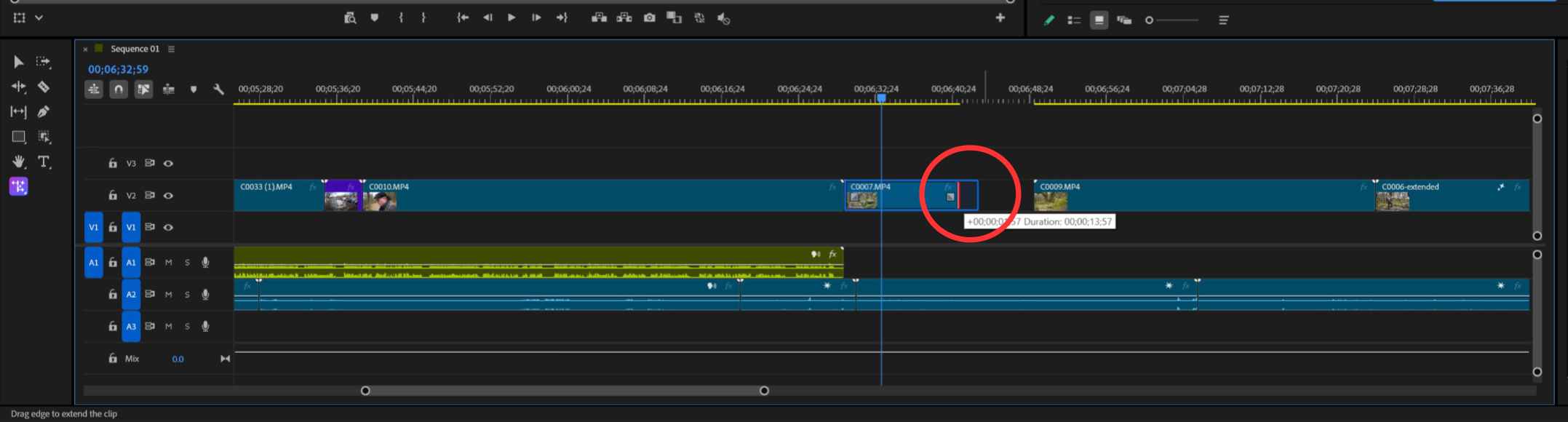
If a clip ends too soon, Generative Extend can provide additional footage by letting you drag the extension handle at the beginning or end of the clip.
Another common editing issue is clips ending before the moment you need, whether matching against dialogue or ensuring smooth pacing.
Premiere’s Generative Extend can add up to two seconds of generated video at the beginning or end of a supported clip.
It can also extend eligible ambient audio by up to 10 seconds, subject to specific audio-format and content restrictions.
Drawing on Adobe Firefly generative AI to add frames, the feature allows editors to rectify timing issues without having to seek replacement material.
Select the Generative Extend tool, then drag the extension handle at the beginning or end of a supported clip. Premiere generates additional frames for you to review.
Potential applications for Generative Extend are varied, from extending a smile on a promo video to adjusting a shot based on a musical cue.
It can also extend suitable B-roll shots, provide extra room for transitions, and help conceal unwanted camera movements.
Eligible ambient audio can be extended too, but Generative Extend cannot extend spoken dialogue or audio clips containing music, and it supports only mono and stereo audio.
Generative Extend supports source video resolutions from 360p to 4K UHD, including landscape, portrait, square, and custom aspect ratios.
Source frame rates can range from 12 to 60 fps, although it should be noted that extensions above 30 fps are generated at 30 fps.
Generative Extend now supports a broader range of source media, including 8-bit to 16-bit footage and SDR or HDR content, giving editors greater flexibility when working with different cameras and formats.
Generative Extend is not a substitute for capturing the right footage, but it can help resolve specific timing problems when a shot needs a little extra length.
Speed Up Masking with AI Object Mask
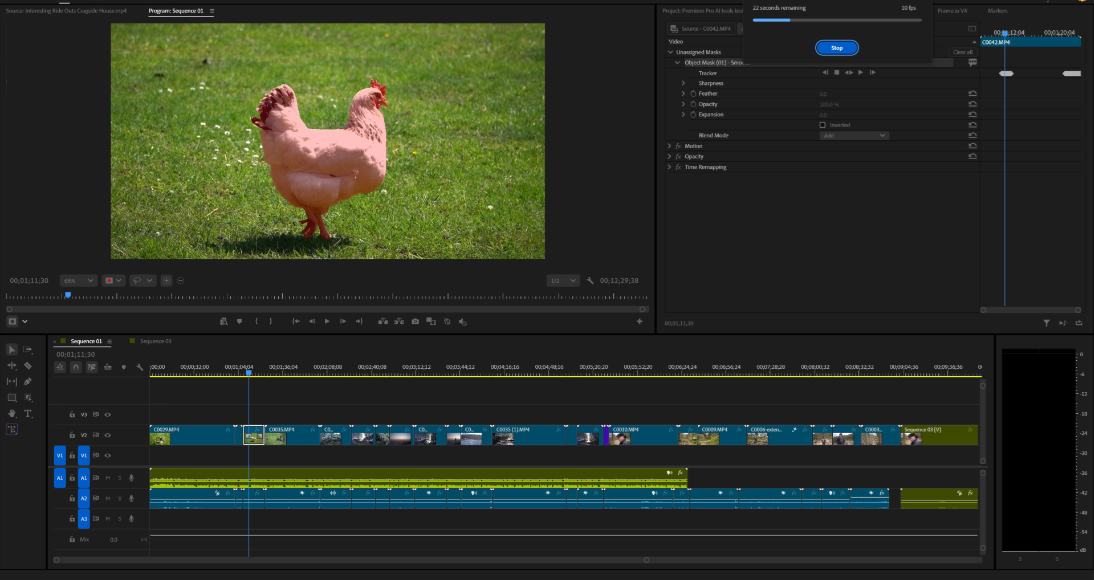
Premiere’s Object Mask tool uses AI to identify people and objects in footage, allowing editors to select a subject and track it through a shot.
Object Mask is useful when you need to isolate a moving person or object for a targeted effect or colour correction.
The tool can automatically select a subject, reducing the need to draw a mask from scratch and manually adjust its position with keyframes.
The standard workflow for using AI Object Mask is as follows:
- Select the Object Mask tool.
- Hover over the subject you want to isolate in the Program Monitor and select it.
- Use the tracking controls in the Effect Controls panel to track the mask through the relevant section of the clip.
- Review the mask throughout the shot and refine it where necessary.
- Apply the desired color correction or effect to the mask.
Object Mask includes edge-refinement controls, including Sharp and Smooth modes, to help adjust mask boundaries to suit the subject and footage.
In my tests with people, animals, and vehicles, Object Mask generally produced impressive results with relatively little refinement, although performance varied depending on the subject and movement.
As with other video-masking tools, motion blur, overlapping subjects, and rapid movement can cause the mask to drift or lose parts of the subject.
Object Mask provides a starting point that can reduce manual masking work, although some shots will still require adjustments to keep the mask aligned with the subject.
The tool can also help isolate individual people within a group, allowing you to apply targeted colour corrections to skin tones without affecting the entire frame.
For social media videos, Object Mask can help create dynamic effects and subject-based transitions, although the result depends on the footage and may require manual refinement.
The result is a highly flexible AI tool that both saves time on fiddly tasks and also facilitates more advanced creative visual effects.
Generate Supplementary Video and Audio Inside Premiere

Premiere’s Generative Media Tool can create supplementary video and sound effects, although the generated results may require adjustments to match your existing footage.
While Premiere’s AI tools are designed to support rather than replace human creativity, its generative capabilities open up further possibilities for creative experimentation.
The Generative Media Tool lets editors generate video clips and sound effects from text prompts directly within the Premiere timeline.
For example, if you’re missing a crucial shot to bridge two scenes, Generative Media allows you to generate this shot using text-based prompts.
You can also use supported reference frames to guide the generation process and help the resulting clip better align with your intended visual style.
The key steps to adding generative media are:
- Select the area in your project timeline where you want to insert the new media.
- Choose the Generative Media tool.
- Type in a clear description of the video or sound effect you want to add.
- Choose an available AI model and adjust its supported settings.
- Generate the media and review the result.
- Refine the clip within the broader sequence and check against surrounding footage and audio.
I tested the Generative Media Tool by creating a shot of a stream at dawn in winter. The resulting clip appeared visually consistent with my existing footage.
In my test, the generated clip had lighting, contrast, colour, and camera movement that were broadly consistent with the reference footage.
Results vary with the prompt and selected model, so experimenting with different descriptions can help you find a more suitable result.
Once added to the timeline, they can be assessed for their duration, tonal character, and contextual relationship with the scene.
Generative Media also supports sound effects, complementing any existing audio library you’re using when editing.
If you need supplementary material but don’t have the time or resources to shoot it yourself, the Generative Media Tool is a valuable addition to your workflow.
Automate Repetitive Editing Tasks with Premiere AI Assistant
Premiere AI Assistant is a beta feature available through the separate Premiere (beta) application, with integration into the main Premiere application expected in version 27.0.
Premiere AI Assistant uses natural-language prompts to help editors organise media, prepare footage, assemble initial edits, and more.
Unlike tools designed for individual operations, AI Assistant can interpret broader instructions and carry out supported actions in the Project panel and timeline.
For example, you can ask it to organise media into bins by scene or category, rename clips, apply colour labels, or structure project assets.
Premiere AI Assistant can help with tasks such as organising project assets, preparing footage, and assembling initial edits.
It can also create stringouts and build rough assemblies from supported instructions, with the resulting edits remaining available for further refinement.
All changes remain editable, and the assistant’s actions are recorded in Premiere’s Undo and History panels, allowing you to review or reverse them.
By taking care of these preparatory tasks, AI Assistant gives editors more opportunity to concentrate on creative decisions, from refining the narrative to adding visual flair.
Like Premiere’s other AI features, AI Assistant can reduce repetitive preparation and QC work, leaving editors more time to review footage and shape the final sequence.
Where Premiere AI Still Needs a Human Editor
Adobe Premiere‘s AI tools can streamline parts of the editing process, but creative decisions still require editorial judgement.
Although these tools can help locate shots, organise footage, isolate subjects, and generate supplementary media, human oversight remains essential.
Transcripts help editors identify useful dialogue and assemble a rough cut, but narrative structure and pacing still depend on editorial judgement.
Similarly, searching footage can make it easier to find suitable B-roll, although deciding when to hold a shot or cut away remains a creative decision.
Overall, however, it’s down to the editor to make judgement calls on which camera angles, cutaways, and other elements make the final cut.
Adobe’s AI tools are designed to fit into this creative workflow to facilitate decisions around storytelling, pacing, sound design, and aesthetic choices.
Editors must also check technical consistency, including differences in camera footage, lighting, subject appearance, and audio quality.
Can Adobe Premiere AI Tools Automatically Edit Videos?
Adobe Premiere’s AI tools can automate or assist with specific editing tasks, but human direction and review are still needed to produce a polished video.
Features for locating footage, transcribing dialogue, tracking subjects, and assembling rough cuts make Premiere a more versatile editing platform.
Here’s a summary of Premiere’s AI tools and how they support different stages of post-production:
What Can Premiere AI Automate?
Premiere provides support across various stages of the editing process, covering the following stages:
| Task | Relevant feature | What it helps with |
|---|---|---|
| Find footage | Media Intelligence | Search visual content and locate relevant sections of clips. |
| Work with dialogue | Text-Based Editing | Transcribe interviews, select passages, and build rough sequences from text. |
| Adjust shot duration | Generative Extend | Generate additional frames at the beginning or end of a supported clip. |
| Isolate moving subjects | Object Mask | Select people or objects and track masks for effects or colour correction. |
| Create additional media | Generative Media Tool | Generate supported video clips and sound effects in the timeline. |
| Prepare projects | Premiere AI Assistant (beta) | Organise media, prepare footage, and assemble initial edits through supported actions. |
Rather than automatically producing a finished video, Premiere helps editors locate relevant footage, work with dialogue, and refine selected material into a coherent sequence.
Do Premiere AI Tools Save Time?
The practical benefits of AI-assisted editing vary by project, depending on the type of footage, the tasks involved, and how much review the results require.
Editors working with large footage libraries or long interviews can use AI-assisted search and transcription to locate relevant clips and dialogue without having to review every source file manually.
Content creators and marketers can use Object Mask to isolate subjects for product videos, social media reels, and targeted visual effects.
All editors can also benefit from the AI Assistant for project preparation when organising footage, audio, and other project assets.
These tools are most useful when they address a specific workflow bottleneck, potentially reducing repetitive work and leaving more time for creative decisions.
Thanks to their intuitive functionality and integration, these AI features are easy to incorporate into existing editing workflows, helping editors work more efficiently without disrupting their creative process.
Premiere’s AI tools can deliver impressive results when searching for specific shots or extending clips, helping editors find suitable footage and fine-tune their sequences with greater flexibility.
Are Premiere AI Features Available in Every Version?
The availability of AI features depends on the Premiere version, account eligibility, system and media requirements, and whether a feature is in beta.
Media Intelligence, Text-Based Editing, Generative Extend, Object Mask, and the Generative Media Tool each have their own workflows and technical requirements.
For example, Generative Extend has specific source-media requirements, while Media Intelligence processing times vary with the footage and your system.
Features such as Premiere AI Assistant remain in beta, so check Adobe’s current documentation for their availability, access requirements, and supported capabilities before relying on them.
Conclusion
Adobe has consistently innovated its AI-powered tools, and Premiere remains at the cutting edge of AI-assisted video editing.
From intelligently locating footage and streamlining dialogue editing to extending shots and isolating moving subjects, its AI tools transform the editing workflow.
Working on video essay projects, I’ve found these features invaluable for overcoming common editing bottlenecks, from finding B-roll to matching visuals to voice-overs.
For editors working with extensive footage libraries or dialogue-heavy projects, Premiere’s AI tools can make time-consuming preparation tasks considerably more manageable.
With the addition of Premiere AI Assistant, Adobe continues to push the boundaries of AI-assisted editing, offering exciting possibilities for experienced professionals and aspiring video creators alike.

Andy Dilks is an experienced landscape photographer and former games industry veteran. When he isn’t taking photos or reviewing the latest tech gadgets, you can find him hiking and wild camping in the Peak District.
👋 WELCOME TO SHOTKIT!
🔥 Popular NOW: