







5 Best Free & Low-Cost AI Video Inpainting Tools to Remove Objects & Sensor Dust
Discover how professional photographers can use AI video inpainting to expand their service offerings, market their brands, and create value for their clients.
AI | Software | By India Mantle | Last Updated: September 13, 2026
Shotkit may earn a commission on affiliate links. Learn more.
It doesn’t matter whether you’re an amateur photographer or a seasoned professional; we all inevitably experience issues with unwanted objects and sensor dust interfering with our images from time to time.
Fortunately, a new artificial intelligence (AI) technology – known as AI video inpainting, to be more precise – can help you make visual clutter disappear, as if by magic.
In this guide, I’ll briefly explain what AI video inpainting is before listing some of my favorite inpainting tools to use, focusing on options that are either completely free or very affordable.
What Is AI Video Inpainting?
Before I get into which AI video inpainting tools to use, you might be wondering what “AI inpainting” actually is. With that in mind, here’s a quick breakdown.
In a nutshell, AI video inpainting is a technique that involves filling in, removing, or replacing specific parts of a piece of footage.
The way it works is quite simple: the user selects, highlights, or uses a “brush” tool to “paint” over the unwanted objects or visual distortions in their videos.
The AI then homes in on those visual distortions – which can include sensor dust or other unwanted elements – and removes them, not just from the specified frame but from subsequent ones.
It uses spatial and temporal (space and time) context to track the unwanted objects from one frame or scene to the next and remove them, filling in the gaps in a natural way to blend in with the background.
In simple terms, AI video inpainting gets rid of unwanted elements for you, without you having to spend hours in a video editor to achieve the same end result.
How to Use AI Video Inpainting Tools
The exact way to use AI video inpainting tools will vary from platform to platform, but many rely on one of two methods: text prompts or brush-based selection tools.
Both of these methods are generally very simple.
With text prompts, you can simply upload your video to the AI platform’s servers and type out what changes you want to make. You can ask the AI, in conversational language, to get rid of any sensor dust or unwanted objects for you, and let it take care of the rest.
This is the quickest and easiest method, but the downside is that some AI models are better than others when it comes to interpreting user inputs and following instructions. As a result, you may have to experiment a little with different tools and prompts in order to get the exact results you’re hoping for.
A brush-based option involves using a simple brush tool to “paint” or highlight the parts of your video you want to get rid of. Usually, you only need to highlight the offending objects in one frame, and the AI will then track them in the frames that follow and remove them for you.
This method involves a little extra work, but it can be the more accurate and reliable of the two, so it’s the one that I generally prefer.
Benefits and Considerations of AI Video Inpainting
There are plenty of positive aspects to AI video inpainting that have helped to make it a popular tool among editors and videographers alike. For instance:
- Inpainting can save users hours that they would usually have to spend in editing software manually fixing their footage, frame by frame.
- Cost-wise, it can also be more affordable to clean up your videos using AI rather than doing it yourself with editing software or, in the worst-case scenario, having to reshoot your footage.
- AI video inpainting can also help you salvage footage that might, in the past, have been deemed “unusable” and deleted or forgotten.
- As you’ll see in my recommendations below, plenty of AI video inpainting tools are either free or quite cheap to work with; many offer free plans or trials so you can test them before paying.
- Inpainting is just one of many ways in which AI can enhance your videos; many tools that offer inpainting also offer additional tools to enhance lighting, framing, camera movement, and more.
At the same time, it’s important to acknowledge some of the downsides or challenges of working with this technology, which can include:
- Mixed results, depending on the tool you use. Some are significantly more effective at identifying and removing visual distortions (like sensor dust) than others.
- Many of these tools can struggle with footage that involves rapid motion; attempts at inpainting on these kinds of clips sometimes result in blurry or “smeared” aesthetics.
- There can also be a learning curve with some of these tools, and you may need a bit of trial and error before you get the exact results you have in mind.
- Finally, I know from speaking with photographers, videographers, and others in the creative arts that working with AI can pose certain ethical challenges.
5 Best Free and Low-Cost AI Video Inpainting Platforms
Now that you know what inpainting is and the pros and cons it can bring, allow me to introduce five of my favorite AI video editors that offer this feature, focusing on the most inexpensive (or, in some cases, completely free options).
Runway
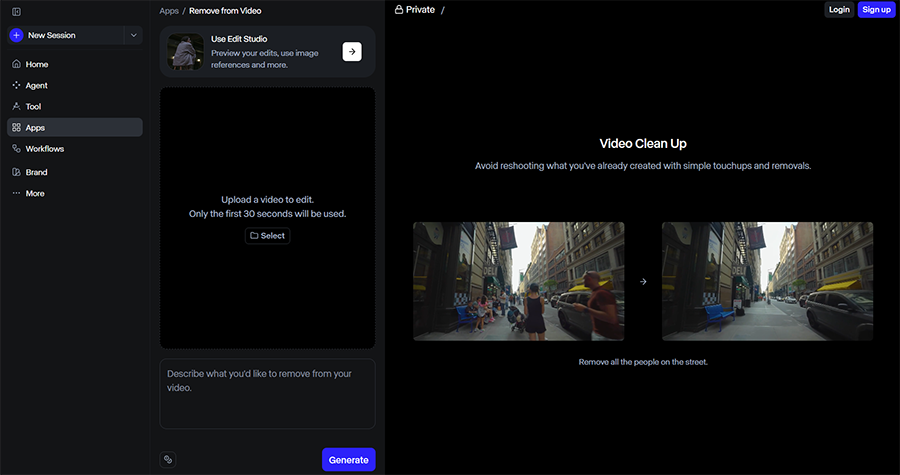
Runway, formerly known as RunwayML, is one of the best-known AI platforms available today, and while it may be best-known for its generative capabilities, it’s a highly competent image and video editor as well.
In fact, it has a dedicated “Remove from Video” tool that you can use to clean up video footage by removing objects, people, logos, and other unwanted elements from your clips.
Runway also offers additional AI-powered editing and enhancement tools, which you can use if you need to not only clear away unwanted objects, but also change or enhance your videos in other ways, like upscaling them.
I’ve used Runway on many occasions for editing video clips, and I’ve found it to be one of, if not the most efficient and reliable option on the market.
It stands out for its ease of use, speedy processing times, and, unlike other tools which sometimes require a bit of trial and error to get the right result, Runway almost always works the first time of asking.
There are some downsides to Runway. It chews through credits quite quickly; for example, unused monthly credits on the Standard and Pro plans don’t roll over, while Max subscribers can roll over up to one month of unused credits, but it does offer a free plan for new users, and even its premium plans offer excellent value for money, on the whole.
Pricing: Free plan available; Standard from $12 per month when billed annually (normally $15 monthly).
Media.io
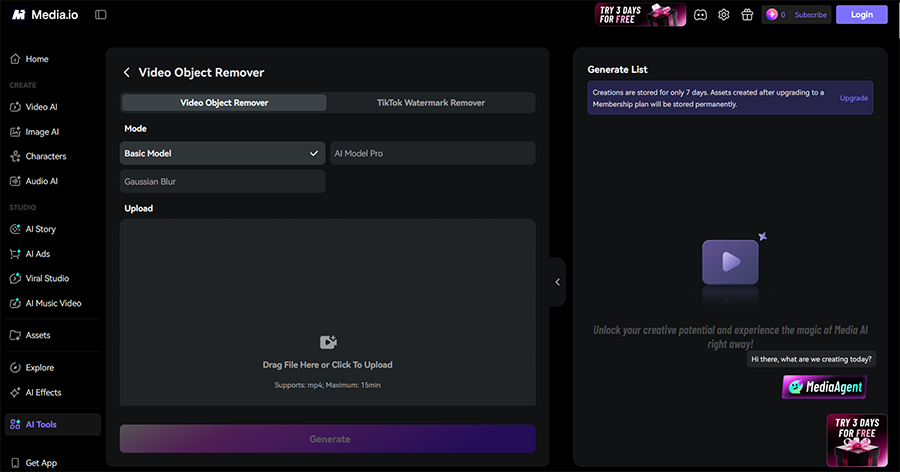
If you’re looking for a low-cost tool with a free tier for AI video inpainting and removing the likes of visual distortions and sensor dust from your video clips, I can strongly recommend Media.io.
This is one of the best browser-based AI toolkits on the market today, and I really appreciate the fact that you can access and use it on almost any device, be it a computer, laptop, tablet, or phone.
It offers a rich array of editing tools and features, including a “Magic Brush” style object removal tool that can easily understand which elements you want to remove and get rid of them for you, producing some very neat, clean results, more often than not.
You may sometimes have to repeat the process a couple of times to get the exact output you’re looking for, but the interface is intuitive and processing times are quite speedy, so you won’t have to wait long to fix your clips.
As I mentioned, Media.io offers a free trial, though there are quality restrictions and watermarks for free users, so if you need your footage in the highest resolution, you will have to pay a premium fee.
Pricing: Free plan available; monthly ($14.99, renews at $27.99 and yearly plans ($13.99, billed at $167.88), as well as “pay as you go” credit plans.
HitPaw Video Object Remover
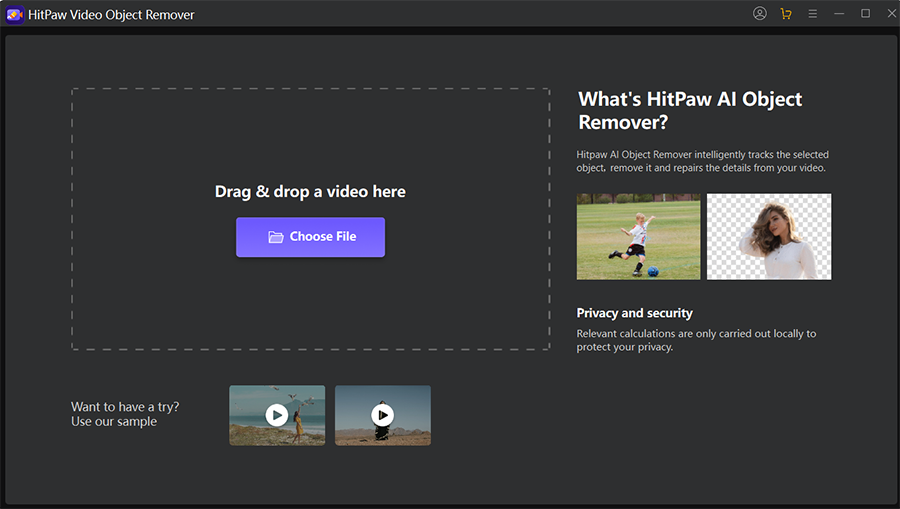
If you prefer downloadable software over browser-based tools, you might like to try HitPaw Video Object Remover for all your sensor dust and object removal needs.
This AI-powered app uses intelligent technology to automatically find and erase unwanted watermarks, text, objects, individuals, and elements from your videos, without forcing you to manually edit them for hours on end.
I’ve had this app installed on my editing laptop for quite some time, and I often turn to it when I’m dealing with more dynamic, fast-moving footage, as it tends to produce better results than some of the free tools you find online.
Despite being quite advanced, it’s very easy to work with: just upload your clip, select the object(s) you want to get rid of, let the AI work its magic, and export your new videos in various formats, like MP4, MOV, and AVI.
The downside is the pricing system: you can pay $99.99 for a full one-year license of this app, which is quite good value, but the monthly rate is a whopping $49.99, which seems extremely high in comparison and almost forces users to pay for a full year of usage, even if they don’t necessarily need it.
Pricing: Free trial; licenses from $49.99 per month, $99.99 per year, or $109.99 for a perpetual license.
Wink
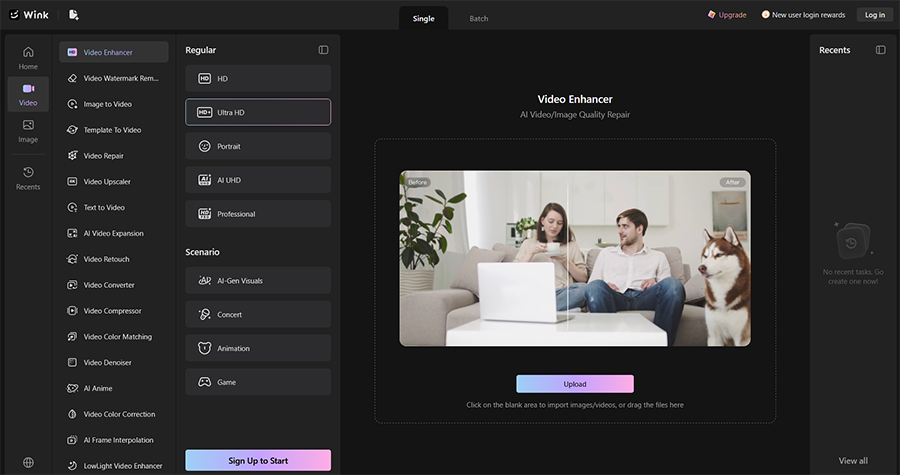
Some of the free or low-cost AI video object removal tools you find online are quite restrictive in terms of what they can actually do. Some of them only allow you to remove objects, for example, and don’t offer other options or any sort of customization potential.
Wink is different. This is a fully-fledged online video editor and enhancement app that offers a huge range of features and functions, from retouching to compression, upscaling, conversion, expansion, denoising, and frame interpolation, as well as object removal.
With Wink’s video-enhancement tools, for example, you can improve video quality, colors, and resolution in addition to removing unwanted elements from your footage, resulting in a crisper, clearer, and overall better-quality file to export, publish, or share with friends, family, or clients.
In short, this is one of the better tools to use if you don’t just want to remove objects, but also want to improve your videos in other ways, all in one app, rather than having to switch between different tools.
It has a bit of a learning curve, and some of the functions may be less useful to you than others, but on the whole, it’s a platform I really enjoy working with and can recommend to professionals, in particular.
Pricing: Free plan available; Standard ($14.99 monthly) and Pro ($39.99 monthly) options available.
Fotor Video Object Remover
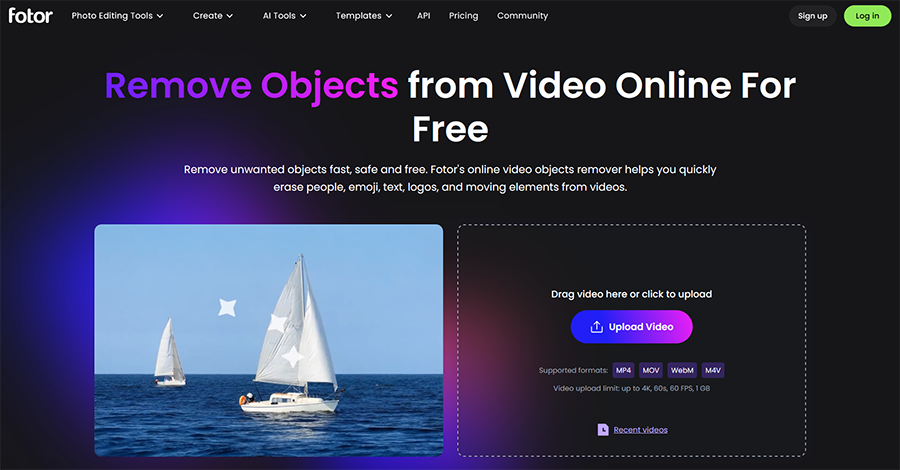
Finally, another AI video object remover I’ve personally tested and found to be reasonably reliable in the past is the Fotor Video Object Remover.
It’s designed to get rid of almost any form of visual clutter from your video clips, which can include large objects, like vehicles and trees, as well as much smaller items, like specks of sensor dust.
It’s extremely easy to work with; just like many other tools on my list, you only have to highlight the object you want to remove, and the AI will do the rest, tracking the object from frame to frame and getting rid of it.
This AI video enhancer is completely free to use, as well, though there are a couple of caveats to keep in mind: free users can only edit videos that are up to three seconds long.
If you want to work with longer videos, you’ll need to use credits, which you can purchase separately or receive through a paid subscription.
The premium subscription prices are quite reasonable, however, and there are various flexible credit pack payment plans you can also set up, depending on your needs, which I appreciate.
Pricing: Free plan available; Pro plan ($10.99), Pro+ plan ($23.99), and Max ($49.99), as well as a subscription credit plan also available.
The Final Word – Use AI Video Inpainting to Fix Dusty Footage Instantly
So, if you ever find yourself with a piece of footage that’s riddled with sensor dust or other unwanted elements, you no longer need to either discard it or spend hours in conventional editing software, painstakingly fixing frame after frame.
All you need is a helpful AI tool, and I hope that one or more of those listed above will help you out in the future. I recommend testing out at least a couple of them to see which one works best for you and aligns with your video editing workflows.

As the General Manager of Shotkit, India Mantle brings with her a lifelong love for photography that she developed during her childhood, watching her father document their family moments with his Nikon EM. In her free time, you find her enjoying the awe-inspiring natural beauty of her home, Northern Rivers, Australia.
1 Comment
Leave a Comment
👋 WELCOME TO SHOTKIT!
🔥 Popular NOW:

Sensor dust and larger unwanted objects seem like quite different tests for video inpainting. The brush-based selection process sounds straightforward, but the result needs to remain believable across moving frames. My approach would be to keep an untouched source file and inspect a short processed section before applying the same settings to a full clip. The same habit helps with photo restoration, where a clean-looking patch can accidentally replace real texture. Which example would you use to judge whether an inpainting tool preserves detail consistently?