







How to Animate a Still Photo With Adobe Firefly
Learn how to turn your still photos into engaging animated videos using Adobe Firefly. Step-by-step guide, prompt ideas, and tips for best results.
AI | Software | Paid Partnership | By Ana Mireles | Last Updated: November 24, 2026
Shotkit may earn a commission on affiliate links. Learn more.
Did you know you can turn your favorite photographs into videos without picking up a camera or learning video editing?
That’s exactly what you can do with Adobe Firefly. Using generative AI, you can upload an existing photograph and add movement.
Whether you want to bring a landscape to life, create more engaging social media content, or simulate a product shot for a client’s pitch, the process is simple.
In this guide, I’ll show you how to animate a still photo using Adobe Firefly, share tips for better results, and introduce a few styles you can try to get into your creative flow.
Ready? Let’s do this!
How to Animate a Still Photo With Adobe Firefly?
Adobe Firefly tested online in November 2026, using Google Chrome on macOS Tahoe 26.3.1.
Step 1
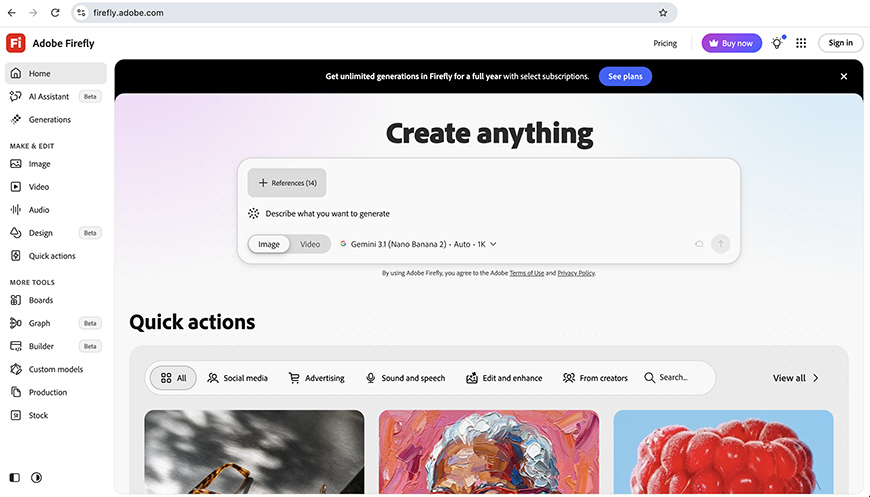
Open Firefly in your browser. You can do this by heading directly to the Adobe Firefly home page, or by typing Adobe Firefly into your preferred search engine and clicking the link.
Next, log in to your Adobe account. It doesn’t matter if it’s a free account; you have free daily generations you can use to animate your photos even without a paid subscription.
Of course, with an Adobe Firefly membership, you’ll have more generations and unlock all features. So, I recommend getting one if you use this feature often or want to take your creative projects to the next level. To start, though, you can animate photos with Firefly for free.
Step 2
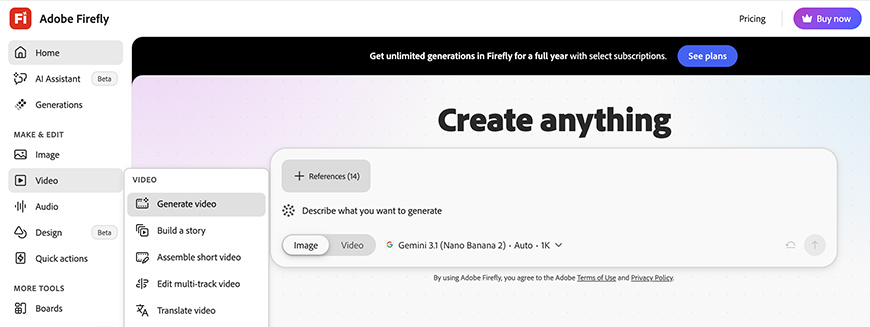
Once you’re logged in, you can use the prompt space to start working right away. By default, the generator is set to Image, so remember to click Video to change the setting.
Alternatively, you can go to Video > Generate Video using the menu on the left.
Step 3
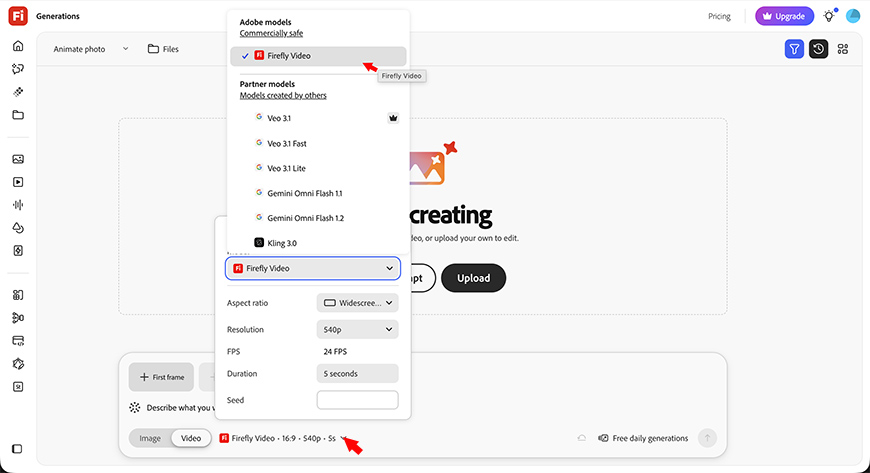
Right next to the Image/Video options, you’ll see the AI model that’s currently selected. Click on it to open the menu and see your options.
At the top, you’ll find Firefly. This is the native model developed by Adobe. This is the least expensive option if you’re working on credits, and some Firefly subscriptions offer unlimited use.
Firefly is also the only AI model that’s commercially safe to use. The other options you’ll find are developed by third parties and are called partner models. Some of these are Premium, which means you require a higher-tier plan.
That said, Adobe has partnered with many developers to offer you more choices. Each AI model offers different options regarding resolution, length, number of references you can upload, etc. To animate a photograph in Firefly, you’ll need a model that allows you to upload a first frame.
Once you’ve chosen a model, adjust the available settings, such as length, resolution, FPS, and aspect ratio. There’s no right or wrong here; it all depends on what you want.
Step 4
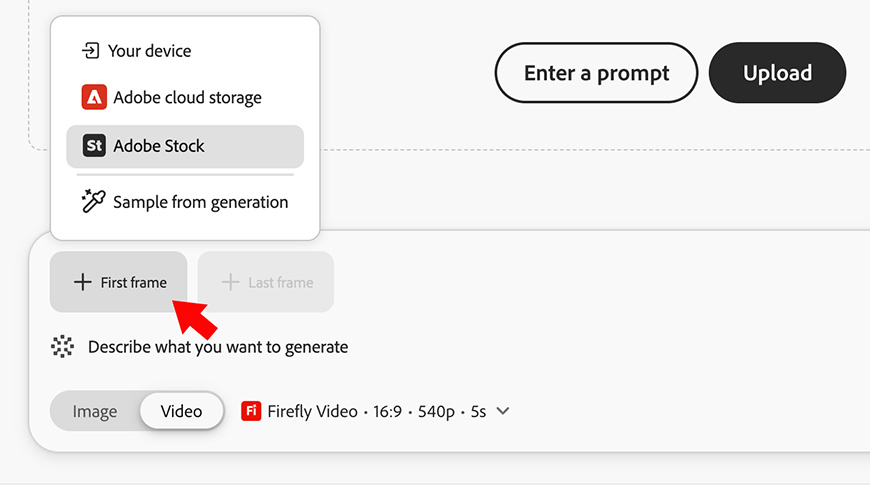
On the First Frame option, upload the photo you want to animate. You can upload from your device, fetch it from your Adobe Cloud Storage, or select a photo from Adobe Stock.
Start with an image that already has a strong composition and is well exposed, as the AI won’t improve a weak image using this feature.
If you want, you can also add a final frame. This isn’t mandatory, but use it if you do have the image of how you want your subject to look at the end of the video.
Step 5
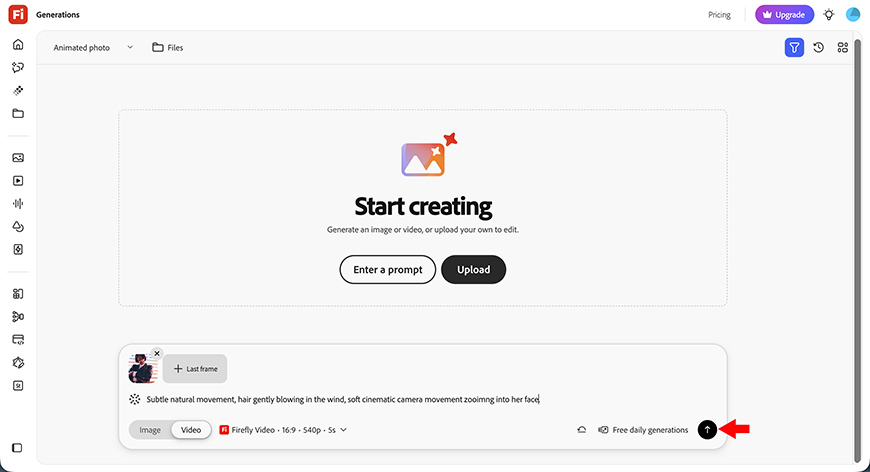
Lastly, type a prompt describing the movement you want. This is the most important part of the process. Be as clear as you can. Try to be specific without overcomplicating things – you can use short sentences and natural language.
Once you’re happy with the prompt and settings, click on the black button with the arrow to start the generation. The cost depends on your plan and your video settings, but you can always see it next to the Generate button.
That’s it! Once Firefly finishes animating your photo, hit play to see it come to life.

Now, you can download the video or edit it. Even if you don’t do any of those, you can always find it in your generation history.
To animate another photo, click the downward arrow at the top of the screen and choose Create New Project.
Tips and Tricks
Animating a photograph with Firefly is fairly simple and straightforward. However, you can do a few things to get the best results. So, here are some tips and tricks.
What kind of photos work best to animate with Adobe Firefly?
You can animate all types of photos using Adobe Firefly. However, some work better than others.
Remember that the AI has to interpret what happens beyond the original information. So, photographs with complicated subjects, overlapping objects, or unusual perspectives may sometimes produce unexpected results.
To ensure the best results, use photographs with clearly defined subjects, interesting backgrounds, and elements that could naturally move.
Here are a few examples:
Landscape photography. Choose landscapes with clouds that can move, flowing water, or swaying grass and trees.
Portrait photography. You don’t need the person to perform big actions; even subtle movements can make a portrait feel more cinematic. Think of hair blowing in the wind, or a person turning their head.
Street photography. Moving traffic, pedestrians, and environmental details can be animated on a still urban scene.
Wildlife photography. This is one of my favorite photographic genres to animate. Birds spreading their wings or animals moving through the environment are always a hit.
Product photography. Subtle camera movement or atmospheric animation can make product images more engaging on social media.
How to write better prompts to animate photos in Adobe Firefly?
Getting a photograph to move is easy. The difficult part is getting a result that actually adds value to the image.
To achieve that, cover both the storytelling and the technical aspects. Here are a few things to consider.
- Describe the subject’s movement. Tell the AI what is moving, how, and in which direction. Also include the camera movement.
- Don’t ask for too much movement at once. A landscape doesn’t need moving clouds, flowing water, flying birds, swaying trees, and dramatic camera movement all happening at once. Sometimes less is more.
- Describe the mood. Include details like the atmosphere you’re trying to create. Words like cinematic, dreamy, peaceful, or realistic help communicate the intended visual style.
Creative styles to try when animating your photos with Adobe Firefly
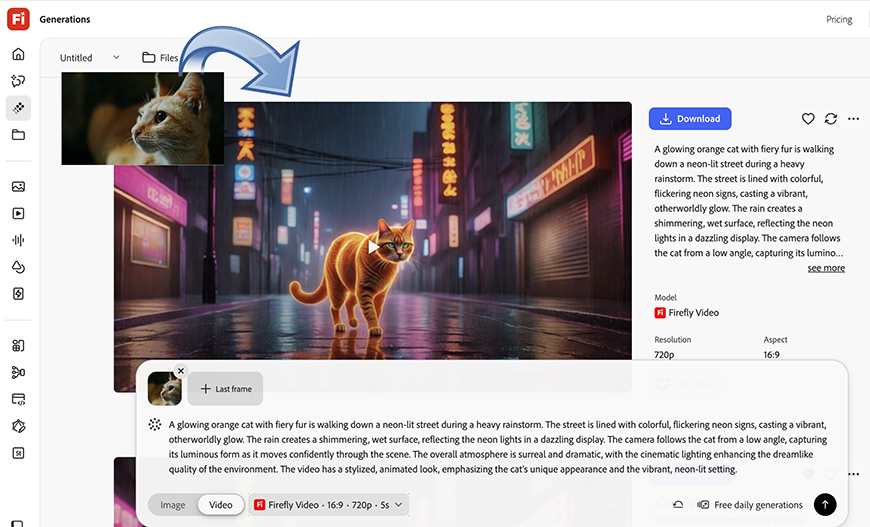
Using Adobe Firefly to animate your photos opens up a world of possibilities. I’ll give you some ideas to get your creativity going.
Remember, some styles work better with different AI models. So, experiment with more than one.
Stop-motion. This type of animation has a distinctive look that’s fun and recognizable. Use it with food photography or still-life compositions that will spice up your social media.
Vintage film and nostalgic animation. Find an old family picture or use a modern photo with a vintage effect, then give it a Super 8 aesthetic with gentle movement to create a nostalgic clip.
Surreal. Why limit yourself to things that could happen in real life? Think big and make floating objects and unexpected appearances to create a more conceptual video.
2.5D parallax effect. This popular technique has been used to create the illusion of three-dimensional depth from a flat photo long before the arrival of AI. Skilled photographers used Photoshop to create it, and now you can easily recreate it using Firefly.
Day-to-night timelapse. Imagine uploading a daylight cityscape and having Firefly create a video in which the sky transitions from blue to orange, the sun sets on the horizon, and the buildings and streetlights gradually turn on.
What can you do with your animated photos?
Once you’ve animated your photograph, you can use it in a variety of creative projects. Remember, the Adobe ecosystem is connected via Creative Cloud. So, you can access your video from other apps, such as Adobe Express.
Some interesting possibilities include:
- Social media. Turn selected images from your portfolio or behind-the-scenes content into animations and upload them as reels or stories.
- Photography website: Add subtle motion to selected visuals to create a more engaging site.
- Client presentations: Use animated photographs in mood boards and creative proposals.
- Video projects: Incorporate AI-animated images as visual transitions.
- Digital displays: Create moving visuals for exhibitions and promotional screens.
Is Adobe Firefly Worth Using to Animate Photos?
Whether you’ve been using Adobe for years or are considering it for the first time, Adobe Firefly has plenty to offer that makes it worth trying.
If you already use Photoshop, Premiere Pro, or Adobe Express, you’ll appreciate how naturally Firefly fits into your existing creative workflow. You don’t need to leave your creative ecosystem.
But you don’t need to be an Adobe user to benefit from it. Firefly offers an accessible way to experiment with AI-powered creativity, even if you don’t have any prior experience with photo or video editing.
Adobe has decades of experience developing tools alongside creative professionals, and that expertise shows in its approach to making complex creative tasks more approachable.
There are also plenty of learning resources, including LinkedIn Learning and the Creative Pro Network, to help you get started and discover techniques.
Adobe also emphasizes licensed training content, Content Credentials on Firefly outputs, and it never uses your content to train its AI. This is because creators develop these tools and, as such, understand the importance of respecting others’ work and rights.
Last but not least, Adobe works with technology partners such as NVIDIA, Apple, and Microsoft to keep its creative tools compatible with evolving hardware and platforms and improve performance.
FAQs
Is Adobe Firefly free to use?
Yes. You have limited access to Firefly features using a free account. One thing you can do is animate photographs using the free daily generations.
Can I animate a photograph without writing a prompt?
No, you can’t animate a photograph without writing a prompt. Adobe Firefly requires you to write something, or the Generate button won’t be active. If you don’t know what to ask for, try using the AI Assistant.
Alternatively, type something generic, like “animate the subject”. Keep in mind that without specific instructions, the resulting video may be completely different from what you were expecting.
Can I use AI-animated photographs commercially?
If you’re using a paid subscription, most AI models allow commercial use for your generations. However, only the Firefly model provides commercially safe material, as long as you own the rights to the image you animated.
Can I turn an old photograph into a video?
Yes. You can experiment with scanned photographs and older digital files, as long as the image meets the minimum resolution requirements. However, if the image is very faded or damaged and the resolution isn’t very high, you might not get convincing results.
Can I animate photographs with Adobe Firefly on my phone?
Yes. You can use the Firefly app on both iPhones and Android devices. There, you’ll find the video generation feature, which you can use to animate your photos.
Can I buy extra credits to keep using Firefly when I run out?
Yes. You can purchase a generative credit plan to top up your current plan. You can purchase monthly, so you can interrupt it whenever you want, or annually.

Ana Mireles is a Mexican researcher that specializes in photography and communications for the arts and culture sector.
👋 WELCOME TO SHOTKIT!

🔥 Popular NOW: