






Testing the 7 Best AI Video Upscalers for Natural Results
Looking for the best AI video upscaler? Compare free and paid tools based on hands-on testing and real results.
Learn Filmmaking | Software | Paid Partnership | By India Mantle | Last Updated: July 21, 2026
Shotkit may earn a commission on affiliate links. Learn more.
Compared to image resolution enhancement, video upscaling poses more challenges in achieving clean, smooth, and consistent results without flickering.
Choosing the best video upscaler can also be time-consuming, as it requires testing different video types, scaling factors, and optional quality features.
To save you the effort, we rounded up frequently mentioned tools from communities of content creators, filmmakers, hobbyists, and media archivists, and put them to the test in the following aspects:
- Is it for real-life videos, anime, old clips, or AIGC content?
- Are there significant improvements in clarity after upscaling?
- Does the output look natural and consistent?
- Does it support optional noise reduction, color editing, and quality enhancement?
- Do you need a high-end device to run it?
Hopefully, these test cases can serve as a quick starting point to help narrow down your choices based on specific video types, workflow preferences, ease of use, and desired output quality.
Benchmarks When Picking Best Video Upscalers
While covering all the aspects mentioned above, we also made sure to include videos of different resolutions, such as 480p, 720p, and 1080p, test various upscaling factors and workflow combinations, and evaluate a wide range of clips, from wildlife to low-light scenes, anime, and old recordings.
Testing Environment
- Windows 64-bit, DirectX 12
- CPU: Intel Core i7-13700K (13th Gen)
- GPU: AMD Radeon RX 7600, 8GB VRAM; iGPU: Intel UHD Graphics 770
- Memory: 32GB DDR5 4800 MHz
- Chrome for online tools
Upscaling Tools
The next section focuses on common video upscaling scenarios. We used Aiarty Video Enhancer for these examples because it covers most video enhancement workflows in a single application, making it a practical baseline before comparing other free and paid video upscalers later in this guide.
Aiarty Video Enhancer offers a free trial for Windows and Mac. It combines AI-powered resolution upscaling with detail restoration, denoising, deblurring, and color editing, using deep learning models to enhance video quality across different types of footage.
Test 1. Upscale Wildlife Videos with Natural Details
When picking the best video upscaler, increasing the dimensions isn’t the ultimate goal for some users. The true aims can also include achieving greater clarity, avoiding detail loss, or even restoring some details during resizing.
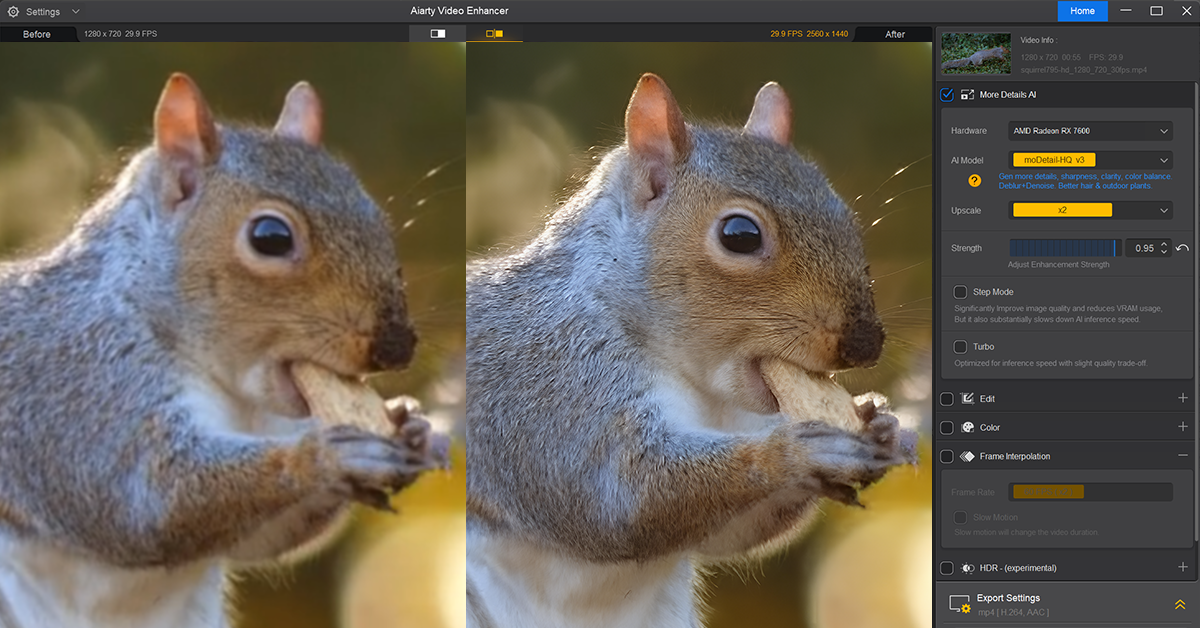
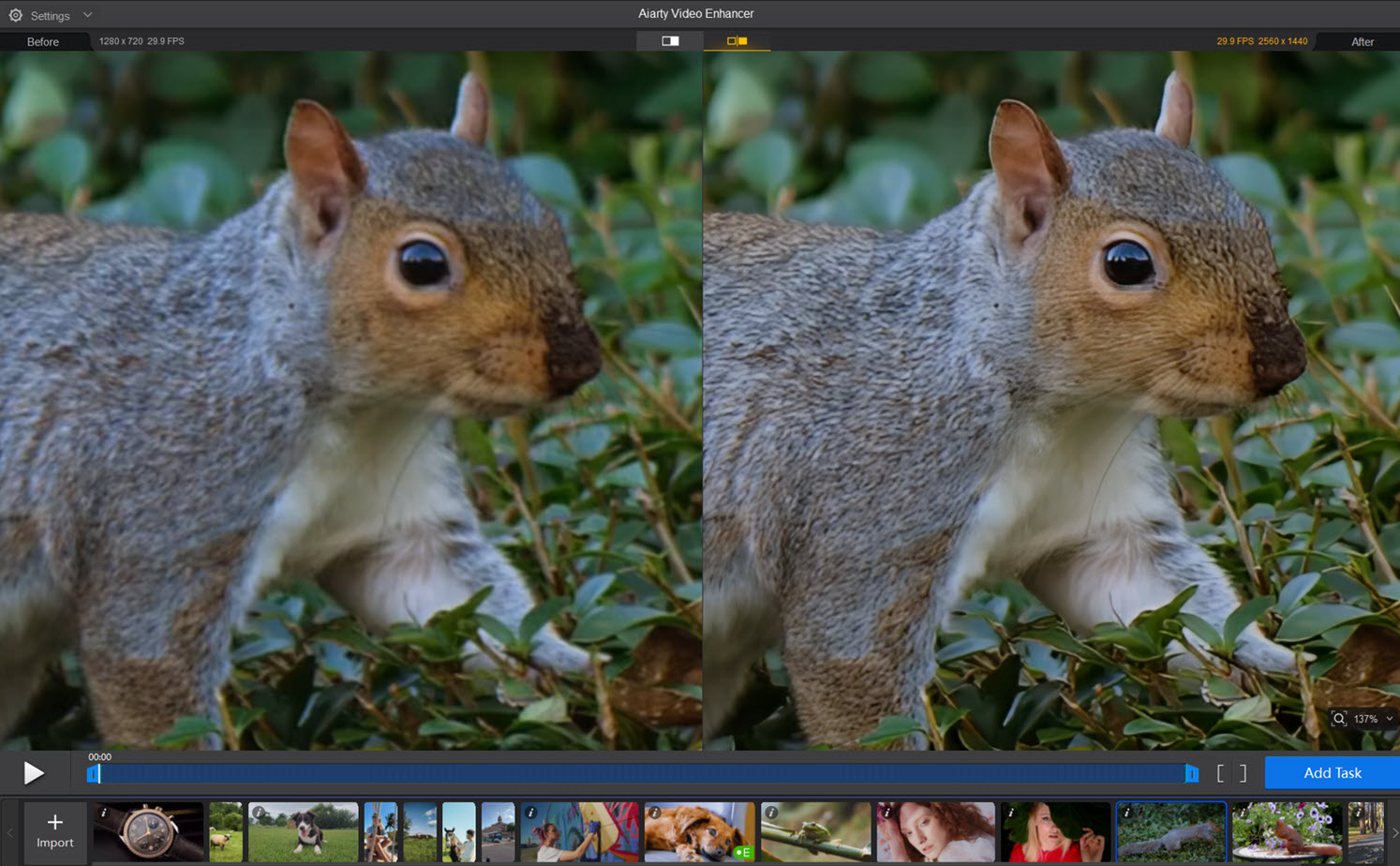
For instance, the 720p squirrel footage below looks soft and slightly blurry. Its fur, nose, and whisker areas lack definition, and the surrounding plants are less sharp.
Aiarty Settings: upscale x2, moDetail-HQ model (0.95 enhancement strength)
For low-detail softness like this, we tested the moDetail-HQ model in Aiarty Video Enhancer alongside resolution upscaling.
As shown in the comparison above, there are significant gains in sharpness and realistic details while avoiding a painterly look.
When playing back the upscaled video, the frames are consistent and the motion remains smooth.
Test 2. Fix Blurry Videos and Upscale to 2K/4K
When viewed on a large screen or at 150% zoom, the source portrait footage lacks a clean, detailed look. While a subtle blur is natural for subjects in motion, the overall clarity still needs improvement.
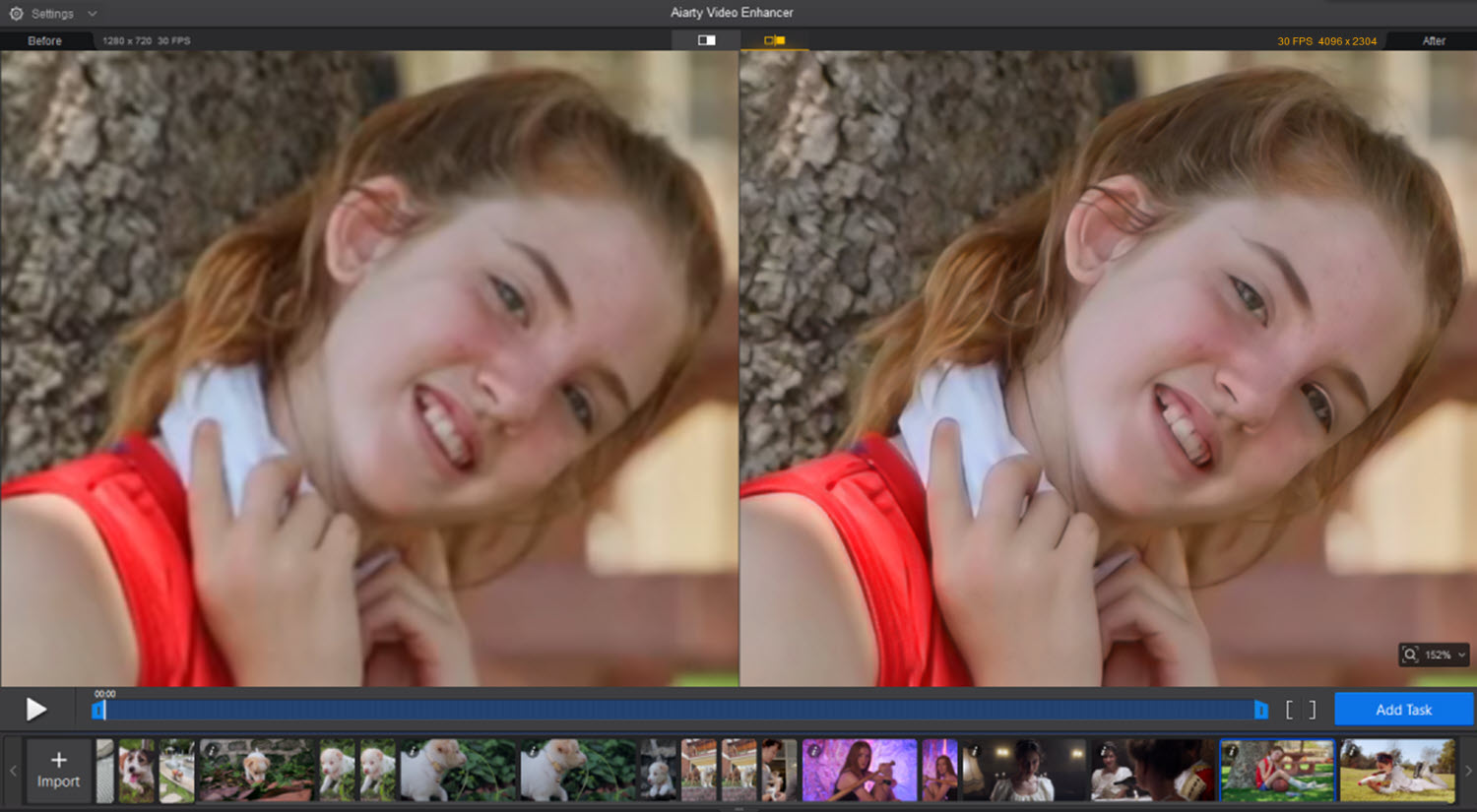
Testing Aiarty: superVideo vHQ (strength 0.90), x2; or moDetail HQ (0.85 strength), custom resolution
Using the superVideo or the moDetail model in Aiarty Video Enhancer, there are stronger visual improvements. We observed clear skin details, more defined hair strands, and fabric contours. Ideally, for live-action videos, there are no obvious signs of artificial painted texture.
Test 3. Restore and Upscale Old Videos
For old archives, digitized VHS footage, and old family recordings in low resolutions such as 480p and 576p, instead of directly jumping to 4K resolution, you can upscale gradually.
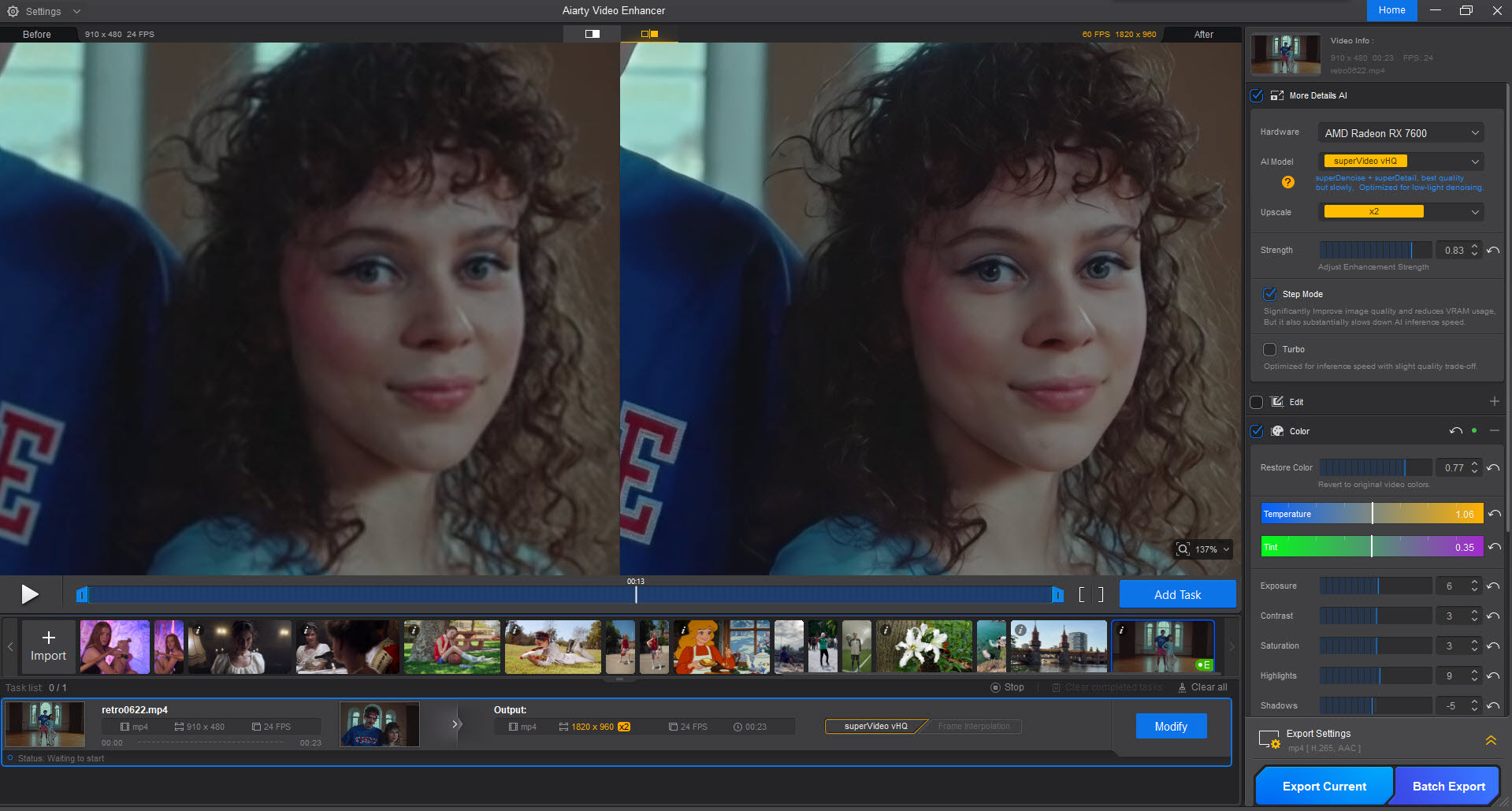
Aiarty Settings: superVideo vHQ (strength 0.83), exposure +6, contrast +3, saturation +3
We applied x2 upscaling in Aiarty Video Enhancer to reach around 960p SD quality. You can repeat the process for HD or 2K quality.
If you see comb-like lines in older digitized VHS, 480i/576i home videos, Aiarty also offers a force deinterlace option to remove distracting lines and make the footage look natural on modern screens.
Test 4. Fix Jagged Edges and Upscale for Better Clarity
Many low-resolution videos suffer from compression artifacts, including aliasing, blockiness, and blurry edges. As part of the upscaling process, users usually need a higher resolution plus video restoration.
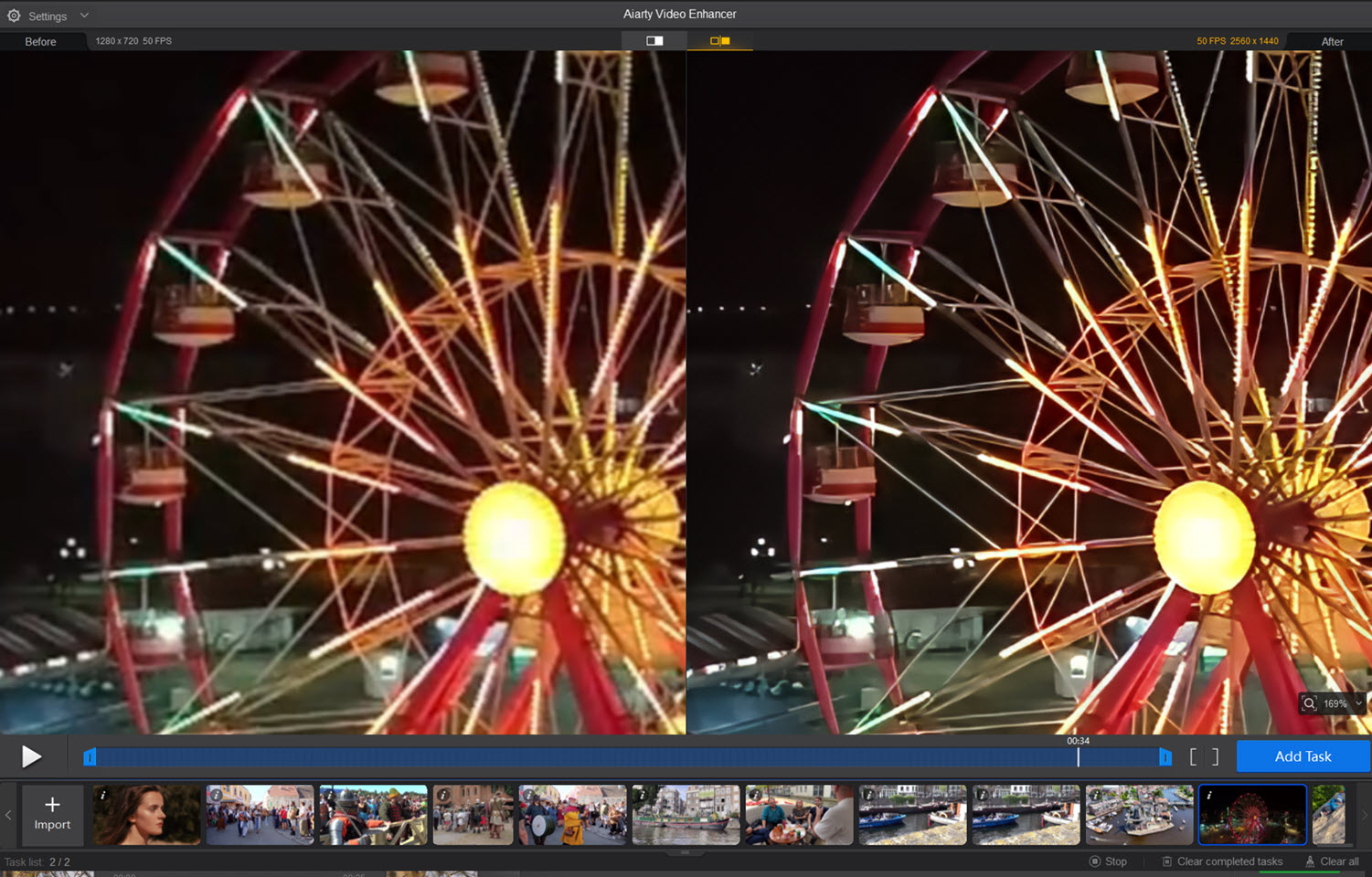
Aiarty Settings: superVideo vHQ (strength 0.80), upscale x2. Color contrast +2, exposure +1
For the amusement park footage above, the spokes of the Ferris wheel exhibit heavy aliasing, along with low-light sensor noise and macroblocking.
After upscaling with Aiarty Video Enhancer, the wheel and the background become sharp and clean. Aiarty’s color editing panel also supports flexible manual adjustment, making the lighting more vivid and impactful.
Tips: In other cases where you don’t need resolution upscaling, the AI models in Aiarty Video Enhancer also help reduce low-light noise, fix blurriness, and restore clarity to the video. You can set the scale to x1 to keep the source resolution.
Choosing the Best Video Upscalers (Free and Paid)
Picking a video upscaler for your specific needs can be simplified to two paths:
- Path 1. You need a dedicated video upscaler and enhancer to resize footage and improve quality.
- Path 2. You mainly focus on video editing and need upscaling before, during, or after editing.
For path 1, Topaz Video and Aiarty Video Enhancer work as standalone video quality enhancers with upscaling features.
For path 2, DaVinci Resolve and CapCut are video-editing software solutions that support resolution settings.
Some content creators also combine these workflows, using a dedicated video upscaler to batch-enhance video quality, unify mixed resolutions, and then switch to video-editing software for creative cuts, effects, and transitions.
| Tools | Availability | Best For | Key Strengths |
| Topaz Video | Desktop, online | Professionals, archival restoration | AI video restoration and creative upscaling |
| Aiarty Video Enhancer | Windows, Mac | Videographers, home theater, social media | 4K video upscaling and quality enhancement |
| TensorPix | Online | Beginners and casual users | Short video upscaling |
| DaVinci Resolve | Windows, Mac, iPad | Professional editors and colorists | Video editing suite with Super Scale |
| SeedVR (ComfyUI) | Desktop, online | Tech-savvy users, AIGC creation | Custom nodes for upscaling and AIGC generation |
| Video2X | Free, open-source | Anime archivists | Real-ESRGAN anime upscaling |
| CapCut | App, online | Beginners and hobbyists | Quick video editing |
Besides use case scenarios and platforms, pricing models can be another major concern for users. Here’s a quick glance:
- Subscription or credit-based: Topaz Video, TensorPix, CapCut (Pro).
- One-time purchase: DaVinci Resolve (Studio Version with SuperScale), Aiarty Video Enhancer.
For anyone who prefers to avoid subscription-only tools, Aiarty Video Enhancer offers lifetime licenses for multiple devices. You can get a free trial to test it out, and if it fits your needs, here is an exclusive offer to grab the Aiarty Lifetime License at 36% Off (currently US$149), which grants full features and free updates for life.
Topaz Video
Topaz Video is one of the most widely mentioned video upscalers among studios and professionals. We’ve reviewed it here.
It offers multiple AI models with different priorities: Rhea for 4x upscaling with 12 GB VRAM, Iris for faces, Gaia for animation, Nyx for noise reduction, and Starlight for generative restoration.

Testing Topaz: Proteus model vs Iris model, 4K upscaling, recover detail +20
We start with the Proteus model for standard enhancement and switch to other models to compare the differences. Before committing long videos to the final export, it supports real-time rendering of a short section to check the upscaled video.
As shown in the testing above, even with the same 4K and +20 detail settings, the output can vary significantly between models. The Iris model applies face reconstruction, producing smoother facial features than the general model.
Besides the desktop version, Topaz Labs subscribers can also utilize its online apps. For instance, when fidelity isn’t the major priority, Topaz Astra helps upscale videos while generating creative details.
Aiarty Video Enhancer
Aiarty Video Enhancer remains a decent choice for video upscaling, denoising, and quality enhancement. It supports manual controls alongside deep-learning models, which help balance a natural look, faithful upscaling, and realistic details.
As shown in the tests above, besides upscaling low-resolution videos, tailored models in Aiarty Video Enhancer analyze and fix video quality problems.
It enhances video clarity and restores details according to your preferences.
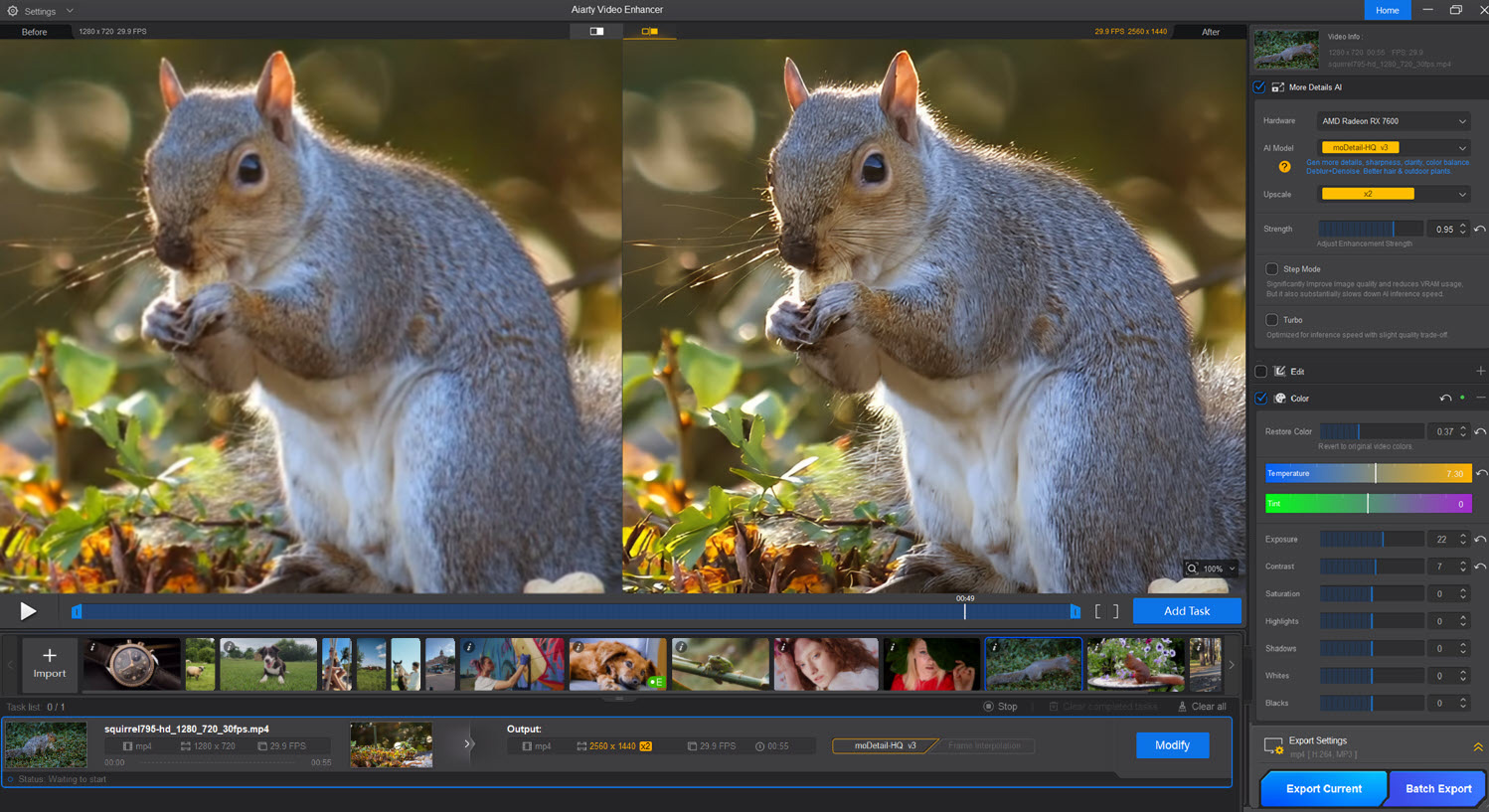
Testing Aiarty Video Enhancer: moDetail model, 720p to 2K, 0.95 strength, with color correction
Aiarty Video Enhancer allows for x2, x4, 2K, and 4K upscaling, or the input of custom resolutions to achieve resizing such as x1.5 or x2.5. This is handy for content creators who need to meet varying requirements from platforms and clients.
For projects where users prioritize speed, Aiarty Video Enhancer also offers a one-click Turbo mode. It makes the processing worry-free for long videos and batch tasks.
You can read our full review of Airty Video Enhancer here.
TensorPix
TensorPix is a nice addition for one-off jobs and sporadic upscaling tasks. You don’t need a dedicated GPU or powerful workstation; instead, you can upload the footage to its server for quick upscaling.
It offers free credits to upscale about 3-7 short videos, depending on the target resolution and other settings.

Testing TensorPix: HD upscale, preset: people, frame rate 24fps
For instance, in the 720p-to-1080p test above, TensorPix does a conservative job of improving facial definition, eyeglass frames, and fabric textures.
You can switch to presets such as AI video, gameplay, animation, or general, to match videos with different characteristics. For output frame rate, this video upscaler supports 24, 30, 60, and 120 fps.
DaVinci Resolve
For seasoned editors or hobbyists willing to learn timeline-based editing, DaVinci Resolve can be used as a video upscaler alongside creative projects.
Its AI-driven SuperScale feature is included in the paid Studio version, using DaVinci’s Neural Engine to improve low-quality clips and reconstruct details.

Testing DaVinci Resolve: Timeline changed to 3840×2160, SuperScale 2x/4x Nvidia RTX Video
For general resolution resizing without detail restoration, the free version works well.
You can change the timeline dimensions, set SuperScale to None to avoid the watermark, and make sure the resolution matches the settings upon export.
SeedVR in ComfyUI Workflow
SeedVR rose to popularity among tech-savvy users and AI explorers for image and video upscaling.
For low-resolution clips, it uses diffusion models to restore videos with generated details, which makes it suitable for scenarios where fidelity isn’t much of a concern.

Testing SeedVR: ComfyUI-SeedVR2_VideoUpscaler nodes plus patch for transformers, 3b model, 1080p
During our tests, the 3b model worked nicely at a processing speed of 2-3.5 fps, and it generally requires 8 GB VRAM to run.
The 7b model was not tested as it requires 24GB VRAM. For anyone who used to love the SUPIR model in ComfyUI workflows, you will find SeedVR worth the processing time for enhanced textures.
Video2X
Once a Python-based tool, Video2X is now one of the most popular open-source video upscalers among tech-savvy users, especially within anime-restoration circles. It sits at over 20k GitHub stars, and the latest GUI makes it more accessible for hobbyists.

Testing Video2X Qt6: 1.source clip 2.realesrgan-plus 3.realesr-animevideov3
Can you use Video2X on live-action videos as well? It depends on the filters and models applied.
As shown in the tests in grid 3 above, the anime model is wrongly used for the source video, resulting in an airbrushed look for a real person. Switching to the realesrgan-plus model produces a clearer, high-definition upscaling of the footage.
For 720p-to-1080p 2x upscaling, the anime model reaches a speed of around 4.8-5.5fps. The plus model needs more resources and processes at 1.5fps.
CapCut by Bytedance
For vlogging, school projects, and short-form content creation, CapCut serves as an easy video editor with upscaling features.
If you’re looking for a free video upscaler to resize a video clip, simply change the export resolution to 2K or 4K. For AI-powered upscaling that rebuilds details, the paid version of CapCut Pro is needed.

Capcut Settings: AI ultra HD 4K, optional: adjustment layer with effects: sharpen +1, clarity +2, particles +1
Since CapCut is a full-scale video editor, there are tricks to upscale the perceived video quality.
Based on our tests, adding an adjustment layer above the video track provides more flexibility to adjust video sharpness and clarity.
For power users, when 1080p-to-4K upscaling becomes soft, you can mimic high-pass filters to enhance edge details with layer-blending tricks.
Final Verdict
Depending on your workflow and budget, preparing 1-2 tools ensures a worry-free setup. Some creators also combine a standalone video quality upscaler with a free editing program.
All-rounders: Topaz Video and Aiarty Video Enhancer cover most scenarios for content creators and family archiving, offering deep-learning enhancement or manual upscaling with lifelike output.
For short clips or creative projects: TensorPix or CapCut are ideal for processing videos under a few minutes long when you need quick results.
For generative restoration: SeedVR in ComfyUI is worth the steep learning curve for creative upscaling and damaged footage restoration.
FAQs About Video Upscaling
How do I prevent upscaled video from looking plastic or fake?
Most video upscalers and enhancers offer guidance on their model and parameter settings. The rule of thumb is to use a general model as a benchmark, then switch to other specific models and compare the results. For instance, anime-specific models will produce a cartoonish look on real-world footage, while diffusion-based models will hallucinate textures and details based on their training data.
If your software supports manual adjustment, experiment with different strength settings to adjust how strongly the AI model applies enhancements during video upscaling. You can set the strength to 0 for resolution resizing only.
Is it better to repeat 2X upscaling twice or do 4X upscaling all at once?
For traditional resizing, there’s no significant difference in general, as the math just interpolates the pixels. For AI-powered video upscaling, 4x upscaling sometimes produces smoother results, while repeating 2x upscaling tends to compound detail restoration.
However, this shouldn’t be overgeneralized, as the output quality varies depending on your specific workflow, the input footage, and the combination of AI models used.

As the General Manager of Shotkit, India Mantle brings with her a lifelong love for photography that she developed during her childhood, watching her father document their family moments with his Nikon EM. In her free time, you find her enjoying the awe-inspiring natural beauty of her home, Northern Rivers, Australia.
2 Comments
Leave a Comment
👋 WELCOME TO SHOTKIT!
🔥 Popular NOW:
Great testing – I’ve been meaning to compare these for a while, so this saves me a ton of time. I mostly work with short AI-generated clips these days (I use wan3video.io to create them, then upscale to get them social-ready), and honestly the biggest surprise is how far the free and budget options have come. Curious whether you noticed any of them struggling on very short 5-10 second clips, since that’s most of my workflow!
Great comparison! I’ve been using Topaz for a while but found it can oversharpen faces in older footage—did any of the tools you tested handle that better without losing natural skin texture? The free options like Waifu2x are solid for anime but fall short on live-action, so your hands-on results are really helpful.