







Captions.ai Review: Is It Worth It for Photographers & Videographers?
Is Captions.ai worth it for photographers and videographers? Our Captions.ai review covers AI Edit, eye contact correction, dubbing, export limits, and pricing.
AI | Software | By India Mantle | Last Updated: October 17, 2026
Shotkit may earn a commission on affiliate links. Learn more.
Even if you’re a professional photographer, regardless of what you actually specialize in, chances are you’ll need to make a video out of your pictures at some point.
This could be a montage of your work for a portfolio, or create a complex behind-the-scenes reel for social media.
After seeing that, clients might ask for a “few clips” rather than a “few shots,” which means you need to caption the video because nobody watches it with sound anymore.
While technically doable, all of this can take a while to process, especially if you’re not used to working with video.
And that’s where an auto-captioning and video-editing tool like Captions.ai comes in. Its value proposition is that it can caption your work if you decide to add a voiceover.
But is this actually useful if you make photos for a living? Let’s dig into this Captions.ai review and find out.
What Is Captions.ai?
The original hook of the tool lies in the name – it’s supposed to provide automatic, animated captions for talking-head videos.
While that’s still true, the platform has arguably grown into a broader editor with AI editing, dubbing, eye contact correction, background removal, generated B-roll, and AI avatars.
As for platform availability, you can find Captions.ai, or simply Captions, on iOS, Android, and in the browser. A macOS app also essentially brings the web experience to the desktop.
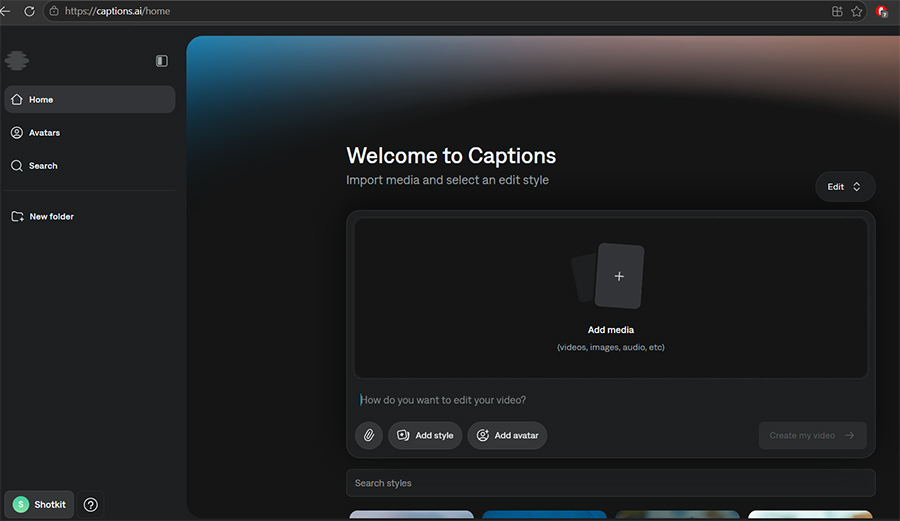
Getting Started With Captions.AI
What I like about the app is that it gives you a fairly generous preview of its features through the combination of a free trial and credit system. Additionally, the tool can be used on the PC, Android, and iOS.
However, this is where you might run into some of the issues, as the iOS app is considered the “most complete” version. If you go and look at the feature availability table, it has the most options, including keyframes, custom text, AI Zoom, imported music, and undo/redo, which others might not have or still be under planning.
Of course, the platform seems to have updating all the versions throughout 2026, but even if you’re planning to edit on a big monitor, you may need to the smartphone for some tasks.
With that in mind, let’s go over some of the most notable features.
AI Edit
AI Edit is Captions’ headline feature, as it claims it “edits as a professional editor would.”
The workflow is a simple three-step process. You upload your footage, choose a style, and generate. The AI reads the video, then cuts the scenes, adds B-roll, transitions, zooms, music, and captions in one pass.
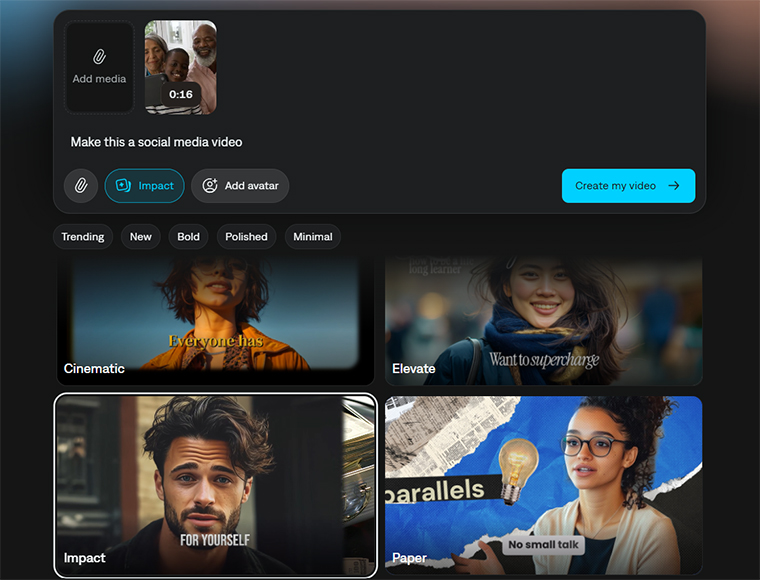
The style library has dozens of presets, each with a catchy name that has almost no relevance to what it’s supposed to do beyond a superficial graphics link (like “Paper” using strips of paper as an overlay for captions or the background).
The important thing here is that each is essentially a complete visual overhaul. As soon as you choose one, the platform will try to apply it throughout your video to make it more seamless.
As such, this is meant to be a one-to-two-click export, where you just select an existing video, apply a particular caption style, and export it. The best part is that switching to a different style within the same workflow costs only a single credit instead of the usual two to four.
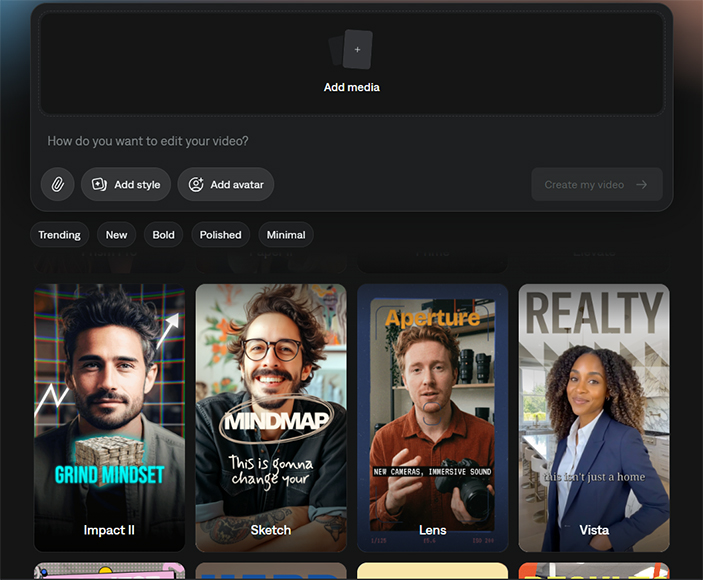
Note that since the styles are pre-built, they also focus on the most popular, punchy, and fast-paced short videos trending on TikTok and Reels.
In most cases, this is fine for a simple edit where you have a voiceover or a single speaker that doesn’t interact much with the environment (such as a talking-heads video that describes what the customers are seeing).
However, if you want a broader overview of your technical capabilities such as long exposures, real estate walkthroughs, or events, the app really wants to have a comprehensive voiceover to caption with. If you solely focus on visuals, you might not even get a video in the first place.
Once the initial edit is complete, you get to the actual video editor, which is more reminiscent of traditional editing suites. In here, you can do slide-by-slide cutting and cropping.
One major benefit is that the AI automatically creates context-aware B-roll footage, so you don’t have to take time shooting familiar or common objects.
When testing, I input text that referenced the iPhone and B-roll footage of one of the latest iPhone models applied side by side while preserving most of the original image.
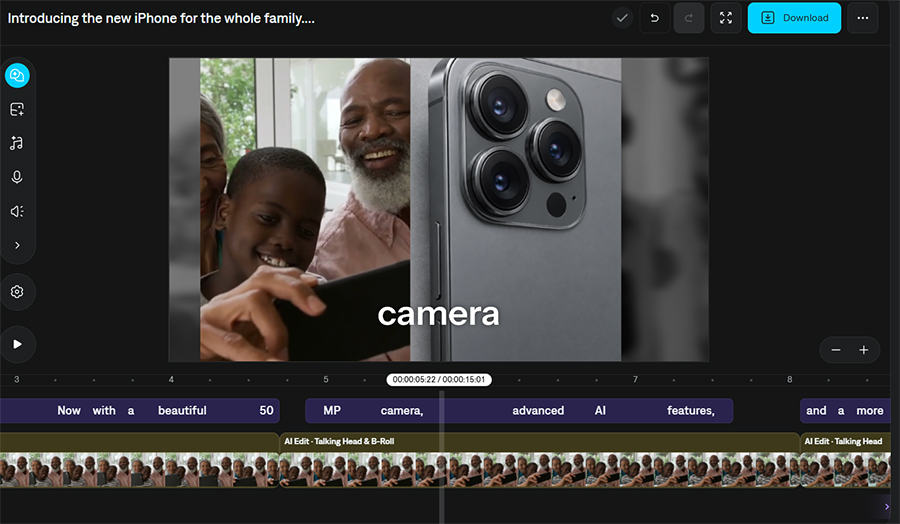
Once AI Edit is done, you can refine the result through a familiar chat-like editor. You type requests like “zoom to an object at a certain time,” “swap the B-roll for a particular object,” or “remove the background music,” and the AI will apply them.
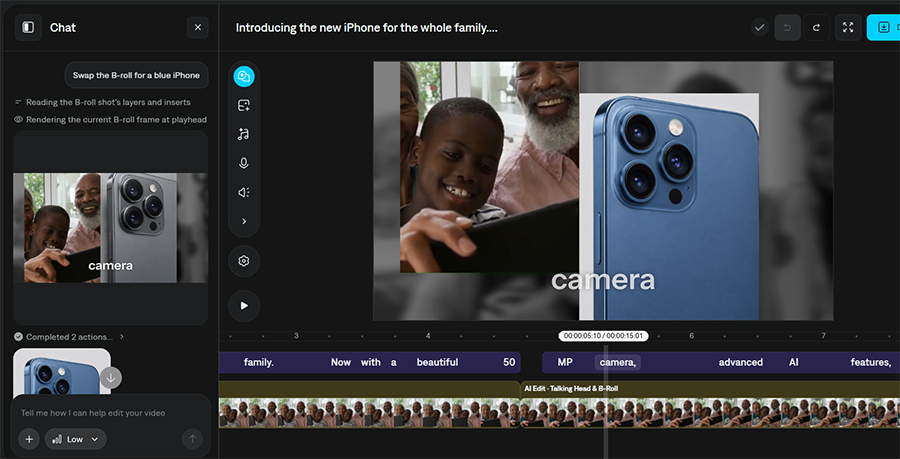
It’s extremely quick and handy for small tweaks, but it isn’t free. Each message costs a few credits, and each action the AI performs costs one more, and any generated media on top of that is billed separately.
This means even a few rounds of back-and-forth can quickly eat through most of a regular subscription’s monthly allowance.
Talking-Head Cleanup Tools
This is where Captions might just earn its keep for working pros. They all revolve around face, voice, and background detection, and all usually take up a bulk of the actual editing process.
Eye Contact Correction
Eye contact correction moves the speaker’s eyes or gaze toward the camera, making them look less like they’re reading from a script or teleprompter.
When using the AI editor mode, you get a simple “Apply Eye Correction” option that you tick. Do so, and the AI goes through the entire video to slightly change where the subject is looking so it’s centered on the camera.
Of course, this relies on the video actually being accurate and the subject speaking or reading from a script directly into the camera. Intentional pauses, glances away, or regular blinks are less likely to be caught and edited, and the tool will usually notify you if it hadn’t made any changes because of that.
However, if the video itself isn’t perfectly suited for this type of content, Captions can’t fix it at all. For example, I tried putting a video where the subjects were clearly looking away from the camera and tried multiple prompts to generate footage of them looking at the viewer.
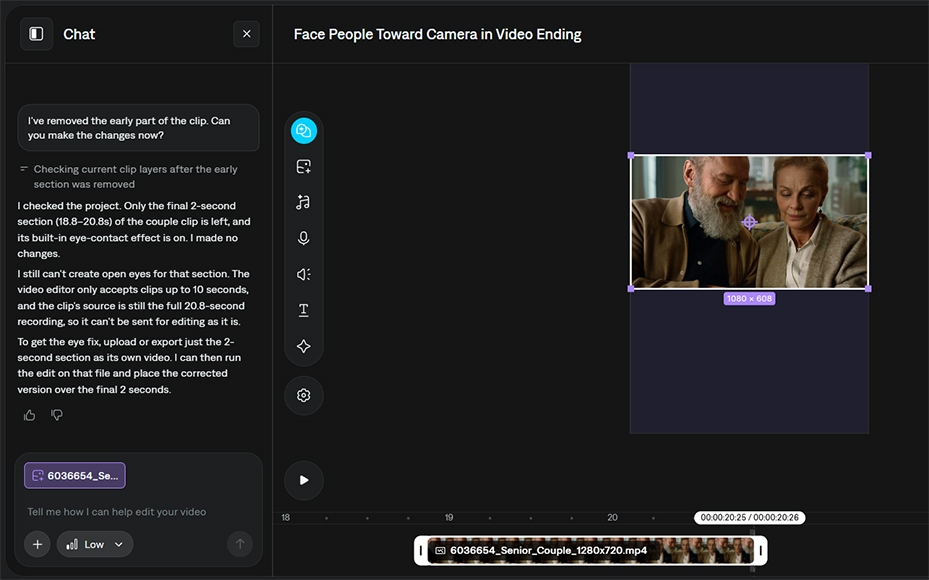
The problem here is that the AI runs into a catch-22 situation where it can’t export parts of a video for editing. You’d need to manually change parts of a clip, reupload, and hope for a result.
However, that also accounts for the fact that the AI ostensibly fails on a non-intended use case. For simple talking-head videos, the eye realignment usually works just fine unless the eyes are covered by hair or such.
Trimming Pauses and Filler Words
The AI Trim tool removes longer periods of silence, filler words, and interruptions. This is arguably what saves the most time since it spares you from manually cutting every “um” from a 10-minute interview or project showcase.
The catch is that the tool is incredibly prone to making jump cuts this way. This is because while the tool makes videos, it can’t actually generate one from a voiceover nor can it generate a voiceover from text in the first place.
Instead, you’ll need to cover the result with B-rolls, zooms, or other objects. This is something that the tool does automatically, but it might still miss on occasion.
Denoise and Audio Tools
AI Denoise strips out background noise such as from cafes, busier streets, or rogue ACs. However, this is fairly expensive in terms of credits per minute, making it one of the most “premium” features (and further suggesting that the tool doesn’t do well with audio editing).
Even then, it’s a safety net at best and shouldn’t be relied on if you want to market yourself as a professional videographer. Instead, a decent lavalier or shotgun microphone will allow you to get better source sound that can be used with a simple AI editor in post.
Background Removal and Chroma Key
The AI Cutout tool removes and replaces the background of a video without a green screen, and there’s a proper chroma key option with an adjustable color and threshold for when you do shoot on green.
It’s useful for quick social edits, and the chroma key is a welcome inclusion for anyone with a studio backdrop. Just keep in mind that AI cutouts tend to struggle around fine hair and fast movement, so they’re better suited to clean, well-lit setups.
Captions Camera and Teleprompter
On iOS, Captions allows you to make the videos via the Camera app. In the selfie mode, the camera preview is overlaid with a teleprompter, which you can define and time in the editor beforehand.
The fallback plan is that even if you’re recording on a dedicated camera, you can use the phone as a teleprompter only. In that case, make sure to get one of the best cameras for vlogging to capture the most details, which can then be edited separately.
Captions, Subtitles, and Dubbing
Unsurprisingly, captioning is the most polished part of the app.
Captions generate subtitles automatically and let you edit spelling, timing, and position. It also allows you to apply effects to specific words (such as keywords). You also get over 100 templates to choose from for the caption style.
For professional work, the most important detail is that you can export captions as a separate SRT file. That means you can use Captions purely as a transcription tool and bring the subtitles into another tool like Premiere Pro or DaVinci Resolve.
The AI can also translate captions into dozens of languages, while AI dubbing currently supports just over 30 languages and even lets you correct the dubbed text and adjust volume per segment.
As with any AI dubbing, you really ought to have a native speaker check anything client-facing before it goes out.
Splicing Long Videos into Shorts
AI Shorts is the repurposing tool, where you feed it a long video and it picks out short clips that work on their own.
This is by far the most limited option of the bunch, but it’s also precisely the one that might get the most use.
The tool only accepts YouTube links; the source has to be between 10 minutes and 2 hours long, and you can only get up to five clips of 15 to 60 seconds each. Even worse, processing them can take up to an hour.
Notably, the tool automatically picks out which shorts are the most viable for short-form video content. If you decide to use the manual editor, the workflow is practically the same as with traditional tools, with maybe slightly better splicing at the end of the clips.
The Social Media Features
A big part of Captions is also built around content creation for social media rather than editing real footage.
AI Twin lets you create a digital version of yourself from a recording or an uploaded video, which can then present scripts on your behalf. Prompt to Video turns a text prompt into a short talking-head video using your “twin” or one of the stock AI actors or avatars.
There are also AI Ads for product promos, AI avatars with changeable outfits and backgrounds, and even a Reddit-comment-to-video generator (but only on the iOS app).
If you’re a photographer, you might be able to use these to churn out videos for your own marketing, like tips, tricks, or behind-the-scenes. But for client work, and for any brand built on the photographer’s real personality, an avatar is more likely to seem too “artificial” and unevocative of your actual skills.
Where Captions Falls Short
Captions offers different export capabilities depending on the platform, which can even limit its bitrate or resolution. For example, the desktop version doesn’t support HDR and you might be limited in the length of videos you can export or save.
There’s also no mention of professional codecs like ProRes, and no project interchange formats such as XML or EDL. That means you can’t start a rough cut in Captions and continue in Premiere Pro or Resolve. Instead, you’d need to work backwards, editing an entire video and then finishing it up in Captions for captioning (or letting the platform do its best).
If you do want a full video editor, check out our rundown of the best video editing software to get the best initial video that the platform can use.
Captions.ai Pricing
Captions runs on a credit system with a free tier and several monthly subscriptions. Much like with feature availability, the pricing and credit systems all change depending on the device, so an iOS app might actually cost more than the web one (since you’re using more features).
The free plan includes basic manual editing, a single caption template, and a one-time allotment of credits that doesn’t refresh. Every export is watermarked, making it unideal for commercial use.
Basic costs $9.99 per month with 200 credits, but this offer only appears in the hidden-away help center rather than on the main pricing page. It’s also much more limited and doesn’t use the most recent AI models for generation.
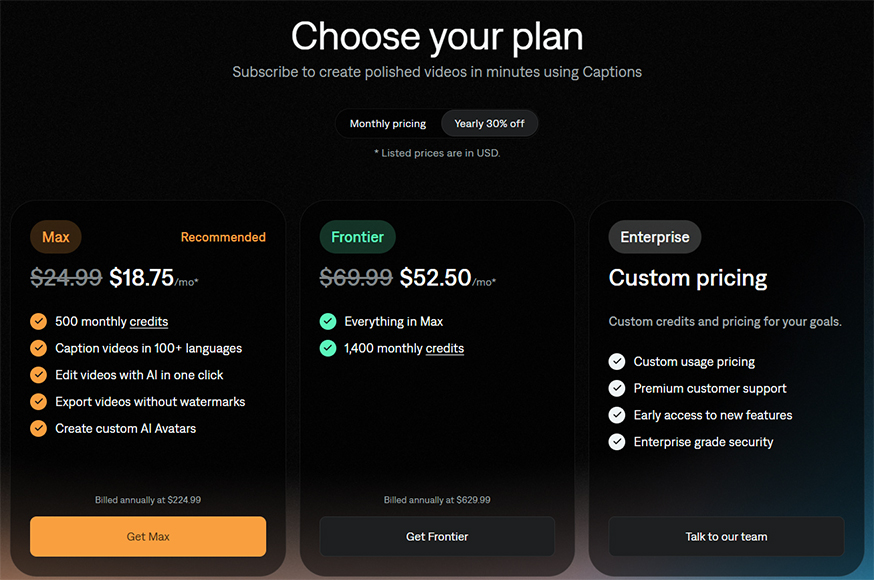
Max costs $24.99 per month (or $18.75 if paid annually) with 500 credits and unlocks AI Edit styles, AI actors, digital twins, the chat-based editor, and long-to-short clips.
The Frontier tiers scale depending on the credits you need and the payment option you choose, adding access to the most advanced generative models. It also gives you priority queue for creation, but this doesn’t matter much except for the biggest projects.
For most photographers and videographers, the best subscription is Max. Basic doesn’t cover the AI tools that make the app worthwhile, while Frontier only makes sense if you’re generating a lot of AI video.
Is Captions.ai Worth It?
Captions makes the most sense if you actually spend a lot of time making talking-head footage and need to translate it into social-media content.
That includes client testimonials, behind-the-scenes reels, educational tips for your own channel, and short promos for small business clients.
However, it doesn’t really do much for “traditional” artistic or cinematic work. Wedding films, commercial spots, and anything that relies on your own pacing, color, and storytelling will outgrow it quickly.
My advice is to start with the free plan and run your hardest footage through it: a wide interview shot, a noisy venue, and a subject who keeps glancing at notes. If the cleanup tools hold up, a month of Max might be a reasonable experiment.

As the General Manager of Shotkit, India Mantle brings with her a lifelong love for photography that she developed during her childhood, watching her father document their family moments with his Nikon EM. In her free time, you find her enjoying the awe-inspiring natural beauty of her home, Northern Rivers, Australia.
👋 WELCOME TO SHOTKIT!
🔥 Popular NOW: