







Ideogram Character Review: Generating Commercial Stock Assets From a Single Studio Photo
Can Ideogram Character turn one studio photo into a stock-ready series? Our review covers the workflow, agency rules, model releases, and pricing.
AI | Software | By India Mantle | Last Updated: September 28, 2026
Shotkit may earn a commission on affiliate links. Learn more.
Stock photography has always had a people problem. Images with people in them tend to sell better, but using a model can mean a day rate, a set, a wardrobe, and a signed release.
Which brings us to the pitch behind Ideogram Character: you photograph a model once, in the studio, and then place that same person in an office, a kitchen, a park, or a coffee shop using AI.
Ideogram says the face stays the same across generations.
So let’s check how it works in this Ideogram Character review and see if it’s worth investing in.
What Is Ideogram?
Ideogram is an AI image platform available in the browser or on iOS. However, its main use case was rendering legible text inside generated images, which is something most image generators still struggle with.
That matters less for this review, since stock images of people generally shouldn’t contain text anyway. What matters is that the platform has grown well beyond text rendering.
The current model is Ideogram 4.0, which the company has released with open weights. It produces images at 2K resolution and allows you to set bounding boxes for where you want to put objects and text inside the image.
For Character, the workflow focuses on single-reference generation and straightforward downloads.
How Ideogram Character Works
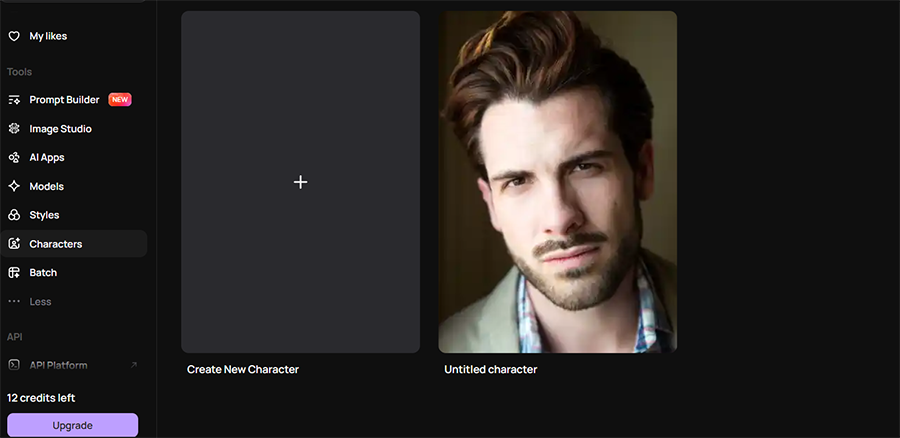
The core workflow is refreshingly short. You upload a reference photo in the Character tab, write a prompt describing the scene (or pick one of the preset templates), and generate.
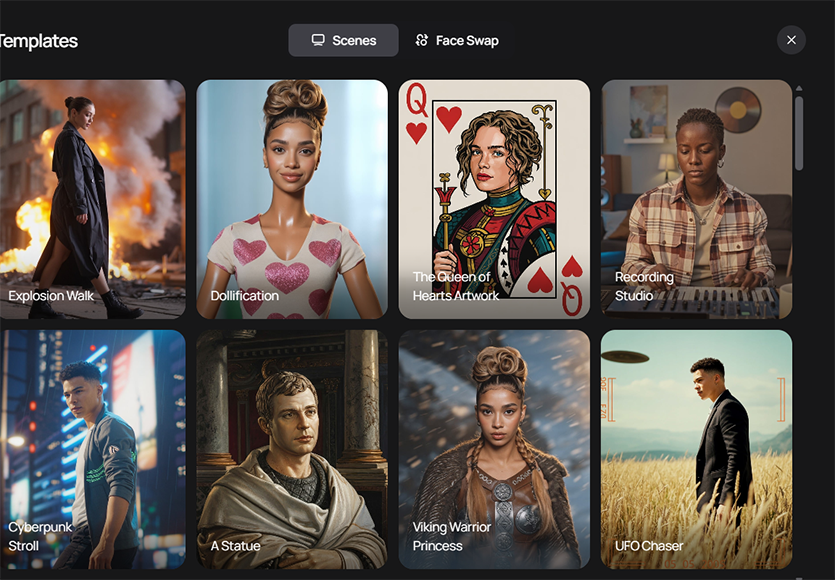
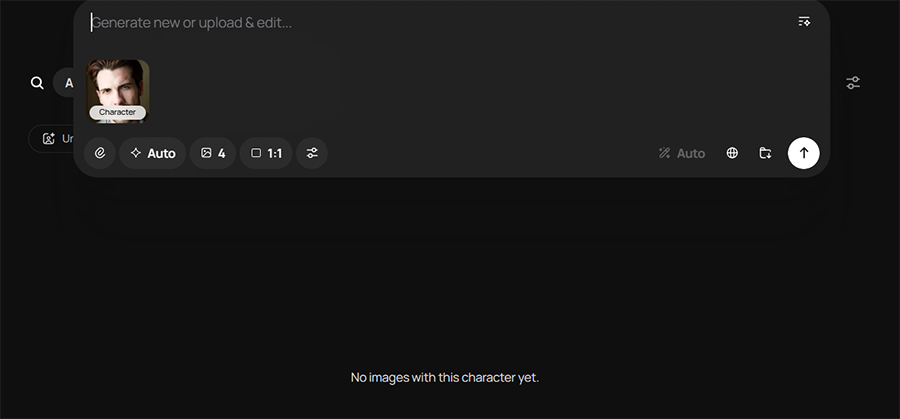
The best part is that a single starting photo is enough, and the tool then keeps that person’s identity across new poses, outfits, lighting, and locations.
Shooting the Reference Photo
To start, you’ll need a well-lit photo with visible facial features and minimal filters, taken from the front or at a three-quarter angle.
In practice, that means shooting the reference the way you’d shoot a clean headshot. Use soft, even light, a neutral backdrop, and a relaxed expression.
Note that the tool might not be able to tell the difference between your model’s face and your grading choices. This makes heavy makeup, grading, or busy backgrounds something to avoid.
While the tool works with only one image, it’s best to keep a few others available for reference. They can help you streamline different poses.
The tool won’t take any extras into account when generating an image, but it will allow you to get back to the center when a particular generation goes wrong.
Character Masking
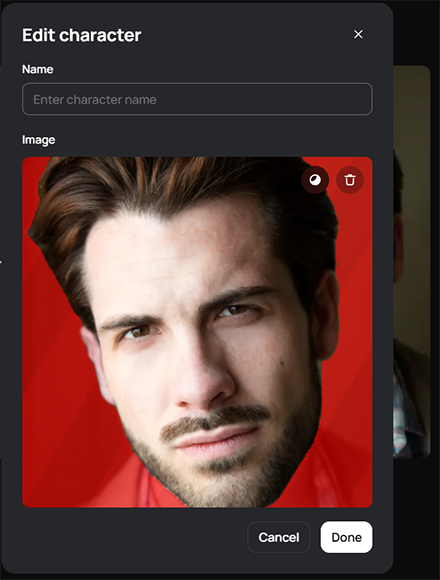
Once you upload a photo, Ideogram immediately recognizes the face within it (without the neck).
However, if it doesn’t, you can always adjust a mask that decides which parts of the image count as the character. The brush here is really precise, which is something to be expected for work that’s supposed to be used for commercial stock photography.
You can also play around with the mask to remove overly long hair or beards. The AI might take some creative liberties in interpreting how the face looks afterward, so be warned that it’s not a perfect solution.
Remix
Remix lets you take an existing image and borrow its vibe and composition, then regenerate it with your character in it.
This is helped by the generous library of templates to choose from, covering major art directions, social media trends, and even cartoons.
Once a template is picked, Ideogram immediately fills in the text box for the prompt with its idealized version, which you can edit.
For this example, I’ve chosen the “statue” prompt and left the AI’s suggestion on how the text should look.
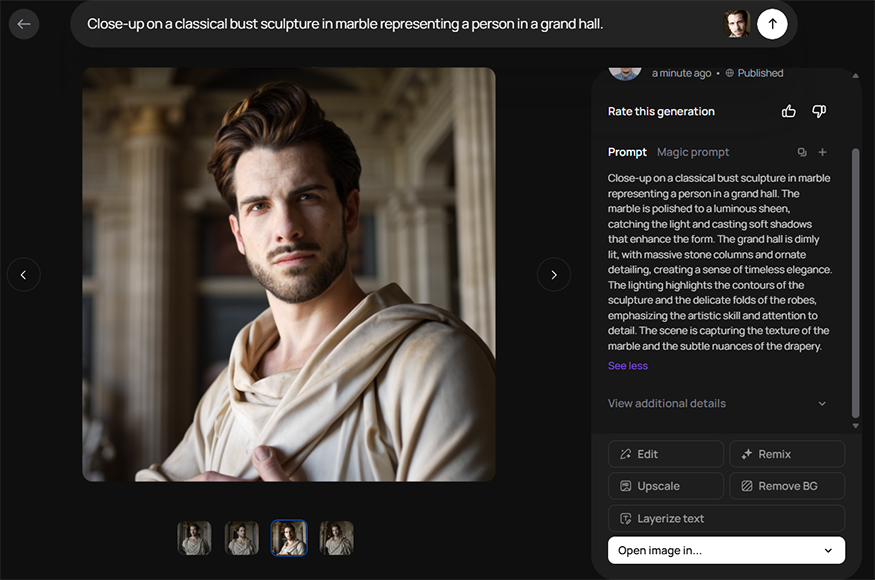
Ideogram generates four results for the prompt, and you can see just how detailed the recommended prompts are (and how to work them into your ideas for changes).
Usually, what you’ll get are a few poses in different directions (such as full frontal, portrait, and three-quarters).
In terms of image quality, the faces are for the most part the same as what you provide in the sample, which already makes the tool arguably perform its main function.
For stock shooters, the obvious use is recreating a composition you already know sells. Just be careful about what prompt you feed it.
The tool also has a more “manual” Remix option that allows you to regenerate an image in the style you want (such as adding season-specific decoration).
However, the tool will often ignore the prompt or add its interpretation to it, including changing the character.
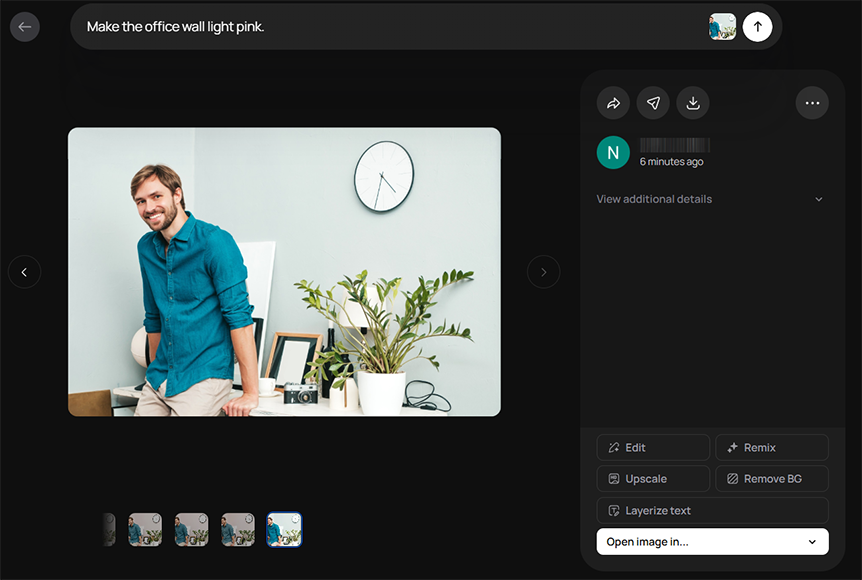
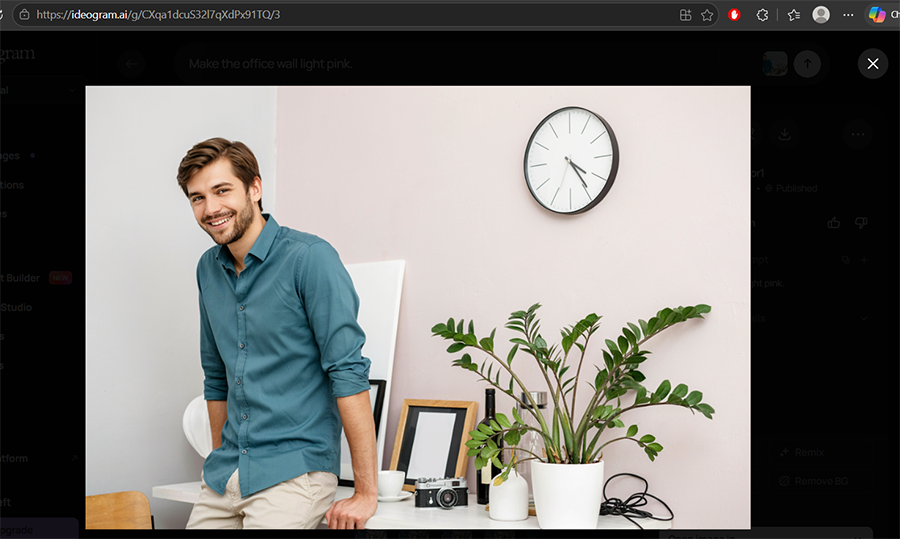
For example, I said that I wanted to color the wall pink, but now the person is completely different (and doesn’t align with the one I used).
There’s also a notable loss of detail and texture in their clothing, which is somewhat worrisome.
Overall, I’d stick to using the template presets for the Remix option, as manual changes might turn out to be far more than what you intended.
Face Swap and Magic Fill
If you already have a scene you like, you can mask the area where a person should appear and use Magic Fill to drop your character into it.
This is arguably the most practical tool for photographers, because it lets you start from your own location photography. You shoot an empty office or a café interior with proper light, then place the character in it, keeping far more of the final image grounded in a real photograph.
But the template library itself is a bit more whimsical, with several meme-oriented templates.

So let’s try one out and see how it works, using the “Nobody simply walks into Mordor” template.
As usual, the tool put a fairly detailed prompt, and the magic fill mask actually covers the hand, which is usually not included in the sample you provide. This means the tool has to create it from scratch.
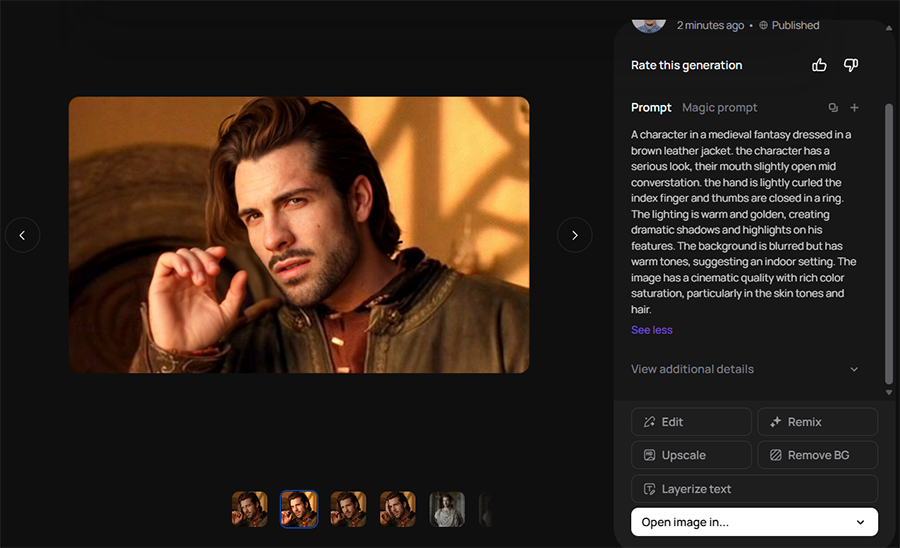
The results here are a bit more mixed, usually because the tool can’t properly fill in if the shape is too distorted from the original. While most of the options worked somewhat, there’s an obvious miss.
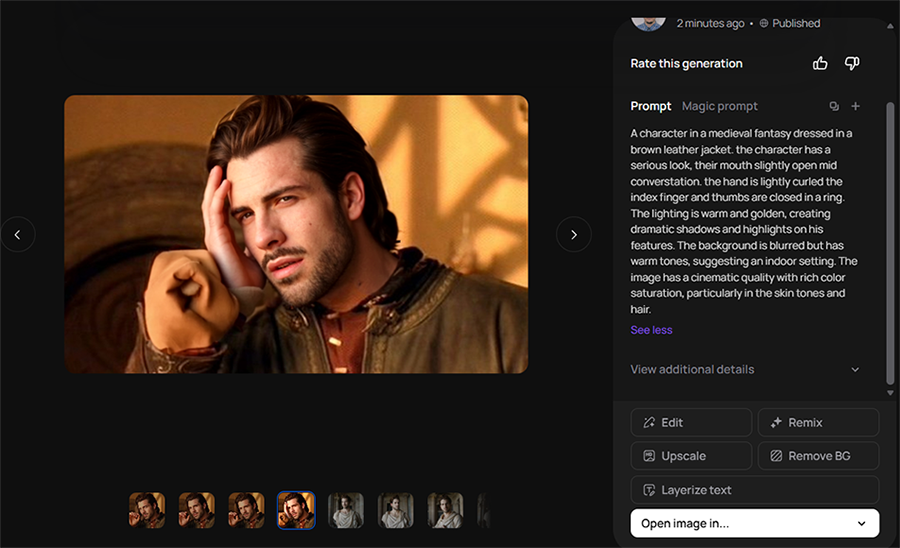
As you can see, the AI decided to fill in the hand in the wrong location and “wing” the rest. This also highlights just how much I appreciate the fact that Ideogram puts four images in one go when you start with it, as you can just choose the best option.
Of course, the more “grounded” type of work here is to put the same character in normal settings, like offices, schools, or parks. In that case, you’ll need to upload and create the mask for the swap.
This is fairly easy overall, and I could start creating within a few minutes.
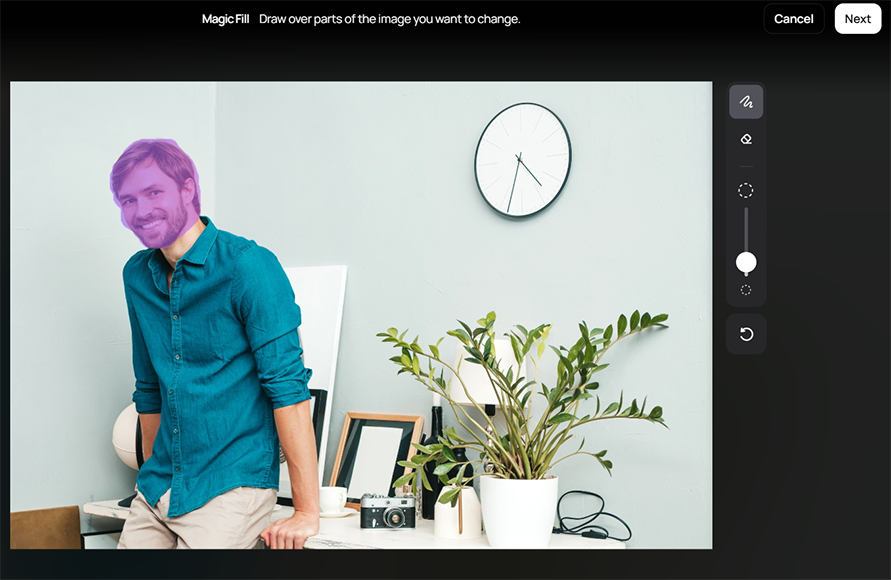
You can also combine the Remix option to make more substantive changes in one go.
Character API
If you need to create images in a larger volume beyond the four samples, Character is also available through the API. You send a reference image and a prompt, and every call returns a generation that keeps the same identity.
It’s worth noting that the Character API currently uses Ideogram 3.0, which is a bit older. I haven’t seen a major difference, but you might get some loss of quality.
Building a Stock Set From One Session
Stock buyers rarely want one image of a person. They want a series, with the same “young professional” at a desk, on a call, walking to a meeting, and celebrating a win.
Thankfully, Character has a fairly streamlined workflow here, and the first thing to do is to decide on the series first and write the prompts that describe the scenery.
Keep the character, lighting style, and color palette consistent across all of them, and change only the scene and action. That way, the set reads as a single shoot rather than a collection of unrelated generations.
Note that multi-person scenes are much harder than single portraits. If a concept needs a group, you may get more consistent results by creating multiple characters separately, then stitching the image together.
Before finalizing, make sure to zoom into the notable facial features like hair, eyes, and teeth to ensure they align properly with the intended angle.
Is Using Ideogram Legal for Stock Photos?
Unfortunately, the answer here depends heavily on where you sell.
For example, Adobe Stock accepts generative AI content, but with specific conditions. Its generative AI content guidelines state that any AI content depicting, based on, or intended to portray an identifiable person needs a model release, and they use uploading a photo of a real person as a prompt as an example.
Thankfully, that’s precisely what Ideogram Character already does in part. Every image you make from the studio reference that you submit to Adobe Stock needs a model release signed by that model, and every submission needs the “Created using generative AI tools” box ticked.
As a counterpoint, there’s Shutterstock. Its contributor policy says plainly that it doesn’t accept AI-generated content from contributors, because ownership of AI output can’t be assigned to an individual.
Even character-based images are off the table there, regardless of how good your release is.
Other agencies have their own rules, and some are stricter about AI faces than others. Our guide on where to sell AI images covers the main options, but always check each platform’s current contributor terms before uploading.
Other Ideogram Tools Worth Knowing
While Character is the part to focus on, the tool also comes with a few basic editing options to make it more of an all-in-one suite.
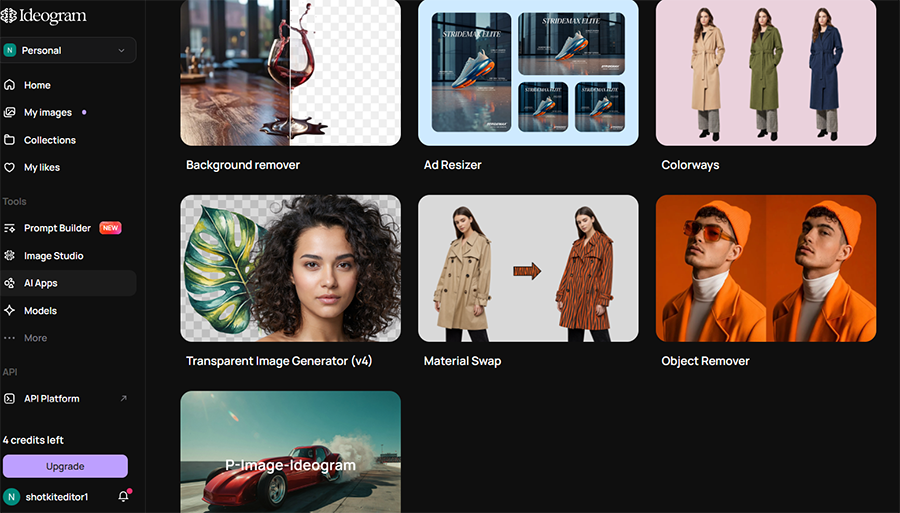
Background Remover and Object Remover
The Background Remover returns a transparent cutout, which is handy for producing isolated-subject versions of your character for designers. The Object Remover handles the usual cleanup of stray items and distractions.
Colorways and Material Swap
These two apps are aimed at fashion and e-commerce. Colorways recolors a single garment in an existing photo while keeping the fabric texture, pose, and light the same, so one shot can cover a full color range.
Meanwhile, Material Swap is focused on changing materials and textures rather than colors.
Neither is a Character tool, but both can work on the same sets of photos, which allows you to change more than just the face of a character between “takes.”
Ad Resizer and Editable Text Layers
Ad Resizer adapts an image to different ad formats, and the Layerize feature pulls text and graphic elements out of a generation as separate editable layers. These are more for designers than photographers, but they’re useful if you also produce marketing material for your own business.
Styles and Batch Generation
Style references help keep a consistent look across a series, which pairs well with Character when you’re building a set. Batch generation, available on the Pro plan and above, lets you queue up many prompts at once, which is how you’d realistically produce a larger stock series.
Pricing
Ideogram has a fairly generous free plan plus three fixed-price paid tiers, with Enterprise pricing available on request.
The Plus plan costs $20 per month, or $15 per month billed annually, and includes 1,000 priority credits per month. The Pro plan costs $60 per month, or $42 per month billed annually, with 3,500 priority credits. The Team plan starts at $30 per user per month ($20 annually) with a two-user minimum, and Enterprise is priced on request.
Every listed paid plan includes private generation, unlimited slow credits, and unlimited character consistency. Pro adds batch generation and a quality export option that Plus doesn’t have.
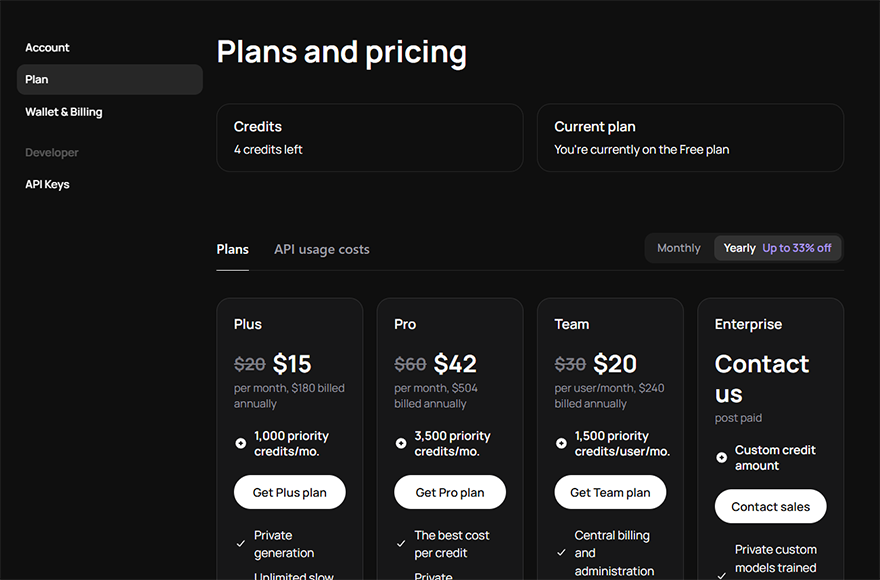
The free plan is where things get a little confusing.
Additionally, the free plan gives you 12 image credits weekly, but these credits aren’t evenly used for generation.
Some features took one credit per image, while others took two. Additionally, the free plan locks you into the “preview four samples” workflow, so you’ll inevitably spend four to eight credits per image edit.
This drastically cuts down on how many editing options and generations you have, making it less usable for feature previews.
Overall, if you happen to need the tool at all, plan on at least the Plus subscription so you can actually work through the credit limitations.
Who Is Ideogram Character For?
Ideogram Character makes the most sense for stock photographers who already work with models and sell through AI-friendly agencies, and are willing to update their release paperwork. For them, one well-lit studio session can feed a much wider range of scenarios than a single day of shooting normally allows.
It can also be a useful pre-production tool for commercial shooters. Showing a client how a cast model would look in different concepts before anyone books a location means you can use the AI for ideation and save money and time by not wasting shoots.
If you’re still building your stock business, our guide on making money with stock photography is a better starting point than any AI tool. But if you already have the models, the releases, and the right agency, a Plus subscription and one careful reference session are enough to find out whether Character’s consistency holds up for your style of work.

As the General Manager of Shotkit, India Mantle brings with her a lifelong love for photography that she developed during her childhood, watching her father document their family moments with his Nikon EM. In her free time, you find her enjoying the awe-inspiring natural beauty of her home, Northern Rivers, Australia.
👋 WELCOME TO SHOTKIT!
🔥 Popular NOW: