







Magic Studio Review: Is This Free AI Photo Editor Actually Worth Using?
Is Magic Studio worth using for background removal, object erasing, and AI image generation? Read our full Magic Studio review to find out.
AI | Software | By India Mantle | Last Updated: July 18, 2026
Shotkit may earn a commission on affiliate links. Learn more.
There’s no shortage of browser-based AI editors promising to replace an entire toolkit with a single upload button.
Magic Studio AI is one of the older and more established names in that space, and it’s built around a simple pitch: background removal, object erasing, upscaling, and text-to-image generation, all for free, with no account required for most of it.
But there’s the question of whether bundling this many tools into one platform comes at the cost of quality on any individual one of them.
So that’s what this Magic Studio review sets out to answer, tool by tool.
What Is Magic Studio?
Magic Studio is a browser-based AI image editor built by the same team behind InstaHeadshots and Product Photos, two more specialized spin-off tools that share its underlying AI.
The main site bundles together several standalone tools: a background remover, an object eraser (called Magic Eraser), an AI image generator, an AI art generator, an upscaler, a background blur tool, and a couple of file converters.
Each of these lives on its own page and works as a self-contained tool, so you don’t need to dig through a cluttered dashboard to find what you want.
I think that structure is one of Magic Studio’s quieter strengths, since most competitors bury their tools inside a single editor interface, whereas here each tool effectively behaves like its own micro-app.
Unlike a lot of its competitors, though, most of the editing tools here genuinely don’t require an account to use. Only the AI image and art generators consume credits, and everything else is described as unlimited even on the free tier.
There’s also a full mobile app on iOS and Android, and an API for developers who want to build the same background removal or upscaling logic into their own products.
Feature Review
Removing Backgrounds
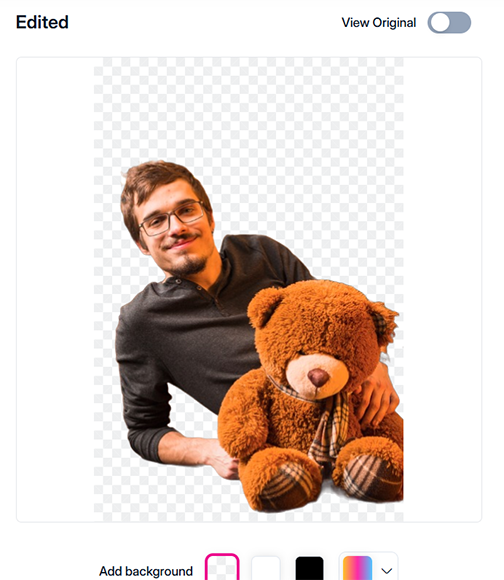
The background remover is the tool I’d guess most people land on first, and it’s also the most polished part of the platform. All it asks is that you upload a photo and the AI isolates the subject automatically, no brush or selection required, and it does this in under 10 seconds on most images I tried.
I ran it against a few different kinds of photos, where the showcase is a plain product shot on a white surface and a casual portrait with some background clutter.


Where it stood out was hair and fur edges, which are usually the weak point for automatic background removers. Flyaway hairs, fuzz, and pet fur held up cleanly on most of these, and I didn’t see much of the “clipped halo” effect you get with older background removal tools.
For product photography, this should be more than enough, as there’s an assumption that you’d use a studio background that is easy to remove.
Where it struggled more was with subjects that share a similar tone or texture to their background – like a beige sweater against a beige wall – where the edge detection occasionally bled a few pixels into the subject.

If the automatic cut isn’t quite right, there’s an AI-assisted refinement option where you tap points on the subject you want kept, rather than manually brushing a mask by hand.
It’s a faster fix than full manual masking, but it also means you’re at the mercy of the AI’s interpretation of your taps, which didn’t always behave predictably on busier images.
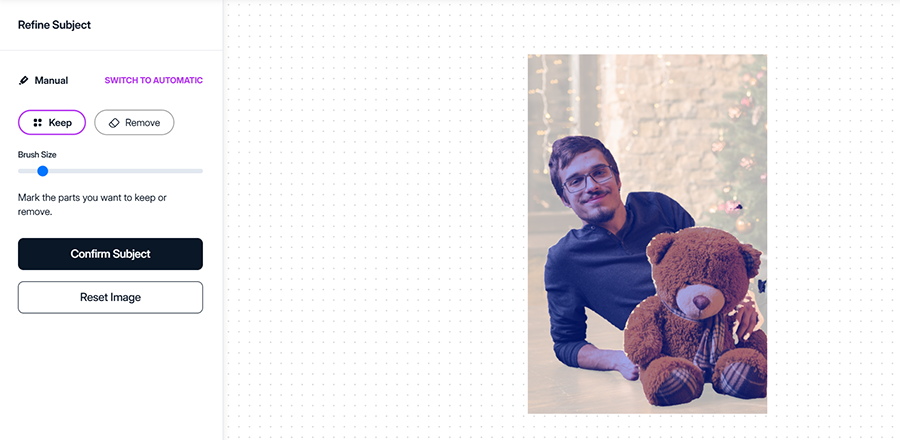
The tool is also incredibly laggy and unwieldy to use, making it a bit of a pain to get any semblance of an edit.
Once the subject is isolated, you get the option to add a plain white, black, or custom background, or leave it transparent. However, there isn’t a way to drop in your own background image directly in this tool (which is in the Product Photos product instead).
There’s also a bulk edit mode that processes up to 50 images at once, which is a useful option if you’re clearing backgrounds on an entire product catalogue, though bulk processing is one of the features gated behind the Pro plan. Again, this is one of the biggest arguments for using the tool for product photography.
Removing Objects With Magic Eraser
Magic Eraser is the object removal tool, and it works on the same brush-and-erase logic as most competitors: paint over what you want gone, hit erase, and the AI fills in the gap. It handled simple removals – stray people in the background of a street photo, a stray cable, a sign – reasonably well on the first attempt.
More complex removals took a couple of passes. On one test image with an object casting a long shadow, the first erase left a faint shadow behind.
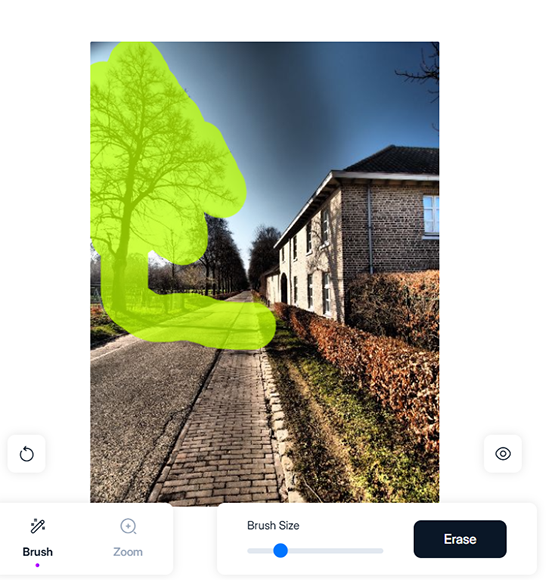
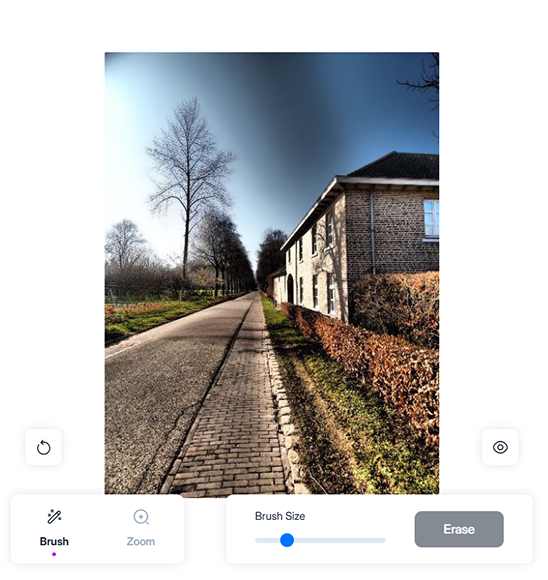
I had to re-select the area and run the eraser tool a second time to get a clean result.
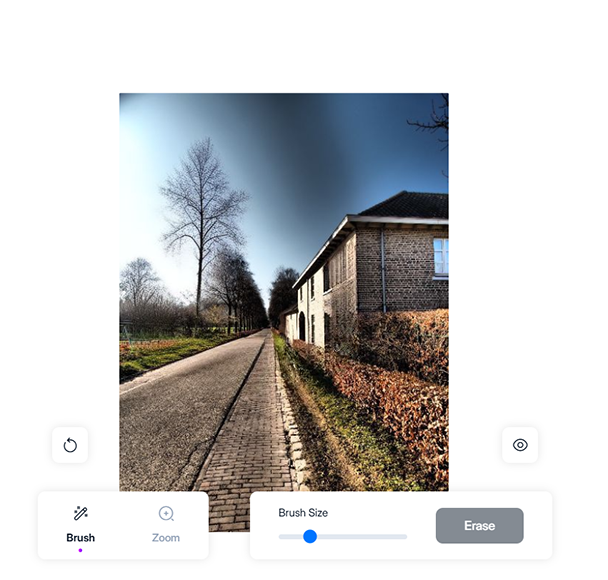
That’s a fairly normal limitation for this category of tool, but it’s worth knowing you may not get a one-click result every time, especially with shadows or reflections in the frame.
The platform’s own guide recommends you brush over both an object and its shadow together, and to tackle multiple objects one at a time rather than in a single large selection, which matched what I found worked best in testing.
Long, thin objects, like power lines, fence posts, or narrow trees, might also be better handled in short segments, since the AI seems to do better filling in a small gap than reconstructing a long stretch of background in one pass.
Once you’re happy with a result, Magic Eraser also supports the same 50-image bulk mode as the background remover.
Notably, the remover will work well if the object is against a simple background, like in product photography. This makes it a quick and easy way to separate a scene into catalog listings.
AI Image and Art Generation
Magic Studio’s AI Image Generator handles straightforward text-to-image generation, with presets for square, landscape, and portrait aspect ratios, plus a handful of style presets like anime, isometric, and analog film.
The workflow is a simple process where you can describe the scene in as much detail as you can, pick a style, choose an aspect ratio, and generate.
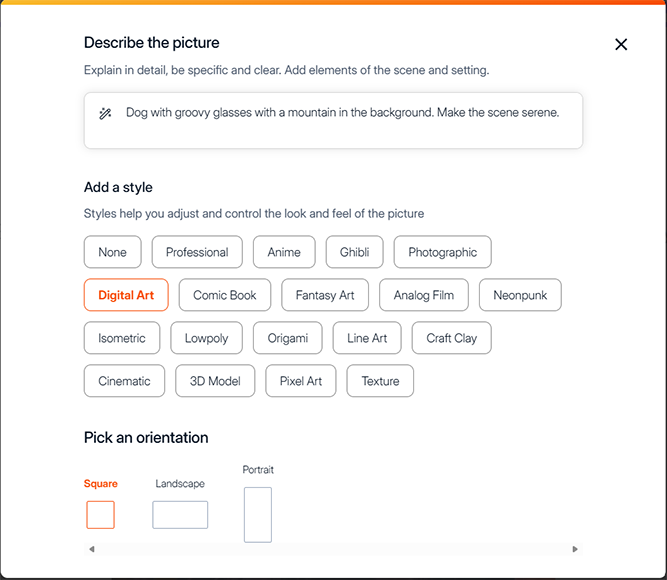
You can then regenerate variations on the same prompt without editing it, which is a nice way to fish for a better result without starting over. You can even change the style rather than just the prompt, which is a nice bonus.
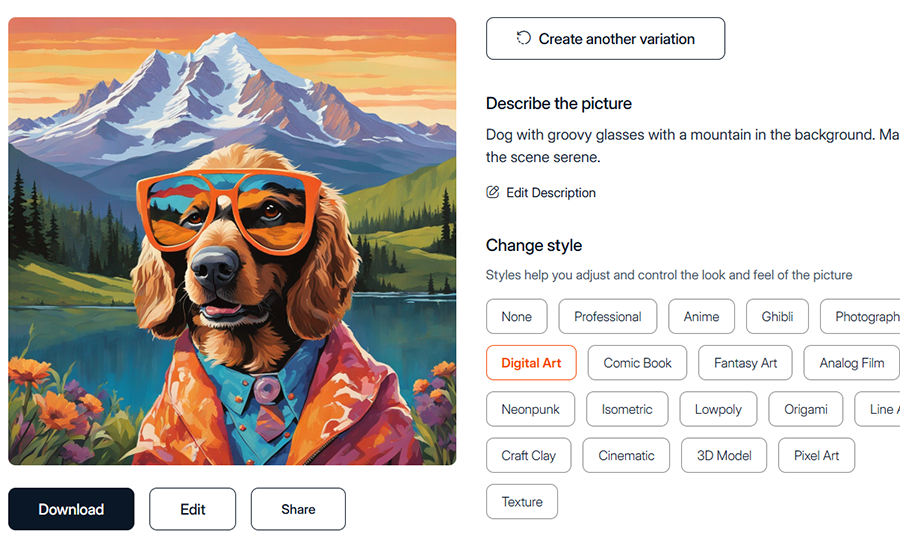
It’s a serviceable generator, but it doesn’t try to compete with dedicated models like Midjourney on fine detail. It’s better as a quick way to rough out an idea or a background element or a simple image.
The AI also won’t understand if you tell it not to do something, which might mean you’re stuck trying to regenerate something until it gets rid of an aspect you don’t want.
The separate AI Art Generator covers more stylized, illustrative output, and unlike the photo-editing tools, generation here draws from your credit balance. Notably, this tool doesn’t have any other options for streamlining the output beyond the text description, which might make it seem a bit limiting.
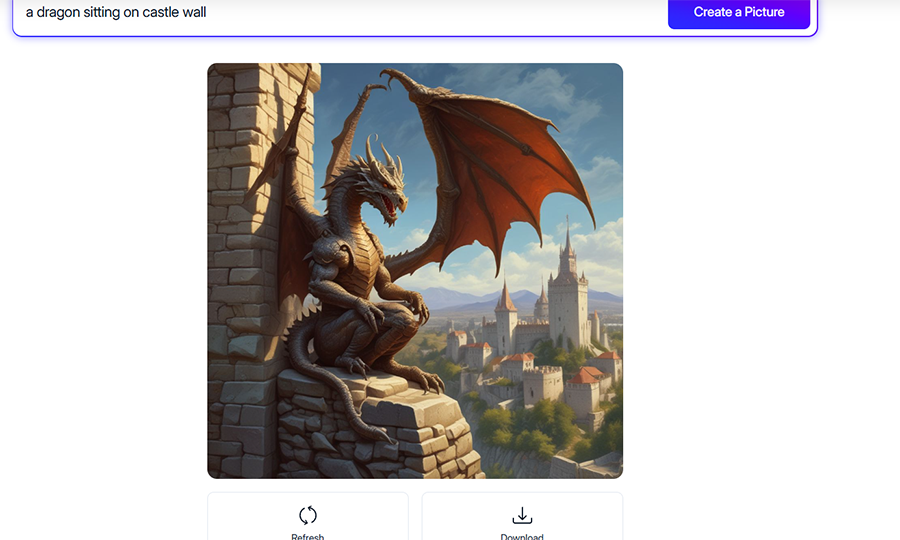
Image Upscaler and Background Blur
The Image upscaler bumps resolution up to 4K, which is enough for most prints. The highest resolution is locked behind the Pro plan, though, so free users can test the interface but won’t get a usable download out of it.
As for the actual results, the images look fine and nothing out of the ordinary. The resolution is properly upscaled, and you’ll only occasionally get a smudge where the AI fill took the wrong route.
Background Blur is more of a supporting tool for the other features. It isolates the subject in the same way the background remover does, then applies a blur behind it to fake a shallower depth of field.
It’s a nice touch for a portrait shot on a phone with a busy background, but it won’t replicate an actual wide-aperture lens. The images might still look a bit flat, just with blur added in.
This is also one of the slowest features on the list, as the AI seems to take more time here than when generating an image from scratch.


Note that the tool has an “intensity” setting, but I’ve found that anything lower than 70% might not be enough in terms of blur. The tool also might blur the edges of the subject at times, and there’s no way to fix that.
File Converters
Rounding out the toolset are two small utilities: a HEIC to JPG converter and a WEBP to PNG converter. Neither does anything an AI really needs to be involved in, as they’re straightforward format conversions.
Think of them as a convenient add-on if you’ve ever been stuck with an iPhone photo that a website won’t accept, or a WEBP image you need to drop into a document that doesn’t support it.
Ease of Use
Every tool on Magic Studio follows the same pattern: upload, adjust or brush, download. There’s no onboarding sequence and no learning curve to speak of, which fits the platform’s pitch of being usable by someone with zero design background.
The app is also available on iOS and Android, and projects and account features are available across devices when signed into the same account. So you can start something on a desktop and finish it on your phone.
The mobile app mirrors the same core tools as the website rather than offering a cut-down version, though you should use the desktop for anything needing finer control.
The main issue I had wasn’t the tools themselves but the constant cross-promotion. Nearly every tool page displays ads for InstaHeadshots or Product Photos, and it’s easy to lose track of which product you’re actually using.
None of that affects how the core editing tools perform, but it does make the free experience feel more crowded than it needs to be.
More: 16 Incredible AI Photo Tools to Try in 2026 (Free & Paid)
Pricing
Magic Studio’s free tier is extremely generous.
All the background removal, object erasing, and background blur are unlimited, with the caveat that downloads are lower resolution and carry a watermark, and you can only process one image at a time. The AI image and art generators are the exception, capped at 40 one-time generation credits on the free account.
The Pro plan removes the watermark, unlocks full-resolution downloads, adds bulk editing for supported tools, and gives unlimited AI generations, as well as chat support for any issues. The Pro plan costs $14.99 (billed monthly), $12.49 a month (billed every six months), or $4.99 a month (billed annually at $59.99).
The annual rate undercuts most comparable subscriptions in this space, though the monthly option is considerably less competitive if you only need it for a short stretch. The gap between the cheapest and most expensive way to pay for the same feature set is unusually wide.
Who Is Magic Studio For?
Magic Studio is a solid pick for anyone who needs quick, no-fuss basic AI photo-editing features for free (and the free tier is unusually usable for most tasks). Small sellers cleaning up product photos, social media managers producing a high volume of quick edits, and casual users just tidying up personal photos are all well served here too, especially since so much of the toolset works without ever creating an account.
It’s a less convincing choice if AI image generation is the main draw, since the generator and art tools trail behind dedicated platforms in both control and output quality.
It’s also not built for anyone who wants granular manual control over their edits; brush masking on the background remover, custom backgrounds without leaving the tool, or fine-tuned prompting on the generator are all missing. Photographers or designers doing client work will likely still need a dedicated editor alongside it for anything beyond a quick cleanup pass.
However, if you just need quick edits for your stock photos or product gallery, these choices should suffice, and the generous free account options are worth checking out.

As the General Manager of Shotkit, India Mantle brings with her a lifelong love for photography that she developed during her childhood, watching her father document their family moments with his Nikon EM. In her free time, you find her enjoying the awe-inspiring natural beauty of her home, Northern Rivers, Australia.
1 Comment
Leave a Comment
👋 WELCOME TO SHOTKIT!
🔥 Popular NOW:

Great review! I have been using various AI image tools for my design work and found that comparing them side by side really helps understand each ones strengths. The technology is evolving incredibly fast lately.