






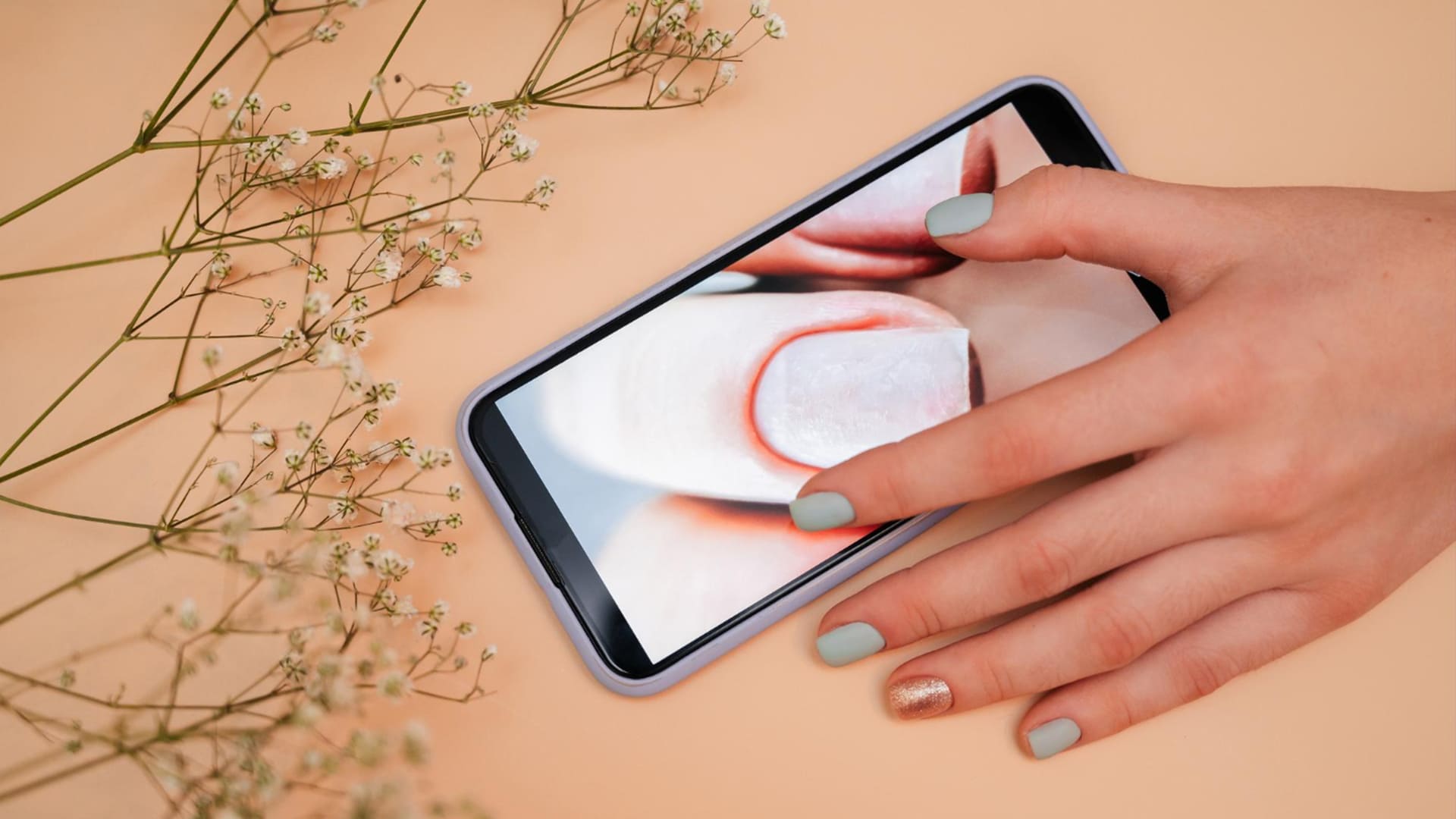
4 Easy Mobile AI Apps for Better Nail Art Portfolio Photos
Explore four mobile AI apps for editing nail art photos, from cleanup and color correction to backgrounds and social formatting.
AI | Software | By India Mantle | Last Updated: September 28, 2026
Shotkit may earn a commission on affiliate links. Learn more.
Nail art is one of the few crafts where photos matter almost as much as the work itself. Most new clients will find you through a grid of thumbnails on social media, nestled among hundreds of other salons or solo artists.
The problem is that nail art and salon desks can complicate taking photos. The lighting isn't right, and the environment is too busy for intricate nail details.
I’ll go through a quick shooting setup and four mobile apps that fix the most common problems. I used the same sample image to start with, running it through the different apps one by one when needed.
The 30-Second Salon Shooting Setup
First, consider using 2× zoom if your phone offers optical or optical-quality 2×.
That’s because the main camera on most phones technically uses a wide-angle lens, which exaggerates whatever sits closest to it. For a hand, that’s the fingertips, which stretch out to make the hand look like claws.
Instead, shooting from farther away at a longer focal length reduces perspective distortion and can keep nail proportions looking more natural. Then, you need to step away from the subject to capture the entire hand.
Next, you need to deal with the ring light. Angle the hand 30 to 45 degrees away from the light (or move the light to the side) so the reflection slides off the nail.
If you’re using natural light instead, position the subject so that the light comes from one side of the hand at a slight angle. This can produce more even, flattering illumination. This makes the light softer.
Posing-wise, there’s a lot you can do, but I’d suggest working with two main poses: outstretched hands on a simple background (or the salon table itself), or one with fingers slightly curled so either the nails or the fingers form a line.
The Editing Workflow
The four apps below are listed in order because each one is actually just a part of the overall workflow.
Cleanup is first, so that when you correct color, you’re working on a clean image instead of adjusting around dust and dry skin.
Next is color and lighting correction, because if you apply a new background, it will also get color corrected for the worse.
Background generation is arguably the most AI-reliant piece here, while the others combine conventional editing tools with AI-powered features such as masking and retouching.
Formatting is last because it’s usually the only step that doesn’t actually change the photo.
Each app can also do more than one job, which I’ll cover as I go, since you might not need all four.
EPIK for Skin and Cuticle Retouching
EPIK is an all-in-one photo and video editor. While it has a strong focus on portraits and beauty editing, it also offers tools that can be used on hands.
Start with AI Skin, which targets blemishes, redness, and uneven texture. On hands, it also evens out dry patches around the knuckles and can even adjust shadows and light glare on oily skin.
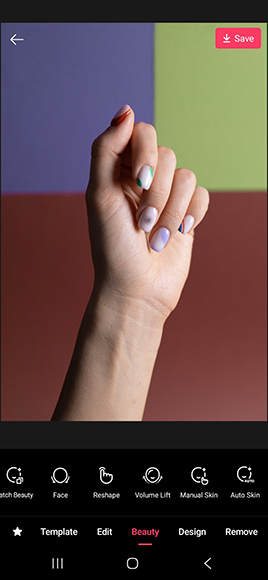
After that, use the Remove tool, which you brush over anything you want gone. You can use it for lint on the nail surface, a stray bit of glitter, or even rogue hangnails that couldn’t have been solved completely.
The tool handles small spots well, but bigger areas right against the nail edge sometimes blur between what is nail and what is skin, especially if it’s in the middle of light’s focus.
Since EPIK's retouching tools are strongly oriented toward portrait and skin editing, results on hands may vary, and you may need to rely on manual adjustments. You may need to rely on manual adjustments.
The biggest risk here is that EPIK might go too far. Heavy smoothing can make hands look plastic, so keep the changes to a minimum if you don’t use the auto-AI features.
Some EPIK features are available only with Pro, and the app offers both free and paid tiers.
Lightroom Mobile for Color-Accurate Correction
Warm salon lighting makes hands seem more yellow than they actually are, so you should start by adjusting the white balance. Using the eyedropper on something that should be neutral (a white towel, a white card, or the label on a polish bottle) gets you most of the way there in a single tap.
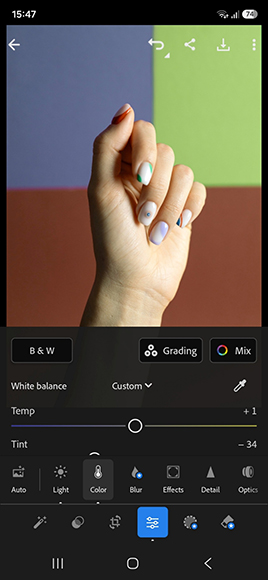
From there, compare the photo against the actual polish bottle and nudge the shades with Color Mix. It lets you shift the hue, saturation, and brightness of a single color without affecting the skin tones around it.
Then, you can use the separate “Light” option if you need more corrections. Specifically, the Shadows, Whites, and Blacks sliders are worth adjusting to see how they work in real time.
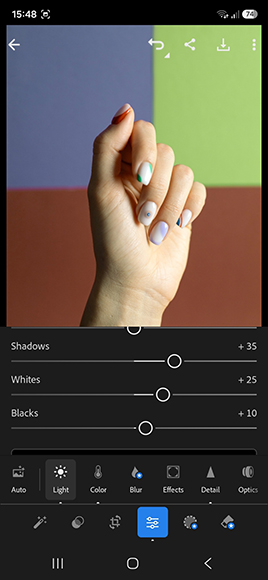
Notably, the free app includes core editing, while a Premium subscription unlocks tools like Masking, Lens Blur, and Generative Remove.
Masking is the most useful of these for nail photos, since it lets you brighten the hand without brightening the background too. Generative Remove can also handle cuticle and dust cleanup.
Lightroom also has the steepest learning curve of the four apps, and there’s no single button that gets polish colors exactly right.
Photoroom for 1-Tap Background Swaps
Photoroom was built for product photography, which makes it a natural fit for nail work. As far as the app is concerned, a freshly done hand is just another product to isolate and place on a clean backdrop.
When you import a photo, Photoroom removes the background automatically.
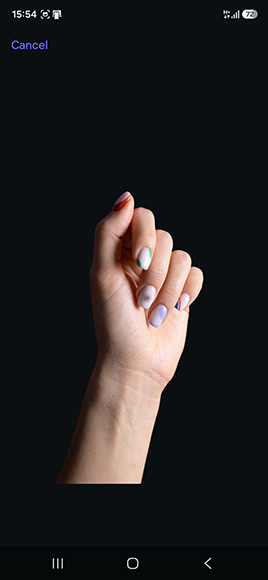
From there, you can pick a plain color, choose a preset background, or generate a new scene with AI Backgrounds by describing it in text.
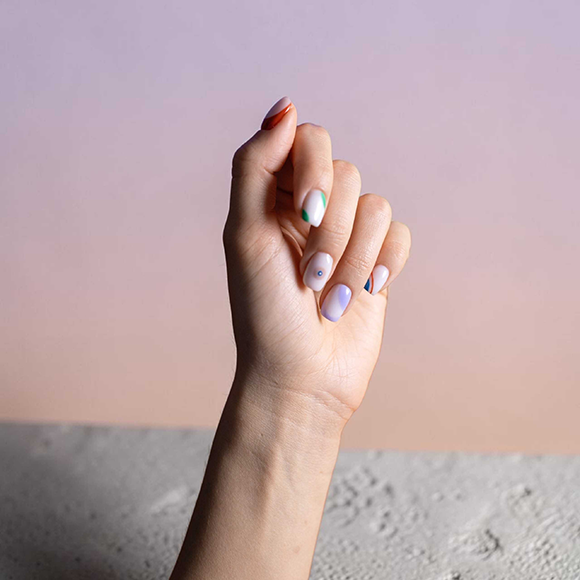
The cutout can be problematic here, as the app has a tendency to add details “below” the actual arm and artificially extend it. You’ll need to recheck the edges to see if they flow naturally.
Regardless, keep AI backgrounds simple. A busy scene can compete with the nails, which defeats the purpose of swapping the background in the first place.
AI Backgrounds requires AI credits, and the availability and limits vary by plan. Photoroom currently offers a free tier as well as paid plans and a seven-day trial for eligible subscriptions, so you don't necessarily have to start an annual subscription just to use the app.
Canva Mobile App for Instant Social Formatting
At this point, you should have a clean, color-accurate photo on a good background. Canva turns this into a post.
You can simply pick a template for the format you need (an Instagram post, a Story, or a TikTok or Reel cover), drop in your photo or photos, and add your salon name, the name of the set, and the price if you list it.
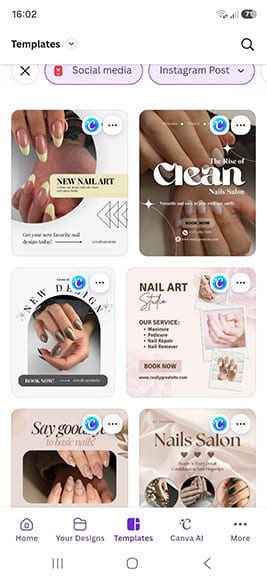
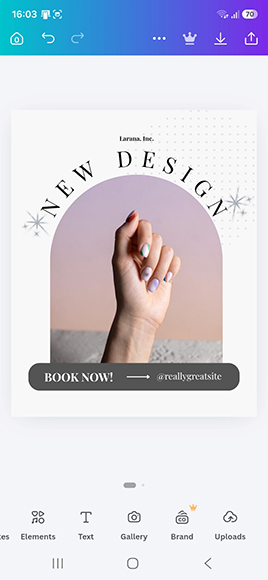
Canva has plenty of templates made for nail and beauty businesses, so the work is mostly choosing one that fits your brand rather than designing from scratch.
You can even schedule posts directly from Canva.
I’d recommend customizing one template properly and reusing it, which allows you to make it your own rather than relying on stock options that might be shared among hundreds of salons.
More: How Canva’s AI Tools Can Transform Your Social Media Presence
Can You Skip One of These Apps?
Four apps is a lot to learn and pay for, and some of their tools overlap quite a bit. Here’s what happens to the workflow if you cut one out.
Cutting EPIK
This is the easiest cut. Lightroom’s Generative Remove, or Photoroom’s Retouch tool, can handle cuticle flooding, dust, and lint.
What you lose is one-tap skin smoothing, so you’ll need to spend more time brushing out spots by hand. The upside is that manual cleanup rarely produces that plastic, over-smoothed look.
Cutting Canva
If you mostly post straight photos rather than designed graphics, Photoroom’s resize tools and Brand Kit cover the basics.
You’ll lose Canva’s template range, text layouts, and scheduling, so this works best for techs who keep a simple, photo-first grid.
Cutting Photoroom
EPIK’s smart cutout and background tools can handle simple background swaps, and so can Canva’s background remover.
In my testing, though, the edges around the nails weren’t as clean, which matters most with long or detailed sets. It’s doable, but expect to spend extra time fixing edges.
Cutting Lightroom
EPIK’s HSL and curves tools and Photoroom’s Relight can approximate color correction, but this is the one app I wouldn’t cut.
Polish color is the one thing clients will check against the real set, and Lightroom’s free version already covers white balance and color adjustments.
If you want a leaner setup, I’d go with three apps: Lightroom (free), Photoroom, and Canva. Add EPIK back in if you shoot a lot of close-ups where skin takes up most of the frame.
Pricing
All four apps are technically free to download, but each one keeps some of its most useful tools behind a subscription.
Photoroom Pro costs $90 per year when billed annually. The higher Max and Ultra plans are aimed at large e-commerce catalogs, so a solo nail tech won’t need them.
EPIK is free to use with ads, and EPIK Pro unlocks the full set of AI tools. The EPIK Pro annual subscription is currently $51.99 in the U.S. App Store, but the tool also frequently prevents you from downloading the image without one if you mistakenly use a Pro-only tool.
Lightroom Mobile is free with core editing tools, while Premium adds features such as Masking, Generative Remove, and Lens Blur; subscription pricing varies by subscription and platform. Also, a Premium subscription bought through the app store only unlocks features on mobile.
Canva Pro is currently listed at $144 per year, equivalent to $12 per month when billed annually.
Using the annual prices listed above, utilizing the full four-app workflow would cost roughly $286 per year.
Do I Need the Paid Versions?
Lightroom’s free version handles the most important step (color accuracy) on its own, so Premium is only worth it if you want masking or Generative Remove.
Photoroom Pro may be worth considering if you post frequently, particularly if you need its higher usage limits, AI credits, and paid-plan features for commercial work.
Canva Pro only pays off if you regularly post in several formats and want one-tap resizing, and EPIK Pro is optional for most techs.
If you’d rather spend nothing at all, free Lightroom for color and Canva Free for formatting will get you most of the way.
Editing Apps vs. AI Nail Art Generators
Search for “AI nail art” in any app store, and you’ll find a very different kind of app from the ones in this guide.
The four apps above are editors. They fix the lighting, replace the background, crop, and format the photo, but none of them change the design on the nails. What the client sees is what you actually painted.
AI nail art apps are generative. Some create nail designs from a text prompt, while others offer virtual try-on, where you upload a photo of a hand, and the app paints a new design onto the nails.
But clients book based on what they see, and they expect to walk out with something that looks like the photos.
That’s why it’s worth being careful with generator apps, some of which even market themselves directly to nail professionals. One app pitches its AI-generated nail photos for portfolios and salon marketing, without the need for a real photo shoot, which arguably defeats its own point.
If a client books a design you’ve never actually painted, you’ll either scramble to recreate it or need to explain why the result doesn’t match. Either way, you lose some of the trust your portfolio was supposed to build.
That doesn’t make these apps useless. They’re handy for mood boards, brainstorming seasonal sets, and for consultations where a client can preview a design on their own hand before committing.
Just make sure to keep those images out of your portfolio or label them clearly as concepts.
There’s a bit of a gray area here, since Photoroom’s AI backgrounds are generated too. The difference is what’s being changed, so a generated marble backdrop doesn’t misrepresent your work, while a generated design does.
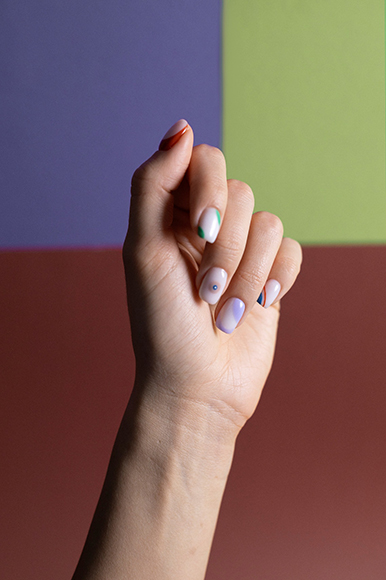
Before and After a 60-Second Edit
Who Are These Apps For?
This workflow makes the most sense for solo nail techs building an Instagram or TikTok presence, and for home-studio techs who don’t have space for a proper backdrop or lighting setup.
It also works well for salon owners who want photos from different techs or tables to look consistent. A shared Lightroom preset and a Canva Brand Kit can make a salon feed look cohesive instead of like five different businesses.

As the General Manager of Shotkit, India Mantle brings with her a lifelong love for photography that she developed during her childhood, watching her father document their family moments with his Nikon EM. In her free time, you find her enjoying the awe-inspiring natural beauty of her home, Northern Rivers, Australia.
👋 WELCOME TO SHOTKIT!
🔥 Popular NOW: