







Submagic Tested: How Much Time Does AI Auto-Editing Save on Reels?
Can AI edit a Reel with a single click? While the answer is no, Submagic turns out to be as close as you can get and in record time of around 5 minutes.
AI | Software | By India Mantle | Last Updated: November 18, 2026
Shotkit may earn a commission on affiliate links. Learn more.
When it comes to making fresh content for social media, it turns out that even a short video can take quite a while to finish.
It’s not uncommon for editing a single Reel to take anywhere from half an hour to an hour to reach a respectable level.
This is partly because editing a short Reel often involves cutting and stitching together sections of a longer video to create a seamless result. And after that, you may still have to adjust the lighting, zoom, and add captions to make it interesting in the age of increasingly short attention spans.
And for some of these editing tasks, AI seems to be a real help. But how much time does it actually save?
Today, we’ll review Submagic to find that out, testing just how long its supposedly one-click editing actually takes and what it accomplishes.
What Is Submagic and Getting Started?
Submagic (hosted on Submagic.co) is a French AI editing suite that focuses on editing video for social media.
The platform is entirely browser-based and stores everything in the cloud. The downside here is that you don’t have an app that allows you to shoot a video and import it for a quick edit.
Instead, the ideal workflow for the platform is to film a longer piece of content and then use Submagic to convert it into one or more shorts to post for Instagram, TikTok, YouTube, or other Reel-like social media formats.
The platform’s upload limits depend on your subscription plan. The maximum file size is 3,000 MB, while individual video durations are limited to two minutes on Starter, five minutes on Pro, and 30 minutes on Business.
However, the upload speed here is a bit slow, and it can take well over 10 minutes even if you have a nominally high internet speed.
Apart from that, there are three main “areas” or features for using the AI in it.
Automatic Video Editor
One of the hallmarks of the platform is its claim to edit a video in one click.
This is done through the AI’s “Iris” editor, which takes inspiration from popular Reel styles and implements similar B-rolls and captioning to whatever you input into it.
The tool’s sample library can be a little bit confusing, with nondescript names like Paprika, Bob, Slate, Widget, and so on. Luckily, they are separated into categories based on their goal, like Podcasts, Advertising, or general “talking face” informational videos.
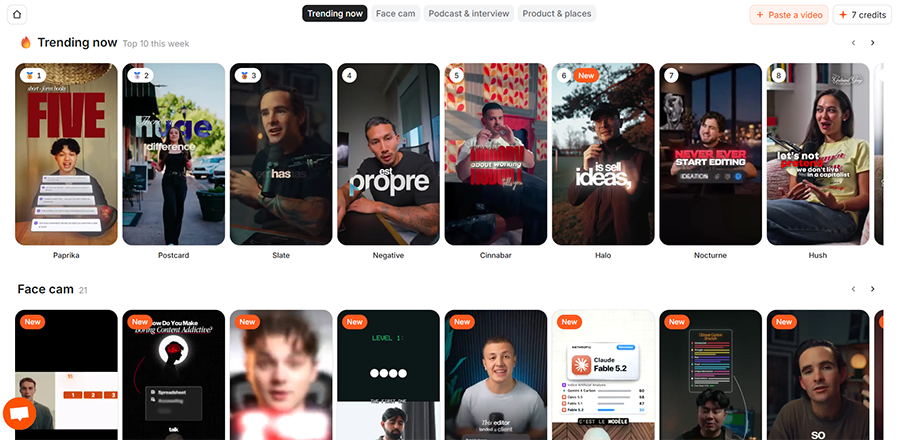
Unfortunately, most of the samples don’t come with sound effects, and the preview process is relatively unwieldy. If you click directly on a sample, you’ll be taken to the next step of the upload process.
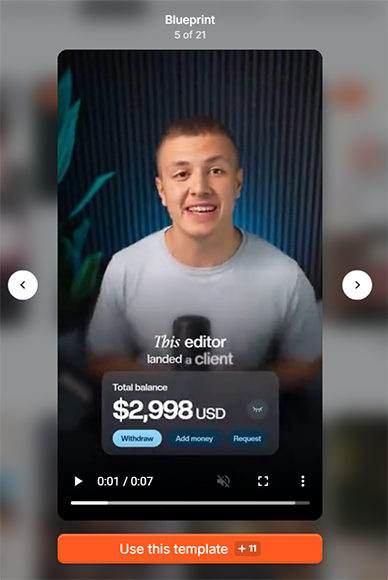
When you do decide to use a template, the rest of the process is quite simple. Just upload a video and wait for the editor to finish.
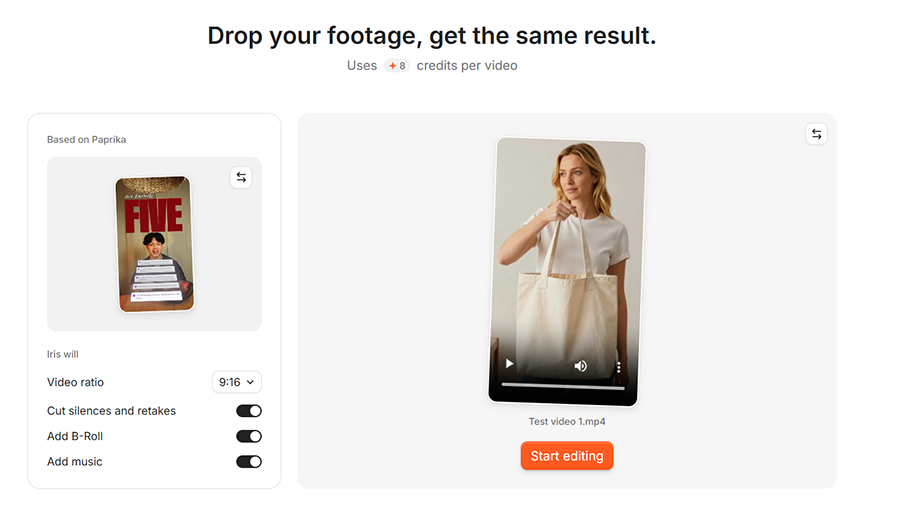
The editing process itself takes a few minutes. When I first started it up, the timeline said 15 minutes for a 10-second video, but the video was ready in about 3 minutes anyway. The rest of the dashboard is also still usable while the AI is processing, so you can load up another video in the meantime.
The initial result of the one-click edit (at this point, it’s more like three clicks, but that’s also solid) is good. The sample I chose had captions that popped up above or below the speaker, and they were done in pretty much the same style as in the template, so what you see is usually what you’re getting.
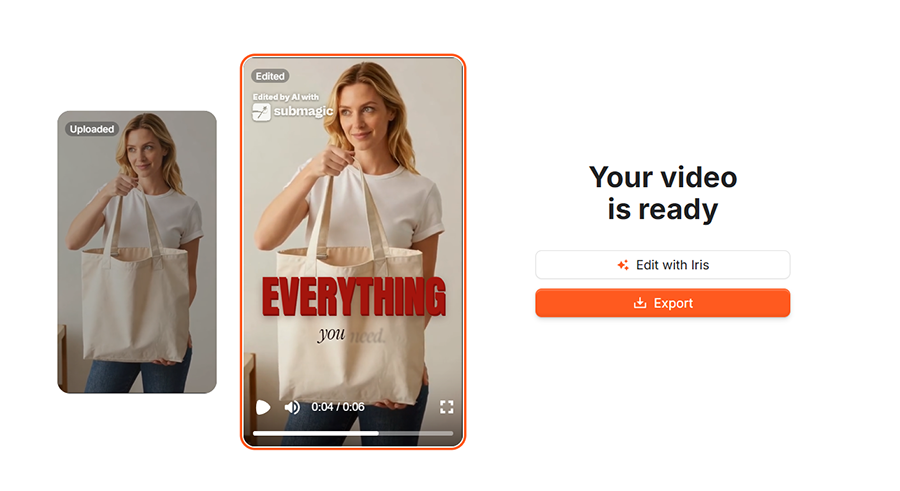
Furthermore, the AI didn’t require any prompting with the script so long as the uploaded video had a voiceover to rely on.
If you’re not quite happy with the initial result, you can modify it further with the same editor. This time, you’re taken to a more comprehensive editor that displays all elements of the video and allows you to chat with the AI bot to suggest modifications.

However, this also creates a bit of a bottleneck for the editing experience.
While you technically have the ability to expand the editor into a frame-by-frame view, the AI can only “fix” things by regenerating the result, changing a specific word in the script, or describing the sound effect or B-roll in natural language.

You can’t edit the actual effect manually, you have to rely on the AI getting it right on a subsequent attempt or start over.
What you can change is the location and font of the captions, which is a good thing because some templates can create difficult-to-read text when overlaid on top of a darker piece of clothing.
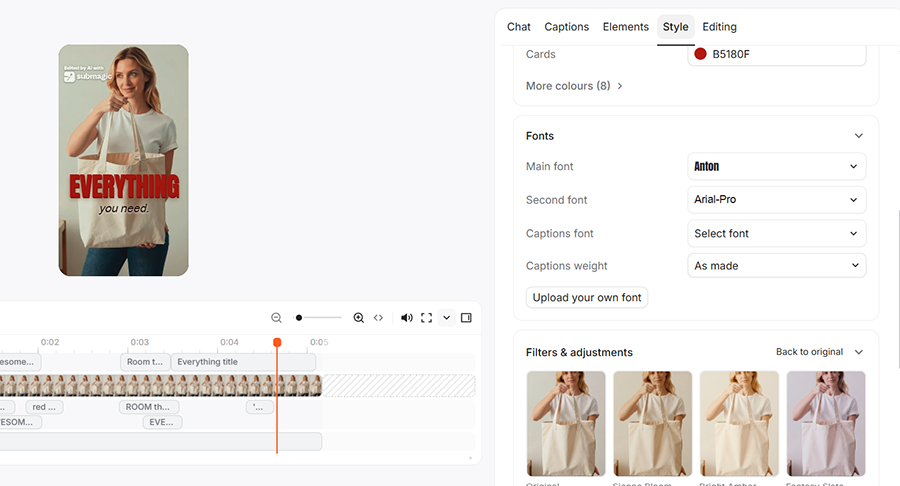
You can also apply a filter to the entire video, but there’s no option to do so selectively for emphasis or light effects.
The editor also comes with additional options to force the subject to look at the camera throughout the reel and clean up background noise. This eye corrector can avoid some issues where you accidentally look away at the teleprompter or script, but it simply doesn’t work if your face is turned even slightly away from the direction of the camera.
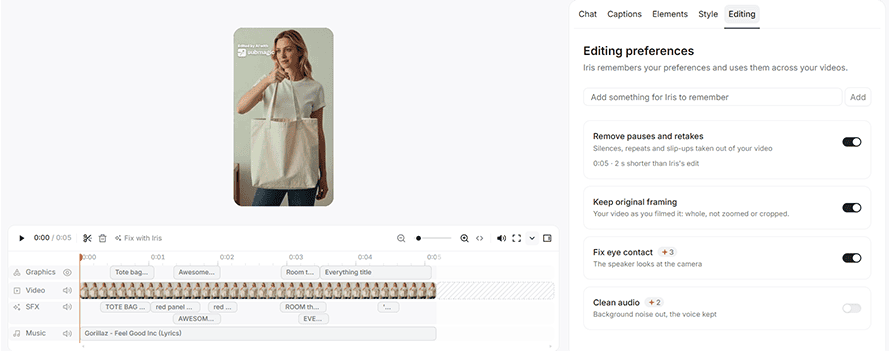
In some cases, the result can be incredibly off, where the AI will “double” the eyes and try to force them to stay centered on the face while it’s still moving. If that happens, you don’t have a good fix for that other than splicing the section out and replacing it with the original roll.
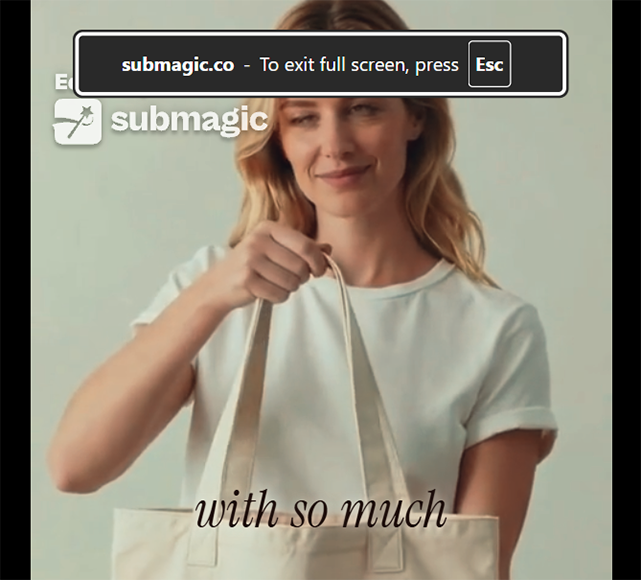
Yes, this is a still from the edited video, but it’s quite noticeable when I rolled the tape, and the AI clipped the eyes back to their intended location a moment later.
Overall, this is one of the more complete one-click editors, offering some creative control over the result, a good selection of presets, and the option to ask the AI to regenerate an edit.
Captioning Reels
If you’ve already done the hardest parts of stitching together a Reel and edited it from a videographic standpoint, the captioning service is the last section where you can snag your viewer’s attention.
And here, the AI certainly doesn’t disappoint.
After uploading the video and a short processing time, you get an entirely different editor that allows for complete customization of the captions, their style, B-rolls, added media, and zooming.

Some of the styles can even add emojis to the captions, which is a bit divisive among social media creators. But they can help your Reels stand out and attract attention, especially when viewers initially watch with the sound off.
Even the captions themselves are editable, so you can change the wording manually or cut them out of the video entirely if you want to streamline it for the B-roll or CTAs.
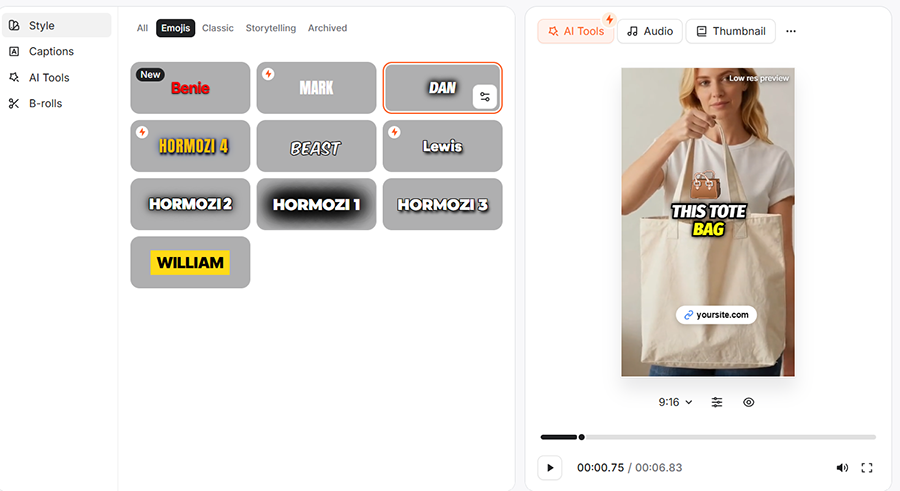
The AI tool of note here is the ability to automatically zoom, usually on the speaker’s face if you have a podcast-style Reel, or the main subject or product for more promotional content. Either way, the zoom can also be manually corrected if needed.
Additionally, you can add more elements such as CTA buttons, links, comment highlights, and even add a customized intro from your library to make all Reels have a uniform look.

From there, you can quickly export the video as an MP4 file and upload it to the social media platform of your choice.
Magic Clip to Create Reels From Long-Form Video
The most ambitious feature is Magic Clips, which attempts to extract Reel-worthy segments from longer videos, such as podcasts or interview.
Here is where the upload limitations start showing, as large videos can take quite a while to get processed.
And even then, the results can be hit or miss.
If you start with a video with notable silences or theme swaps, the AI often correctly identifies major tonal shifts as key parts to splice into a short. But if your interview is more level-toned, it might start capturing a Reel at the tail end of an important subject.
From there, the spliced sections are uploaded to the platform as separate pieces, which can be edited using the other two tools.
Overall, I’d wager that this is the weakest area, as even if the AI hits most notes, you still have to manually go through all the moments to ensure they fit tonally and don’t cut off an important point or reaction you have.
Automatic Social Media Uploads and Scheduling
If you decide to splurge on one of the higher subscription tiers, Submagic can even upload your videos directly to social media for you.
When you connect your accounts, you get a calendar overview of upcoming content funneled through Submagic and exactly when it’s going online.
The platform can directly connect to YouTube, TikTok, Instagram, X, Facebook page, and even LinkedIn if you want to mass-produce business-related content.

Submagic Pricing
While Submagic’s features are all solid at a glance, their usability is a bit muddled due to how the platform prices the product.
Like most apps, it uses a freemium, credit-based model. With a free account, you can test the platform’s editing features on a limited number of short videos before deciding whether to subscribe.
But while the platform offers structured subscription modes, they are all designed for sporadic use.

For example, the “Starter” package, which has 45 credits a month, suggests it can be used for 15 videos. In practice, that gets cut down to about six videos once you account for relatively expensive tools like background removal, silence splicer, eye contact fixing, and so on. In some cases, you might get as little as four videos per month here.
This package also still limits you to two-minute videos, which may be restrictive for creators who work with longer recordings.
The Pro and Business deals are a bit more generous, but even they overpromise how much you can accomplish if you plan to post on social media multiple times per week.
Note that the credit estimates only apply to the automatic short editor or the captioner tools. The “Magic Clip” splicer is even more expensive credit-wise.
There’s always the option of manually topping up credits if you use them up for the month, but you’re looking at spending an additional $20 for just 50 credits. The price does get better with more credits, but you’re still looking at around $75 just to get 400 credits a month (if you’re using the annual subscription).
If you don’t use up all credits, they don’t even roll over, so make sure to start with a lower subscription if you have qualms about how many credits you need.
Submagic AI Verdict: Does It Save Time and Who Is It For?
Based on the tools it has, I’d confidently say that the AI can shave off 50-60% of the usual time needed to edit a video.
It streamlines captioning, can add emojis automatically, and provides enough creative control without making the editing process overly complicated.
However, this comes with a fairly big caveat: You do need to have good A-roll footage to begin with.
This boils down to you having a good camera or one of our recommended podcast setups, and filming in a relatively quiet place with a teleprompter that has you looking at the camera at all times.
Otherwise, you’re still back to trying to edit the footage yourself to get it under the two-minute mark for the Starter package or to the quality where the automatic captioner can wrap up the job quickly.
I’d also dock the platform a point for the inability to work on mobile. Even if you can technically upload a video you just took, the UI is only usable when you’re on desktop.
Furthermore, there’s the issue of the credit system. Based on the pricing, I’d say that it favors creators who send no more than two Reels per week and who use their laptops or PCs for the bulk of their content creation pipeline.
Anything more, and the credit top-ups will start taking a real toll on your wallet.
The best part about Submagic is that you actually get a full preview of its capabilities with just the free credits by starting an account.
From that standpoint, it doesn’t hurt to upload a video and see how well Submagic works with your content. Just make sure you browse the template gallery to find a style, tone, and caption format that fits your needs.

As the General Manager of Shotkit, India Mantle brings with her a lifelong love for photography that she developed during her childhood, watching her father document their family moments with his Nikon EM. In her free time, you find her enjoying the awe-inspiring natural beauty of her home, Northern Rivers, Australia.
👋 WELCOME TO SHOTKIT!

🔥 Popular NOW: