





How to Tailor Your Resume for Photography Jobs with Adobe Acrobat (Free)
Use Adobe Acrobat’s free AI Summarizer, AI Assistant and AI Resume Builder to quickly tailor a photography resume to any job posting.
Software | Paid Partnership | By Ana Mireles | Last Updated: November 19, 2026
Shotkit may earn a commission on affiliate links. Learn more.
Adobe Acrobat’s AI Summarizer, AI Assistant, and AI Resume Builder can help photographers tailor their resumes to specific job postings quickly and easily. You can summarize a job description, identify relevant keywords, and transform your existing resume into an updated, professionally formatted version.
This guide shows you how to use Adobe Acrobat’s free AI-powered tools to highlight your most relevant skills, adapt your experience to different roles, and craft a polished resume – without wasting time on formatting.
I’ll also show you how to take resume tailoring one step further with PDF Spaces if you have the budget for a paid membership.
Whether you’re a fashion, food, real estate or product photographer, this guide will help your job applications stand out.
So, let’s get started!
Adobe Acrobat vs. Other Resume-Building Tools
Adobe Acrobat isn’t the only option for creating a photography resume. Here’s how its free and paid tools compare with Microsoft Word and Canva for tailoring your resume to a specific job.
| Tool | Best for | Key capabilities | Cost |
|---|---|---|---|
| Adobe Acrobat free tools | Tailoring individual photography resumes | Summarize job descriptions, identify keywords, create and edit resumes using templates | Free tools available; AI usage limits may apply |
| Acrobat Studio (PDF Spaces) | Working with multiple career documents | Analyze resumes, job descriptions, certifications and other supporting files together | Paid |
| Microsoft Word | Manual resume editing | Customizable templates, formatting and editing tools | Free web version; paid desktop plans |
| Canva | Visually polished resumes | Resume templates, drag-and-drop design and customization | Free; Pro optional |
How to Tailor Your Resume for Photography Jobs
A strong photography resume does more than list your qualifications. It shows employers how your skills, experience, and creative background match the specific role you’re applying for.
Before we get into tailoring your resume with Adobe Acrobat, let’s look at what employers want to see.
What Do Photography Employers Look For?
Photography employers look for a strong portfolio, but also relevant technical skills, creative experience, and evidence that you can deliver professional results.
Depending on the role, they may also value experience with particular photography styles, editing software, lighting techniques, or client projects.
While most photographers put a lot of thought and work into their portfolio, they often struggle with the rest of the job application. Your images may show your style and what you can achieve, but employers also need to know your other skills and experience. That’s why even photography jobs require a resume and a cover letter.
Photographers often struggle most with resumes because their backgrounds are varied and mixed. A photography resume is often full of short projects, important clients, awards, workshops, seminars, and more.
This is far from the straightforward resume other careers have, where you only list your formal education and a few long-term work experiences. That’s why formatting a resume in a couple of pages, as most job applications ask, takes a lot of time and effort.
Here’s a step-by-step guide to streamline the process and use Adobe Acrobat’s free online tools to tailor your resume each time and increase your opportunities.
Step 1 – Summarize the Job Description (AI Summarizer + AI Assistant)
Before you start editing your resume, take time to understand what each photography job requires.
Product photographer or editorial photographer are tags that cover a wide variety of profiles. To land the job, you need to show the employer you are better suited than the competition.
Employers look for different experiences, skills, styles and creative strengths. All of them should be in the job offer. Sometimes they’re stated clearly; other times, they’re implied.
Use this information to tailor your resume so it stands out. This is where the free AI Summarizer from Adobe Acrobat comes in.
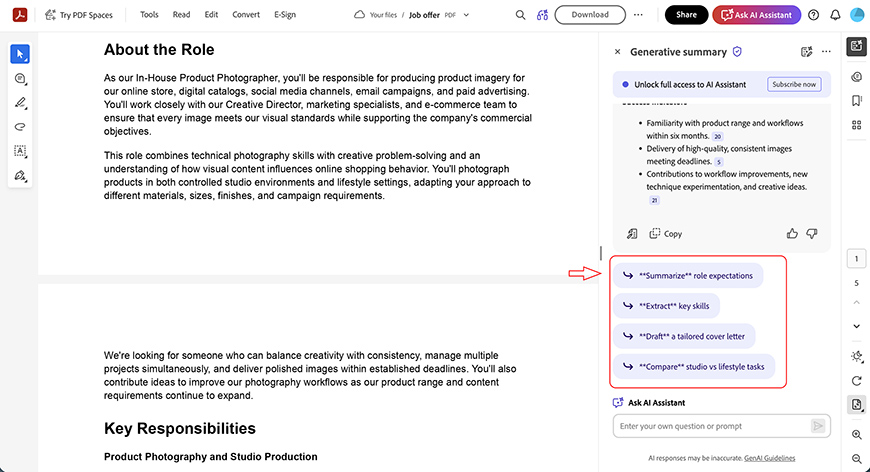
Instead of reading through lengthy job descriptions and trying to identify the most important details, you can use Acrobat’s AI Summarizer to quickly extract the key information.
Simply upload the job description and let Adobe Acrobat craft a summary. If it’s not comprehensive enough, use the AI Assistant to ask for the top requirements, soft skills, and anything else you need to know.
Since employers often use automated methods to filter resumes, using keywords will help. Ask the AI Assistant which keywords to use when describing your experience and achievements.
Adobe offers a limited number of free AI summaries and AI Assistant requests, with additional access available through a paid subscription.
Step 2 – Build a Master Resume
If you don’t have one already, create a document that includes all your education, experience, projects, awards, key clients, and any other relevant information.
Think of this as a master resume. Don’t waste time formatting it, since you won’t be sending it to anyone. It’s a log of your professional history.
This task may be tedious, but you only have to do it once. Then, remember to keep it updated with any new courses, jobs, and skills you acquire.
Step 3 – Upload Your Resume to Adobe Acrobat Resume Builder

Once your master resume is ready, turn that information into a polished, professional document.
Adobe Acrobat’s AI Resume Builder can help. Instead of formatting it manually, upload your master resume. Then, choose a template and let Adobe Acrobat do all the work.

Depending on the document length, this may take a few seconds, but you’ll see the text appear as it progresses. In my test, I uploaded a two-page PDF (555 KB) and it took just seven seconds to import.
Once it’s done, you can try out another template if you’re not convinced or keep it if you’re happy.
Step 4 – Tailor Your Resume to the Job
One of the great things about the Adobe Acrobat AI Resume Builder is that it gives you a fully editable document.
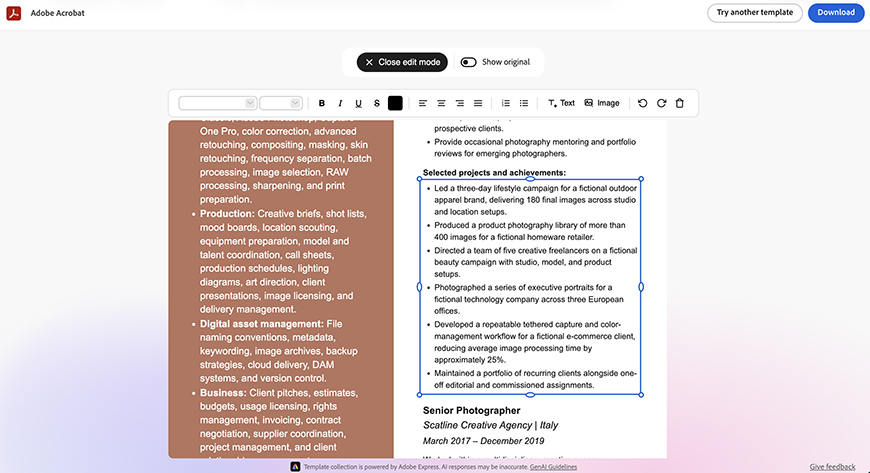
Now that everything is formatted, you can remove any sections that aren’t relevant to this job application without scrambling the formatting.
You can also edit the text to add the keywords you identified using the AI Summarizer in the first step.
Step 5 – Review and Proofread Your Resume
While AI technology saves us a lot of time, it can also make mistakes. So take a few minutes to double-check all the information.
Double-check dates and other important details. Make sure you’re not missing anything important that could undermine an otherwise strong application.
Also revisit the job description you analyzed in Step 1 to make sure the resume reflects what the employer is looking for.
You can use this checklist to make things easier:
- Confirm the resume matches the job requirements.
- Check your contact information.
- Review your photography experience.
- Proofread everything.
- Check the layout and readability.
- Verify accuracy.
Step 6 – Download and Send Your Resume (AI Resume Builder)
As of November 2026, Adobe Acrobat’s AI Resume Builder is available to use for free without logging in.
This is very convenient, but it also means it won’t be saved online. So, make sure you download the finished document to your computer before leaving the tool.
Once your resume is ready, attach it to your application, along with your portfolio, cover letter, and any other requested documents.
Now you can be confident that your application is stronger and can get the attention it deserves from your potential employer.
Take Your Resume Further with PDF Spaces
Free tools are great when you’re looking for a job because you often have a limited budget. However, investing in paid tools can make things easier and more efficient.
If your photography experience is spread across multiple resumes, project documents, certifications, and other files, Adobe Acrobat’s PDF Spaces can help you bring everything together.
PDF Spaces lets you organize and analyze multiple documents in one workspace, using AI Assistant to compare information and identify relevant details. For example, you could use it to review your previous resumes and project experience alongside a photography job description to identify skills and achievements worth highlighting.
PDF Spaces is included with Acrobat Studio, which costs US$24.99/month on an annual plan, billed monthly, as of November 2026. You can check the latest pricing on Adobe’s website.
Analyze your resume alongside the job description
Want to take your resume tailoring a step further? With PDF Spaces, you can use AI to explore multiple documents at once and cross-reference information across them.
Here, you can upload certifications, past resumes, awards, and any other document that enriches your profile.
Then, you can upload the job description and ask the AI Assistant to help you craft the perfect resume for that specific application.
This gives the AI more information about your experience. For example, instead of providing a name, date, and institution for your studies, you can upload the course outline and syllabus. This way, the AI will know which skills you learned there and whether or not is relevant for that job.
Make every application more relevant
Tailoring your resume isn’t just about including the right keywords. It’s about showing the employer why your experience makes you a good fit for the job.
For most photography job applications, Adobe Acrobat’s free AI Summarizer, AI Assistant, and AI Resume Builder are a great place to start. They can help you understand what the employer wants and put together a resume that highlights your relevant experience.
If you have a lot of documents to work through, PDF Spaces can save you more time by helping you compare everything in one place.
You can also try Adobe Acrobat free for seven days if you’d like to explore its paid features before subscribing.

Ana Mireles is a Mexican researcher that specializes in photography and communications for the arts and culture sector.
👋 WELCOME TO SHOTKIT!

🔥 Popular NOW: