






Where Cleanup.pictures Shines (and Fails) for Travel & Landscape Photography
Cleanup.pictures is a free AI tool for clearing unwanted elements from your pictures. Discover its benefits and limitations for travel photography in my guide.
AI | Software | By India Mantle | Last Updated: August 31, 2026
Shotkit may earn a commission on affiliate links. Learn more.
Have you ever found a seemingly perfect place to take a picture, but there’s just one annoying element standing in the way? Like a picturesque meadow with a pylon sticking out on the horizon, or a fascinating city scene with an ugly pile of trash or a distracting street sign in the corner of your frame?
It’s a problem that generations of travel and landscape photographers have encountered, myself included. Fortunately, editing tools allow us to take the picture anyway and clear away those unwanted objects later on.
That’s where Cleanup.pictures comes in. It’s a web-based AI-powered editing tool designed specifically, as the name implies, for cleaning up pictures and getting rid of those distracting, unwanted, or unsightly elements, like power lines, trash cans, signs, and so on.
It’s a tool that has gained traction with the travel and landscape photography community in recent times, and I wanted to see how well it actually worked. Read on for my full thoughts and impressions, including what Cleanup.pictures does well and where its limitations lie.
What Does Cleanup.pictures Offer?
Before I show you how Cleanup.pictures works and explain some of its advantages and drawbacks, here’s a quick introduction to this platform for those who might not be familiar with it.
Cleanup.pictures is a web-based image clean-up tool that’s part of the ClipDrop platform. ClipDrop is a whole suite of AI-powered editing and generative tools aimed at providing fast, intuitive, and effective image enhancements. Other tools it offers include an image upscaler and background remover.
The developers claim that Cleanup.pictures can remove any unwanted object, person, text, or defect from your photographs in a matter of seconds. All you have to do is drag and drop your image into the tool, highlight whatever you want to remove, and let the AI do the rest.
It’s quick, reliable, and effective, and it works with elements of different sizes. You can remove entire trees or pylons from your pictures, for example, or get rid of tiny details, like a bit of trash on the floor or a line of text on a street sign.
In the past, these kinds of edits would have taken a considerable amount of hard work, even with advanced editing software, like Photoshop.
Indeed, before the age of AI, I remember spending hours going through my travel photos, painstakingly removing unwanted elements and blending the background to make it look natural. Now, however, with AI-powered platforms like Cleanup.pictures, this sort of job can be done in no time.
Key Features of Cleanup.pictures
Unlike some of the other AI-powered image editors I’ve worked with before, like Pixlr AI, for instance, Cleanup.pictures doesn’t offer a diverse array of features. It’s a tool, not a toolkit, and it has just one core function: getting rid of unwanted elements from your photographs.
Here’s a closer look at how it works:
Removing Unwanted Elements
Working with Cleanup.pictures is extremely easy. I’ve tried several “object removal” AI tools in the past, but this one might be the simplest of all. To begin, all I had to do was visit the Cleanup.pictures website and either click to upload my image or drag and drop it into the box provided.
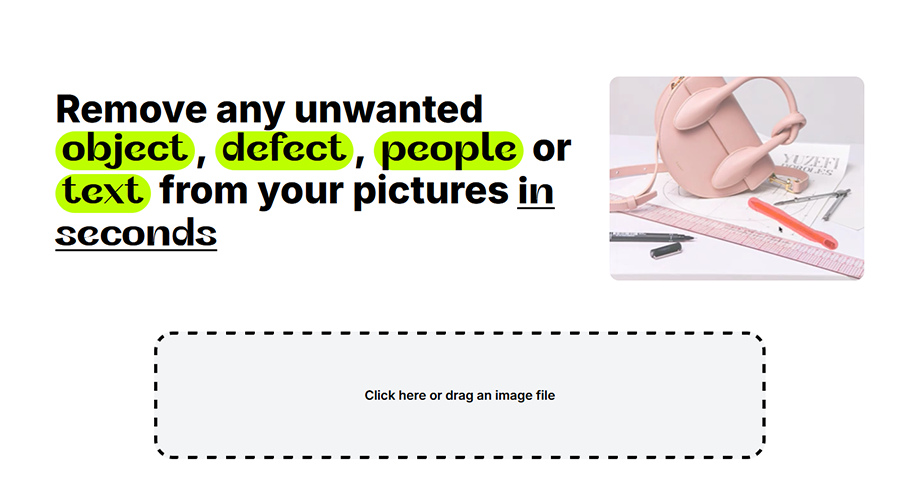
It’s worth repeating here that Cleanup.pictures is entirely web-based. That means you don’t need to download or install any software, and you can access and use this AI tool on almost any device, as long as you have an active internet connection at the time.
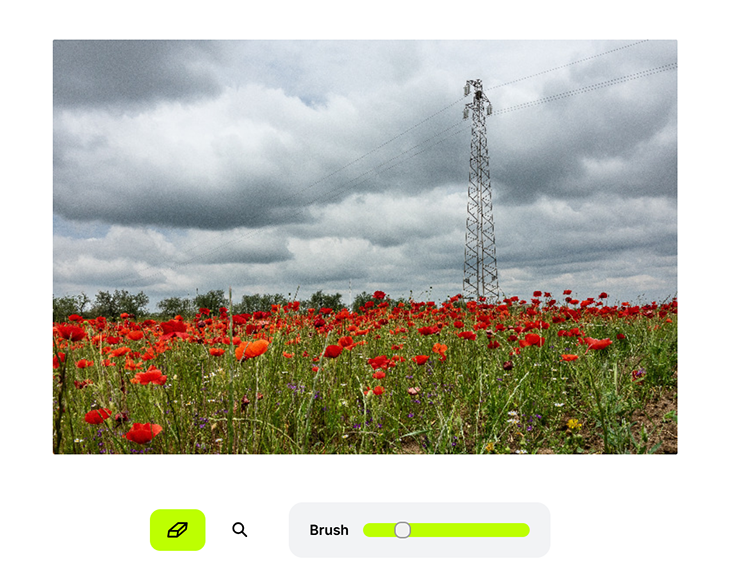
For the purposes of this review, I decided to test Cleanup.pictures’ capabilities on the image you see above, which shows a field of pretty red poppies, as well as a large pylon in the background and some power lines stretching out overhead.
As you can see, when I upload the image, I’m presented with this very minimalistic interface, with just a couple of buttons to work with. The “Eraser” button lets me draw onto my image with a “Magic Brush” tool to highlight the elements I want to remove. I can adjust the size of the tool with the “Brush” slider.
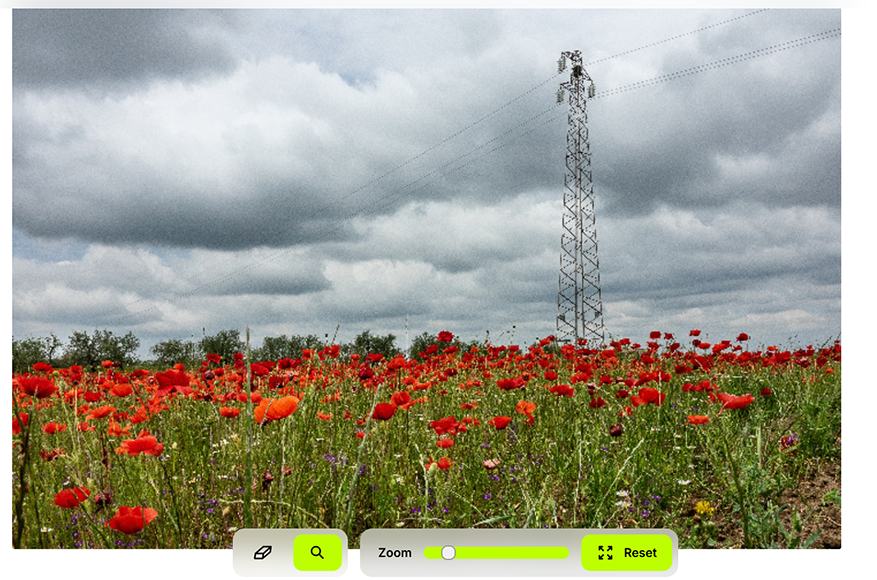
Clicking the “Magnifying Glass” icon, meanwhile, brings up a “Zoom” slider, which allows me to zoom in and out of my image if I need to focus on very specific details. It really is as simple as that, so you certainly don’t need to be some sort of experienced editor or Photoshop pro to use Cleanup.pictures.
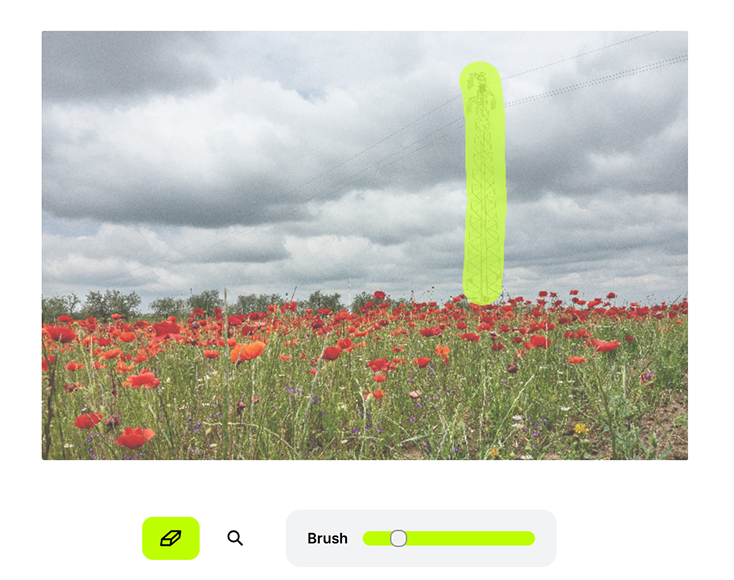
Obviously, I want to get rid of the pylon from this picture, so I reselect the “Brush” tool and highlight it. As you can see, I don’t have to perfectly cover the pylon or stay within the lines; I can simply highlight the general area of the object I want to get rid of, and the AI will take care of the rest.
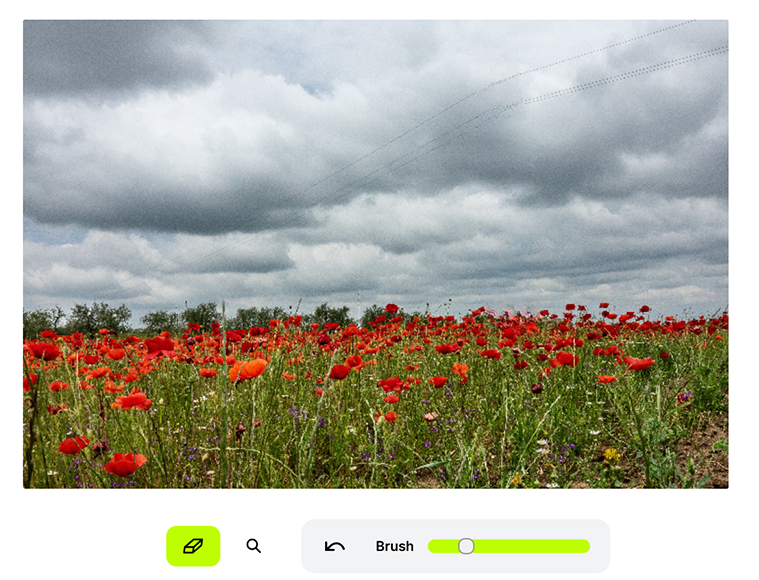
Mere seconds after highlighting the pylon, this was the result. As you can see, the pylon has been completely taken out of the equation, and the AI has cleverly touched up the background, blending the clouds to create a clean, natural-looking background.
Even as a seasoned Photoshop user, this task would have taken me several minutes. With Cleanup.pictures, it took seconds, and it’s all thanks to the platform’s AI-powered “Inpainting” technology, which intelligently guesses what the background should look like and fills it in accordingly.
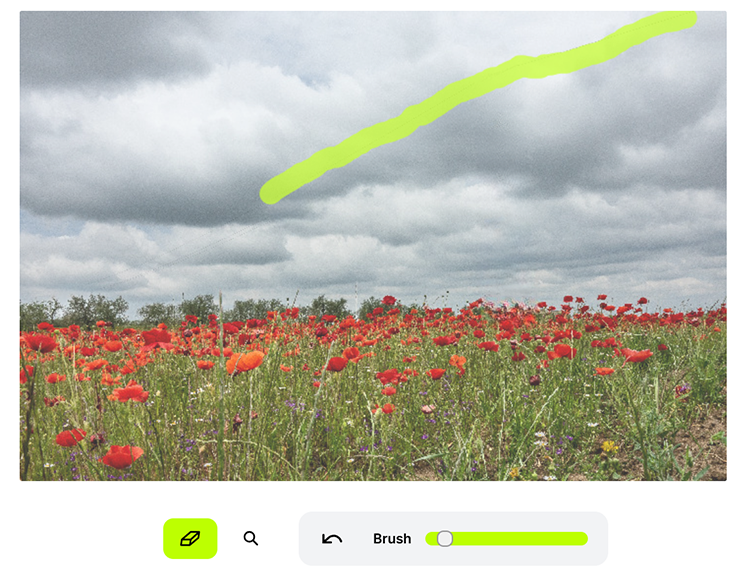
The pylon may be gone, but the power lines remain. Fortunately, all it takes is a few more swipes of the Magic Brush to get rid of them, one by one by making the size of the brush a little smaller using the slider and drawing over each line in turn to remove them.
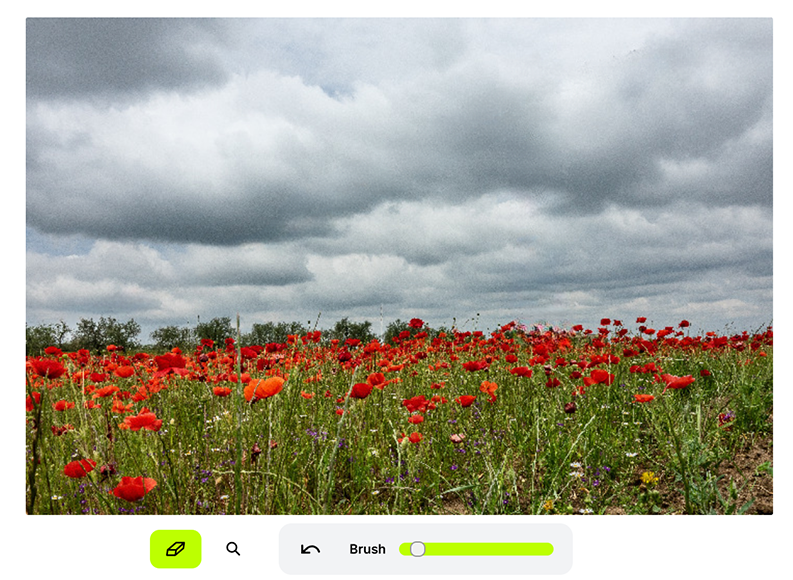
Finally, in under a minute, my image is ready to download. The pylon and power lines have all been successfully removed, the background looks perfect, and I didn’t need to waste my own time and energy doing all of this in Photoshop or a similar program.
Cleanup.pictures seems to perform best when the area behind the object is simple and consistent, such as a clear sky, a field of grass, water, or rocks.
Workflows and Use Cases
Cleanup.pictures can appeal to a broad range of users, but is arguably most valuable for those who are passionate about travel and landscape photography, as these kinds of pictures commonly contain elements that photographers want to get rid of.
You can use it to remove the likes of tourists, power lines, signs, billboards, posters, and so much more from your images. Any time you take a picture containing something that doesn’t seem to fit or takes attention away from your subject, Cleanup.pictures is ready to help you clean it up.
Plus, since it’s web-based, it’s ideal for those kinds of quick “on the fly” edits you might like to make while still in the field. You can take some pictures, move them over to your phone or laptop, load up Cleanup.pictures, make some quick fixes, and then finish off with more in-depth edits at home later on.
Thanks to that, you won’t have to worry about bringing your heavy photo editing software with you wherever you go, especially if you just need to clean up your pictures before posting them online or sharing them with friends, for example.
Back home, you can also use Cleanup.pictures for web galleries, social posts, or quick before-and-after examples for marketing, while saving Photoshop, Lightroom, or Luminar for portfolio images, high-res prints, and commercial or client work that demands high quality.
In other words, I feel like Cleanup.pictures is arguably best viewed as a complementary tool to full editing apps, like Photoshop and Lightroom, rather than a full-on replacement. It can’t do what Photoshop can do, but it can still be a valuable addition to your photo editing kit.
Additional ClipDrop Tools to Consider
If you feel like Cleanup.pictures could help out your editing workflows moving forward, you might also be interested in some of the other tools of the ClipDrop platform that are well-suited to travel and landscape editing, like:
- Image Upscaler: The Clipdrop Image Upscaler is designed to improve the overall quality of your images in seconds, getting rid of noise and other visual distortion. It can turn quite low-grade images into much higher-quality versions of themselves in no time.
- Relight: The Relight feature lets you use AI to adjust the lighting style of your pictures, adding additional light sources to illuminate your subjects from different angles, which may prove useful if you have travel pictures that look a bit dark or washed out.
- Text Remover: This tool is very similar to Cleanup.pictures, in that it’s designed to remove unwanted elements from your photos. The big difference is that it focuses specifically on text, like signs, billboards, posters, and branding, which may prove useful in street or city scenes.
Pricing
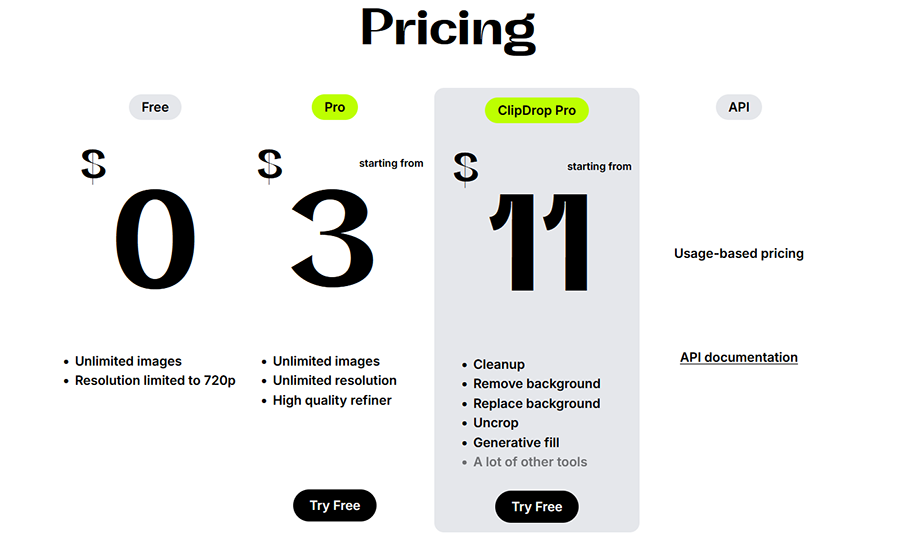
As previously stated, one of the things I love the most about Cleanup.pictures is that it has a free tier. Whenever you need to quickly clean up an image and get rid of something that doesn’t belong in your frame, you can load up this tool and fix your photo without having to pay a single penny.
It doesn’t have any limitations in terms of the number of pictures you can upload and edit. However, there is one key caveat to the free plan: exports are limited to 720p.
That’s fine for casual photographers or those moments when you want to quickly clean up a picture you might have captured on your smartphone’s camera. It might also suffice if you’re working with images you intend to post on socials, blogs, or show off to clients as preview images.
However, for many professional situations, 720p simply won’t be sufficient, since photographers today routinely capture images in far higher resolutions, and clients are rarely willing to accept such low-grade images.
Fortunately, Cleanup.pictures also allows you to work with professional-level pictures, as long as you’re willing to pay a small subscription fee for the privilege.
You can sign up for the site’s Pro plan for $5 a month, or $3 a month when billed annually. This completely removes the resolution restriction, allowing you to work with the most detailed files, straight from your camera. There are no size limits to worry about, and the tool works with popular formats, like JPG, PNG, and HEIC.
Personally, I think this is an excellent price, and it’s easy to see why so many people have decided to sign up for Cleanup.pictures, since it’s so cheap, quick, and straightforward to use. If you regularly find yourself having to remove unwanted objects from your photos, it’s certainly worthwhile.
For those looking for a little more, you can also choose to sign up for a complete ClipDrop Pro subscription from just $11 a month. This gives you pro-level access to Cleanup.pictures and other tools in the ClipDrop toolkit, like background removal, background replacement, generative fill, and so on.
This, too, feels like a very fair price when compared to some of the other AI toolkits I’ve tested and reviewed before. ClipDrop brings plenty of functionality to the table and uses relatively high-end AI technology to deliver better results than many of its competitors, more than justifying its price tag.
The Final Verdict: Is Cleanup.pictures Worth It for Travel and Landscape Photography?
I began this review wanting to know how well Cleanup.pictures would work for the average travel and landscape photographer. Now, having tested this tool quite extensively, I can confirm it’s certainly worth considering adding to your editing stack, as long as you don’t expect too much from it.
First, the positives: Cleanup.pictures is free to use and very cheap even if you need the premium features, which you probably will. It’s incredibly responsive, intuitive, and absolutely shines for those simple edits and quick fixes you might want to do while out in the field or on your phone or tablet.
On the downside, I tested this tool with a broad selection of images and found that it sometimes struggled with more complex textures. As stated, the free version also isn’t enough for high-res images, and Cleanup.pictures is exclusively limited to removing unwanted elements; it can’t do anything else.
Those issues aside, my overall impression of Cleanup.pictures is a positive one. It’s not reinventing the wheel, nor can it replace fully-fledged editing apps, like Luminar, but it fulfills its only function very effectively.
More: I Tried Popular AI Object Removers – Here Are the Best Ones

As the General Manager of Shotkit, India Mantle brings with her a lifelong love for photography that she developed during her childhood, watching her father document their family moments with his Nikon EM. In her free time, you find her enjoying the awe-inspiring natural beauty of her home, Northern Rivers, Australia.
👋 WELCOME TO SHOTKIT!
🔥 Popular NOW: