







What Color Profile to Use on a MacBook Pro
Learn the best color profiles for your MacBook Pro to optimize display accuracy and enhance your visual experience for different editing tasks.
Learn | By India Mantle
Shotkit may earn a commission on affiliate links. Learn more.
If you’re unsure what color profile to use on your Macbook Pro, this article will cover everything you need to know!
Choosing the right color profile while using a Macbook Pro is essential for any professional who requires accuracy and precise color matching.
As a graphic design and photography enthusiast who spends countless hours dissecting displays and tweaking settings, I’ll guide you through all the different color profiles and how they affect the display quality on your MacBook so you can pick the ideal one for your needs.
You should also check out these related articles for a deeper understanding of the topic of color spaces:
- Color Spaces Demystified: Complete Guide
- Why Use SRGB Mode on Your Computer Monitor
- sRGB vs Adobe RGB: Which Color Space to Use?
- When to Use ProPhoto RGB Color Space
What Is a Color Profile?
A color profile, also known as an ICC profile, is a dataset used to standardize the colors we see while using a device that inputs or outputs colors, such as monitors, cameras, printers, smartphones, etc.
Color profiles use different languages to communicate their color information with other devices, called color spaces. This is mainly to ensure that the colors you see on a device are consistent across other devices.
While different types of color profiles may function differently, many of them take specific factors into account to ensure consistency across devices, such as:
- The device’s gamut, which is the range of colors a specific device can display.
- The device’s white point, which is the reference white that the device uses.
Why Are Color Profiles Important?
The main reason why color profiles are crucial for color-displaying devices is that they ensure consistency and accuracy in how every color should appear across different devices and displays.
This is because devices have varying capabilities and system settings when it comes to displaying color. Color profiles simply bridge that gap by making sure that the colors displayed are the same regardless of the device you’re using.
Without color profiles, the picture you capture on one phone would appear significantly different in terms of color when you send it to another device or try to print it out.
What Are the Most Common Color Profiles?
While a color profile’s main function is to standardize color representation across devices, several types exist.
This is because each one services different functions and offers specific properties, so here’s a brief overview of the most popular profiles and what they’re used for.
sRGB

Credit: PolBr, CC-BY-SA-4.0, via Wikimedia Commons
sRGB stands for “Standard Red, Green, and Blue.” As the name suggests, this is the most widely used color profile, particularly for web content and everyday computer use. It’s the default profile for most monitors, web browsers, and digital cameras.
It has a relatively small gamut, which means it can’t display as many colors as some other profiles and lacks a little vibrance. However, its wide use ensures excellent compatibility and consistency in color reproduction across different devices.
Adobe RGB
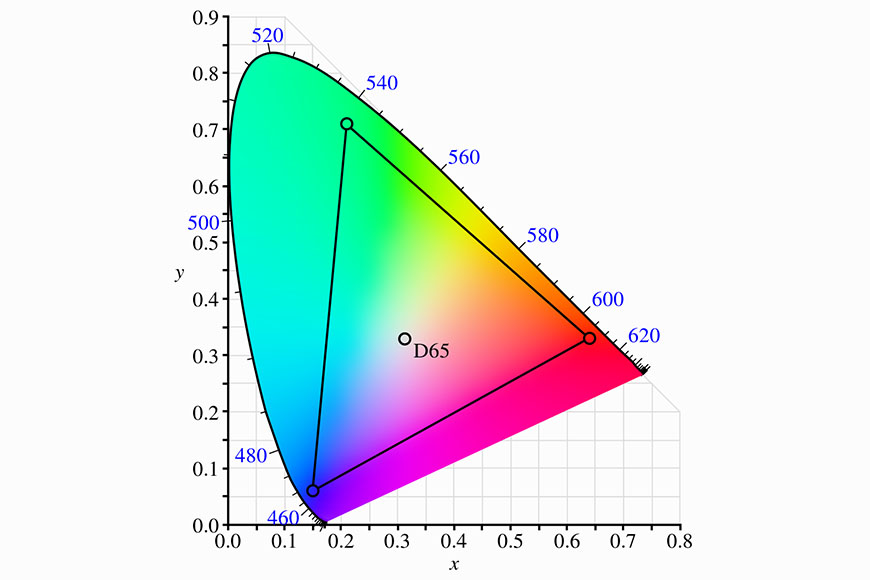
Credit: BenRG, Public domain, via Wikimedia-Commons
This color profile was developed by Adobe Inc. in 1998 to offer a wider color gamut compared to sRGB.
This makes it a popular option among professional photographers and printing systems because it can capture and display a broader range of colors. However, it has limited compatibility compared with SRGB.
Display P3
Display P3 is a color profile developed by Apple and was first introduced in the Apple iMac desktop in 2015.
This color profile uses the same gamma curve as sRGB, so it’s highly compatible with various software and ensures remarkable consistency.
However, Display P3 can reproduce a wider range of colors than sRGB (around 25% more), which ensures more saturated and vibrant colors. The color profile also uses the D65 white point, ensuring accurate color lighting.
What Is the Default Color Profile for my MacBook Pro?
The color profile a MacBook Pro uses may vary depending on its exact model. However, for most devices, the default color profile is “Color LCD.”
Color LCD is also commonly used on OLED displays and is designed for general use. It offers a nice balance between color accuracy and vibrancy.
In some advanced models, the default color profile for MacBook Pros would be the Display P3 instead of Color LCD to leverage its wider color display in professional settings.
Which Color Profile Should I Use on My MacBook?

Credit: Myndex, CC-BY-SA-4.0, via Wikimedia Commons
By default, your MacBook will automatically select the recommended color profile for your display. This is usually the best option for most people, as it provides accurate and balanced colors suitable for different tasks.
However, if you’re a professional in color-critical fields, such as design or photography, you might consider using Apple’s “Display P3” profile.
This profile’s wider color gamut can be quite beneficial while working on graphic design elements or editing photos, giving you an extra edge over the standard display.
How to Change the Color Profile on a Mac
Now that you know more about the different color settings on Macbooks, here’s how to change the color profile on your device.
- Open your Mac and select the Apple menu at the top left corner of the screen.
- Select system settings, then scroll down the sidebar on the left until you find the Displays tab.
- You’ll find various settings to control your display, but you need to scroll down until you find the “Color profile” pop-up menu and click it.
- Select the preferred color profile from the menu.
How to Add a Color Profile to a Macbook Pro
Besides the main color profile options available in a Macbook, you can install new ICC profiles to adjust the color options using imaging software.
First, you’ll need to download a color profile online with the “.icc” extension. Luckily, there are various registries and stores online. Here’s how to add the profile after downloading it:
- Click “File” in the Menu Bar at the top, then select “New Finder Window.”
- Choose your hard drive from the side menu on the window that appears, then choose Library > ColorSync > Profiles.
- Simply drag and drop the new profile file into the Profiles folder, then authenticate and enter your password if necessary.
- You can now select the color profile using imaging software or by navigating to System Settings as instructed above.
FAQs on the Best Color Profile for Macbook Pro
Which color spaces do Macbooks support?
Macbooks generally support a wide range of color spaces, depending on the specific model and year it was released.
These include standard gamut options like sRGB and Rec. 709 and wide gamut options like Display P3, Apple’s own wide-gamut color space, and DCI-P3, the digital cinema standard.
What is the most accurate color profile?
A color profile’s accuracy depends on various factors, such as your purpose, consistency requirements, and display capabilities. For instance, sRGB is widely supported over multiple devices, so it’s a highly accurate and consistent color profile for web design.
However, if you’re looking for a highly accurate representation of various colors, wide-gamut options like Display P3 would be a better choice.
Is MacBook Pro color accurate?
The answer here depends on the MacBook Pro’s model. However, all recent MacBooks are highly color-accurate devices, covering over 100% of the sRGB and at least 99% of DCI-P3 color space.
How do I add a color profile to my MacBook Pro?
Your MacBook Pro automatically selects the best color profile for your needs, but you can manually change it based on your preferences.
The Color Profile selector tab is located in the Display side panel, which you can access through System Settings in the Apple Menu.
What is the best color profile on a Macbook Pro for photo editing?
The best color profile for photo editing on a MacBook Pro is the P3-D65. This mode offers a wider range of colors than standard displays, using a natural white point (D65) for accurate representation.
This makes it perfect for professional use with calibrated displays for tasks where colors are critical, such as photo editing.
What is the best color profile for the Macbook Air?
The default color profile for most Macs is Color LCD, but if you’re looking for more vibrant colors, you should switch to the Display P3.
However, it’s important to note that not all websites and applications support Display P3, so colors may appear inaccurate when viewing content that uses sRGB.


Check out these 8 essential tools to help you succeed as a professional photographer.
Includes limited-time discounts.

As the General Manager of Shotkit, India Mantle brings with her a lifelong love for photography that she developed during her childhood, watching her father document their family moments with his Nikon EM. In her free time, you find her enjoying the awe-inspiring natural beauty of her home, Northern Rivers, Australia.
2 Comments
Leave a Comment
👋 WELCOME TO SHOTKIT!
🔥 Popular NOW:

What color profile is recommended for watching movies, cinema and Tv shows mostly?
The recommended color profile for watching movies, cinema, and TV shows is Rec. 709 or BT.709, which is the standard for high-definition (HD) video.
Here’s why:
Why Rec. 709?
Standardization: Most HD content, including Blu-ray movies, TV shows, and streaming services, is mastered in Rec. 709.
Color Accuracy: Rec. 709 ensures accurate color reproduction as intended by the filmmakers, provided your display is properly calibrated.
Compatibility: Most modern TVs and monitors are optimized for Rec. 709 as a default.
Alternatives for HDR Content
If you’re watching High Dynamic Range (HDR) content, you’ll need a profile compatible with the HDR format:
HDR10: Widely used for HDR content on streaming platforms and Blu-ray.
Dolby Vision: A premium HDR format offering dynamic metadata for scene-by-scene optimization.
HLG (Hybrid Log Gamma): Common in live TV broadcasts and HDR streaming.