







9 Photo Editing Tools Every Event Photographer Should Know
Breeze through your next event photography shoot and handle the editing and delivery like a pro with this selection of recommended tools.
Software | Paid Partnership | By Jeff Collier | Last Updated: March 31, 2026
Shotkit may earn a commission on affiliate links. Learn more.
Event photography is messy. You don’t get perfect light, you don’t get retakes, and you definitely don’t get time to edit thousands of images slowly and creatively like you might with a landscape shoot.
Whether you’re shooting weddings every weekend or covering the occasional family party (in my case, grandchildren’s birthdays or helping out as a second shooter), your editing workflow needs to be fast, consistent, and reliable.
Over the years, I’ve experimented with most of the major photo editing tools used by working event photographers, from classic RAW editors to AI-driven workflow tools and specialised event delivery apps.
In this article, I've put together a selection of software tools that I've found can help speed up event photo culling, editing, and delivery.
We'll also discuss what features are the most important to professional event photographers who prioritise speed, efficiency, and overall photo quality.
What Event Photographers Really Need From Editing Software
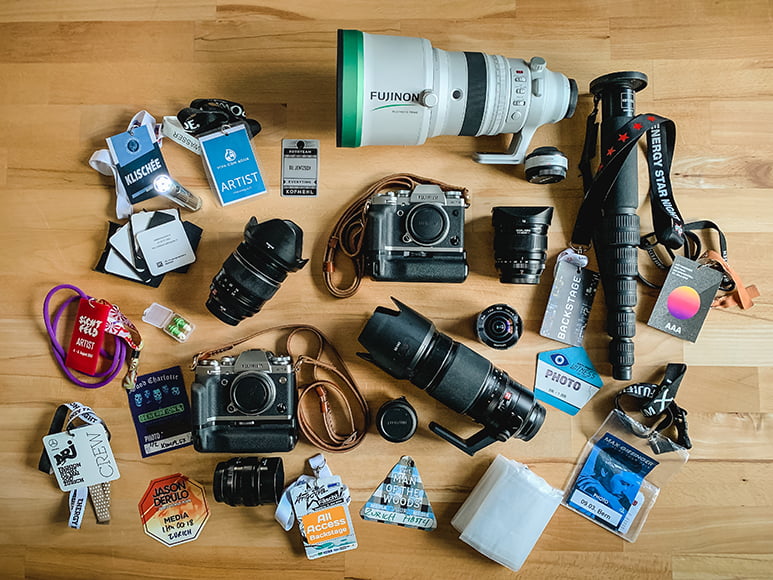
Assorted gear of event photographer Til Jentzsch on Shotkit
Before talking about specific tools, it’s worth clarifying what matters most for event work.
Unlike studio or commercial photography, event editing is primarily about:
• Speed: It's normal for event photographers to shoot thousands of RAW images per job. My record is 3,246 during an Indian wedding!
• Consistency: Matching lighting across different scenes. Events are notorious for mixed lighting.
• Batch processing: Applying adjustments efficiently over thousands of images is a huge time saver.
• Reliable colour and exposure correction: Obviously important for great images.
• Fast culling: Choosing which images to keep and which to bin is often a time-consuming process.
• Client delivery workflows: Getting the images to the clients, or occasionally, directly to the guests.
Creative control still matters, but efficiency usually wins when deadlines are tight or it's a same-day delivery situation.
Most working event photographers end up combining several tools rather than relying on just one, but let's take a look at the options.
Recommended Event Photography Software
1. Adobe Lightroom Classic: The Industry Standard Photo Editor for a Reason

For most event photographers, Lightroom Classic is still the centre of the workflow.
It handles large catalogues well, processes RAW files quickly, and makes it easy to apply adjustments across hundreds of images at once.
The Develop module gives enough control to correct exposure, colour balance, and skin tones without needing to jump into more complex editing software.
Batch syncing, presets, and quick copy/paste adjustments make it ideal for events where lighting changes constantly, like moving from ceremony to reception, indoors to outdoors, flash to ambient.
I find Lightroom’s biggest strengths for events are:
• Reliable colour handling
• Fast batch editing
• Presets for consistent style
• Simple export and delivery workflow
• AI tools for object removal
• Strong ecosystem and plugin support
It’s not the fastest tool for extreme retouching, but for volume editing, it’s still hard to beat.
Also, the recent AI tools provide powerful editing capabilities when you need to remove rogue fire exit signs, power lines, or other distracting objects.
Most photographers I know build their workflow around Lightroom, even if they use other tools alongside it.
The downside? It's subscription only, so Lightroom may not be the best solution if you're looking for something free.
2. Imagen: AI Editing That Delivers Consistency at Scale

Once you’ve captured an event, the biggest time sink isn’t just selecting images – it’s getting hundreds or thousands of photos to look consistent, natural, and aligned with your style.
This is where AI editing tools like Imagen can be genuinely useful.
I recently helped update the Shotkit review of Imagen, investigating the more recent features that the team has added to their already impressive software.
Rather than applying generic presets, Imagen learns your personal editing style from past work and applies similar adjustments automatically across new shoots.
The goal isn’t to replace your judgment, but to get images most of the way there so you only need to fine-tune.
Used alongside Lightroom, it becomes a powerful way to speed up delivery without sacrificing your personal look.
For high-volume event work, this can:
• Reduce repetitive adjustments
• Improve consistency across large galleries
• Speed up turnaround times
• Preserve your personal editing style
I’ve found it most helpful when dealing with large sets of images shot in changing conditions – weddings in particular – where manually matching colour and exposure across hundreds of photos can become tedious.
It’s not magic, and you’ll still want to review results carefully, but as part of a Lightroom-based workflow it can remove a surprising amount of repetitive work.
3. Photo Mechanic: The Fastest Way to Cull Thousands of Images

Before editing comes culling… and this is where many event workflows slow down.
Photo Mechanic isn’t an editor in the traditional sense. It’s built for quickly reviewing and selecting images using embedded previews rather than rendering RAW files.
With Photo Mechanic, you can fly through thousands of photos without waiting for laggy loading screens.
For event photographers shooting high volume – weddings, conferences, sports, large parties – this speed makes a real difference.
Its strengths include:
• Extremely fast image browsing
• Efficient tagging and rating
• Reliable metadata handling
• Simple workflow integration with Lightroom or Capture One
I still use the Lightroom Grid module to cull smaller jobs, but for large events, Photo Mechanic can save hours – especially if you're using a camera with large RAW files.
The biggest downside to Photo Mechanic in my opinion is the rather outdated UI, which I'm assuming has been built purely for speed, rather than being a pretty Mac app to look at!
Read our full review of Photo Mechanic here.
4. Aftershoot: Fast AI Culling and Basic Edits
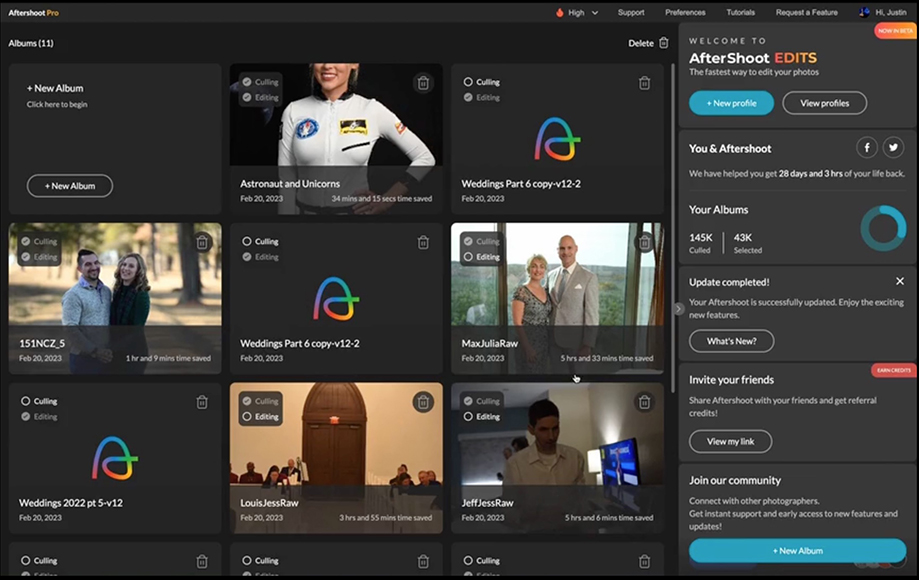
Event photography produces huge numbers of images, which is why AI-driven tools are becoming increasingly popular.
Used carefully, they can dramatically reduce editing time without sacrificing quality.
Aftershoot focuses mainly on selecting your best images automatically. It analyses sharpness, expressions, duplicates, and composition to suggest keepers.
For event photographers delivering hundreds of photos quickly, this can remove much of the repetitive work from the workflow.
It also offers automated editing features that apply exposure and colour corrections, which can provide a decent starting point. This is especially useful when dealing with mixed lighting.
Even though it can achieve a one-click edit some of the time, I see it less as a full replacement for manual editing and more as a way to speed up the early stages of the process.
5. Capture One Pro: For Photographers Who Prioritise Precise Colour Control

Some event photographers prefer Capture One Pro (see our review) instead of Lightroom, particularly those who want very precise colour control.
Capture One’s colour tools are exceptionally powerful, and many photographers feel it produces more refined skin tones straight out of the box.
Tethering performance is also excellent for studio-based event work or corporate shoots, although I haven't yet had firsthand experience with this.
On the flip side, the learning curve with Capture One is steeper, and its workflow can feel slower for high-volume editing unless you’re deeply familiar with it.
I’d say Capture One makes the most sense for photographers who:
• Care deeply about colour precision
• Want detailed local adjustments
• Prefer session-based workflows
• Don’t mind a more complex interface
For pure speed and simplicity, Lightroom still tends to dominate manual event photo editing workflows, but Capture One has a loyal following for good reason.
6. Luminar Neo: AI Enhancements and Creative Tools

Luminar Neo takes a different approach, focusing heavily on AI-powered enhancements and creative adjustments.
Tools like sky replacement, automatic masking, portrait enhancement, and noise reduction can be useful when rescuing difficult images or enhancing hero shots from an event.
Where Neo fits best in an event workflow is:
• Quick enhancements for standout images
• Noise reduction in low-light scenes
• Portrait improvements
• Creative adjustments for highlight photos
It’s much less suited to large-scale batch processing, but useful as a complementary tool when Lightroom adjustments alone aren’t enough.
I tend to use it selectively for social media images that need to grab attention, rather than as a primary editor for event work.
Find out more in our Luminar Neo review here.
Event-Specific Platforms: Delivery and Guest Interaction
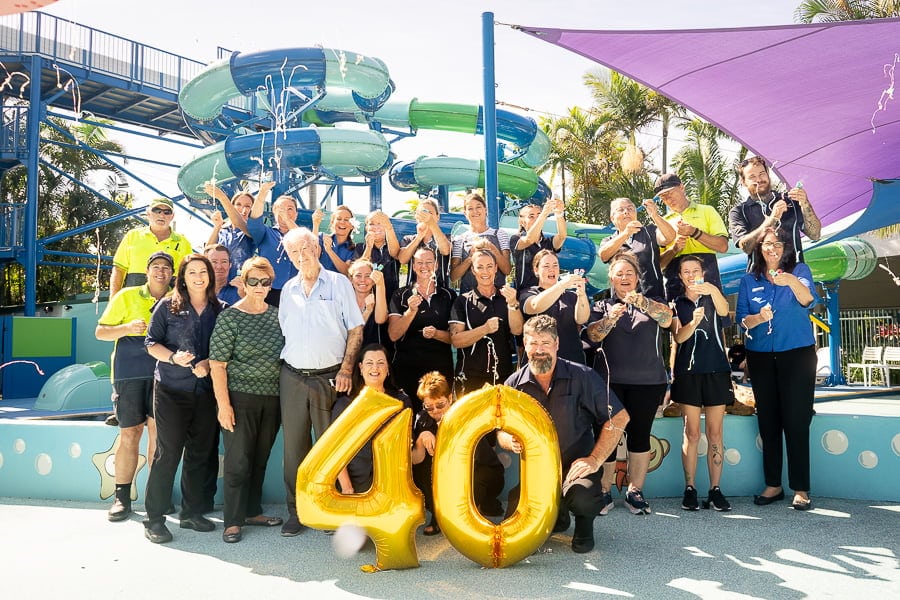
Some tools focus less on editing and more on event experiences and image delivery.
Depending on your work, these can be valuable additions to a workflow.
7. Lumabooth
Lumabooth is designed for photo booth setups and live event capture. It handles automated shooting, instant sharing, and guest interaction rather than traditional editing.
For photographers running event booths or corporate activations, it can streamline the entire capture-to-delivery process.
8. GuestCam
Platforms like GuestCam and Honcho allow guests to upload their own photos to a shared gallery during events. These tools are less about editing and more about enhancing client experience and creating collaborative event coverage.
For photographers offering full event solutions rather than just photography, they can be useful additions.
9. TurtlePic
TurtlePic focuses on gallery delivery and online sales, helping photographers distribute event photos and manage client access. It’s more about workflow and business operations than image editing, but worth considering for large-scale event work.
Building a Practical Event Editing Workflow
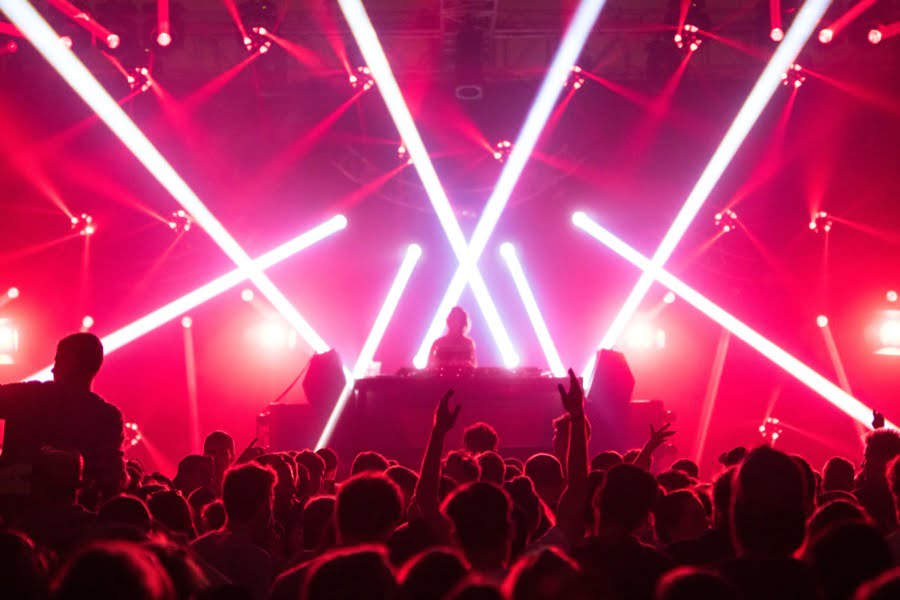
Most event photographers don’t rely on a single piece of software.
A typical workflow might look something like this:
1. Import and cull using Photo Mechanic or Aftershoot
2. Batch editing and organisation in Lightroom Classic
3. Style-based automation using Imagen for consistency
4. Fine-tuning hero images in Luminar Neo or Photoshop (if needed)
5. Delivery or event integration via gallery or event platforms
The right combination depends on shooting volume, turnaround time, and personal preferences.
Whatever tool you choose, your goal should be to reduce repetitive work while maintaining quality.
Final Thoughts
There’s no single “best” photo editing software for event photography.
What matters is choosing tools that help you work faster, stay consistent, and deliver results reliably under real-world conditions.
For many photographers, that still means Lightroom at the core, supported by fast culling tools, selective AI assistance, and specialised software where needed.
The goal isn’t just more software – it’s less friction between shooting the event and delivering the final images.
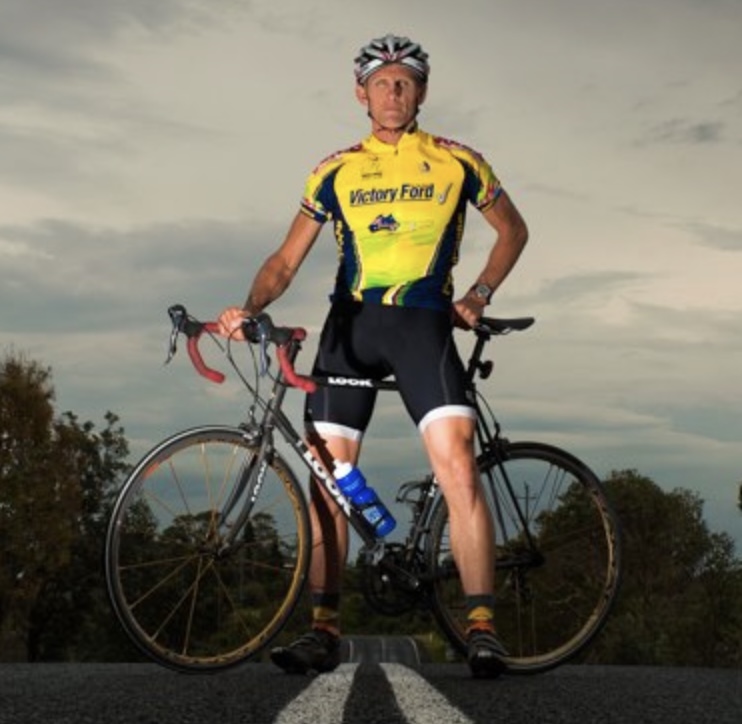
Jeff Collier is an experienced film photographer who enjoys experimenting with modern digital photography equipment, software and apps. He’s also an ex-world champion triathlete and avid cyclist, clocking hundreds of km each week in the beautiful Tweed Valley of northern NSW, Australia.
👋 WELCOME TO SHOTKIT!
🔥 Popular NOW:
