






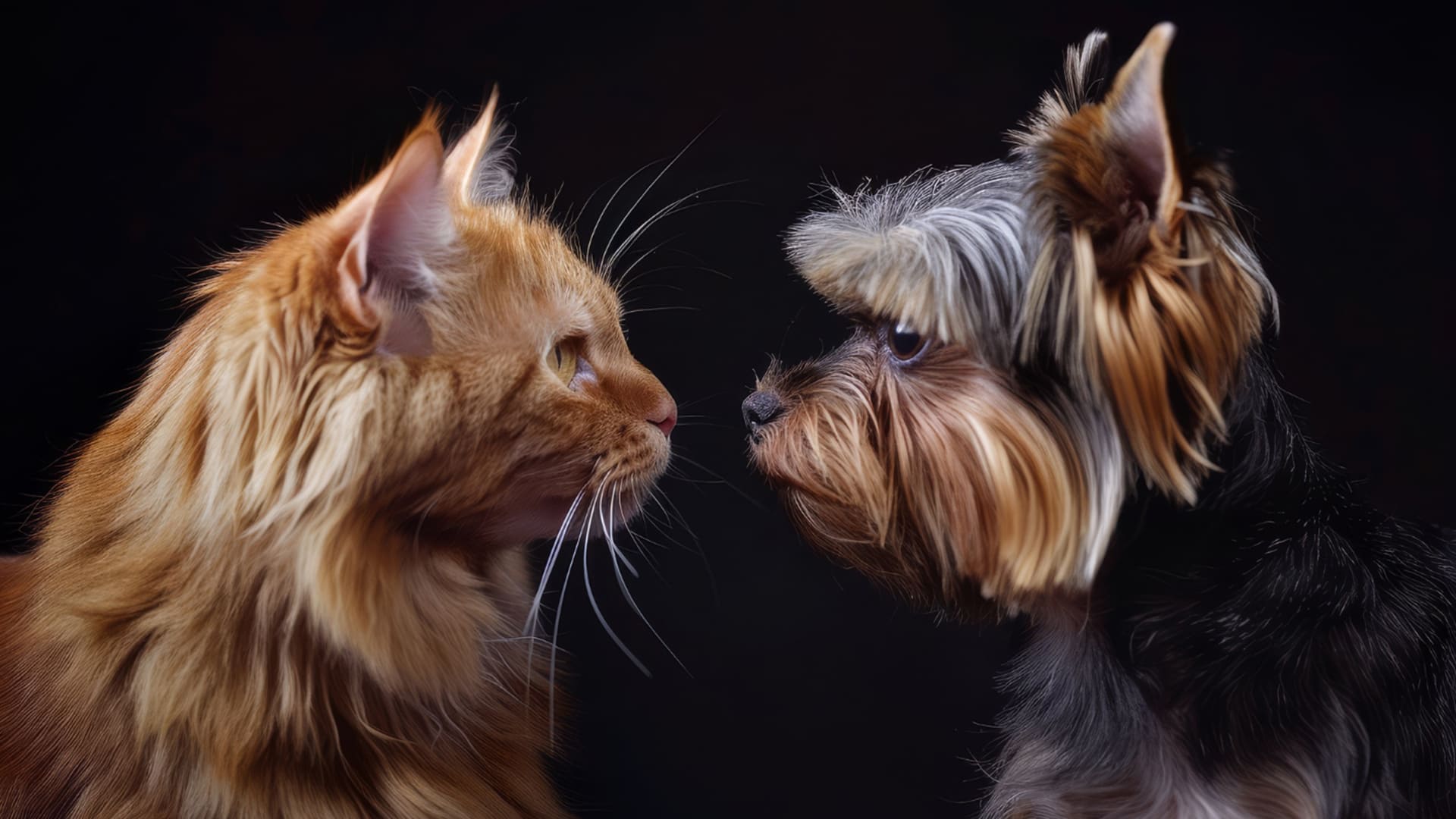
How to Remove Stray Hair in Pet Portraits Using Evoto AI
Stray hairs can make pet portraits look messy and imperfect, but with Evoto AI, you can quickly clean up your images. Find out more in my detailed guide.
AI | Software | By India Mantle | Last Updated: June 18, 2026
Shotkit may earn a commission on affiliate links. Learn more.
Taking pictures of pets can be a challenge, in more ways than one. Photographers often encounter issues when trying to make animals like cats and dogs pose in one place for an extended period of time, for example, and often have to resort to treats and other incentives to assist them.
Then, even if you get the pet to pose perfectly, you’ll still face difficulties in the editing room. Dealing with stray hairs, for example, can take hours as you tediously highlight and remove individual strands.
Fortunately, AI-powered tools, like Evoto AI, are making this process much easier. In this guide, I tested out Evoto AI’s built-in stray hair removal tools, showing you exactly how to use them and exploring how well they work.
An Introduction to Evoto AI

Before I show you how Evoto AI can help you clear out stray hairs in an instant, let’s take a moment to briefly introduce this tool for those who aren’t yet familiar with it.
Evoto AI, as the name suggests, is AI-powered photo editing software available on various platforms and devices, including Windows, Mac, and mobile. It has proven popular with users across the globe for its ability to streamline editing workflows, saving users hours and simplifying complex tasks.
For example, Evoto AI offers an array of portrait retouching tools. You can upload a picture of a person and let the AI take over, fixing blemishes, correcting colors, brightening shadows, and so on. In the blink of an eye, it can bring out the best in even the most ordinary of images.
The platform’s developers claim that Evoto AI can help carry out editing up to 78% faster than normal, spending 39% less time on these tasks for a 243% ROI boost. Evoto AI also states that this has helped them attract over one million users from over 100 countries.
Having tested and reviewed the tool in the past, I know just how useful it can be. It’s efficient, intuitive, and remarkably intelligent, with dozens of time-saving tools, like editing presets that allow you to apply the same changes to numerous images with a single click.
Evoto AI also stands out for its strong security – it’s fully compliant with some of the strictest data protection standards, like GDPR. In addition, it doesn’t use user data for AI training purposes, so you can download and use this tool on desktop and mobile with confidence that your pictures will remain private.
The Stray Hair Problem
I’ll get to exactly how to remove pets’ stray hairs from your photos using Evoto AI in a minute, but first, it’s important to understand why this is such a big issue in the first place. There are several reasons why unruly strands of fur have the potential to frustrate pet portrait photographers, including:
- They Create a Distraction: Ideally, the only things that should stand out in the perfect pet portrait are the smoothness of the subject’s silhouette, the brightness of their eyes, and any other features that make them unique, like their floppy ears and button noses. Unfortunately, if multiple stray hairs are floating around, they can take attention away from these features.
- They Catch the Light: When you’re working in a studio with professional strobe lights or off-camera flashes, even a single strand of fur can catch the light and ruin what seemed to be the perfect shot. The worst part is that you may not even notice these individual flyaway hairs at first, but only see them later on when it’s time to edit your images.
- It’s Time-Consuming Editing: The last big challenge related to stray hairs is how tedious they are to edit out of your images. In the past, I’ve had to spend hours in Adobe Photoshop and similar tools, going through one image after another, finding individual hairs and blending them into the background, one step at a time.
Of course, there are some conventional tips and tricks to deal with these issues. Many pet photographers I know like to use specialist grooming tools to smooth down animals’ fur prior to taking any pictures of them, and some even apply leave-in pet hair conditioner prior to the shoot to produce a smooth and silky look.
However, these techniques aren’t foolproof. Even with careful grooming and perfectly placed lighting, all it takes is a couple of stray strands to ruin your shoot. That’s where Evoto comes in.
More: How to Use Photoshop’s AI Background Remover (Online, Desktop, and Mobile)
How to Remove Stray Hairs With Evoto AI
Having taken plenty of pictures of people’s pets over the years, stray hairs have caused me plenty of frustration. Since I discovered Evoto AI’s stray hair removal features, however, I’ve found it much easier to deal with these issues.
Here’s a closer look at how it all works, one step at a time.
Step 1. Import the Image
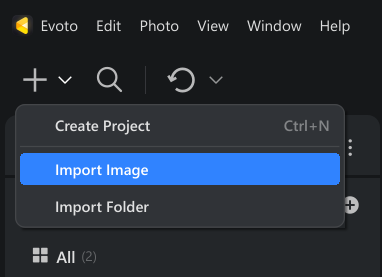
The first step is to upload or import the image(s) you want to work with by opening Evoto AI and clicking on the “+” icon, then selecting “Import Image” and choosing the picture(s) you want to edit. Or, if you’ve already uploaded the images, head to the “Library” tab of the Evoto AI application and find them from there.
Step 2. Open the Pet Retouching Menu

Switch over to the “Edit” tab and look at the features menu along the right side of the application window. You need to find the “Pet Retouching” menu, which has an icon shaped like a paw print.
Step 3. Find the Stray Fur Removal Slider
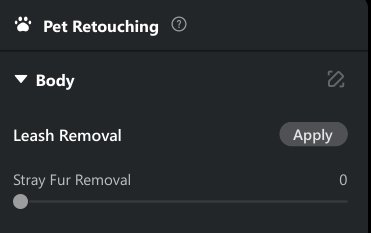
Once you open the “Pet Retouching” menu, you should be able to find the “Stray Fur Removal” tool in the “Body” section.
Step 4. Adjust the Slider and Observe Changes in Real Time

Now, all you have to do is click and drag the slider from side to side to adjust the intensity of the AI-powered stray fur removal. Changes will be applied automatically, so you can observe the preview window to see the effects.
You can also click on the small “Eye” icon above the slider to view “Before” and “After” versions of your image, which can help spot the more subtle changes.
It’s as simple as that. You don’t need to click on individual strands, highlight sections of the image, or do any complex manual tasks; Evoto’s AI handles the hard parts for you.
It’s able to automatically scan the image, find the stray strands of fur, and get rid of them. All you have to do is decide how “intense” you want it to be.
Note that you don’t necessarily need to push the slider all the way up to 100 right away; on many photos, I found that pushing it to around 70 or 80 was often enough to eliminate most, if not all, stray hairs and produce a smooth and pleasant look. Meanwhile, setting the slider to 100 sometimes made my images look slightly unnatural or excessively edited.
Alternative Method: Stray Hairs Removal Tool
The first method is the main way to deal with stray fur in pet pictures, but Evoto AI does have a secondary method you can try if the first fails to yield the desired results.
Step 1. Go to the Portrait Retouching Menu
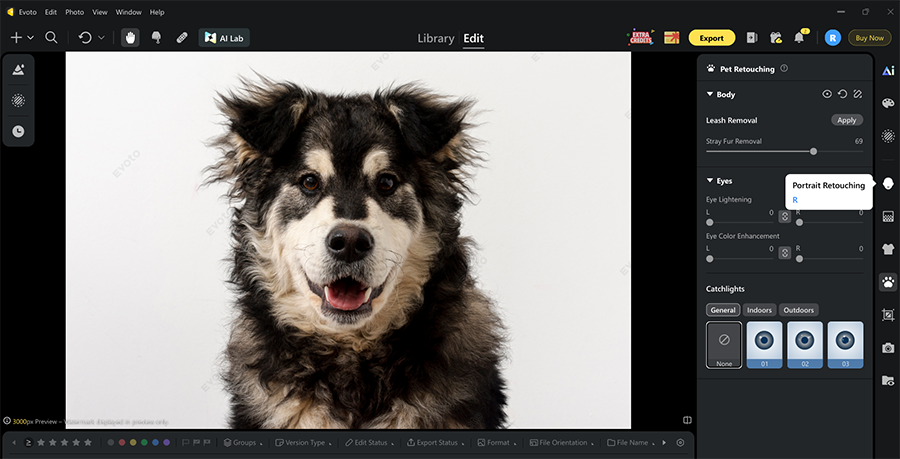
Import or open your chosen photo(s) in Evoto AI and head to the “Edit” tab. Instead of going straight to the “Pet Retouching” menu, find the “Portrait Retouching” option instead. It’s represented in the right sidebar by a face icon.
Step 2. Find the Hair Submenu
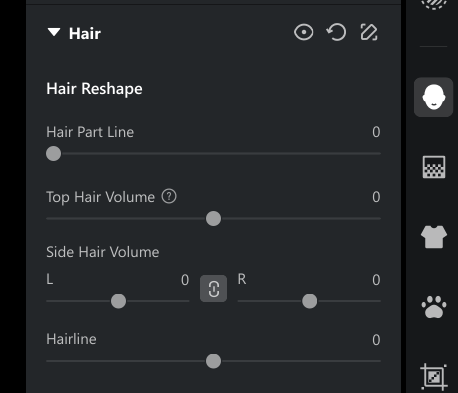
Scroll down in the “Portrait Retouching” menu to find the “Hair” submenu and click the drop-down arrow beside it to reveal the specific hair-related editing features.
Step 3. Adjust the Stray Hairs Removal Slider

Find the “Stray Hairs Removal” slider and adjust it accordingly to automatically fix any additional stray hairs that the “Stray Fur Removal” tool failed to deal with. It works the exact same way; simply move the slider to the right to make the tool more aggressive at finding and removing those unwanted strands of fur.
The Effects: Before and After Comparisons
Now you know how Evoto AI’s pet hair removal tools function, but you may still be wondering how effective they actually are at getting rid of stray hair. The best way to answer that is with real before and after images, so I prepared some examples below.
Before

I started with this picture of a particularly shaggy dog. I didn’t want to remove all of his wild fur, since it’s part of his visual identity; however, there were some particularly pesky strands around his face and on his neck that I wanted to clean up in the image a little.
After
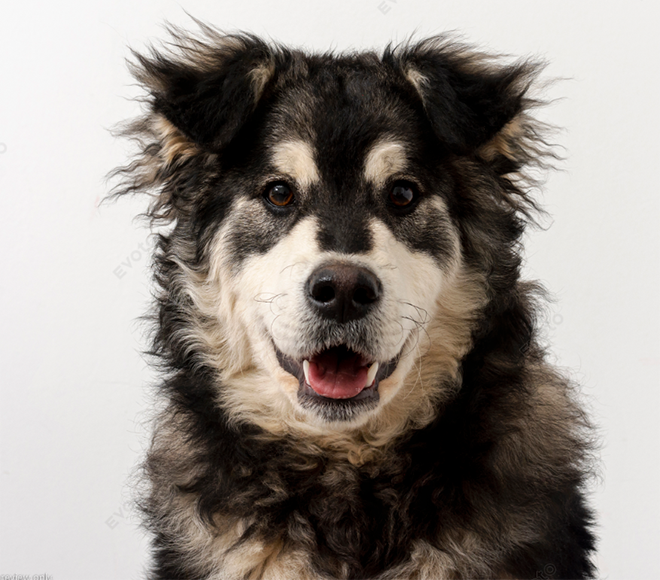
I fed it into Evoto AI and pushed the “Stray Fur Removal” slider up to 70. You can see the result.
The changes are subtle, but the result is an overall cleaner and smoother image. Evoto AI was able to detect some, though not all, of the unruly strands I wanted to remove, and got rid of them in an instant.
With fewer distracting hairs, this picture is more visually appealing, and it’s easier to focus on the dog’s features without noticing random strands of fur sticking out in unusual areas.
Before
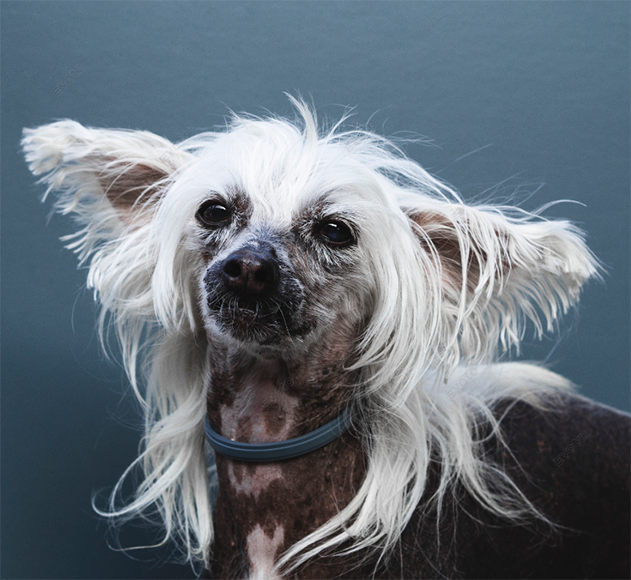
To truly test Evoto AI, I also uploaded this picture of another dog with a large amount of wild strands of hair jutting out in various directions. Again, I didn’t want to remove all of them, but there were several around his nose and mouth that I hoped the program would be able to detect.
Once more, I activated the “Stray Fur Removal” tool, but this time I pushed it all the way to 100.
After
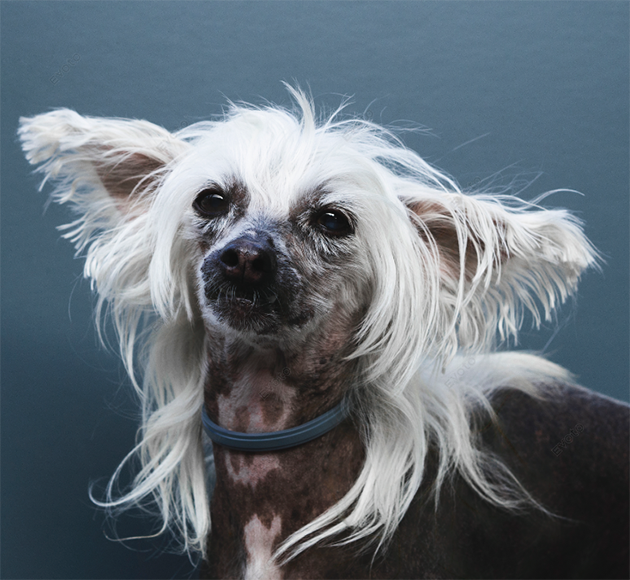
Again, the differences may be hard to spot at first glance, but the closer you look, the clearer they become. Evoto AI managed to detect and remove several distracting strands around the dog’s mouth and also smoothed the fur around its eyes, too.
The edited image looks much cleaner and crisper, overall, though there are still a few strands left over that I would have liked to see go.
Additional Pet Editing Features in Evoto AI
In addition to the “Stray Fur Removal” tool, it’s worth noting that Evoto AI also offers an array of additional pet editing features, perfect for people who take plenty of pictures of cats, dogs, and other domestic animals. These include:
- Leash Removal: Some pet owners like to leave the leash on when having their animals photographed. Others prefer to take it off. Some aren’t sure about which option is best, but with Evoto AI’s “Leash Removal” tool, there’s no need to worry. As the name suggests, this feature can detect and remove leashes from pictures, using AI to fill in the gaps.
- Eye Brightening and Color Enhancement: Eyes are often the standout feature in the best pet portraits, but sometimes, the lighting may not have been quite right in the moment. This can lead to eyes that look a little dull or overly dark. Evoto AI’s eye brightening features help you bring out the real color of a pet’s eyes during the editing phase.
- Catchlights: The “Catchlights” feature essentially allows you to add little dashes of light reflection or glare to a pet’s eyes, making them look shiny and shimmering. This is something that pet photographers often try to produce naturally, using studio lights, but it can be tricky to pull off. Evoto AI makes it much easier.
The Final Verdict: Is Evoto AI Worth Using for Pet Portrait Edits?
As you can see, Evoto AI’s “Stray Fur Removal” tool is a straightforward feature to work with, and the same can be said for many of this app’s other editing tools. It’s not like a conventional editor, involving layers, highlights, and selection tools; you simply upload your image and let AI do the work for you.
In all of my tests, Evoto AI was able to find and remove most stray hairs, resulting in pictures that looked smoother, cleaner, and neater. It’s worth noting, however, that it sometimes failed to spot certain strands, so pet picture perfectionists may feel that it’s not quite accurate enough.
There’s certainly some room for improvement, but on the whole, this feature is relatively reliable and consistent. As a result, I feel Evoto AI is a worthwhile addition to a pet photographer’s tech stack, though you may still need to resort to your old-fashioned photo editor from time to time.

As the General Manager of Shotkit, India Mantle brings with her a lifelong love for photography that she developed during her childhood, watching her father document their family moments with his Nikon EM. In her free time, you find her enjoying the awe-inspiring natural beauty of her home, Northern Rivers, Australia.
👋 WELCOME TO SHOTKIT!
🔥 Popular NOW:
