







How To Make a Video or GIF Into a Live Photo on iPhone
Learn how to make a video a Live Photo on an iPhone. Discover how to make Live Wallpapers and upload looping videos and GIFs to Instagram & Facebook.
iPhone Photography | Learn | By Ana Mireles and Usnea Lebendig | Last Updated: February 5, 2026
Shotkit may earn a commission on affiliate links. Learn more.
Live Photos are one of the most appealing features of iPhone photography.
But while they’re fun and eye-catching, they also have some downsides – like not always being supported, so you can’t share them.
So, whether you want to turn a GIF or a video into a Live Photo, or vice versa, I’ve got your back.
In this article, I’ll show you easy methods to convert formats using just your iPhone, or by downloading third-party apps that give you more control.
But what about Android users? Not a problem, there are solutions for you too!
We have a lot to cover – so, let’s get started.
How to Make a Video a Live Photo and Vice Versa
Essentially, Live Photos are three-second videos that capture 1.5 seconds of additional audio and video content before and after you press the Camera app’s shutter button. They’re a great way to capture your favourite memories.
We have a complete guide on how to view, edit and share live photos here.
And now, let’s look at all the best ways to convert Live Photos, GIFs and videos on your Apple device.
How to make a video into a Live Photo using IntoLive

Credit: App Store
iPhone users can easily turn MP4 videos and GIFs into Live Photos by using the free app IntoLive.
The app is great for creating live wallpaper on your phone, and it also lets you create “Press and Hold” posts for Facebook and other social media.
First, though, let’s look at how to turn a video into a Live Photo:
- Once you’ve downloaded the app, open IntoLive.
- Choose the video or GIF you wish to use.
- Edit your video by adjusting the length (Live Photos are 3 sec) and any other necessary adjustments.
- Once you’re finished using the editing tools, hit Make.
- Now press Save Live Photo.
Your new live photo will now be in your Camera Roll.
Note: While IntoLive is free for basic use, there are many inexpensive in-app purchases available that make it a much better tool – especially for “Press and Hold” Facebook posts.
How to turn a Live Photo into a Video using iOS 13 or Later
Facebook allows you to share Live Photos for Feed and Page posts as a still image or a video – you can choose how to display them when you upload.
Instagram supports them for Stories, not for posts. However, other social networks may not support Live Photos at all. So, you might want to convert them into regular videos.
The process to convert Live Photos into videos is surprisingly easy. If you have iOS 13 or later, you can do this without even using a third-party app.
Here’s how:
- Open Photos.
- Select the Live Photo(s) you want to convert into a video format.
- Press the Share button.
- Press Save as Video.
That’s it.
You can now see your video in your Videos folder under its timestamp, and you can share it wherever you want.
How to turn a Live Photo into a video with iOS shortcuts

Want to convert a video into a Live Photo but don’t have iOS 13? No worries!
To get started, you’ll first need to download the shortcut:
- Open the ShortcutGallery using the web browser on your iPhone.
- In your iPhone settings under Shortcuts, tell your iPhone to “allow untrusted shortcuts.”
Now you’re ready to go – it’s super simple:
- Open the Shortcuts app.
- Press the Convert Live Photos to Video shortcut.
- Select the Live Photo you wish to turn into a video.
Shortcuts will now automatically transform your Live Photo into a video. You’ll be able to find it in your Camera Roll under Recents.
Another cool use for Shortcuts is combining photos on your iPhone.
How to Make a Live Photo into a GIF and Vice Versa
You prefer GIFs instead of videos? No problem, these are also supported in most social media, and it’s just as easy to convert your Live Photos into GIFs as it is to turn them into videos.
How to turn a Live Photo into a GIF using Lively

Credit: App Store
One of the best apps to turn your Live Photos into GIFs is Lively – which, by the way, also works well for converting them into videos.
I think it’s the best because it comes with extensive editing features (i.e., speed control, play backward, auto reverse, etc.) and it’s super easy to use. It also supports full 3D Touch.
Here’s the quickest way to turn a Live Photo into a GIF using Lively:
- Install the Lively app and launch it.
- Navigate to and select the Live Photo you wish to convert.
- Choose GIF from the options in the top menu.
- Adjust all the settings to your liking.
- Press the Make GIF to save it.
You’ll find your new GIF in your Camera Roll.
Note: Like many free apps, Lively has some limitations unless you upgrade or make some in-app purchases.
How to turn a Live Photo into a GIF with iOS shortcuts
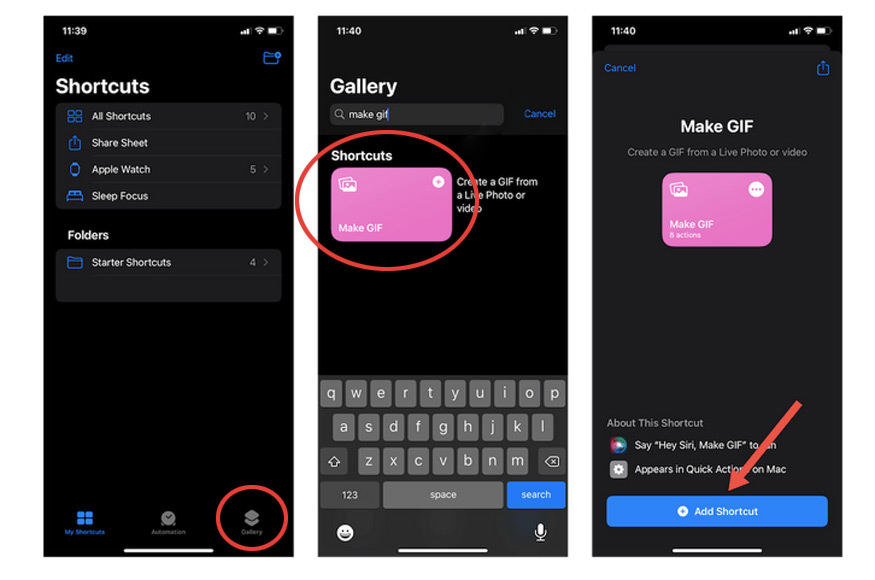
How to make a new Shortcut in iOS
If you don’t need any bells and whistles, you can skip the external apps and use a Shortcut to turn a live photo into a GIF.
You’ll first have to make a new Shortcut – don’t worry, it’s super easy.
First, add the shortcut:
- Tap the Shortcuts Gallery button in the bottom right corner of the Shortcuts app. (Can’t find the Shortcuts app on your iPhone? Download it for free from the App Store.)
- Type “make GIF” into the iPhone’s find field.
- Tap on the Make GIF shortcut, then hit Add Shortcut.
Once the shortcut is installed:
- Open Shortcuts and scroll down to the My Shortcuts tab.
- Tap on the Make GIF shortcut.
- Choose the Live Photo you want to convert.
- Hit Done.
Your new GIF is now available in the Recents album in your Photos app.
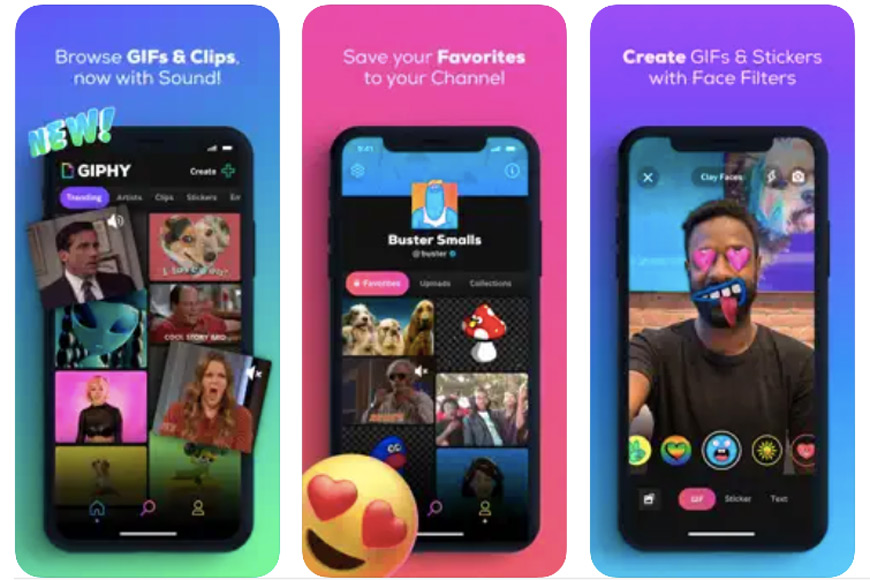
How to convert GIFs to Live Photos with GIPHY
Credit: App Store
If you want to reverse the process and convert GIFs into Live Photos, you’ll need the help of a third-party app. A GIF-to-Live Photo converter, specifically.
GIPHY is our favourite, as it’s free to download, is amazing for anything GIF-related, and is easy to use. With this app, it’s quick and easy to convert a GIF to a Live Photo.
Here’s what you need to do
- Download and open GIPHY.
- Find a GIF you want to use, either via the search bar at the bottom-center of the screen or by using one of GIPHY’s.
- Tap on the three dots on the right of the screen.
- Hit Convert to Live Photo.
- Choose either the fit-to-screen or full-screen option.
That’s it! You’ll find the new Live Photo in your Camera Roll.
There are other apps to convert GIFs to Live Photos online, but GIPHY is the most reliable.
How to Set a Live Photo as a Live Wallpaper on iPhone
Here’s how to set a Live Photo as a Live Wallpaper on your iPhone:
- Go to your iPhone’s Settings, then to Wallpaper, then to Choose a New Wallpaper.
- Find your Live Photo by either tapping Live and selecting a Live Photo or tapping Live Photos Album.
- Hit Set, choose either Set Lock Screen or Set Both.
Conversely, you can use the free third-party app IntoLive, mentioned above, to create dynamic wallpapers.
How to Make a Video into a Live Photo on an Android Device

So far, we’ve only discussed how to make a video a live photo on Apple devices, but you can also convert videos into Live Photos on Android devices.
Since a Live Photo is basically a video, you can use any video editor or a video converter if what you need is a different file format. However, you might want to turn your video into a Live Photo to use as an animated wallpaper.
If that is the case, here’s one easy, free app to do it.
- Download and open the free app Video (GIF, MP4) to Wallpaper .
- Tap the Plus icon to access your videos.
- Give a name to your wallpaper and choose the one you want to use.
- Tap Apply.
- You’ll receive a notification telling you which option to choose on the next screen (Video to Wallpaper). Tap OK.
- Choose the option Video to Wallpaper.
- Tap Set wallpaper.
- Select between Home Screen or Lock Screen.
That’s it.
Note: Live Photos are called Live Wallpapers on Android because they can only be used as wallpaper.
I also like LivePhoto to convert a regular picture into a Live Photo by adding motion to it.
How Do You Edit Live Photos?
Editing Live Photos can be done right from your iPhone’s Photos app, and you have several options.
Here’s a quick guide:
1. Trimming:
- Open the Photos app on your iPhone.
- Select the Live Photo you want to edit.
- Swipe up on the photo. This will reveal four effects: Live, Loop, Bounce, and Long Exposure.
- Tap on “Edit” at the top right corner.
- On the bottom timeline, you can drag the sliders at each end to adjust the start and end of the Live Photo.
- Tap “Done” to save your changes.
2. Add Effects:
- Open the Photos app.
- Select the Live Photo.
- Swipe up on the photo.
- Select from the four options: Live (the original Live Photo), Loop (a loop of the Live Photo), Bounce (a back-and-forth animation), or Long Exposure (a simulated long exposure effect).
- The effect will be applied automatically.
3. Change the Key Photo:
- Open the Photos app.
- Select the Live Photo you want to edit.
- Tap “Edit” in the top right corner.
- Scrub through the timeline at the bottom to select the frame you want to use as the new Key Photo.
- Tap “Make Key Photo,” then tap “Done.”
Live Photos FAQs
What is the point of live photos?
Live photos add motion to otherwise still pictures. You can also choose the best frame – so, forget about closed eyes in portraits and that sort of thing. Also, you can make animated wallpapers and GIFs.
How do I make a live photo a loop?
You can turn on the loop effect on an iPhone by opening the Live Photo, then swiping to the menu Effects and choosing Loop.
The live photos taken on IntoLive play in a loop by default.
How do I activate Live Wallpaper?
If you’re an iPhone user, you can activate Live Wallpaper from the Settings menu. Swipe down to Wallpaper, New Wallpaper. Then choose Live, then tap the one you want to use.
Some Android phones also allow Live Wallpapers. The specific way to activate it may vary by model. However, it’s usually in Settings, just like on the iPhone.
You can also use any of your creations from IntoLive. On the final screen, you’ll find a large orange button labelled “Set Wallpaper.” Then you can choose whether you want it only for your Home screen or for both the Home screen and the Lock screen.
How do you post a live photo on Instagram?
Instagram only supports Live Photos in Stories. So, start creating your Story as usual, and upload the Live Photo of your choice.
Can you post a live photo on Instagram story?
Yes. Videos turned into live photos using IntoLive can be shared directly from the app – as explained in the previous answer. You can also save it on your phone and share it from your Gallery at a later time as an Instagram Story template.
How do you post a live photo loop on Facebook?
You can post a live photo using the Share icon from inside the app if you converted it using IntoLive. Simply tap on it and choose if you want to share it in your Facebook Stories or as a post on your feed.
Also, the Facebook app recognizes a Live photo from an iPhone when you upload it to your post. It will ask you if you want to share the still photo or the Live version.
Are live photos lower quality?
When you take a live photo on your iPhone, it captures one frame as a high-quality still image, and the rest of the video is compressed.
Does turning off live photos save space?
Yes, live photos on an iPhone take up about twice as much space as a still photo. Tap the Live icon to turn it off just once. The next time you open the camera app, it will be on again. If you want to leave it off, you need to disable it in Settings > Camera> Preserve Settings.


Check out these 8 essential tools to help you succeed as a professional photographer.
Includes limited-time discounts.

Ana Mireles is a Mexican researcher that specializes in photography and communications for the arts and culture sector.

Usnea Lebendig is an experienced photographer and reviewer who loves to photograph professionally and in moments where the world’s beauty and/or strangeness leaps in front of the lens.
1 Comment
Leave a Comment
👋 WELCOME TO SHOTKIT!
🔥 Popular NOW:

Thanks for reading my article – let me know if you have any questions.