







How Realistically Does Relight AI Reposition Studio Lights?
Discover Relight AI, an AI-powered tool designed to improve lighting, fix shadows, and adjust exposure in photographs.
AI | Software | By India Mantle | Last Updated: November 13, 2026
Shotkit may earn a commission on affiliate links. Learn more.
Ask a hundred photographers the secret to the perfect picture, and many will respond with one simple word: lighting. It’s an absolutely fundamental element of photography, but even with all the preparation in the world, you won’t always get your lighting right.
That’s where Relight AI comes in.
Relight AI is an AI-powered tool designed to improve the lighting in photos that have already been taken. It can help you fix common lighting issues, like harsh shadows, or even give your pictures that distinctive “golden hour” glow, regardless of when and where they were actually taken.
At least, that’s what Relight AI’s developer claims, so I decided to put this tool to the test. Read on through my Relight AI review for my full thoughts, plus all the information you need about how this tool works and how much it costs.
What Does Relight AI Offer?
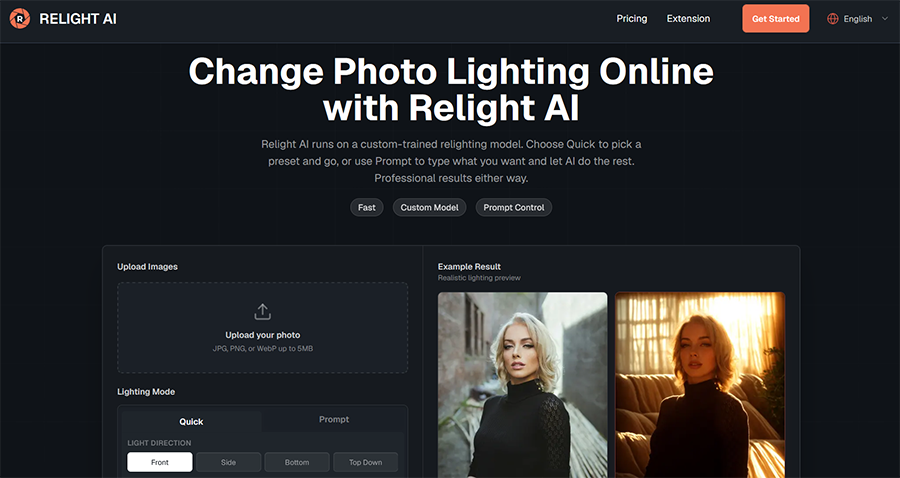
Before I show you, step by step, how Relight AI works and what sorts of results I got during my own time testing this tool, here’s a quick overview of what it is and what it’s got to offer.
Relight AI is a browser-based AI tool designed exclusively with lighting in mind. As its name suggests, it allows users to readjust the lighting of their photos with the aid of AI.
You can make a dimly lit photo appear bright, for example, or remove harsh shadows from a subject’s face. It even allows you to add AI-generated light sources to your photos from specific directions.
For instance, you can upload a portrait and then ask the AI to make it look as though there’s a studio light shining on the subject from the left-hand side.
Since Relight AI is browser-based, you can use this tool on any device, which is a huge plus point. You don’t have to download or install anything, and it’s easy to access on smartphones and tablets, as well as desktop computers and laptops.
The developer also assures users that uploaded photos are handled securely and deleted after a limited period. However, its privacy policy doesn’t specify exactly how long images are retained or explain the particular security measures used to protect them.
Another important factor regarding Relight AI is that it uses its own custom-trained model, which the developer says was built specifically for photo relighting. This helps to differentiate Relight AI from other platforms which simply offer access to various third-party generative AI tools.
The platform also aims to separate itself from rivals, such as Clipdrop, by allowing people to try it without creating an account, and by emphasizing fast processing speeds. However, as I discovered during testing, the sign-in and free-access experience wasn’t quite as straightforward as the developer’s claims might suggest.
It all sounds impressive, and with lighting being such a vital ingredient in turning a good photo into a great one, tools like this have the potential to be extremely useful to amateur and professional photographers alike. But in order to see how good Relight AI was in reality, I had to try it myself.
How Does Relight AI Work?
I tested Relight AI with several photos and played around with its various features and processing modes so I could get a comprehensive understanding of how well it lived up to its potential.
Here’s a closer look at what I found.
Firstly, the Relight AI site itself is very simple. I’ve reviewed numerous AI image editors and other AI platforms, and many can be quite overwhelming in their designs, almost bombarding the user with dozens of menu options, features, tools, filters, and other miscellaneous buttons.
Relight AI is much more straightforward and almost minimalistic in its aesthetic.
The focus of the home page is a box, inviting the user to upload their images and showing off some sample results. There aren’t dozens of confusing elements here, so even total beginners should have no trouble at all getting to grips with Relight AI.
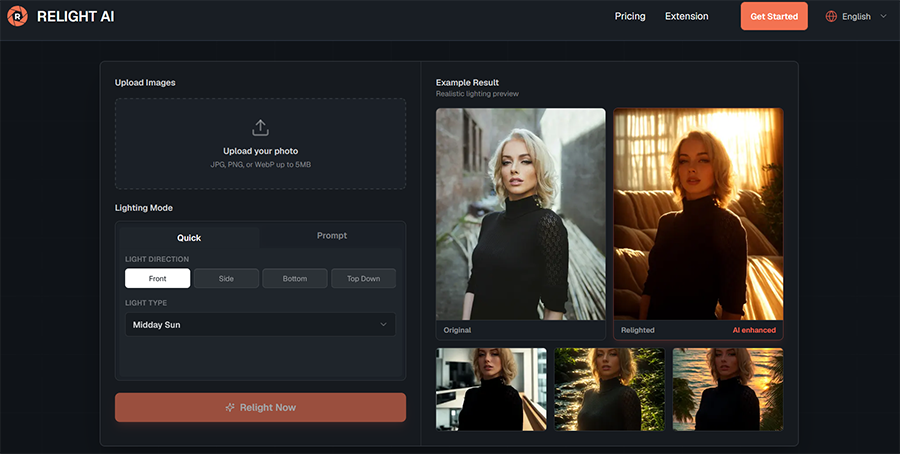
With that said, it’s worth pointing out that I did experience a few issues with the site.
For starters, I encountered multiple errors when trying to log in with my Google account, and I was also unable to access the Relight AI free trial; instead, each time I successfully logged in, I was told that my account had run out of credits, despite it being brand new.
This is quite a big issue, given the fact that the developer states multiple times on Relight AI’s home page that it’s free to use, and that all new users are given free credits to test out the tool before they commit to a premium plan. I wasn’t able to do any of that.
I also spotted some awkward visual issues when engaging with some of the buttons and menu options, as shown below.
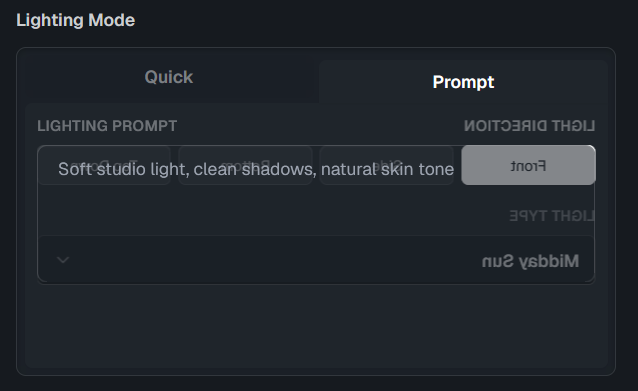
These problems aside, I still appreciate the fact that the site’s design allows users to dive right in and start making changes to their photos without having to jump through hoops or navigate multiple menus beforehand.
Once I was ready to start editing pictures, I simply had to click the “Upload your photo” button and choose a photo from my device that I wanted to work with.
The site also allows you to drag and drop photos from your folders, and it supports all common image formats, including JPG, PNG, and WEBP.
However, Relight AI recommends being careful about the photos you choose to work with. For best results, it’s advised to choose high-resolution images that are clear and crisp, without blurriness or other forms of visual distortion.
The site also notes that photos with an obvious visible subject tend to work best, with examples like portraits, product photos, and lifestyle images; images that are a little more abstract or include large groups of people or unclear subjects can prove a little trickier to work with.
After uploading an image, I had a choice to make between two different lighting modes: “Quick” and “Prompt.”
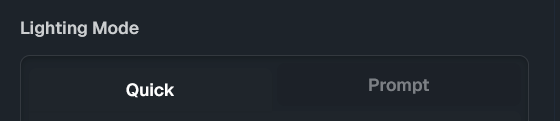
The “Quick” mode lives up to its name by simply allowing you to choose from a selection of preset options to adjust the lighting in your image.
I was given the option to decide which direction the light should come from, for example, with options including “Front” and “Side.”

I was also invited to choose between different light types. Examples include “Midday Sun,” “Blue Hour,” “Sunrise,” and “Harsh Studio.”
I liked the fact that there was a relatively broad array of options here, and the developer even included a “Bokeh” effect, which has the potential to completely change the overall aesthetic of certain images by blurring their backgrounds and turning light sources into soft, glowing orbs.
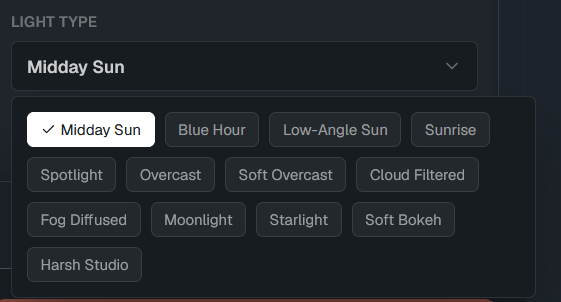
Overall, “Quick” mode definitely has the benefit of being incredibly fast; with just a couple of clicks, I was ready to process my image, and this is probably the better of the two options for casual users or those who simply want to save as much time as possible with relighting their images.
The “Prompt” mode, meanwhile, offers much more flexibility.
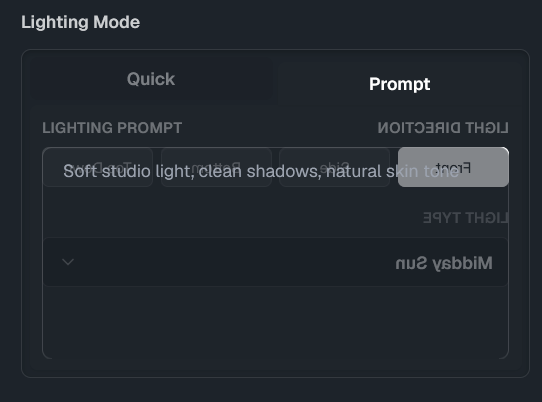
This mode doesn’t offer buttons or filters; instead, it simply opens up a typical AI chat text box, and the user is invited to type out a prompt that describes the kind of lighting effects they want to add to their images.
The AI will then process the prompt and, at least in theory, it should make the changes you asked for.
However, the results you get are liable to vary quite widely, depending on the sorts of prompts you write, and Relight AI’s developer encourages users to make their prompts as detailed as possible, including mention of the lighting direction, mood, color, and intensity.
The developer even specifically advises using phrases like “soft studio lighting from the left” or “warm golden hour light,” and it may take some time for users to figure out the right combinations of phrases to employ to get the results they have in mind.
“Prompt” mode certainly has its advantages. It’s much more flexible than the “Quick” option, for example, and it’s the better choice if you have something very specific in mind, or if you want to properly test out Relight AI’s custom model.
At the same time, I personally had mixed results with this tool.
It didn’t always respond to my prompts in the ways I’d hoped for, and I found I had to go through a period of trial and error in order to learn how to use it more effectively.
That wouldn’t have been such a problem if the tool had a more generous free trial or even a free plan, but it’s definitely an issue if users have to spend credits just to learn how to interact with the AI correctly.
Regarding the “Quick” mode, the limited range of options makes this option quite inflexible, and it doesn’t always work as intended; it sometimes makes more dramatic changes than I expected, not just to lighting, but also to the subject or background.
It’s worth noting that this effect can even be seen in the “sample” photos the developer promotes on the Relight AI home page, as numerous elements of the image, including the subject’s facial features, change noticeably from picture to picture.
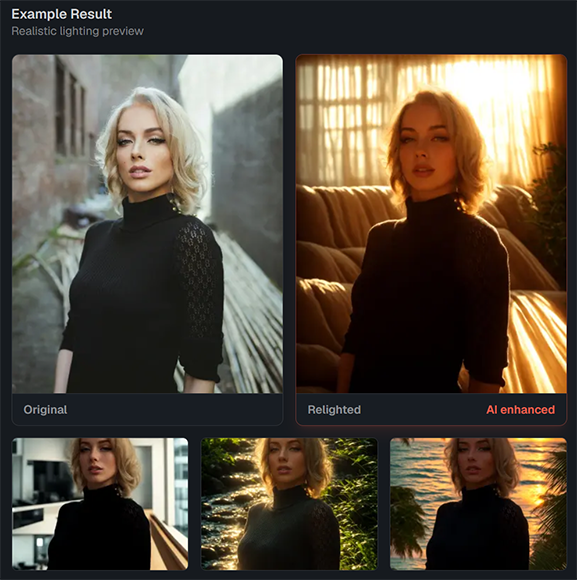
This brings me back to my titular question: how realistic are Relight AI’s results? The simple answer is that it depends.
Some photos look perfectly realistic after using this tool, with subtle glares and glows, and natural shading, but others look heavily edited and have those telltale “Made with AI” signs.
This may not be a big issue for casual users, but for anyone who is serious about their photography and simply wants to make some subtle adjustments to the lighting, Relight AI might prove somewhat frustrating to work with.
Pricing
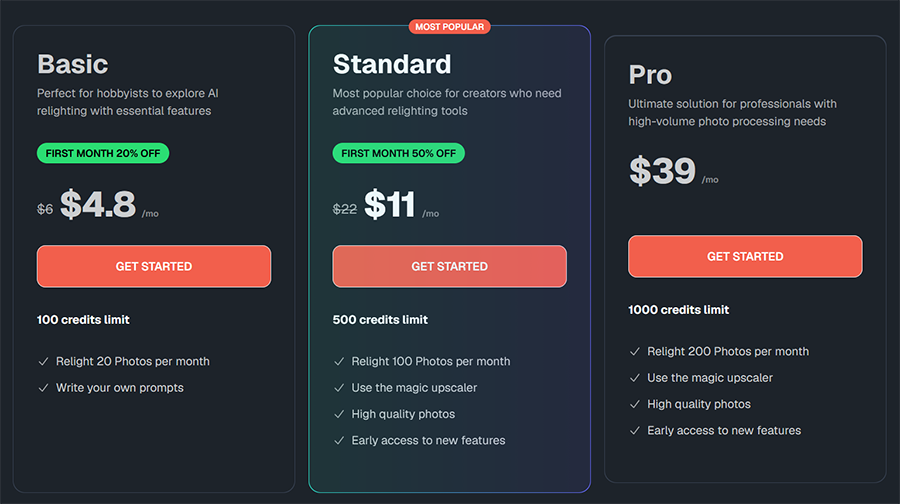
In terms of pricing, Relight AI says that it offers a free trial to new users, but I was unable to make that work, even after trying different browsers and different email addresses. Even if you do get the free trial to function, it only gives you a small number of credits to test out the platform.
Once those credits have been used up, you have to sign up for a premium plan if you want to keep using the tool, and there are three different options to choose between:
- Basic: Usually priced at $6 per month, but with a 20% discount for the first month for new subscribers, this plan gives you a limit of 100 credits, allowing you to relight up to 20 photos per month.
- Standard: The Standard plan comes with an even bigger 50% discount for your first month, reducing its regular price of $22 to $11. It has a 500-credit limit, which is enough to relight up to 100 photos a month, and it also unlocks higher-quality image downloads and a “magic upscaler” tool.
- Pro: Finally, the most expensive plan is charged at $39 per month and doesn’t come with any new user discount, at the time of writing. It gives you 1,000 credits, which is enough to work with 200 photos each month.
Given that this platform only offers one feature, while other AI toolkits have similar prices but offer access to dozens of different tools, I feel that the pricing is quite high.
Also, users don’t get a huge amount of credits for the fees that are being demanded, and even the Pro plan may not be sufficient for users who take thousands of photos a month and would most likely need to edit more than 200 of them.
Again, this brings me back to my earlier point about Relight AI feeling much more aimed towards a casual audience than intermediate or professional photographers.
The Final Word – Is Relight AI Worth It?
Overall, I’m left with mixed views about Relight AI.
I feel that there’s certainly a place for an AI tool that can help to fix common lighting issues and save photos from being culled just because of a bad shadow or slight glare.
Relight AI can do that, and it may help you make some quite impressive improvements to some of your images. It has plenty of potential, and if the developer can improve their model and make some design tweaks to the website, too, Relight AI has a chance of becoming a much more helpful tool.
In its current iteration, however, it feels a little like a work in progress. The site has several issues, the pricing feels slightly excessive, and the AI itself can be quite inconsistent, producing a mixture of realistic and unnatural results, which caused me some frustration during my time testing it.
I can still recommend Relight AI to casual users or those who are interested in playing around with an AI relighting tool that offers something a little different to Clipdrop, but for everyone else, it may be better to wait until this platform has undergone some more development before giving it a try.

As the General Manager of Shotkit, India Mantle brings with her a lifelong love for photography that she developed during her childhood, watching her father document their family moments with his Nikon EM. In her free time, you find her enjoying the awe-inspiring natural beauty of her home, Northern Rivers, Australia.
👋 WELCOME TO SHOTKIT!

🔥 Popular NOW: