







ACDSee Photo Studio Ultimate Review: How Does it Stack Up In 2026?
If you’re looking for non-subscription photo editing software with powerful features, ACDSee may be what you need. Here’s how it stacks up in 2026.
Shotkit may earn a commission on affiliate links. Learn more.
This ACDSee Photo Studio review is for any photographer in 2026 looking for an alternative image editor to Lightroom.
Despite Adobe being omnipresent among creatives, its monthly subscription model leaves many of us searching elsewhere.
ACDSee Photo Studio claims to be faster than Lightroom while offering several key features that Lightroom does not.
Its flagship Photo Studio Ultimate software is famed for its comprehensive range of features and advanced technologies.
Each year, ACDSee delivers a fresh upgrade to this well-known app, introducing new features and improvements, unlocking new ways for amateurs and professionals alike to work with their images.
The 2026 version leans heavily into AI-powered features, with some groundbreaking new functions and helpful quality-of-life additions.
Let's dive right in to the review and see what it's all about.
What is ACDSee Photo Studio Ultimate?
- Offers a strong blend of digital asset management and editing features
- One-time purchase license is considerably cheaper compared to popular software like Adobe Photoshop and Lightroom Classic
- Free 30-day trial available for users to test the program before purchasing the license
- Powerful editing tools for image adjustment, retouching, and compositing
- Supports a wide range of file formats, including RAW
- Offers customizable workspace and hotkey mapping
- Good performance and speed
- Comprehensive user manual and online support resources available
- No cloud storage or synchronization options
- Some features have a steep learning curve for beginners
- Interface can be overwhelming and cluttered for some users
- Limited options for social media sharing
- Major updates are released annually rather than continuously.
- Some advanced AI-powered editing tools lag behind competitors.
ACDSee offers photo software for Windows, macOS, and iOS, though its most advanced version, ACDSee Photo Studio Ultimate, is available only on Windows.
ACDSee comprises various programs and packs used for digital asset management, photo editing, and even basic video editing and conversion.
Choosing between all the options is rather confusing, so for the sake of simplicity, we have selected to review the most popular choice for photographers: ACDSee Photo Studio Ultimate.
ACDSee Photo Studio Ultimate is an all-in-one software for your photo management and editing needs.
ACDSee shouldn’t be mistaken for a new tool that recently came into the market; instead, it’s been around for decades. The first iteration of the software was launched in 1994 for Windows 3.1!
The current all-in-one version of ACDSee Photo Studio that I've been testing allows users to process both RAW and JPEG image files.
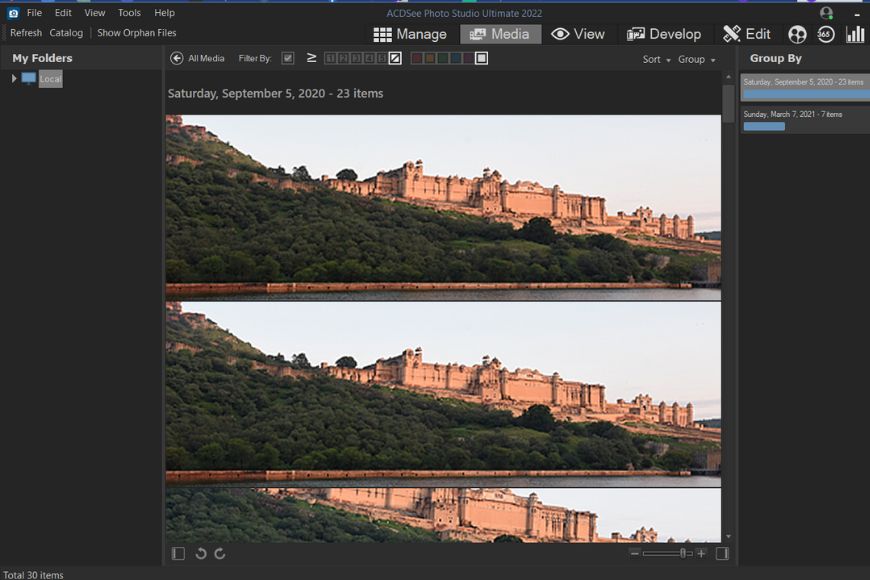
Media mode
One of the main functions where it differs from Adobe Lightroom is that even though it has the option to import photos, it’s not a necessary step. It allows users to edit pictures without building a catalog within the program.
However, like Lightroom, the editing workflow is divided into different modules.
The program opens into the Manage module, where you can import or select photos you wish to edit.
The next tab is Media, where all the files in the folder selected are visible. This module gives an overview of the images in a grid.
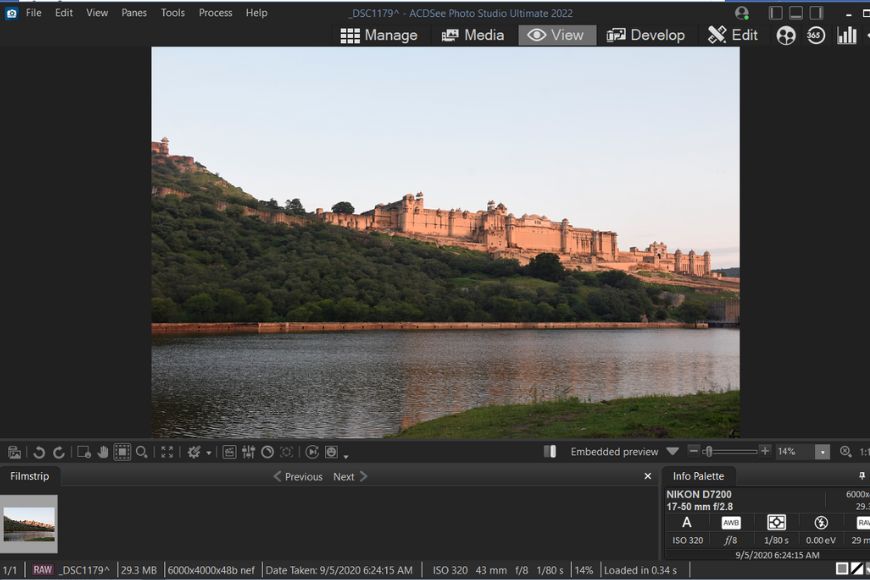
Clicking on the View module opens the selected photos in a larger view. This module also features a filmstrip that shows all the images chosen previously in the Media tab.
In the Develop tab, you get the controls for making basic edits to the photo, whether it’s a RAW or JPEG file. For example, there are controls to adjust exposure, white balance, color, and tone curve. It also features ACDSee’s proprietary Light EQ adjustment, which allows darkening or brightening different tones without affecting the rest of the photo.
Some of the other features in this tab include the option to add Color Look-up Tables (LUTs), Split Tone, Photo Effects, Color overlays, and Gradient Map.
This tab offers controls similar to those seen in the Develop module of Lightroom and Adobe Camera Raw.
ACDSee includes workflow features and tonal controls that differ from Lightroom and Adobe Camera Raw, particularly in its local browsing and Light EQ tools.
Next, there are more adjustments packed in the Edit module. The left side pane features filters, and you see a layer-editing panel on the right.
The filters in this tab are comparable to what you get with global adjustments in Adobe Photoshop.
Apart from the exposure, white balance, color, and geometry controls, ACDSee takes it to the next level by allowing you to add watermarks, borders, and special effects without digging through multiple menus like in Adobe Photoshop.
The layers panel is in many ways similar to that of Photoshop. For example, there are options to adjust opacity, create layer masks, and make adjustments like exposure, levels, and more.
ACDSee Photo Studio is a feature-loaded program with many options in each module and across the menus.
You can create a contact sheet, PDF, slideshow, and HTML album from your photos, export images, or send them to select photo-sharing services.
With the People module, the program intelligently scans faces in your photos and asks you to name the people it detects. Once stored, it can identify the same people in other images and suggest additional photos of them.
ACDSee Photo Studio Ultimate offers an exciting blend of features that take it beyond a photo editing tool. Its robust photo management and advanced features make it one of the most comprehensive tools comparable to Adobe Lightroom, Photoshop, and other software like Luminar.
Key Features of ACDSee Photo Studio Ultimate 2026
ACDSee Photo Studio Ultimate 2026 is built around a modular workflow that combines digital asset management, non-destructive RAW editing, and layer-based photo manipulation in a single desktop application.
Unlike subscription-based tools that rely heavily on cloud catalogs, ACDSee allows you to browse and edit images directly from your local folders, while still offering powerful cataloging and metadata tools if you choose to use them.
The software is divided into several core modes: Manage, Media, View, Develop, and Edit. Each mode serves a specific purpose in the photography workflow, from organization to advanced retouching.
Manage Mode (Digital Asset Management):
This module gives you all the features for managing and organizing photo collections.
Here, you can browse folders on your computer, organize photo libraries, apply ratings, color labels, keywords, and metadata, and build catalogs without being forced into a traditional import process.
This folder-based approach remains one of ACDSee’s biggest advantages over Lightroom.
Manage Mode provides detailed navigation and organizational tools through configurable panes, including Folders, Catalogs, and Calendar views, which help filter photo selections based on different criteria.
A preview panel displays key image information such as EXIF data and a histogram for the selected photo, making it easy to evaluate images at a glance.
You also get full access to IPTC, Metadata, and EXIF information, along with tools to rate, categorize, add keywords, and create collections — all from within the same workspace.

Develop mode offers non-destructive raw editing
Key DAM features include:
- Folder-based browsing and optional cataloging
- IPTC, EXIF, and metadata editing
- Ratings, color labels, keywords, and categories
- Calendar-based browsing
- Image Basket for temporarily grouping photos without creating folders
- Selective browsing by date, people, location, and other criteria
Batch tools are also available here, allowing you to rename, resize, convert, and apply adjustments to multiple files at once.
Media Mode (Visual Library View):
As the name suggests, this module shows a streamlined and organized view of all the photos previously browsed or cataloged in Manage mode.
It displays images in a grid layout, making it easier to review large collections at a glance. You can filter, sort, and group files by criteria such as date taken, rating, file type, keywords, or location.
Media Mode acts as a bridge between organizing and editing, giving you a fast way to select images before sending them to Develop or Edit.
View Mode (Preview & Curation):
When you select photos and move to the View tab, the chosen images appear in a large preview area, with a filmstrip along the bottom of the window for quick navigation. This mode is designed for reviewing and curating images before moving into deeper editing.
In addition to photos, View Mode supports video, audio, documents, and other media files, making it a versatile preview environment.
From here, you can add captions, tag files, and review detailed EXIF information, including camera and lens data, file dimensions, focal length, and exposure settings via the Info Palette.
View Mode also includes several tools that help streamline the culling and preparation process:
-
FaceTool, which detects faces in images and allows you to name people for easier classification
-
Auto Light EQ and Auto Lens options for quick exposure and correction fixes
-
Built-in and user-created Actions, accessible through the Actions Browser, for fast, repeatable adjustments
-
Image Basket support, allowing you to group selected photos temporarily without creating separate folders
Navigational controls provide zoom, scroll, selection, and full-screen viewing options. ACDSee also allows you to open images directly in external editors, which can be configured in the External Editors menu.
For users who want to quickly evaluate changes, ACDSee Photo Studio Ultimate 2026 introduces a before/after comparison slider, making it easy to assess the impact of edits without undoing changes.
Overall, View Mode acts as a bridge between asset management and editing, offering a focused environment for reviewing, tagging, and preparing images before moving into Develop or Edit.
Develop Mode (Non-Destructive RAW Editing):
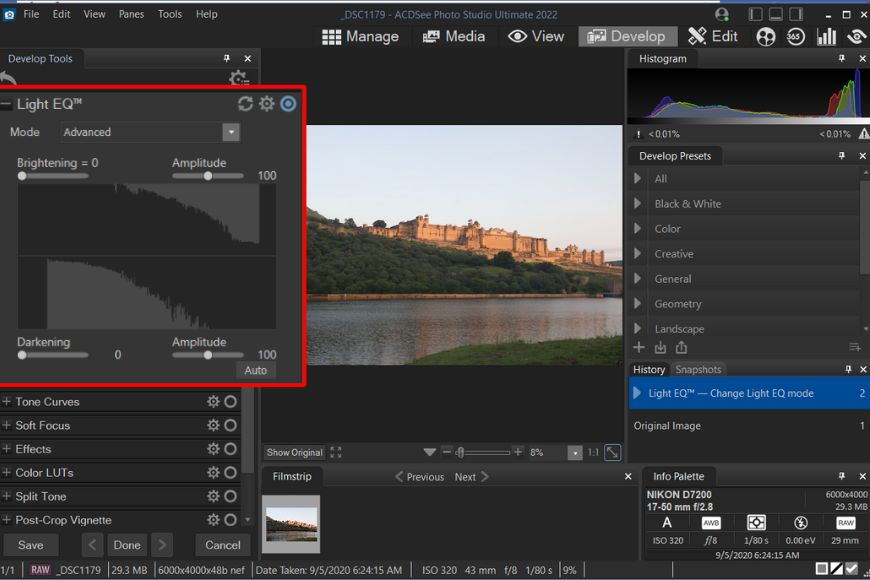
Develop mode
If you shoot RAW images and prefer editing in a non-destructive way, Develop Mode is where you’ll spend much of your time.
Develop Mode works similarly to Adobe Lightroom and Adobe Camera Raw in many ways, but it also includes several tools that set ACDSee apart. Adjustments made here are non-destructive, meaning you can revert to the original image at any point.
While it’s best suited for RAW files, Develop Mode also works with JPEG and other image formats.
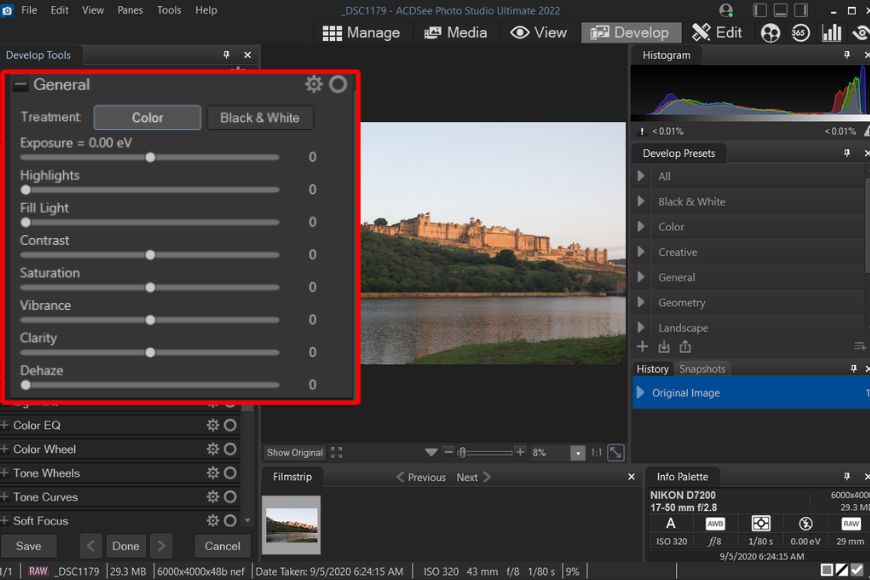
Exposure controls in Develop mode
You get a wide range of controls, from basic exposure adjustments to more advanced tools for lighting, tone curves, color, geometry, and repair.
Under Develop Tools, settings are grouped into four main categories: Tune, Detail, Geometry, and Repair.
The first tab, Tune, offers not only basic adjustments like exposure, color, white balance, and saturation but also advanced tools like Light EQ, Color EQ, Tone wheels, Color LUTs, Split toning, and other effects.
Let’s take a look at some of the advanced features in detail.
1. Light EQ: ACDSee describes this feature as total lighting control. It allows targeting specific tones in the photo without affecting the rest of the tones.
There are three modes given to control the effect:
-
Basic Light EQ offers quick shadow, midtone, and highlight adjustments with an Auto option
-
Standard Light EQ uses multiple vertical sliders, each representing a tonal band
-
Advanced Light EQ provides precise tonal control by clicking directly on the image or adjusting darkening, brightening, and amplitude sliders
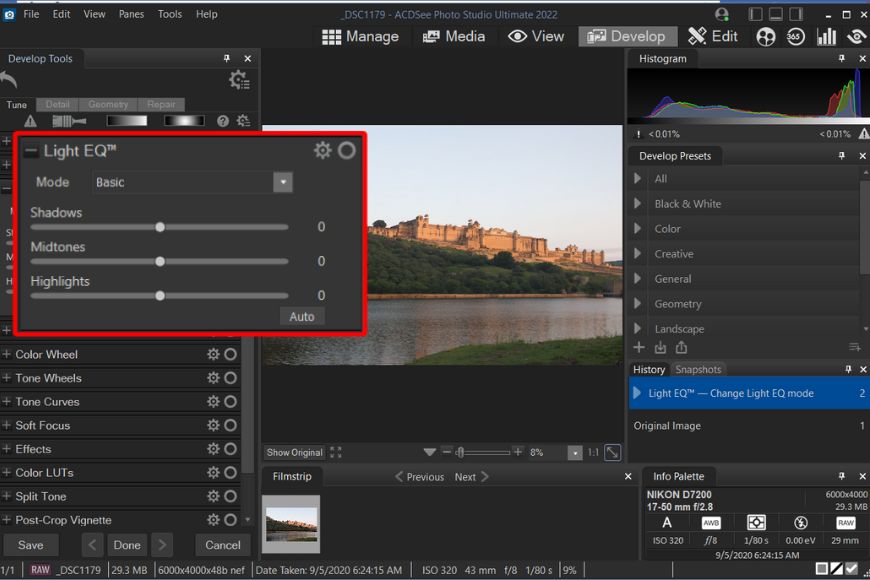
Basic Light EQ
2. Color EQ: This tool allows you to fine-tune and enhance specific colors. It works similar to HSL in Lightroom and Adobe Camera Raw. However, it also offers additional control for color contrast. You can also use it with Develop Brush, Gradient, and Radial gradient for targeted adjustments.
3. Tone Wheel: With this tool, you can add color to mid-tones, highlights, and shadows. It’s somewhat similar to the Color Grading system in Adobe products. Though I found it more complex compared to its Adobe counterpart.
4. Color Wheel: ACDSee offers different color tools, each great for different tasks. With the color wheel, you can make precise adjustments to colors. It offers hue, saturation, brightness, and contrast sliders. It is convenient in situations such as when you want to make the blue sky bluer, add punchiness to the red dress, or make the grass another shade of green and brighter.
The above are some of the key features you find in the Tune tab, but the feature list doesn’t end here.
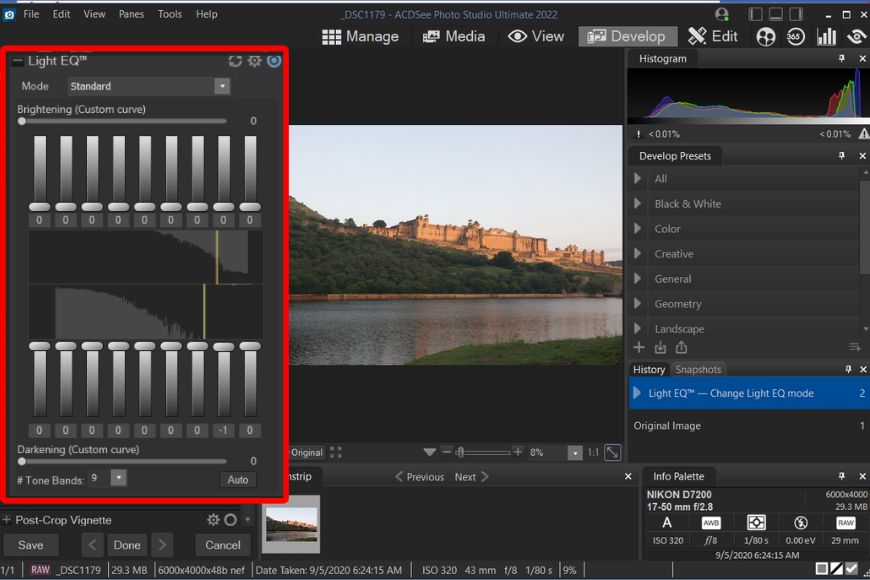
Standard Light EQ offers total control over tones
The Detail tab includes sharpening, noise reduction, skin tuning, and chromatic aberration corrections.
On the other hand, the Geometry tab offers controls for lens correction, rotation, perspective, crop, vignette, etc.
In the Repair section, you’ll find healing, cloning, and red-eye correction controls to clean up your image.
Similar to the View mode, you also get a filmstrip that shows the previously selected contents.
If you prefer total control over the effects, you can combine many adjustments with Develop Brush, a masking tool for targeted editing.
At any point, you can undo the effects with the History feature, where all the previous steps are recorded and can be used to go back and forth as needed.
2026 Update: AI Develop Presets
Arguably the best addition to ACDSee Photo Studio Ultimate 2026 is its AI Develop Presets.
Found in the “Develop” menu, these are basically preconfigured editing templates that you can instantly apply to your images, saving you potentially hours. They can be applied to multiple images at once, too, or individual images, as required.
Here’s a closer look at how they work.

First, I uploaded this image of a bird to the software, then headed to the “Develop” menu and looked through the list of AI Develop Presets on the right side.
There are dozens of these presets, divided into different categories like “AI Subject” and “AI Background.”
They’ll let you do everything from automatically adjusting the warmth and brightness of your image to adjusting the colors of the backdrop, brightening the skin, or changing the skin tone of your subject.
In this case, I selected the preset to change the background to black and white.

Seconds later, the AI had worked its magic, successfully identifying the bird as the subject of the photo before re-coloring the rest of the image into black and white.
I would have preferred the main branch the bird is perched on to retain its original color, too, but I was still impressed with the speed of the process.
I tested out various other presets with other photos and generally enjoyed very impressive results. The AI always seems to work quickly and efficiently, even with images that aren’t always the best quality, turning tasks that would have taken minutes or hours in the past into simple “click and done” jobs.
Edit Mode
Edit Mode is typically the final step in the workflow, where images move from non-destructive RAW editing into a pixel-based, layer-driven environment.
What makes this mode different is the layer-based editing capabilities. If you’re an Adobe user, you’ll find the process similar to opening a RAW file in Camera Raw and further taking it into Photoshop.
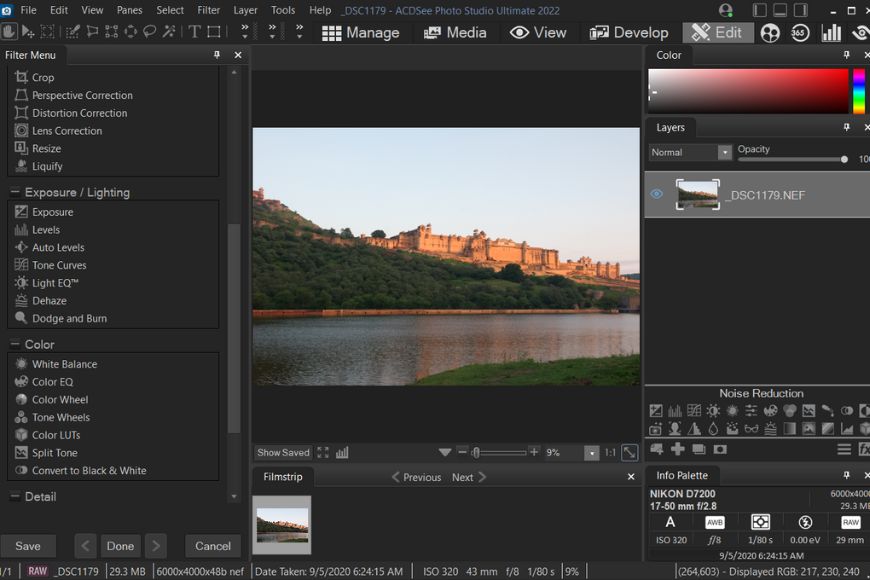
Edit Mode
The Edit screen consists of Filter Menu on the left, Image Preview in the center, and Layers Panel on the right.
On the top, there’s a tools panel featuring move, select, lasso, gradient, magic wand, brush, etc.
The bottom also displays a filmstrip that we’ve seen in Develop and View modes.
Many of the tools on this screen are repetitive such as repair tools, geometry, color, details, exposure, etc. Most of the settings are also available in the Develop mode as well.
However, there are some unique features, such as the Add menu, that allow you to automate redundant tasks such as adding watermarks, borders, vignettes, and other special effects.
Some of the key tools available include dodge and burn, liquify, lens correction, split toning, and the detail brush.
Within the layers panel, adjustments are typically applied as separate layers, each with its own mask and controls.
Like Photoshop, you can adjust opacity and blend modes, mask specific areas with a brush, and toggle layer visibility using the eye icon.

Filter options and Layers module
The adjustments available include curves, levels, exposure, add color, Light EQ, white balance, LUTs, and more. Many of these controls mirror tools found in the filter menu and Develop mode, though they operate within a layer-based environment.
Filters are applied to the currently selected image layer, so an active layer must be selected before filter options become available.
Overall, Edit Mode takes editing a step further with layer-based, pixel-level control, enabling complex, Photoshop-style workflows and a wide range of creative possibilities.
AI Enhancements in Edit Mode (2026)
ACDSee Photo Studio Ultimate 2026 introduces several AI-powered tools that significantly speed up advanced editing tasks. Here's a closer look at some of them:
AI Denoise
All the big photo editors are looking for ways to incorporate AI into the editing process, as this technology has proven particularly effective at cleaning up images, sharpening lines, and getting rid of grain and noise.
ACDSee Photo Studio Ultimate’s AI denoise feature takes full advantage of that. It works, quite simply, by letting the AI scan a photo, identify unwanted noise, and get rid of it, all in a matter of seconds. The user can also control how intensely the process works using a handy slider.
I gave it a try on a picture of a surfer that originally had a little bit of graininess in the waves and background.

All I had to do was add the image I wanted to work with and click the AI denoise feature in the sidebar.
After that, the AI took over. Within less than a minute, the process was complete, and my image was notably cleaner and crisper. I also played around with the strength slider, noting subtle differences in the end result.
This is something that pros will undoubtedly enjoy working with, as it makes getting rid of noise a near-effortless process.
AI Hair Masking
I tend to do a lot of editing work with pictures involving people, and one of the biggest challenges I’ve faced in the past is working with hair.
Some editors can spot and select hair very effectively, while others have a much harder time, demanding several minutes of painstaking manual effort as I draw a line around the subject’s hair to select it.
ACDSee Photo Studio Ultimate makes this whole process incredibly simple, once more with the help of AI.

All I had to do was upload my image and click the “Select Hair” button in the “AI Actions” menu on the right side of the editor window.
In seconds, the AI figured out exactly where the hair was in my image, right down to the tiniest pixel.
I was amazed by both the speed and accuracy, and once the hair had been selected, I was able to use various sliders to adjust vibrance, saturation, hue, and other aspects, changing my subject’s brown hair to purple in an instant.
Just like the AI denoise feature, the hair masking function is accurate, efficient, and reliable.
Other Improvements in the 2026 Version
Along with the aforementioned feature additions, ACDSee Ultimate 2026 also brings improvements to pre-existing features. Here’s a closer look:
AI Face Edit

We’ve seen the AI Face Edit feature, but it’s taken to the next level in ACDSee Photo Studio Ultimate 2026.
It’s faster, more accurate, and more versatile, letting you do everything from adjusting hair color to repositioning and resizing individual facial features, whitening teeth, smoothing skin, hiding imperfections, and more.
I especially appreciated the addition of the “Splotch Removal” tool to the menu, which lets me blend blemishes away in the most natural way possible, rather than covering them up with other layers or textures.
Expanded Activity Manager
In previous versions of this software, I was always a little frustrated by the fact that I sometimes had to wait for individual processes and tasks to finish before I could switch to another tab or take the next step in my project.
The 2026 version addresses that with a new and improved Activity Manager that allows you to keep working while other processes operate in the background. You can import, export, convert, and resize batches of photos, all at the same time, without the app freezing or slowing down.
Face Detection
Face detection has come a long way as photo editors have become more technologically advanced, but it can sometimes still let you down, even in the latest and greatest applications.
Fortunately, thanks to narrower face labels and AI integration, Photo Studio Ultimate 2026 gets face detection right almost every time. It can easily scan images and identify every single subject, making it easier to work with group photos.
Home Page and Tabs
ACDSee Photo Studio Ultimate 2026 also brings some quality of life enhancements to its home page and tabs.
The new and improved home page is a more effective dashboard than ever, providing instant access to all the core tools and functions of the program. For example, you can jump into Quick Searches to find specific photos, filter your photos in a single click, and carry out tasks like importing and cataloging all from this page.
The tabs, meanwhile, now save progress between sessions, so you can jump right back in where you left off.
File and Metadata Support
We’re starting to see more photo and video file types gain popularity, but a lot of image editors are playing catch-up, with many still failing to work with the likes of JPEG XL (JXL) files, for example.
Thankfully, that’s not the case with ACDSee’s Photo Studio Ultimate 2026. Built for next-gen file types, this software supports opening, editing, and saving in JXL format, letting you work with bigger and better quality images than before.
It also introduces additional metadata support for both JXL and AVIF formats. When working with video files, too, 2026’s metadata enhancements let you view GPS details and other data fields quickly and conveniently via the Properties pane.
Before/After Slider
One of my pet peeves with some editors is that they make it difficult to see the impact of my edits, and I have to waste time undoing and redoing just to compare the difference between the before and after images.
Photo Studio Ultimate 2026 solves this issue with the introduction of a before/after slider. So, any time I apply an edit, I can simply use the slider to scroll back and forth between the original image and the new one, tracking the impact of my edits as I make them.
Overall Performance
ACDSee Photo Studio Ultimate offers all the editing tools and asset management features you’ll ever need in a single piece of software.
It has the potential to replace many of the tools from the Adobe Creative Cloud suite. However, it is a complex bundle of tools that comes with a steep learning curve.
The performance is great when it comes to photo management, and the interface is generally user-friendly and intuitive for most photographers once they spend some time with it.
What sets it apart are tools like People mode, Groups, and Image Basket, which help streamline organisation and selection.
Regarding photo editing capabilities, ACDSee offers everything you’d find in other photo processing tools, plus more advanced options.
The operation is virtually lag-free on my decent-spec laptop; however, when editing multiple RAW files in the Image Basket or applying heavy adjustments in batches, you might experience very slight delays.
The toolbar offers various selection tools, brushes, and other options.
Photo Studio Ultimate comes loaded with multiple tools, which can feel overwhelming for new users and may initially slow down the workflow.
That said, ACDSee now provides detailed documentation and tutorials, but some advanced controls — such as Light EQ — still take time to fully understand.
In addition, many features repeat across multiple modes, and sometimes within a single mode, which can feel confusing at first. For example, Color EQ is available in both Develop and Edit modes, and Light EQ appears in filters as well as adjustment layers. Like most professional photo editing software, this takes time to get used to.
Overall, I’m pleased with the feature set and processing capabilities of ACDSee Photo Studio Ultimate.
Alternatives to ACDSee Photo Studio Ultimate
While ACDSee Photo Studio Ultimate is a very powerful and versatile software, it’s important to note that there are many alternatives available in the market. Here are a few options you might want to consider:
Affinity Photo: An affordable alternative that offers many similar tools for image editing, retouching, and compositing. With its one-time payment model, Affinity Photo is popular among photographers who want Photoshop-style editing without a subscription, though it lacks built-in digital asset management.
Adobe Lightroom: Lightroom is one of the most widely used photo editing tools and has been adopted by photographers worldwide. Its biggest drawback for many users is the subscription-based pricing model, which makes it less appealing to those who prefer a one-time purchase.
GIMP: An open-source image editor that is completely free to use. It offers a solid feature set, but the interface and workflow can feel dated, and support is largely limited to community forums.
Luminar: Luminar is one of the stronger alternatives on this list, offering many modern editing tools along with a range of AI-powered features. However, it doesn’t provide the same level of digital asset management as ACDSee, and pricing is generally higher than traditional one-time purchase editors.
Ultimately, the best choice depends on individual needs and preferences. Factors such as cost, feature set, workflow, and personal editing style all play a role in determining the right software.
ACDSee Photo Studio Ultimate offers a strong balance between functionality and affordability, particularly for photographers who want an all-in-one desktop solution without committing to a subscription.
Pricing
Unlike a lot of other big-name photo editors, ACDSee Photo Studio Ultimate doesn’t force you to sign up for some sort of monthly or annual subscription to use it.
Instead, buyers can simply pay a one-off fee to enjoy full access to this application and all the exciting features and functions it brings.
At the time of writing, ACDSee Photo Studio Ultimate 2026 is priced at around US$109.95, though pricing can vary and discounts are often available.
As a seasoned photographer, I’ve spent a lot of money on different editors and other photography-related programs over the years. Based on my experiences, and compared to other popular options, I feel that ACDSee Photo Studio Ultimate 2026 provides excellent value for money.
At the same time, if you’ve already invested in last year’s version, Photo Studio Ultimate 2025, you may have to think twice about whether or not to make the upgrade. The new features definitely make this a more functional and intuitive application, but some may not feel it’s necessarily worth upgrading yet.
Who Is ACDSee Photo Studio Ultimate 2026 For?
The ideal audience for ACDSee Photo Studio Ultimate 2026 is professional photographers. It certainly has appeal for amateurs and hobbyists, too, but pros will be able to fully make the most of the countless features and additions this app delivers.
As explained, many of those additions are AI-oriented, so if you’re someone who is interested in the idea of incorporating AI into your photo editing workflows, this is a super tool to use.
The interface and compatibility options also make Photo Studio Ultimate 2026 better-suited to a broader audience than its predecessors. It’s simpler to work with than previous versions and more versatile too, with many of the AI features especially intuitive.
With that said, it’s still not exactly the most straightforward photo editor on the market. It comes with a relatively steep learning curve, and new users will need time to figure out all the features and functions on offer.
With that in mind, total beginners and casual photographers may want to opt for something a little simpler – like the Professional or Home versions of the app, which are notably cheaper – leaving the Ultimate version for pros and seasoned editors, only.

Yatharth Gupta is a seasoned portrait and travel photographer based in India. He is also a writer and a blogger and loves to explore new places.
1 Comment
Leave a Comment
👋 WELCOME TO SHOTKIT!
🔥 Popular NOW:

I think everyone should think twice before paying anything for ACDSee software. At least the Photo Studio Ultimate 2023 is an ultimate disaster! And that is from longtime, paying customer (say>20 years!) with (regretably!!!) at least 10 years of happy recommendations!
But I still feel cheated about the missing updates for 2023 – and especially the bad/inefficient programming!
Start-up takes forever now – and when “up” every simple operation takes a long time (3-4 seconds or longer – might not seem “long” but every user test will reveal that almost all users find this very, very frustrating). The ACDSee application window can’t be reliably moved (very sluggish like it renders every pixel in the processor – so probably programming error), often the cursor disappears when inside the app (but if you know where it is, stuff can be clicked!) etc. etc. etc.
Even after using the Utimate 2023 for quite a while now, I still think most of the interface decisions are setbacks vs. 5.0!.
And the fact that reported, simple errors (like the color picking not working on secondary screens) are never corrected is appalling in my opinion!
So I’m currently about to give up hope for ACDSee. I’m guessing they fired every capable programmer (or moved them to object oriented programming without understanding it), have given up on performance testing and optimization. And why not: I’m sure users (other than me, naturally) love to waste their time on sluggish interfaces etc.?! That their only answer in customer support seems to be “pay for a new version” (as anyone would trust that to be better with experience from earlier versions) is simply appalling! (But probably every sane person in customer support has already left or are looking for a way out now?)
Ultimately I’m a bit sad, because with only half-decent programming, testing and support it /could/ be a great product… But my recommendation now is: STAY AWAY!