







13 Best Adobe Lightroom Alternatives in 2026 [User Tested]
Discover the best alternatives to Lightroom (free and paid) which help you avoid Adobe's subscription costs while editing and managing your photo collection.
Alternatives | Lightroom | Software | By Mark Condon | Last Updated: October 5, 2026
Shotkit may earn a commission on affiliate links. Learn more.
Whether you’re looking for your first photo-organizing and editing software or you’re a long-time Lightroom user considering a change, I’ve rigorously tested these Lightroom alternatives so you don’t have to.
Depending on your needs, alternative photo editing software may offer file management (DAM) features and RAW image editing tools similar to Lightroom.
Some tools are desktop-only, while others are online or app-based – perfect if you’re looking for an alternative to the Lightroom Mobile app.
Note that we’ve updated this guide for 2026, and all software comparisons below reflect the latest available versions and current pricing at the time of writing.


Similar to Lightroom with powerful AI editing tools to improve images in less time. Affordable one-time-fee (no subscription) and easy for beginners.
Use code shotkit10 to save 10%.
Free Lightroom alternatives also exist, and most of the paid software offers a free trial so you can experiment before you buy.
Adobe lost many users when it removed the option to buy Lightroom outright, and the recent increase in subscription prices triggered another wave of departures.
Now’s your chance to choose an alternative image editing program that’s right for you. When I tested the latest versions of each software, I was surprised by just how far the features have come.
And the good news is that there are even free options that compare to Lightroom.
So, whether you’re after more affordable alternatives to Lightroom or are ready to invest in more comprehensive software, this guide is for you.
What is the Best Alternative to Lightroom?
| Image | Product | Features | ||
|---|---|---|---|---|
 | Skylum Luminar#1 LIGHTROOM ALTERNATIVE |
| VIEW PRICE → | |
 | On1 Photo RAWHIGHLY RECOMMENDED |
| VIEW PRICE → | |
 | Zoner StudioWINDOWS ALTERNATIVE |
| VIEW PRICE → | |
 | Mylio PhotosBEST DAM FOR ORGANISING PHOTOS |
| VIEW PRICE → | |
 | DxO PhotoLabBEST FOR ADVANCED EDITING |
| VIEW PRICE → | |
 | Capture OneBEST FOR PROFESSIONALS |
| VIEW PRICE → | |
 | DarktableFREE ALTERNATIVE |
| VIEW PRICE → | |
 | Affinity PhotoLAYER EDITING |
| VIEW PRICE → | |
 | Photoshop ExpressLIGHTROOM CC ALTERNATIVE |
| VIEW PRICE → | |
 | PolarrONLINE ALTERNATIVE |
| VIEW PRICE → |
1. Skylum Luminar (Most Popular Lightroom Alternative)

- Affordable one-time price
- Easy and fun to use
- Effective one-click presets
- Impressive AI tools
- AI assistant that provides smart editing suggestions
- Fast RAW image imports
- Cross-device editing
- Shareable web galleries
- Generative AI tools are included only for a limited time
- Limited photo management features
- Limited print and export options
Luminar Special Offer
Save 10% by using code shotkit10 when purchasing Luminar on the Lifetime plan.
Luminar was my number one recommendation as a Lightroom alternative on the original version of this list, and there’s still no other software that has stolen its place.
It offers raw image processing and several mind-blowing AI-powered photo editing tools, and they’ve recently added an AI assistant as well.
The photo management library offers an excellent smart search and rating options. However, it lacks some advanced features such as face recognition. Most photographers will find Luminar’s folders and collections enough to keep images organized, though.
Those who have little interest in spending hours on complex edits in Lightroom or Photoshop will love the latest Luminar update.
Complex editing tasks which would normally take experienced retoucher hours in Photoshop can be performed in just one click with Luminar by a complete beginner. Thankfully, it’s also a refreshingly affordable image editing software.
Replacing the sky, changing facial features or body shapes, removing powerlines and dust spots, adding sun rays that wrap around foreground objects – all this can be achieved in seconds with zero prior editing experience.
In its latest update, Luminar replaced Relight AI with the new and improved Light Depth, which is an amazing way to add volume to your images in seconds.
Even the latest version of Adobe Lightroom, which includes Generative Remove, offers fewer AI tools than Luminar.
Much of the excitement surrounding Luminar has centred on its AI photo editing features. However, Luminar is actually a competent non-destructive RAW photo editor, too, offering all the main tools required to produce polished, professional-quality images.
It also offers the option to work in layers, which in the Adobe suite is only available in Photoshop.
Luminar is particularly great for beginners or those not coming from Lightroom. All the features are user-friendly and simple to use, with virtually no learning curve. The addition of the AI assistant has elevated Luminar into a great learning tool as well.
This doesn’t mean that it’s not professional software. Advanced users can also benefit from time-saving workflows offered by the AI tools and the customization each feature provides.
Existing Lightroom users will appreciate the similarity in tool layout, shortcut keys and slider-based image adjustments: all the basic tools that exist in Lightroom’s Develop module are also present in Luminar, including more advanced features like Curves and LUT Mapping.
As soon as you import a photo into Luminar, artificial intelligence analyzes its content to provide recommended overall edits in the form of unique presets for each photo. You can also use the Enhance AI feature or ask the AI assistant to enhance your picture.
Each one of these solutions can be a final result or a strong starting point – how deep you want to go into your editing is your choice. Luminar supports both quick fixes and complex edits.

Adding realistic sun rays and repositioning them is simple – note how the rays pass ‘behind’ objects!
You can find some useful post-processing tools in Neo that aren’t available in Lightroom, such as Focus Stacking, HDR, and Panorama Stitching.
It also includes generative AI tools to extend the background and replace or remove objects from your pictures. Restoring old images is another task that’s become a breeze thanks to Luminar’s recent updates.
Another advantage over Lightroom is that Luminar’s image library is much easier to navigate. If you use macOS Finder or Windows Explorer to organize your folders, you already know how to use Luminar’s catalog.
Overall, Luminar is much faster than Lightroom at importing RAW images. As it’s simply referencing files on your hard drive, there’s no long import sequence – your images just appear in Luminar immediately.
In my tests, I used a 2021 MacBook Pro with 32GB of RAM, and Luminar ran flawlessly, although there is a split-second delay when processing complex AI edits for the first time.
Luminar also runs natively on the Mac M1 chip, meaning your MacBook battery will be spared even when running processor-intensive tasks.
That said, Lightroom is still quicker at performing batch edits of multiple large RAW files. Performance depends on your computer hardware and the size of your original files, but Luminar isn’t a viable alternative to Lightroom for wedding photographers or anyone needing to edit thousands of RAWs quickly.
Overall, Luminar surpasses all the other Lightroom alternatives due to its simplicity, excellent core editing tools, powerful one-click AI features, and affordable one-time pricing.
So, is Luminar better than Lightroom? For certain complex editing tasks, yes; for image management, no. However, you can use it as a plugin alongside Lightroom, and you get the best of both worlds.
Luminar is very affordable and can be purchased outright (no subscription). However, you’ll have to buy upgrades in the future, not just to get the new features, but also to renew access to its generative AI tools.
Luminar is available for Mac and Windows and offers a 30-day money-back guarantee so you can decide if it’s the right Lightroom substitute for you.
Resources
2. ON1 Photo RAW (Great all-in-one Lightroom Alternative)
- Subscription and purchase options
- Layer-based workflow
- Great file management/organization
- Support for lots of cameras/lenses
- Useful snapshots feature
- Powerful AI features
- Excellent presets
- Slightly confusing interface
- Steep learning curve for beginners
- Occasional loading delays
- Needs a powerful computer to run
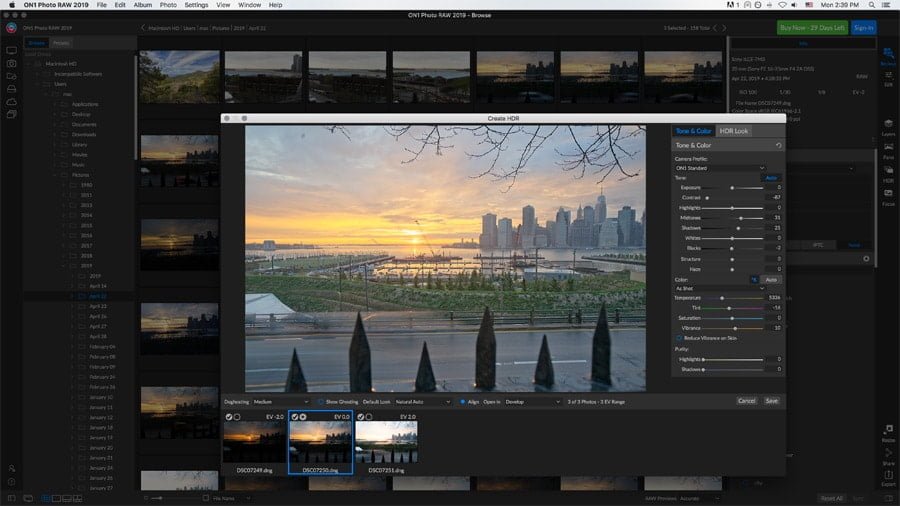
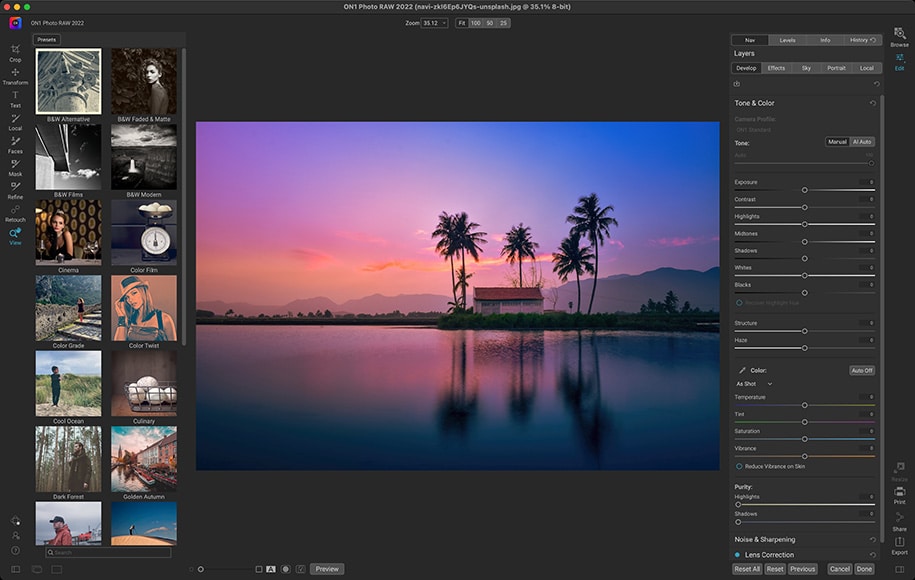
ON1 Photo RAW is another of our favourite Lightroom alternatives, as you can see from our ON1 review of the 2023 version. Since then, they’ve continued to wow us with each upgrade.
Unlike most of the other Lightroom competitors, it combines an image organizer, RAW file processor, layered editor, and effects app all in one – it’s actually like having both Lightroom and Photoshop under one roof.
The user interface isn’t as simple or streamlined as Luminar, and there’s definitely a higher learning curve, but ON1 offers a number of features that advanced users might appreciate.
The first is the excellent photo management and library system. Unlike Luminar or Lightroom, you don’t have to import your images into a software’s catalog – you handle everything on your own drive.
You can locate your images by searching for keywords, metadata, dates, and even the time the image was taken.
There’s also an AI keyword feature to make things even more efficient. This is crucial to those of us who depend on metadata to find and manage our photos. You can also create custom camera profiles with the X-Rite Camera Profiler.
You won’t have the options for backups or the overall flexibility of Lightroom’s catalog system, but that’s to be expected in a database-style image editing software.
And, if you’re an existing Lightroom user, you can easily switch to ON1Photo Raw with its migration assistant.
The develop module is structured much like Adobe Lightroom and is a bit more complex for those new to image editing. That being said, ON1 has all the photo adjustments you would expect from a Lightroom replacement.
This includes various AI features such as NoNoise AI, Generative Erase, or Resize AI. AI Quick Mask is another impressive tool that saves you hours when making multiple selections. It also has some features that Lightroom doesn’t, such as a Sky Swap tool or Portrait AI.
One handy tool that’s unique to ON1 is AI Match, which takes any custom settings you use in-camera and matches them with a RAW conversion rendered by the software. This is especially useful if you shoot in black and white or use custom film looks, as is common with Fuji cameras.
ON1’s Effects module includes a couple of proprietary filters, including ‘Weather’, which even lets you add rain or snow to an image.
Many of today’s Lightroom alternatives come with layer functionality, and ON1 is no exception. These work much the same as Photoshop and inPixio, with masks, blend modes, and an easy way to merge layers.
ON1 also has HDR, Panorama, and Focus Stacking options. These options are only available in Adobe when using Lightroom and Photoshop in tandem.
As far as portrait editing is concerned, ON1 has long been at the top of the field for its price point. Portrait AI automatically finds faces and creates a separate mask/adjustment panel for each one – from there, you can adjust the skin, eyes, and mouth individually.
Speaking of faces, ON1 also has a great Face Recovery feature when you’re resizing low-resolution photos.
ON1 also offers several excellent built-in presets, over 100 new looks, backgrounds, textures, and skies – though the sky replacement feature isn’t quite as accurate as Luminar’s.
Unlike Luminar, ON1 Photo RAW has a print module that adds some serious functionality to the app. It comes with a number of templates, including various options for individual prints, contact sheets, and tiled package prints. It also lets you add watermarks before you print.
While ON1 Photo RAW is a complete software that you can use as a standalone app, you can also use it as a plug-in for some of the most popular editors on the market – including Lightroom. For this, you need the ON1 Photo RAW MAX.
For mobile editing, you have ON1 Photo RAW for mobile, which is a free app available for iOS and Android. If you have ON1 Photo RAW MAX, you’ll have 200 GB cloud sync for cross-device editing.
Aside from the slightly complicated user interface, the only other small downside that I found while testing Photo RAW is the sluggishness in performance of some of the processor-intensive AI tools – a pop-up loading dialogue is a common sight.
All in all, ON1 Photo RAW is the only real ‘one-stop-shop’ photo editor available right now. Just about everything most photographers would ever need is here in one place.
It’s faster than Lightroom, offers more search power than Luminar, does photo merging, has print options, and even allows for text to be added.
Best of all is the price of ON1. It offers great value for money… especially when compared to a Lightroom subscription.
Resources
3. Zoner Studio (Award-Winning Lightroom Alternative for Windows)

- Excellent all-in-one workflow (import/culling, organize, edit, export)
- Fast and lightweight on Windows machines
- Layer-based editing included
- Affordable subscription pricing
- Good RAW processing and colour tools
- Built-in cataloging and folder-based management
- Useful batch editing and export options
- Frequent updates with new features
- Windows only (no Mac support)
- Smaller ecosystem and fewer plugins than Adobe
- AI tools not as advanced as competitors
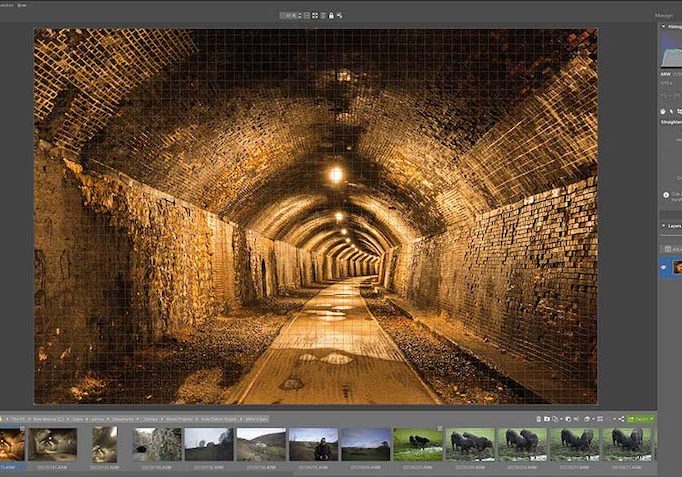
Zoner Studio is a surprisingly capable Lightroom alternative that often flies under the radar for Windows users looking for a complete workflow solution without Adobe’s subscription pricing.
Unlike some competitors that focus heavily on AI or simplified editing, Zoner Studio strikes a balance between traditional photo editing tools and modern workflow features. It combines photo management, RAW processing, and even layer-based editing into a single application.
The module-based layout will feel familiar to Lightroom users. You can move between Manager, Develop, Editor, and Create tabs depending on your task, whether that’s organising your library, editing RAW files, or preparing images for print.
The Develop module offers non-destructive RAW editing with all the essential tools: exposure adjustments, curves, color grading, sharpening, and lens corrections.
While it doesn’t lean as heavily into AI as Luminar or ON1, the core editing performance is fast and reliable.
One area where Zoner Studio stands out is its file management. You can work directly with your existing folder structure or build a catalog for more advanced organisation. Keywording, ratings, colour labels, and metadata editing are all handled well, making it a solid option for photographers managing large libraries.
Another advantage over Lightroom is the inclusion of layer-based editing directly within the app. This allows for more advanced compositing and retouching without needing to jump into Photoshop.
Zoner Studio also includes useful extras like HDR merging, panorama stitching, focus stacking, and a solid print module – all built in, rather than requiring additional software.
Performance is generally snappy, even with large RAW files, and batch editing is straightforward thanks to preset syncing and bulk processing tools.
That said, Zoner is only available for Windows, which immediately rules it out for Mac users. It also lacks the more advanced AI-powered tools that have become common in newer Lightroom alternatives. It does have several useful AI features like AI close ups and AI object/subject removal/masks.
Overall, if you’re a Windows-based photographer looking for an affordable, all-in-one Lightroom alternative with strong editing and organization tools, Zoner Studio is an excellent choice that deserves more attention.
Resources
4. Mylio Photos (Best Lightroom Alternative for Organising Photos: DAM)
- Completely private (offline)
- No reliance on Cloud/Internet
- Great way to ‘rediscover’ forgotten photos
- Slick interface
- Easy & fun to use
- Facial recognition is entirely offline
- Excellent Map, Calendar and people organization
- Unifies photo libraries across multiple devices/platforms
- Duplicate photo finder helps save space
- Can’t be purchased outright (subscription-only)
- Devices need to be on to sync
- Inaccurate import times (speeds were actually faster!)
Lightroom is mainly used for two things: photo organizing and photo editing. The previous alternatives I proposed also cover these tasks. Mylio Photos, instead, focuses solely on photo organizing.
So, it’s not exactly a Lightroom equivalent, per se. However, some users may be interested only in photo management with basic editing tools. If this is you, then Mylio Photos might be the best Lightroom replacement you can find.
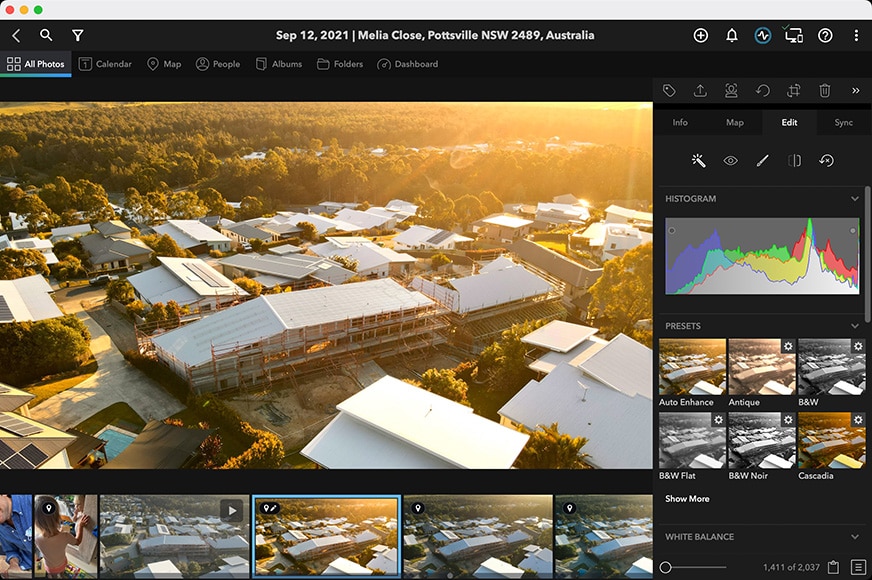
Mylio Photos uses local media storage and device-to-device syncing to let you connect multiple image libraries and access them in one location – all without the Internet or the Cloud.
This means it’s entirely private – a huge benefit for any photographer who feels uncomfortable about storing and sharing personal images online. In this day and age of hackers and online piracy, that’s very reassuring.
You choose to ‘share’ any photos or videos across your devices (or those of your family) via your own secure WiFi connection. As long as the devices are connected and active on the same WiFi network, the apps will sync your chosen videos and photos.
Mylio also helps you find images faster with smart organization and search features, and offers handy image editing tools.
Since it’s a product primarily designed for individuals and families, its features aren’t suited to complex edits. However, you’ll find all the basic tools – enough for a large base of users.
It even goes beyond the basic entry-level by allowing non-destructive RAW image processing on any device. The mobile app is fast and responsive since all images are reduced, much like a Lightroom Smart Preview.
(You’re even able to transfer the full-resolution image from your ‘Vault’ to any of your devices if you need it.)
A key benefit of Mylio Photos is that it can be used across different platforms, meaning if your laptop is a Mac but your phone is an Android and your tablet runs Windows, you can still use it. This makes it great for families and small businesses where people are using a mix of products and platforms.
You can store and organize an unlimited number of photos and videos – the only limitation is the capacity of your devices. To optimize storage, photos are optimized to approximately 5% of their original size.
The user interface is well laid out and easy to understand, making it great software for beginners or anyone who just wants a simple way to organize and edit photos.
Unfortunately, you can’t buy it outright, but there is a free trial to see if you like it. After the trial ends, you have different subscription programs based on how many users you want to include.
For anyone who values privacy above all else, Mylio is a great solution. The fact that it’s so good at managing multiple libraries of images is just a bonus.
Resources
5. DxO PhotoLab (Great for RAW Processing)
- Can be bought outright (instalments payment option)
- Includes 2 or 3 activations
- Excellent RAW processing
- Best-in-class noise reduction
- Excellent lens correction tool
- Expensive
- Fewer AI-tools than others
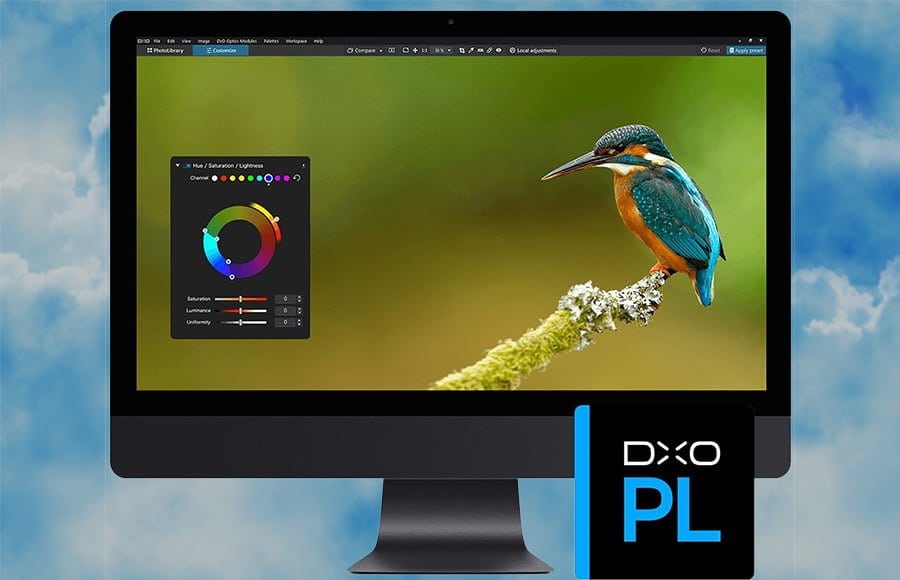
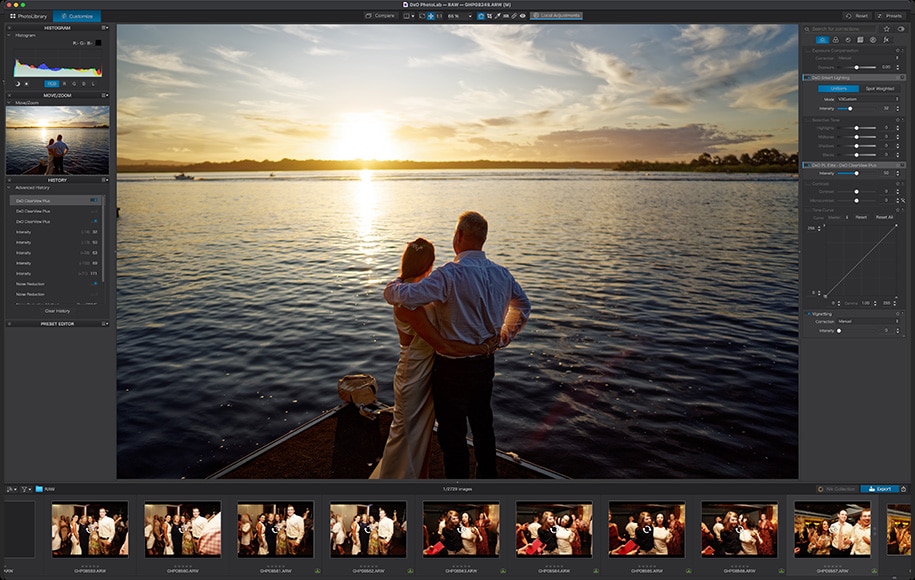
DxO PhotoLab is an image editing app that some photographers prefer to Lightroom for its powerful RAW processing engine and lab-grade corrections.
DxO has multiple products, but the one you’re looking for as a substitute for Lightroom is DxO PhotoLab, a robust photo manager with powerful editing features.
PhotoLab is best known for its impressive RAW processing tools, which automatically apply lens corrections and all the default processing adjustments when you start browsing a folder of RAW files.
A handy feature is that DxO can automatically look up any missing camera and lens correction profiles required for the best RAW processing. However, most of these are already included in the software.
The user interface is similar to Lightroom and can be further customized to mimic it. All the basic editing functionality is there, with more advanced editing tools ready for you to take full manual control.
Shotkit did a full review on DxO PhotoLab 3. We already liked it back then, but now… well, we love it!
Smart Lighting is a DxO-exclusive feature that applies highlight and shadow adjustments to a RAW file to produce a more balanced image with increased dynamic range. This is especially useful when applied to a series of images and is a real timesaver for landscape photography.
For editing particular areas of your images, the AI masks are powerful and intuitive. You can select people, animals, backgrounds, and more with just a click, and refine them easily. Of course, you also have traditional masking tools, such as the graduated filter and a manual brush.
Unique to DxO PhotoLab, you can also try your hand at a control line and control point tool to make local selections.
The non-destructive editing is smooth and fast, and the latest versions bring with them a number of useful features, including:
- DeepPrime: AI-powered demosaicing and denoising technology trained with deep learning. DeepPRIME XD2s enhances results further for especially challenging images.
- DxO Modules: The DxO Modules are an exclusive feature that comes from years of laboratory experimentation. They optimize sharpness and optical performance based on your exact camera and lens combination.
- Smart Workspace: A streamlined, customizable interface designed for a more efficient workflow, including batch renaming tools.
- Advanced History: A detailed editing history panel that lets you return to earlier stages of your workflow.
- Selective Copy Paste: Allows you to transfer selected adjustments from one photo to multiple similar images.
- Instant Watermarking: Quickly apply watermarks to your images during export.
You can do many of the same things in DXO PhotoLab as you can in Lightroom with regard to image management and editing individual images, but for any non-destructive layer-based edits, you’ll need to resort to other software such as Photoshop.
While PhotoLab’s Photo Library now includes metadata management — allowing you to modify, categorize, and search images using EXIF and IPTC data, as well as add keywords — DxO still lags behind Lightroom when it comes to large-scale photo organization and asset management.
That said, recent updates have introduced a versatile batch-renaming tool and a stacking feature, which improve workflow efficiency.
For professional photographers or perfectionist pixel peepers who want the best image quality, DxO is hard to beat.
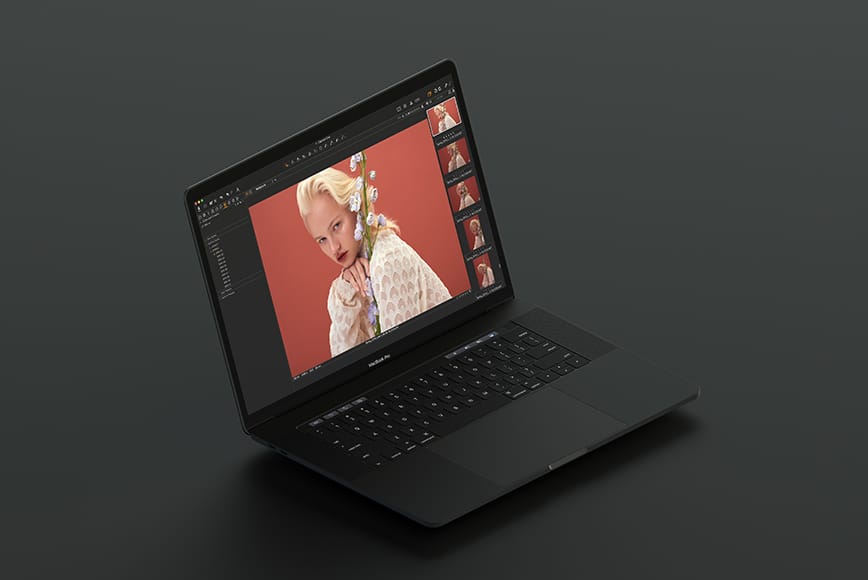
6. Capture One (Lightroom Alternative for Professional Studio Photography)
- Excellent RAW file conversion
- Tethered workflow second to none
- Powerful adjustment tools
- Customizable interface (can be made to look like Lr)
- Layer-based editing
- Powerful colour adjustment tools
- Team collaborations (on selected plans)
- Mobile version and cross-device editing (on selected plans)
- Expensive
- Steep learning curve
- Lack of 3rd party plugins
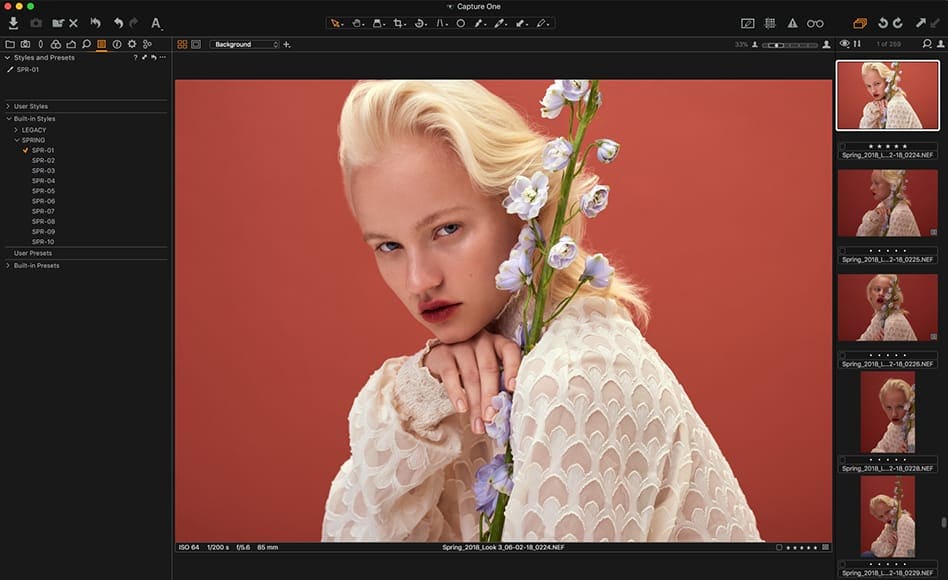
Capture One is a powerful software reserved more for professional photographers. It’s got a steep learning curve, and it’s geared more towards a tethered shooting/collaborative workflow as used in studios or teams.
Having said that, if you’re a pro who’s looking for something with better imaging capabilities than Lightroom and the other photo editing software available right now, Capture One is the tool to use.
With its latest release, Capture One offers exceptional RAW image file processing, image cataloging, layers, local adjustments, keystone adjustments, and just about all the features one would expect out of a pro image editing app.
If you’re moving from Lightroom, Capture One makes it a simple transition – you’re able to smoothly migrate your existing Lightroom files with an importer tool, and even customize the interface so it mimics Lightroom.
However, despite all the helpful tutorials and documentation, there’s still a steep learning curve to using Capture One proficiently.
Thanks to colour profiles tailored for every camera, any RAW file imported into Capture One will instantly look better than in any other RAW photo editor. With Lightroom, for example, imported files have a more neutral starting point.
Capture One has more ways to manipulate color than Lightroom. Unlike most other editing programs, it doesn’t limit you to the 8-colour HSL panel; the Pick Color tool lets you pick any colour or colour range in the photo.
From there, you can adjust the affected colour range, hue, saturation and lightness. The 3-Way option even lets you adjust the colour tint separately in the shadow, mid-tone and highlight areas.
While Capture ONE hasn’t leaned into AI as much as its competitors, it does offer AI-assisted masking and a handy tool to match the style of a reference photo that will save you tons of editing time.
Unlike Lightroom, Capture One doesn’t offer different workspaces for different functions (i.e., library, develop, etc.). Instead, everything sits in one interface, and you toggle through buttons to change functions. This mixed-asset management can be confusing at first.
Fans of Lightroom’s autocorrect features won’t be disappointed, since Capture One offers all of them, and actually improves on their performance.
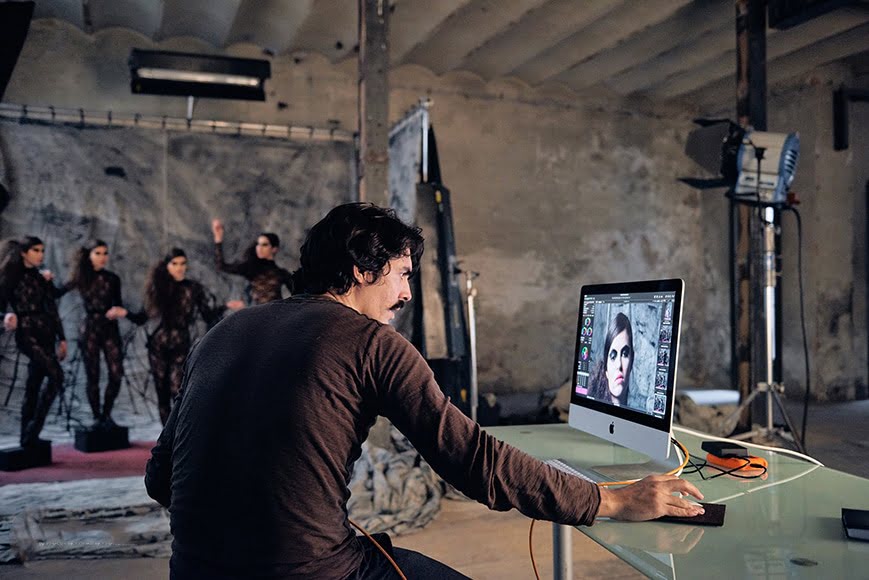
Tethering features in Capture One make it the obvious choice for studio photographers.
If you’re a photographer who shoots tethered to a computer, Capture One is faster and much more reliable than Lightroom. This is no surprise since tethered shooting functionality is one of the main reasons the software was developed.
Not just that, but the possibility of having live connections with your clients during the shoot to receive feedback or offline collaborations with your team really sets Capture One apart.
Check out their YouTube video showing how to conduct a live collaboration during a tethered photoshoot to get an idea of what I mean.
Another advantage of Capture One over Lightroom (and some of its alternatives) is that it lets you work with layers.
When you use layers in Capture One, you can make targeted local adjustments to your photos and still use the majority of the editing tools available, not just the ones in a given tool. This is a huge benefit for those who like a fine level of control over photo manipulation.
To use Capture One regularly, you have three options: Pro, All-in-One, and Studio. The best one for you depends on the type of workflow you have. Do you need it on mobile devices? Do you need offline collaboration tools? Carefully review the options and choose the one that best fits your needs.
If you have a plan that supports it, Capture One is also available for Android, iPhone, and iPad.
In summary, if you’re a pro who needs the most accurate editing capabilities, or are lucky enough to own a digital MF camera, Capture One will help you get the most out of every image.
For everyone else and especially beginners, however, it’s overkill.
Resources
7. Darktable (Best Free Lightroom Alternative)

- Free
- User-friendly interface
- Basic file management features
- Open-source
- Multiple languages
- Powerful export system
- Raw editing supported
- No AI-tools
- Less bells and whistles than others
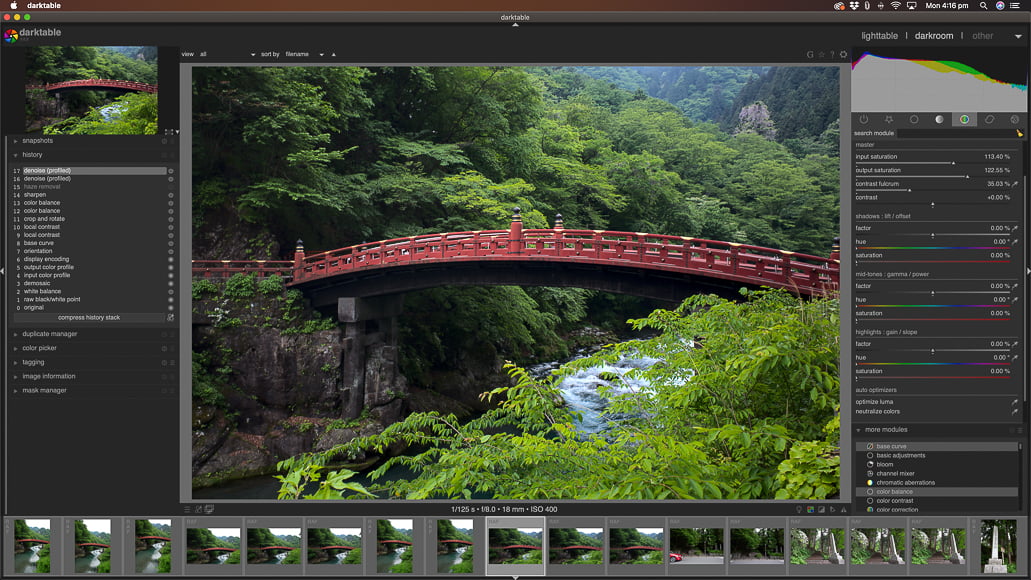
Darktable makes a point on its website to clarify that it’s not a Lightroom alternative and that the two have little in common. So I apologize to the developers for naming it as such.
However, it is a wonderful free alternative if you need a full-featured non-destructive raw photo editor with photo management features. The main difference lies in the main goal of each software program.
Lightroom aims to reach all users, regardless of their skill level. This means that beginners will have easy access to photo editing with intuitive tools and AI-powered features, while pros can make precision-level adjustments.
On the other hand, Darktable is not focused on the user’s skill level but on the freedom to build a custom workflow. This makes it less friendly for beginners. However, it’s not meant to exclude these users; it simply requires a bit more time to get comfortable with its interface.
Unlike Lightroom and most of its alternatives, Darktable also runs on Linux, making it one of the few truly cross-platform image editors available.
Darktable can import a wide variety of standard, RAW and HDR image formats, including JPEG, CR2, NEF, HDR, PFM, RAF and more. It can’t, however, import edits from other programs.
It also includes RAW processing for over 400 cameras as well as look-up tables (LUTs) and tethered-shooting support – pretty impressive for a 100% free raw editor!
Like Lightroom, the latest version takes advantage of GPU-accelerated image processing, meaning most editing features are surprisingly fast.
As far as the UI is concerned, Darktable looks a lot like Lightroom, but the grouping of the editing modules still takes some time to get used to.
Once you get accustomed to the user interface, you can fully customize Darktable, setting it up for just the editing tools you want to use.
You can set up automatic scripts in Darktable to streamline your workflow and make repetitive tasks faster and more efficient – a unique feature that neither Lightroom nor any of its alternatives offer.
Darktable offers a powerful image export system that supports Piwigo web albums, disk storage, 1:1 copies, and email attachments. It can even generate a simple HTML-based web gallery for simple online album creation.
Darktable also allows you to export to low dynamic range (JPEG, PNG, TIFF), 16-bit (PPM, TIFF), or linear high dynamic range (PFM, EXR) images.
In terms of support, Darktable comes with excellent, multi-lingual documentation – even the app itself is available in 21 languages!
Being open-source, there’s a whole host of user support forums, video tutorials, and instructional posts, too. It’s also continually updated by many talented programmers working to improve it.
Professional photographers might find Darktable’s recovery of shadows and highlights less effective than Lightroom’s, but most users won’t notice much difference.
If you have a library with over 10,000 photos, it’s better to run another image management program alongside this app. (Most open-source folks choose Digikam.)
Overall, Darktable is the most developed of the free, open-source Lightroom alternatives and is well worth trying out.
Resources
- User manual (version 3.8)
8. Raw Therapee (Open-Source Lightroom Alternative)
- Free
- Quick importing
- Support for Windows, Linux and Mac
- Decent colour adjustments
- Open-source
- Lacks Digital Asset Management (DAM)
- Lacks printing options
- Steep learning curve
- RAM intensive
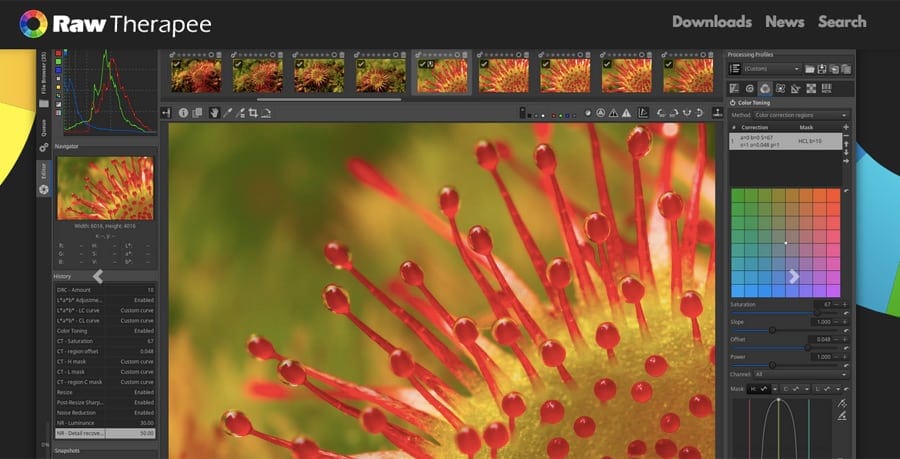
RawTherapee is a free, cross-platform, open-source RAW image processing app for Windows, Mac and Linux. It’s a popular software program for beginners or anyone who doesn’t want to invest in an Adobe Photography Plan to edit their images.
RawTherapee has all the standard editing features needed in a RAW editor and even includes advanced color controls and lens corrections.
Among its strong points are exceptional demosaicing, multiple denoising methods, and batch processing.
The RAW processing in RawTherapee is impressive for a free app, and it has a strong, devoted Fujifilm user following. (Fujifilm RAW files are notoriously challenging to render well.) In fact, many users prefer RawTherapee’s outputs to the other free Lightroom alternatives.
There’s also what seems like an infinite number of fine-tuning options in RawTherapee. This can get in the way if you need to edit quickly (i.e., use a single slider), but if you want full control, it actually has even more options than Lightroom.
RawTherapee is now on version 5.12, which includes a new Dehaze option on the Raw Black Points feature, a de-fish feature in the Distortion Correction, and a Gamut compression tool, among many other new upgrades.
Among the biggest changes is the use of LibRaw. If you tried using RawTherapee in the past and were disappointed because it didn’t support the raw files of your camera, the migration to LibRaw might have fixed this.
In fact, since version 5.11, many more cameras are now supported.
RawTherapee is available in over 15 languages and will soon have more, thanks to a very active community of open-source developers who keep the software up to date with the latest camera and lens profiles.
If you need documentation and tutorials, you’ll find help in their Forum and RawPedia.
You’ll also be encouraged to download the code, modify it and help improve the software. This, of course, requires skills that many of the users don’t have. Not to worry, though, you don’t have to know any coding to be able to install and use RawTherapee as it is.
Unlike Darktable, the other free alternative I included on the list, RawTherapee lacks photo management tools. So, this will only replace the editing part of Lightroom.
With the recent releases providing “hundreds of bug fixes, speed optimizations and raw format support improvements,” RawTherapee remains one of the best free Lightroom alternatives of the year.
Resources
- User manual (version 5.8)
- RawTherapee vs Lightroom
9. Affinity (Free alternative to Lightroom & Photoshop & Illustrator & inDesign)

- Free forever
- Vector and pixel image editing
- Non-destructive
- Great user interface
- Precise editing tools
- Default text may appear small and hard to read
- No photo management
Once again, this alternative doesn’t fully replace Lightroom because it lacks a digital asset management (DAM) system. On the other hand, Affinity offers some features that aren’t available in Lightroom. Let’s break this down.
Affinity Photo has been a respected alternative for photo editing for years. However, Canva acquired it and last year released it as a whole new, all-encompassing free product.
Now, it’s called just Affinity – no last name. That’s because they took the best out of Affinity Photo, Affinity Designer, and Affinity Publisher to create a single product that covers all three functions.
With this move, they didn’t target Lightroom, but Adobe as a whole and came up with an alternative for Photoshop, InDesign, and Illustrator. They didn’t aim to replace an app, but to revolutionize the entire creative workflow.
Now, that wide scope goes beyond the intent of this article, which is simply to say that Affinity is an excellent free alternative to Lightroom for photo editing.
Unlike some of the other software on this list, Affinity takes more after Photoshop than Lightroom. It offers layers, masks, smart objects, colour management, CMYK/RGB editing, and great RAW file conversion.
As far as the learning curve is concerned, much like Lightroom, the tools in Affinity are quite in-depth and will take some time to explore and learn. Luckily the interface is quite logical, and if you’ve used Photoshop before the tools will make sense.
When the new Affinity launched with the bold promise of a unified workspace and free access forever, it created waves across the creative community. As a result, you’ll find plenty of YouTube videos that will make the learning curve much easier to handle.
From focus stacking tools and panorama stitching to HDR merging and digital painting, it has just about everything you could want in an image editing application.
So, if you’re looking for a single piece of photo editing software that can replace the Lightroom/Photoshop subscription, Affinity Photo is one of the best options.
Plus, you can add text to your images, create or add vector illustrations, generate ready-to-print material, and more.
Resources
10. Apple Photos (Free Lightroom Alternative for MacOS)

- Free
- Slick user interface
- Plugin support
- AI tools
- Smart organization tools
- Mobile app integration
- Video editing
- Mac only
- Lacks lens profile corrections
Apple Photos, aka ‘Photos for macOS’, is an often overlooked free Lightroom alternative that comes bundled with every Apple computer.
Over the years, the Photos program has evolved into a fully-fledged non-destructive editing and photo management tool with both basic and advanced features for photographers of all levels.
Photos includes intuitive search options for image management and cataloguing. Smart search tools can help you find images based on a number of criteria; they even analyze videos to find a photogram and can read the text on an image and interact with it.
You can also use its AI for photo curation, selecting only images that fit your description, or even creating a storyline. Your collections, or the entire library, can be shared with up to five people.
As if this wasn’t enough, using the cloud storage to ensure all your photos and videos are kept in sync with your Mac, Apple TV, iPhone, iPad and even your PC.
If you’re worried about privacy, you can control which images Photo can access and also set restrictions when sharing them with others.
If you’re already an Apple device owner, using Photos to manage your images is a no-brainer. As with everything in the Apple ecosystem, everything ‘just works’.
Photos even lets you hide duplicate photos and ignore random screenshots and receipts that most people photograph with their iPhones.
Lightroom Classic and the Lightroom CC Mobile app have made it easier and easier to integrate with the photos you already take on your Apple device, but they’ll never be a totally ‘native’ solution like Photos.
Photos uses AI to highlight what it considers to be your ‘best shots’ with a larger preview, and any ‘Live Photos‘ come to life as if you were viewing them on your mobile device – something that Lightroom, nor any of the other Lightroom alternatives, can do.
Another nice touch is ‘Memories’, which finds your best photos and videos and weaves them into a short movie.
On the editing front, there are all the main exposure adjustment tools, as well as a comprehensive set of powerful but easy-to-use tools to transform your photos.
You can do basic and advanced editing thanks to local adjustments. The AI-powered erase tool is one of the most accurate I’ve found in my testing.
Again, as Photos is integrated so tightly with the iOS app, you’re even able to change lighting effects within the Mac program itself, or even the Live Photos into video loops – something no other Lightroom competitor can accomplish, free or paid.
Another thing you can do in Photos, but not in Lightroom, is edit video with the same tools you use to edit images, and you can add captions.
Professional photographers who want advanced tools or image management options may feel Photos falls a bit short, but as one of the truly free Lightroom alternatives, it’s hard to complain.
Resources
- User guide (version macOS Monterey)
11. Photoshop Web (Free CC Alternative to Lightroom)

- Free basic editing
- Easy to use
- Layers and layer masks
- Available on any device
- Multiple languages
- Advanced tools require a membership
- Still in beta
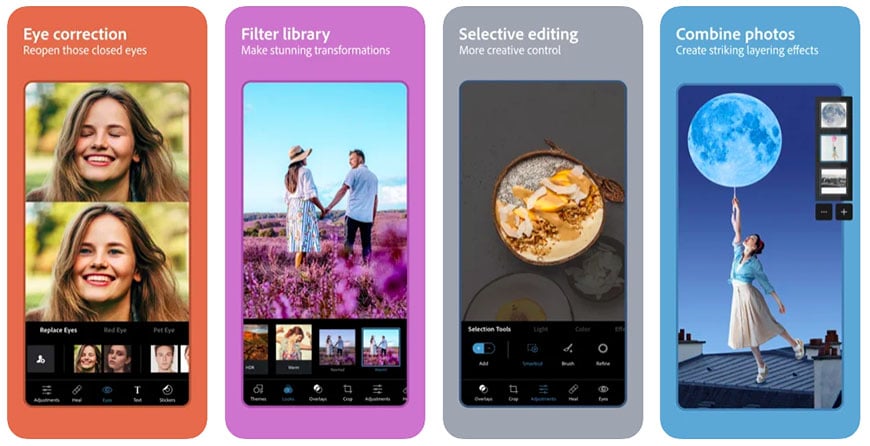
If you’d like to stay within the Adobe Creative Cloud without requiring expensive subscriptions or heavy software installations, Photoshop Web is a great alternative.
Photoshop Web is accessible by browser, so you can use it on any computer. The availability of its tools is based on three levels: free without an account, free with login, and paid.
As soon as you open Photoshop Web, you can upload a photo and start working on it. Note that raw files aren’t supported for free usage.
Without an account or payment, you can make most of the basic edits to adjust light and color. It’s possible to make local adjustments, but you’ll have limited access to the selection tools, so you might need to spend some time fine-tuning them.
It’s also possible to add text, although text effects are disabled at this point.
You can work non-destructively by using layers and layer masks. I think that’s a pretty great advantage for a software that doesn’t even require a login.
It wouldn’t be uncommon to feel limited at this point. So, you can create an Adobe account or log in to your existing one, and unlock a lot more features while still remaining in the free tier.

By logging in, you can use more advanced tools, such as Curves to edit the light and color. You can also add images at this point and work on a photo composite.
Another fun part that gets unlocked when you’re logged in is the effects. So, you can add motion blur, grain, glitch, and more.
I also like that being signed in lets you access your previous projects and anything shared with you.
The last tier is for users with a Creative Cloud subscription that includes Photoshop. This will unlock all the tools, give you access to generative AI, and allow you to work with raw files.

The interface is very clean and intuitive, so any new user will find their way around quite easily.
If you’re coming from the desktop version of Photoshop, it may take you a moment to wrap your head around things – but don’t worry, it won’t be long.
Currently, Photoshop Web is still in Beta, but I haven’t encountered any problems so far. Plus, it means that it’s only bound to get better.
Resources
12. Polarr Next (Online Lightroom Alternative)

- Browser-based
- AI culling
- AI-assisted batch editing
- Fast
- Flexible payment options
- Expensive
My previous online alternative to Lightroom was still from Adobe, so it might not work for people trying to move away from the brand. If you’re in that situation, you’ll want to try Polarr Next.
Just like Lightroom, Polarr Next has a photo management section and a photo editing section – both run in your browser, so you don’t need to download any software.
If you’re concerned about privacy, Next doesn’t upload your files to a cloud; it works within your computer, even when you use the browser version. Yet there’s a desktop version for anyone who prefers working this way.
The AI-powered culling tool helps you to select the best images based on focus, exposure, duplicates, and other criteria. It automatically groups similar photos and offers rating and category tools.
This is a time-saver for anyone working events or weddings who needs to cull hundreds of images in a short period.
Moving on to the editing side, you can easily apply the same edits to multiple photos by selecting a reference image. Polarr Next learns your style as you use it, so your workflow will get faster over time.
You’ll find all the editing tools necessary to achieve professional results; it supports raw files, and you can apply selective edits thanks to its masking options.
There’s a wide range of editing tools, including all the standard features you’d expect from an Adobe Lightroom alternative, plus several tools that Lightroom doesn’t offer.
The interface is quite similar to Lightroom and most other editing software, making it easier to transition into and intuitive for beginners.
A welcome feature is that you can sign in to Polarr Next and use it completely free. So, it’s like an unlimited free trial.
Once you need to export your work, you can choose to subscribe if you’re convinced, or you can simply pay for the export you need. If you’re a professional photographer, the subscription is definitely the way to go.
However, casual users can benefit from the pay-as-you-go option, which I haven’t found in any other software.
If you don’t need the photo management options and all the bells and whistles offered by Polarr Next, you can always use the traditional Polarr instead.
This option makes editing JPEG images refreshingly quick, especially considering nothing is stored locally on your computer. You can upload your own photos or experiment with various sample images from the Polarr library.
One caveat of an online photo editor is that nothing is saved – if you lose your power or your browser freezes, for example, all your edits will be lost.
Another issue is that some users won’t be comfortable uploading personal photos, even though nothing is permanently stored on Polarr’s servers.
If you can get over these reservations, Polarr Next is a powerful and robust editing software with some advanced features not seen elsewhere for free. The portrait enhancement tools are particularly impressive, with some that rival Luminar’s.
Unfortunately, you can’t upload RAW images to Next, presumably to save on bandwidth. However, as long as you have a relatively high-resolution JPEG file, you can still expect some decent highlight/shadow recovery from the image processing engine.
There’s also a Polarr app, but it’s not as fully featured as the online version. Although both versions are free to use, there’s also a premium edition that offers features such as LUTs, Denoise, Masks, premium filters, and custom overlays.
13. Snapseed (Free Lightroom Alternative for Android)

- Free
- Simple user interface
- Basic and advanced tools
- Snappy to use
- Available for Android and iOS
- Lack of recent updates
- Lack of advanced tools
Lightroom has an excellent freemium app. So, if your motivation to change Lightroom for mobile edits is related to your budget, you can simply keep your free Adobe account and keep using it.
You’ll lose access to a few tools, mostly the ones that use generative AI, but the app remains an excellent choice for both basic and professional edits.
However, if you want a non-Adobe free alternative, Snapseed is an excellent choice.
Snapseed is a free photo editing app developed by Google, available for Android or iOS. With over 100 million downloads on the Google Play Store, it’s the most popular mobile photography app you’ll find.
Featuring 29 tools and filters, including healing, brush, structure, HDR and perspective, Snapseed is remarkably comprehensive for a free app with no ads or paid upgrades.
You can work with JPG or RAW files, tuning each image with a range of basic and advanced editing tools to make your images look better.
The selective ‘Control Point’ tool is particularly useful for selectively adjusting various aspects of your photo: you place up to 8 points on the image and assign separate adjustments and enhancements, with the Snapseed algorithm doing the rest.
Working with masks for selective edits is also possible, though it’s less intuitive than the overall app experience.
Snapseed allows you to do things like remove dust spots, powerlines and any other unwanted element from your photos with relative ease.
However, Lightroom Mobile’s newer Generative Remove feature is more advanced, allowing you to circle unwanted elements and have AI intelligently replace them. Lightroom’s Quick Actions also make fine-tuning adjustments faster and more streamlined.
Where Snapseed stands out is in its creative tools. Unlike Lightroom Mobile, Snapseed allows you to add text and annotations directly to your images.
Then there are all the various looks that can be applied to each image to get them ready to be shared on social media – grunge, grainy film, vintage, retrolux, noir, black and white, and our favourite, the double exposure features that allow you to blend two photos much like in Photoshop.
For selfie lovers, the face enhancement and face pose tools are fun and useful for doing things like sharpening eyes, adding face-specific lighting or smoothing skin.
On the downside, you shouldn’t expect as many updates as you would on Lightroom mobile and most of them are just bug fixes – not the introduction of new features.
Resources
How I Test the Best Alternatives to Adobe Lightroom
I’ve been a professional photographer for about 10 years, and I’ve used plenty of different photo editing software apps.
I’ve also reviewed software for Shotkit for some time now, and both experiences have shown me what’s important for both a professional and a newcomer to photo editing.
I approach these tests with certain criteria in mind: user interface, ease of use, performance, features and price.
With these in mind, I test each piece of software from the perspectives of a beginner, an enthusiast, and a professional.
Since many professionals already use Adobe Lightroom with no need for a replacement, this article focuses on others who are more likely to be looking for an alternative to Lightroom.
In my opinion, Lightroom is the best overall editing software, but I appreciate that the ongoing subscription isn’t for everyone. That’s why price was a big factor when testing the alternative options.
Regarding actual user testing, I spent time with each software, using the main tools and features to provide a balanced review of strengths and weaknesses and to determine whether each was a true Adobe Lightroom Classic alternative.
Why Replace Lightroom with Another Image Editing Software?
Adobe Lightroom is a powerful RAW photo editor and organizer with an amazing mobile app, but it does have its limitations.
Here are 7 reasons to choose one of the best Lightroom alternatives in our guide:
- You can’t buy Lightroom; it’s only available through a subscription.
- If you cancel your subscription, you can no longer access your Creative Cloud applications. You can continue to access your photos on your local hard drive in Lightroom for desktop, but you cannot edit them (source: Adobe).
- Lightroom doesn’t offer layer editing, and some tasks like HDR require Photoshop.
- Lightroom has a steep learning curve if you want to use its full potential, and it may be overkill for many users.
- The Lightroom image cataloging system makes file management confusing.
- Performance can be sluggish, especially on low-powered computers.
- Tethered shooting is supported, but very basic.
Lightroom photo editing is undoubtedly convenient and efficient, but that doesn’t mean there might not be a better solution for you.
Especially considering the budget, there are definitely great free alternatives that can work for both professionals and amateurs.
See also: Alternatives to Adobe software
Other AI Workflow Tools Worth Considering
While they aren’t Lightroom replacements themselves, apps such as Aftershoot are redefining how photographers approach culling, editing and retouching.
AI culling removes duplicates, blurred shots and blinks, and learns your style to flag top selects.
AI editing lets you apply your signature look across an entire shoot, speeding bulk edits while preserving creative control.
AI retouching removes blemishes, smooths skin, whitens teeth, and instantly removes stray hairs and objects.
If your workflow is built around high volume (weddings, events, portraits) and you value time saved as much as creative control, Aftershoot offers a true end-to-end alternative to the “import → develop → export” grind.
Tools like Aftershoot complement rather than replace full editors like Lightroom or Capture One, and demonstrate how quickly AI is reshaping modern workflows to save photographers time.
You can read our full review of Aftershoot to learn more.
Other Common Software Comparisons to Lightroom
Recently, on forums, I’ve seen users asking how Lr compares to other popular photo editors.
It’s a tricky comparison, since the Lightroom apps are actually two distinctly different software – one cloud-based and one local.
Here are some of the most common comparisons:
- Photo Mechanic vs Lightroom
Both Photo Mechanic and Lightroom offer excellent tools for managing and editing photos, but they target different audiences.
Photo Mechanic is a lightning-fast photo browser and metadata editor, particularly popular among photojournalists and sports photographers. It’s known for its powerful batch-processing capabilities and support for customizable IPTC metadata templates.
Lightroom offers a library and photo management options, but it’s not ideal for handling large collections or culling tasks. However, it’s a more comprehensive photo editing software designed for a wider range of users.
In addition to photo browsing and metadata editing, Lightroom provides a far broader set of editing tools. It also has powerful organizational features, such as the ability to create collections and integrate with Photoshop.
Some photographers even use Photo Mechanic alongside Lightroom for the best of both worlds in their workflows.
- PhotoScape X vs Lightroom
PhotoScape X is free photo editing software designed for casual users who only need basic photo editing tools. It supports RAW image editing and offers a user-friendly interface.
In this day and age, it feels quite basic because we’re used to AI tools and generally speaking, more bells and whistles.
More serious hobbyists will need Lightroom or one of the other alternatives presented in this article to find the features they need to take image editing and management to the next level.
- Pixelmator Pro vs Lightroom
Pixelmator Pro is exclusive to macOS, meaning Windows users are out of luck on this one. It provides a full set of editing tools, including RAW support, and a user-friendly interface.
It offers advanced features such as layer-based editing, and it also supports vector images and video editing. So, it fits a wider use, but because of that, it lacks the in-depth options offered by Lightroom.
Unlike Lightroom, you can buy a license and not depend on a subscription. However, it’s also included in the Apple Creator Studio subscription if you prefer.
Lightroom is also much better suited for image organization, with the ability to create Collections and use Smart Previews, and its integration with Photoshop is useful for detailed image manipulation.
A more relevant comparison is Pixelmator Pro vs Photoshop, since both offer layer-based editing workflows.
How to Choose the Best Lightroom Alternative for You
Depending on your needs, several great image editors can do a similar or better job than Lightroom.
Here’s a summary to help you decide which of the alternatives to Lightroom is right for you:
- Get Luminar if you need a powerful image editor with plenty of AI tools that’s easy to use and can be bought outright.
- If you prefer greater control, get ON1 Photo RAW, which offers pixel-precision editing but isn’t as easy to use.
- Get Mylio Photos if you want a private & secure way to manage your photos/videos across multiple devices.
- Get DarkTable or RAWTherapee if you want a basic but free photo editor without any bells and whistles.
- If you need an alternative to Lightroom CC/Mobile, get Snapseed or use Photoshop on the web.
- If you want a powerful Lightroom alternative for iPad, get Snapseed.
- If you can only edit online, use Polarr.
Adobe Lightroom Classic is the world’s most popular photo editing software, but it definitely isn’t for everyone.
Lack of layers, a confusing file management system, sluggish performance, and a subscription-only payment model are among the reasons you might be looking for a Lightroom replacement.
In my case as a professional photographer, I subscribe to the Adobe Photography Plan and use Lightroom and Photoshop regularly.
Even though I’ve tried all the best Adobe Lightroom alternatives, I still find I need Lightroom in both my personal and professional workflow.
Features like fast batch processing of thousands of images, streamlined imports/exports, advanced editing tools, and excellent mobile app/cross-device cloud integration (aka Lightroom online) make Lightroom a justifiable expense for me. Even if I weren’t a pro photographer, I’d still use it.
In conjunction, I also use Mylio Photos to manage all the photos and videos across all my family’s devices – I love the ability to do all this privately, and the face-tagging feature works extremely well despite being entirely offline.
What are you using to edit and organize your photos? Feel free to leave any comments below with your experiences and recommendations.
- How much does Lightroom cost?
How much does Lightroom cost? Well, that depends on the subscription plan you choose.
The starting price for Lightroom is USD$11.99, and the price with Photoshop is USD$19.99. However, you can also get Lightroom inside the Creative Cloud Pro (All Apps) subscription.

Mark Condon is a British wedding photographer and editor of Shotkit. When he’s not taking photos or reviewing the latest camera gear and software, Mark can be found cycling around the northern rivers.
99 Comments
Leave a Comment
👋 WELCOME TO SHOTKIT!

ABOUT YOUR EXPERT
Mark Condon is a professional photographer with 10+ years of experience in taking and editing photos. If he didn't already use Lightroom, he'd use Luminar Neo to edit photos and Mylio to manage them.
MY TOP PICKS
🔥 Popular NOW:

Great roundup — especially the way you break down Lightroom alternatives by use case instead of just listing features. For photographers who want AI-assisted editing without Adobe’s subscription model, this is genuinely helpful. I also appreciate that you included free and paid options, plus notes on organizing, RAW processing, and professional workflows. If anyone is exploring a more flexible creative workflow, it’s worth comparing these tools with a different kind of visual content tool like Text to Coloring Page for quick, creative image generation ideas.
Great list, thank you!
I’d also add Photoglory to it, could be a bit niche but I havent’ seen a photo restoration software better than this one, especially if you don’t want AI to do the job as it may hallucinate things.
thank you very much blog
Best amazing blog i like it.
This is very helpful and helps me a lot. Thank you so much for sharing this information. Please keep it simple and be direct.
Discover the 12 best Adobe Lightroom alternatives, tested by users for optimal performance. From easy-to-use apps to advanced editing tools, find the perfect fit for your photography needs. Also, learn about arvonlisäveron laskeminen for better financial management.
Even though Adobe Lightroom works out quite expensive with the subscription, it is an amazing photo editing tool!
I think a lot of photographers will ditch Lightroom for Capture One or any of the other applications if they could import their custom develop presets.
The monthly/annual subscription for Adobe Lightroom has made it a very unpopular photo editing app. I know so many photographers that are now on the other apps like Luminar Neo and Capture One. I am surprised that not more are using Affinity Photo as it is a very powerful and affordable digital editing tool.
This article very informative
Informative blog post please keep sharing
Wow, Mark Condon, your detailed review of Adobe Lightroom alternatives is incredibly helpful! I have been exploring options to streamline my photo editing process without breaking the bank, and your insights have been invaluable. Have you considered exploring Invisible Mannequin Services to enhance your photography projects? They offer exceptional neck joint services that could elevate your images to the next level! Invisible Mannequin Services
Hi Mark
I abandoned Adobe Photo Shop several years ago and purchased Affinity Photo. I now am looking to replace Lightroom with a comparable program with photo storage and management…….a “library”. Is Skylum Luminar Neo all I need or do I need also Mylio Photos? Please advise me.
Thank you.
Lawrence Mannato
Hey Lawrence – Luminar Neo should be enough to start with, but if you find yourself juggling photos in multiple locations, Mylio Photos can be a great way to bring them all together.
I am unable to connect from your web page to the Luminar Neo.
What issue are you having exactly?
Woah Mark, thank you for a wonderful and detailed review. I’ve been a LR user since 2007 so now Im trying to find a replacement for it. From my analysis I’ll first try out Exposure X7 (the newest at the moment of writing). Thinking this might be the best for catalog management, batch processing and raw editing. Thanks once again and its great site you got running here.
Thanks for the kind words, Vedran! Let me know how you go with Exposure X7 – it’s a great piece of software.
Hi Mark,
Tried the Luminar AI this winter holiday season since couldn’t have Luminar 4 anymore but it was very very slow and lagging on my Dell Latitude 5400 with 16 GB RAM and Intel i7 laptop. Managed to tweak it a little bit as setting app as high performance and increasing page file size but still too slow and unresponsive for my usage. I hope that the new Luminar Neo will sort these performance issues (on Windows 10 at least).
I’m a long time LR (v1 to v6) user but now there’s only monthly subscription plans and I can’t no longer even download LR. I absolutely loved the Luminar AI approach and think it is something I would like to have. I’m also evaluating darktable but the learning curve is very very deep there :(. Now I’m about check some others, so thank you for great article.
Thanks for the feedback – yes, hopefully Neo works better on your computer.
Have you reviewed Corel’s AfterShot? I’ve been using it for several years and have found it very capable. I’m curious if you’ve had an opportunity to give it a whirl.
Very interesting article…. I have been using Adobe products since around 1998 at college and university, then in work (Web Production), and since 2015 I subscribed to the CC mainly for my photography hobby.
This last week, my Lightroom came up with a message saying “Can’t connect to Adobe server”, and after a few attempts, all my Adobe products have been locked and I’m unable to use them.
Apparently they have changed their server so that it no longer lets Windows 7 machines access it.
The thing is, I have six to seven years worth of photos and edits stuck in software that worked perfectly well – in fact ten times better than it ever did on my Windows 10 laptop – and just because of this change I cannot use the software that I am paying a monthly fee for!
Adobe tried to get me to update my operating system from Win 7 to Win 10 but that is not something I really want to get into, especially with my experience of a laptop that runs like a three legged dog.
I think I’ll have a look at some of the trial versions on here.
I already downloaded Affinity Photo as a possible Photoshop alternative – it’s a pity they don’t have the LR alternative to accompany it yet.
For crying out loud; a huge great article about alternatives to Lightroom, paid and free, and you don’t mention Affinity Photo?
Have you been on Mars?
No, I haven’t been there yet, Steve! Looking forward to one day though ;-)
Thanks for a great article and comment ;)
Affinity Photo is a fantastic Photoshop type app. this article was about Lightroom alternatives… It would be awesome if Serif got into the Lightroom type apps…
In these reviews, it is rare to see included the FREE software that comes from Canon, Nikon, and Sony.
I wish someone would deep dive into those and compare to LR, COP, and maybe 2 other options.
From my own experience, these included software programs are usually rather basic and not very user friendly.
Thanks for this write up.
I tried using Darkroom 2 years ago and gave up as I was too overwhelmed and didn’t know where to start.
That said, I’m looking to get back into photography (shoot with Nikon D3500) and mainly shoot landscapes and cityscapes.
I am considering either RAWtherepee or Luminary.
What would you recommend for ease of use and file storage (under 2,000 raw files)?
I’d use Luminar 4, Jason – we have a full review and discount code on this site.
Thanks for the article, lots of great info. I understand why capabilities re: working with videos is not included here–no one pays for lightroom (or likely any of these other products) for its video editing features. What it can do with my images is way more important for me as well. Still, it is nice in LR6 (which I am still desperately clinging on to to avoid subscriptions and all my work being on the cloud) to be able to catalogue MP4s and even do some basic stuff like play, crop, or capture a frame. Based on your reviews I would likely be considering ExposureX6, ON1, and Capture One. Do any of these handle videos at all?
Having used Lr for many years, I’ve grown comfortable with it’s slick DAM. Like many others, I am appalled at Adobe’s subscription service not to mention the fact that all my work would reside on a server somewhere in Norway and can only be accessed via internet. My main concern is the catalogue. Since I’ve retired, I am opting for sound but simple RAW editing for Canon camera images. I’ve read many posts here but am not swayed in any particular direction. What would you suggest?
Hey Lewis – try Luminar 4 or Exposure 6 first. If either of those don’t work for you, let us know here.
I have tested all kind of RAW Converters. Luminar 4 is buggy and photo organisation is weak. The performance of ON1 is catastrophic; you need an high-end machine.
Really the best alternative is EXPOSURE in the current version X6. It has a good performance, is stable, has a lot of features and customisation options. It is easy to learn, has lots of tutorials for free and the presets are already included (no extra price for PRO, preset-pack, bla bla). There is 1 software ALL IN!
I have used Lightroom for years as a library system for my photographs. I am retired and no longer want to pay for a subscription. I’m looking for a way to open and move 10,000+ Lightroom photos to another storage system. Editing features are not my concern as I only do simple editing now. Does any other storage system open LR photos? What do you recommend?
I’d give Exposure X6 a try, Ruth – it will import your old Lr files and keep the edits.
There’s one missing… well, it is two exaclty, but… :)
Adobe Bridge (and Camera Raw that come with it) is a great and free (!) alternative to Lightroom. Not just a simple alternative, you can do the cery same with this as in Lr! ;)
ACR does not come with Adobe Bridge for free! You get Adobe Bridge for free….but in order to use Camera Raw you have to subscribe to a plan.
Wonderful article. Keep up the good work. Everyone needs alternatives
I was looking into a Lightroom alternative today and tried out a few of your suggestions:
• Luminar 4 – I love some of the cool effects such an sunrays/sky replacements, but just couldn’t quite get the exposure/shadows/highlights as accurate as I would like. Noise reduction filter was very poor (unusable).
• DxO PhotoLab 3 – this has amazing noise reduction, but I couldn’t get the exposure/shadows/highlights working as I would expect.
• darktable & RawTherapee – tried these free alternatives – and they’ve obviously put an amazing amount of work into these free apps – but again the adjustment controls just didn’t work how I would have expected – it took ages to make exposure/colour adjustments and the results weren’t quite right. Gave up on them.
• Came across Zoner Photo Studio X and was quite impressed – it nailed the exposure/shadows/highlights quickly and easily and had pretty decent noise reduction too. Managing my photo library was quite fast and intuitive. $49/year or $5/month subscription which is pretty reasonable (one third the cost of Lightroom). This wasn’t included in your review, but I hope you’ll consider reviewing it in a future update.
(I have no affiliation, I was just surprised at finding one that worked so smoothly after several disappointments.)
Thanks for the insight, Simon – sounds like you’ve been doing a lot of testing! Re. Zoner, afaik it’s Windows only, which rules out a lot of creative pros out there. That’s the main reason for not including it here – hopefully that changes in the future! Cheers
Mark, thank you for the lineup options, great info info ! I’m shopping editing software and I have a large library of digitalized 35mm negatives currently stored in Picasa and Google photos, also misc files from various cameras and sources. I’m considering alternatives to lightroom. I like Luminar and it would likely be my first choice, but surprisingly there is no printing module in Luminar, which is important to me. Any input / advice would be appreciated. Thank you !
Hey John, what exactly do you need from the printing module? Luminar allows you to print you images, but it doesn’t currently have as many options as Lightroom.
Lightroom’s print module is one of the primary reasons I stay with Lightroom. It lets me set up individual templates for the different papers and paper sizes I use that include EVERY setting I use right down to customizing my printer’s platen gap for thick papers. No other photo editing software I’ve looked at can do this. It saves me an enormous amount of time and guaranties I have all of my settings right.
I’m disappointed that your article doesn’t consider all of Lightroom’s modules when comparing it to other software. Lightroom’s combination of non-editing modules is a large part of it’s strength. I’ve experimented with most of applications you cover and, while they may be excellent image editors and will meet many people’s needs, none of them have the combination of capabilities that Lightroom has. Your article should at least list all of Lightroom’s major modules and say whether or not the other applications have something equivalent. In my case even the applications that have print modules with templates fall very short of Lightroom’s print templates.
Thanks for the feedback, John. Everyone’s needs are different, and this guide aims to address them from a broad perspective. I go much more in-depth into LR’s individual modules in my Lr review which you can find elsewhere on this site.
Hi Mark, I’m surprised that you didn’t include Aftershot 3 Pro in the alternatives to Lightroom. I have used LR for years (ever since V1.1) and in general I love it, but it does have advantages and disadvantages. I got Aftershot 3 as part of a crazy price upgrade bundle with PaintShop Pro (PSP) a couple of years back. Depending on what I am doing, I often prefer PSP to Photoshop as many things are faster and easier to achieve in PSP than they are in PS. I looked briefly at Aftershot at the time, but never really used it until recently, when I have had plenty of time on my hands. I also have Luminar 4, but had issues with it crashing, but the latest update seems to have fixed that. The issue with Luminar is that, like Lightroom, it is PAINFULLY SLOW at importing a folder of images. For me a folder would typically be 500+ images from a wedding. You can’t seem to do anything in Luminar until they are all imported, which is such a pain!
I’m “old school” with filing images. I NEVER use Adobe Bridge, despite having it included in my Adobe CC subscription. I prefer to file them in separate folders, just as I used to do with film negatives. So for me a wedding of Sally Smith and Joe Jones on 20th September 2018, I would have a folder in my Weddings folder called Smith-Jones 20-09-18. Aftershot deals with this perfectly for me as it shows the directory structure by default on the left, so no messing around with catalogues, which I have always found become corrupted from time to time. When I reinstalled Aftershot recently, I immediately got an offer to upgrade to the Pro version for $19.99, which after playing with the standard version for s few hours, was a no brainer. Obviously, I haven’t had any weddings this season as we were well into lockdown when the UK season should have started. I’m quite enjoying playing with Aftershot for now using old files and I will certainly give it a try for a full wedding when my next (postponed) wedding hopefully takes place in September. Also, it is only 421Mb on disk as opposed to 2.14Gb for Lightroom, which probably explains why Aftershot is so much faster to startup, edit photos and close down! The close down is instantaneous when you click the close button!!! Properly written, efficient coding, instead of the Adobe bloatware!
Thanks for the feedback, Gordon. I’ll add Aftershot 3 to the list when I come to update this post next month.
Hi,
I don’t even come close to being a professional. My wife uses photoshop, I dislike it being so complex! I bought a version of Lightroom, and quite frankly I’m just not into all these changes for change sake. I have a Fuji xt-3, and I’ve just given my x-pro1 + fuji lenses to my stepdaughter. I’m into vintage lenses and my motto is if you take a rubbish photo, then why waste time editing it?
Now, I’ve no idea if you lot will laugh, but I bought in Polarr when it first appeared available on my Windows10 laptop, I loved its simplicity. I soon learnt to move on from using the different ‘moods’, ignored the ‘auto enhance’, and got used to using it’s editing processes. I love the fact it can work on any foto whether it be from my phone, jpeg, or raw. I like the batch editing. I like the ability to carry out repeated edit procedures. All in all, I find it a simple straight forward and effective fine tuner of my pictures…
I’m new to your site. I like…
Thanks Stewart! I haven’t tried Polarr myself, but that’s great it works for you… and it’s free :-)
I was looking for an alternative to LR. I am not a pro photographer and don’t like over-editing or adding cheesy effects to photos, however, I did test a few products and I must admit that I prefer LR for many reasons and I think that’s why it is an industry-standard (I never saw an alternative post to On1 or Luminar for example)
One hour of my time will pay for a year-long LR subscription so the entire debate on subscription vs one-off is not relevant especially when over time most people will need to cash out for an update or next version.
Each product (even Mac Photos) has its strengths but for me, LR is still a well-rounded and balanced alternative.
It’s not matter of costs. It’s mater of tool reliablity.
There is nothing bad in paid software. I can pay for good tool. But LR license model and cloud based structure has some disadvantages that make it extremely unreliable/untrusty. Especially for professional users. LR:
-arrests my work (my intellectual property) somewhere “in cloud” until i pay for next period
-ties me to Adobe’s “to be or not to be”, (“to support or not”), to their servers’ stability and many more
-requires me to stay online in order to work (WHY the heck would I need internet connection to edit an image?)
How could I trust it?
If I was amateur, I would say “ok, I can wait few days”. But no. My photography is my work, I sell results. I need tool I can trust. For the same reason I dropped Autodesk products. I never know if I could use my tool tomorrow. If I lose my project/work along with tool, because of someone’s decission/fail/instantly_increased_greediness.
Of course, when new version arrives, I buy it. 99% cases it’s better than previous. But I want to buy a tools, not to borrow them.
The next thing about LR (but also Darktable) is their “import” philosophy. I have RAW files physically on disk. Organized in folders. Why the tool can’t just open them, like Rawtrerapee does?
Thanks for the reviews. I never quite get the inevitable comments on Capture One’s supposed ‘steep learning curve’. I’m purely a hobbyist, with quite a lot of experience of Photoshop (but not Lightroom), but I now mainly use Capture One. Yes, it has a lot of ‘professional’ features, but it’s not obligatory to master all these in detail (any more than with Photoshop). It depends on personal preference, but I find the interface very approachable, far more than most photography programs, especially after modifying to my own uses (which is easy to do), and most of the tools can be used effectively without having to go into great depths of complexity, unless you want to – and I like to have the leeway to go into them more when I need, since I like finding out these things, and keeping my own control, rather than taking ‘easy’ options all the time. The RAW rendering is way ahead of any competitors; this, and Adobe’s wretched subscription model, were some of my main reasons for adopting it. It’s pricey, but worth it, and it’s not obligatory to update every version if you avoid the subscription model. So, I’d really recommend it, even for hobbyists – but one thing needs mentioning: you do need to read about what the various controls do (each can be clicked to load up the webpage of the manual, for example) and spending some time finding out what the program can actually do, as it doesn’t lend itself to just ‘diving in’.
Great feedback – thanks Clive! With regards the ‘better’ RAW rendering, do you feel this may be because CO applies its own RAW ‘preset’ to every import, and simply displays it differently to other applications?
I had been limping along with Aperture on my Mac but my latest OS update rendered it unusable. After a lot of research I decided on Capture One, at least partly spurred by the fact that I could now buy a less expensive Nikon only version that was recently released. (I believe they have Sony and Fuji only versions too but for some reason not Canon yet.)
I second Clive’s comments on the learning curve. I watched maybe 10 minutes of videos to understand their photo organization tools and one overview on editing. With that I was able to pick up the basics very quickly. Most of it was intuitive including layers which, coming from Aperture, I had not used before. It is true, though, that the list of things that CAN be done is daunting but you can ignore them until you’re ready to jump in to something you need.
The results have been nothing short of eye popping to me. I photograph mainly birds and dragonflies and the usable photos I’ve been able to get from brutal crops and bad light amaze me. When fed an actual well taken photo the result is just fantastic.
On your question about ‘better’ RAW rendering I read an interesting reviewer who analyzed this. They said that the initial adjustments by Capture One were superior to Lightroom which they had uses extensively. They also said they could get matching output quality from Lightroom but it took more work which was a reason they were switching to Capure One. Their point was something like you could do the extra work in LR to get as good a result but why would you want to?
I did try Lightroom for a day and found it clunky. Of course YMMV.
Thanks for an excellent article.
It always annoys me how dismissive people are of free and open source software. Just because it doesn’t cost anything doesn’t make it inferior. The fact that Darktable it is open source means that anyone can contribute and fix bugs which makes it way more rigorously tested than closed source software.
From what I’ve heard about Lightroom; it has tons of bugs and is severely bloated, but since nobody except the developers can see the code it’ll take a lot longer to fix them if they even bother fixing them at all.
Hi Mark,
I have recently started selling photos on Shutterstock and am looking for photo editing software to use. Luminar sounds like a good alternative to Lightroom. However, one thing I am struggling to find the answer to is if you can tag photos and then have those tags upload to shutterstock. I know this works in Lightroom but I am not having any luck finding the answer with other software. I would like to tag my photos and keep those tags with them so that I can upload them to Shutterstock and other sites without having to repeat the timely process. Any info on this that you have would be great. Thanks, Jenn RH
Hi Jennifer, I’m not 100% sure to tell the truth as I’m not a Shutterstock user, but I’d hazard a guess and say no. Tagging isn’t Luminar’s strong point right now, but there’s due to be a lot of improvement in that department.
I purchased luminar 3, so so, i will not be purchasing luminar 4. I do appreciated your reviews
Personally, I use Perfectly Clear for batch edits, Exposure X4 and NIK software for fine tuning. None require a catalog nor a subscription. All are exceptional and highly recommended.
Best of all worlds, Jeremy! :-)
Hi
Is there much difference between the 3 different priced versions of Luminar 4?
Hi Mark, thanks for the great review. I have the last version of LR that doesnt need a subscription and I like it but I also have PS Elemnets which I only use occasionally to edit and always use to print images. I would like to upgrade Elements but of course don’t want the monthly subscription fee. Do you know of any good PSE alternatives for a non-pro?
Thanks!
Hey Donna, does Affinity Photo tick the right boxes for you? It’s a popular image editor, but with admittedly less functionality than Photoshop.
I’ll check it out, thanks!
Affinity Photo is actually VERY close to Photoshop. . .For a one-time cost and NO subscription it has MOST of what Photoshop offers. . .It’s a definite rising star!
Hi Mark , lovely to see all these programs around here.
Having Canon 5Dsr, and also a Fuji xt2, I need to use different programs. After trying whatever you might think of, my final selections are:
For Canon raw huge files, either, Bridge which with camera raw very similar to LR, makes things the same, paired with Topaz Ai Clear (Mostly used to clean up noise and give a touch crispiness) and finally some Photoshop if it’s needed.
Also, the best one to manage big files has proven to be On1 Photo Raw 2020, with huge differences with the previous year On1 2019.
I also use but only sometimes DxO elite pro.
LUMINAR? no, it really gives too much to make subtle changes for delicate photos, the best of Luminar is the sunray stuff, if… your photo can really handle that.
Now for Fuji xt2-
I tried and have: Capture One pro, which I really like fot FUji even more than for canon right now, but my prefered is AlienSkin, now Exposure 5. That program takes the best of the colors of the Fuji raf files. I usually turn those files into TIFF, so I can work them wherever I want.
Darktable has problems with Catalina!
And…now a surprise:
The old PHOTOSCAPE X, for mac users is so simple to use, and yet very effective. It’s not a very quick program for the people wanting speed, but… you can make lots and lots of stuff with it. It’s cheap, and capable.
Programs I have and tried:
Adobe suite, from which I mostly use Photoshop and Indesign.
Luminar 3- (I am not decided to buy or not the 4)
On1 Photo raw 2020
Capture One Pro
Darktable
Exposure 5
Topaz Studio 1, and Topaz studio 2 (I still prefer the 1, as it can handle more than one photo at a time)
DxO photolab 2- works neatly and easily
Photolemur (YUCK)
Silkypix DS 9 Not working properly on Catalina but still a very capable product
I don’t want to learn Affinity hahahaha
My dear friend I wish you all the best!
Best wishes from your friend in Uruguay :)
Daniela.
Wow, thanks for the comment Daniela – very useful information!
Hi Mark,
Thanks for this great review. I have been looking for a LR alternative that is not based on a subscription model. I have a few thousand images edited in LR and I wonder which of these programs would make the transition the least painful. Cheers, Laszlo
Very good review except for two things:
1. How the choices including, in particular Luminar, work with all camera types. In particular the Fuji x-tran system, which you regularly review quite extensively-both cameras and lenses. More generally there seems to be a suggestion that the best editing/lightroom alternative tool is very dependent on the brand of camera system being used?
2.Affinity Photo, which is not included, has performed very well in other reviews of editing software.
Thanks David. We’re currently writing an Affinity vs Luminar article, and will be updating this one as necessary. Re. Fuji system, Capture One seems to be the most popular choice after Lr.
I tried out trial version of Luminar 3 and felt it was a bit slow to do apply its settings on my system with large files, compared to other programs I had. I instead picked Luminar Flex as a plug in to Photoshop which is much faster and I am happy with that, and I occasionally use that for images for extra POP. That said the presets are a bit intense if your photos are already somewhat saturated for portrait or figure work, but I could dial dial down the preset effects with its sliders and from this I like the looks. I also have DXO Photolab 2 Elite which I use a lot weekly, plus ACDSee Pro Ultimate 2018 which does raw processing for my D750. You missed mentioning ACDSee Pro which can essentially do nearly everything that Lightroom can do, but with onetime standalone prices. Worth checking out. and trying the trial version! What are your thoughts on ACDSee Pro Ultimate 2018/2019, which has brushes and gradiants for localized adjustments and full images sliders for raw. Also great for sorting and checking off images.
Thanks for the feedback, Adrian. We reviewed Luminar Flex and found it to be a good option too, as long as you don’t need all the features of the fully-fledged Luminar software.
Which is best to replace Lightroom DAM? Luminar Libraries is so useless – does not even come close to the Lightroom functionalities of search, meta filters, etc etc etc.
Darktable has drawn mask capability, but more important it has also insanely powerful parametric masking. It’s the real killer feature.
All the special features like waveform view, exposure fusion,blending,filmic tone curve,ansel’s zone system,channel mixer,equilizer,liquify and other make it much more complete package than Lightroom, Capure one…
Compare to this the AI slider in Luminar seems like toy, it usually doesn’t do what you want.
I guess it depends on the images you are processing and your expectations, Danny. I get good results from the AI slider in Luminar, but usually for landscape images.
Personally, I use Photoshop ( the same monthly subscription as above) with Luminar and ON1 plugged into it. Works fabulously well and covers just about every base!
Sounds like a good solution. Curious, though – don’t you get Lr as part of that Ps subscription?
Gave Luminar 3 a try. Unlike many, I actually liked the interface/DAM. What I could not get past was the poor RAW processing compared to programs like Capture One and DXO Photolab. Luminar has lots of cartoon-like presets you can instantly apply, but I want quality processing.
What RAW files were you editing, Dan? If you’re needing to edit huge medium format files with tons of DR and a wide spectrum of tonality, I can see CO or Photolab being more suited.
Great article, I’m looking for an alternative to Light room and will give Luminar a trial thanks
Give it a whirl, David. I noticed you’re a wedding photographer – I’m not sure Luminar will replace Lr for big batch edits, but rather, for those one off shots that require some special magic. I’ll be posting a tutorial video on this exact thing soon!
I’m using Dxo Elite. Great software. I really like the U point technology.
I use IMatch as my DAM, again great software and very customizable. The two software work well together.
Aubrey
Thanks for the feedback, Aubrey – glad that set up is working for you.
Me too, I’d rather pay some reasonable amount of money for a licence and get free updates and decent tech support than use a freebie with its bunch of glitches. So at the moment I’ve switched to PhotoWorks software and quite happy with it.
What is it exactly that you like about PhotoWorks, Jessica?
Most of all I like the option of RAW processing, no plug-ins are needed. Second, it’s Portrait Magic – AI based tool for retouching portraits. Finally, new features appear every now and then, the developers do love their product :)
Obviously the free alternatives are free but the paid alternatives all get updated each year at a cost which is basically like a subscription I know that if you don’t wish to upgrade it won’t cost you but you would be missing out on new technology and camera support. So it is swings and roundabouts with Adobe you’re always up to date with the latest tech and innovation and camera support with the others you can decide whether you need that when the upgrade is released but it is still a cost and if you have spent thousands on camera gear it’s not a big investment to get the best software to edit the images you create.
Yeah Lightroom is good, but I think that there’s a lot of room for improvement, most notably in speed.
Having used Lightroom forever, i was really frustrated to see I had to go on a monthly plan when my computer finally gave up the ghost. So after reading one of your write ups, I gave Luminar a go. I love it! Simple and easy to use. I am not a professional photographer but so far I like what I see. Thanks for your reviews and thoughts, I really enjoy them.
Ah great to hear, Kerry! Yes I’m sure there are a lot of frustrated former-Adobe users out there, so it’s fortunate that there are a few great alternatives around.
Thanks Mark, always looking for recommendations and advice on anything to do with photography but sorry to say I think the information provided on the comparison between these alternatives to Lightroom is far too sparse for us to judge.
I have used Lightroom and ON 1 and will probably take a look at Luminar as I have seen other reviews on it, but to make a judgement on what you have included above is a No No from me.
Thanks for the constructive criticism Kiwiwolf, and I’m sorry to hear that you didn’t get any benefit from my article. In the interests of brevity (it’s already pretty long!), I haven’t dived too deep into each software. Most of them offer free trial versions, so I’d encourage you to use my recommendations as a starting point, and continue the research yourself. I’ll also look at adding to the reviews, if there’s sufficient need from others. Let us know which Lr alternative you end up liking the best ;-)
About free alternatives, – try RawTherapee
Thanks Mark. I always trust your tips and will be trying Luminar out. I’d also like to mention AlienSkin and Affinity Photo. I have been using these for years and have never missed Adobe products. Hated how hard it was to open images in LR if they had ever been opened before.
ASE went downhill a little for me after X2 and I hope they get it together in X5 but it’s still worth considering. It’s fantastic for batch processing, not great for fine details, that’s where Affinity comes in, it’s amazing for high fine retouching.
Thanks again.
Awesome thanks Darren. I remember using ASE for their editing plugins a few years ago, so keen to have a play around with their latest editor. Affinity is on the list too. Cheers!
Mark…. you forgot Alien Skin Exposure X4
Ah yes! I need to get hold of a copy to review – you a fan of ASE, Steve?
Ciao Mark, I’m not a fan of ASE (my favorite configuration is Capture One Pro Sony and Capture ONE free for fuji + Affinity Photo) but the Alien Skin Exposure X4 version is much improved as speed and functionality, Fuji film simulations work well and the main functions color control shades etc … they work well, plus there are levels that are very useful. It is a good alternative to Luminar.
Thank you for your great work!!! Complimenti
Ah thanks Steve – very interesting. Fujifilm simulations are something that a lot of image editors struggle to replicate well. Will have to have a play!