







How to Change Color to Alpha in Photoshop
Learn how to change a color to alpha in Photoshop for transparent effects by following these simple steps.
Photoshop | Software | By Judyth Satyn
Shotkit may earn a commission on affiliate links. Learn more.
This guide will give you the easiest ways to change color to Alpha in Photoshop.
As a long-time Adobe Photoshop user, I often find this a helpful trick to have up my sleeve during the editing process.
Changing colors to alpha helps you to select areas of an image while retaining information relating to opacity.
Let’s dive into the tutorial.


Download a free copy of Adobe Photoshop to follow along with this simple tutorial.
How to Change Color to Alpha in Photoshop Using Two Methods
What is an Alpha Channel?
Before we convert a color to an alpha channel, it's worth knowing what an alpha channel is.
An alpha channel stores the transparency data for each color channel. If you're working with RGB files, there will be three alpha channels: one for red, green, and blue.
Alpha channels hold the opacity information of every pixel in an image.
This information is converted into grey-scale images and stored as alpha channels.
When the three RGB color channels at varying opacity levels overlap, colors are created.
Why Use an Alpha Channel?
An alpha channel can be used in a similar way to a mask. It can reveal or hide areas of an image.
It can be used to manipulate image transparency and is particularly useful when working with fine selections such as smoke or hair.
An alpha channel can be used to preserve a complex selection without creating an extra layer.
The pixels that are represented in the alpha channel's grayscale as black will be fully transparent, and the white pixels will be non-transparent.
The grey pixels will be on a sliding scale between opaque and completely transparent.
Create an Alpha Channel in Grayscale
We will first create a new alpha channel using a grayscale image. A grayscale image is a black-and-white image.
A grayscale image has only one alpha channel: gray.
Remember that an RGB-colored image, on the other hand, has three channels: Red, Green, and Blue.
When working with grayscale images, you can quickly and easily isolate black using its alpha channel.
Step 1 – Open an Image
First, open a grayscale image in Photoshop. Head to the main menu, and select New > Open.
A pop-up dialogue box will open; use this to locate your image.
Double-click on your image file to open it in Photoshop.
Step 2 – Open the Channel Panel
When the image is open, head to the Channel panel.
The Channel panel is usually located beside the Layers panel. If you can't find it, click Windows > Channel.
In the Channel panel, there should be one alpha channel named Gray.
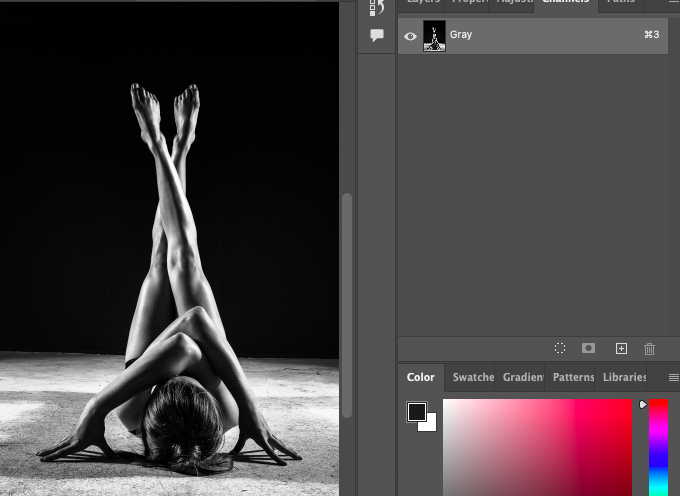
Step 3 – Create a Selection
We are going to select the white from the image and remove the black.
To do this, hold down the Command key (for Macs) or the Ctrl key (for Windows).
Now click the Gray alpha channel's thumbnail.
Once clicked, the white sections of the image will be surrounded by marching ants.

Step 4 – Create a Channel
Click the Layer Mask button – the square with a circle inside – at the bottom of the Channel panel.
A new Channel will be created.
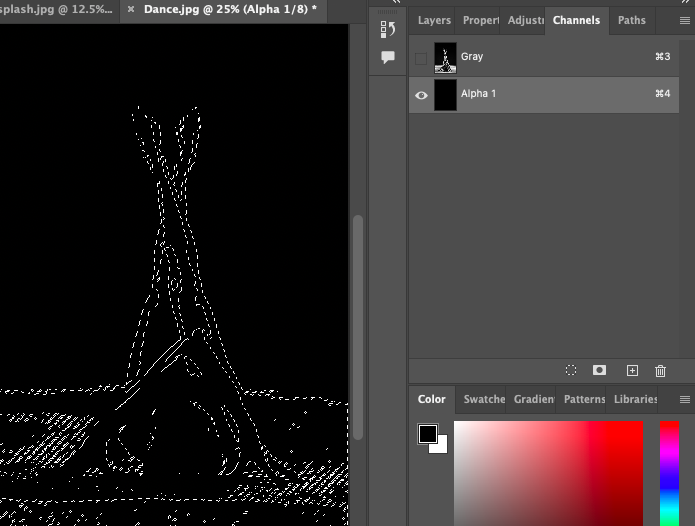
Step 5 – Create Layer Mask
Using the Grayscale image, we are going to save the selection using a Layer Mask.
Head to the Layers panel and create a duplicate of the image.
Simply drag the image's thumbnail onto the Add Layer button at the bottom of the Layer panel.
Alternatively, select Layer > Duplicate from the main menu.
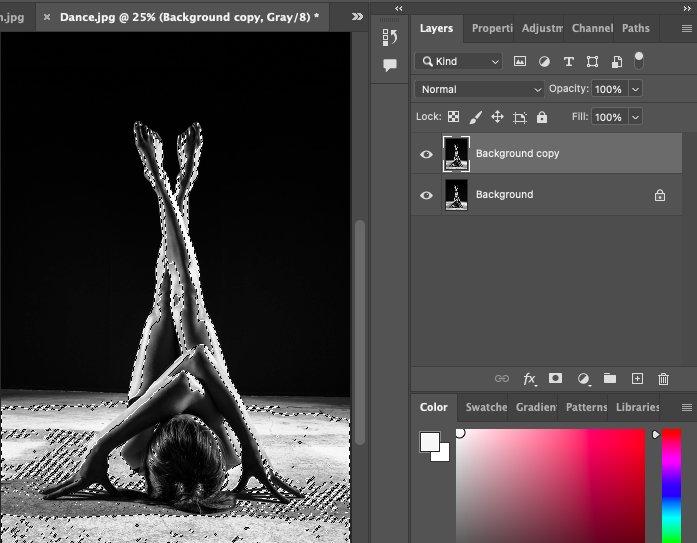
Now click the Layer Mask button at the bottom of the Layers panel.
Or select Layer > Layer Mask > Reveal All from the main menu.
Click the eye icon on the background image. You will now be able to view the white selection.
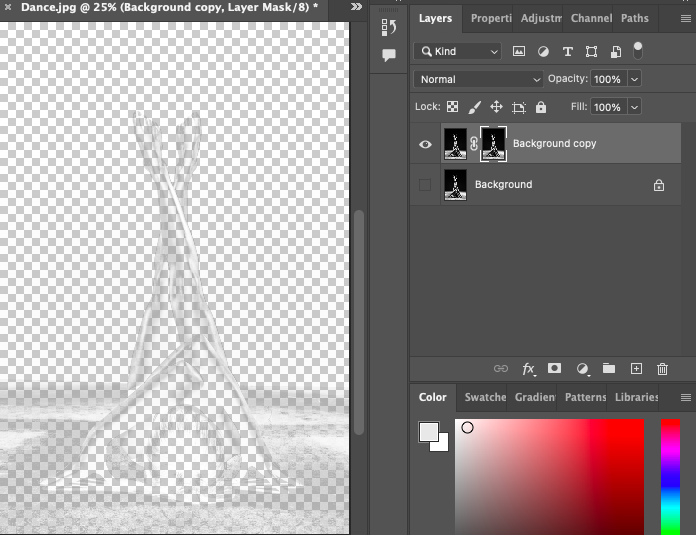
Step 6 – Save the Image
If you wish to retain the selection's transparency, save the image as a PNG.
Head to the main menu and select File > Save as.
The Save as dialogue box will pop up. Name the image and designate the location to which you wish to save it.
In the box beside Format, select PNG.
If you wish to change the color of the image from Grey Scale to RGB, follow the next step.
Step 7 – Manipulation of the Selection's Color
Add a layer by clicking on the Add Layer button. Now select the Paint Bucket tool from the toolbar.
You can also hit G for the keyboard shortcut.
Click on the new layer to create a block of color to highlight the selection.
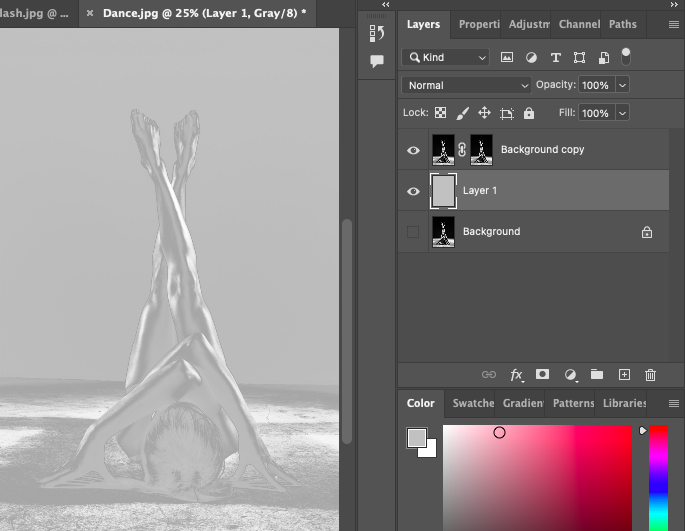
Because the image is set to Grayscale, any color you add will be converted to gray.
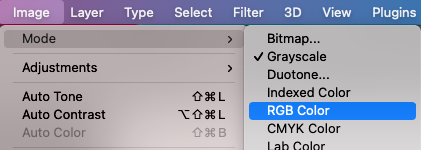
If you wish to add a color background, you will first need to convert the image to RGB.
Head to the main menu and select Image > Mode > RGB Color.
Open the Channel Panel, and you will now find there are RGB channels.
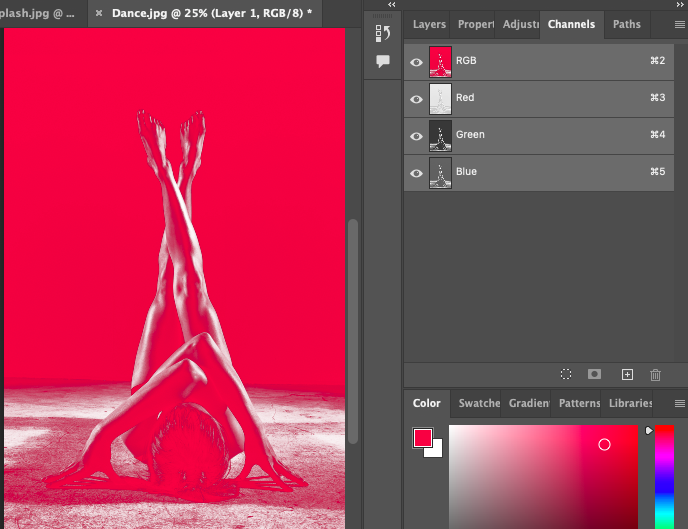
You will now be able to fill the layer, as you can see below.
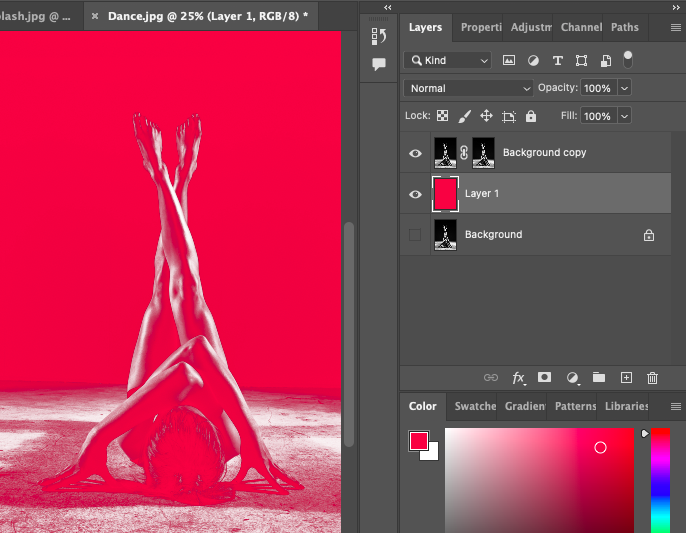
Step 8 – Change the Color of the Selection
Now that the image is no longer in grayscale mode, you can change the color of the selection.
Double-click on the layer's thumbnail in the Layers panel.
This will open the Layer Style dialogue window.

In the panel under Styles, click on Color Overlay. This will open the Color Overlay options.
Beside Blend Mode, then select Normal.
Click on the Color box to open the Color Picker (Overlay Color) dialogue box.
Click within the box to select the color you wish to use, and click OK.

Set the value for Opacity between 60 and 80%, then click OK.
The color overlay will be added to the image.

You can now save your image.
Create an Alpha Channel from a Selection
This method will teach you how to make an alpha channel using a selection.
Step 1 – Open an Image
Follow the steps above to open an image; this time, use a color image.
Step 2 – Create a Selection
Create a selection of the object or subject using the selection tool of your choice.
Because the image we are using for this tutorial is of a woman, we are going to use the Subject Selection tool.
Head to the main menu and select Select > Subject.
Photoshop's AI will work its magic, and 99% of the time will make an accurate selection.
An active selection will surround the subject.
If you need to fine-tune the selection, use the Magic Wand tool.

Step 3 – Create Alpha Channel
Open the Channel panel, which is normally beside the Layer panel. If you can't find it, click Windows > Channel.
Here, you will find the four alpha channels.

Click the Layer Mask button at the bottom of the Channel panel – the white rectangle with a circle symbol inside.
Once clicked, a channel will be created using the selection to make the layer mask.

Click the eye icon to make the new change visible, and click it off when you do not wish to see it.
The new alpha channel creates a reddish hue in the canvas workspace.

Alpha channels have many uses. You can use them to make interesting and diverse art or to cut intricate selections.
I hope you enjoyed this tutorial and find many uses for alpha channels while editing.
If you enjoyed this tutorial and would like to learn more Photoshop editing tips and tricks, try – How to Use the Gradient Map in Photoshop.
FAQ
How do you convert an image to alpha in Photoshop?
You can convert an image to alpha in Photoshop using the channels in conjunction with an active selection.
Create an active selection using a selection tool. Click the Layer Mask icon at the bottom of the Channels panel.
An alpha channel will be created from the selection.
How do you set alpha in Photoshop?
The first step to making an alpha channel in Photoshop is to create a selection.
Once a selection has been created, head to the Channel's panel and click the save selection as channel button.
A channel will be created from the selection.
What is color to alpha?
Color to Alpha is a function in Gimp that alters the opacity of a selected color.
The selected color will become completely transparent.
The closer colors are to the selected color, the more transparent they will be.
How do I change black to transparent in Photoshop?
There are a few ways to change black to transparent in Photoshop.
Use a selection tool to create an active selection of the black area. Then, cut this from the image by selecting Edit > Cut.
The black area will now be transparent. Save the image as a PNG or PSD file to retain the transparency.

Judyth is an experienced studio photographer and glass artist. When she isn’t Photoshopping comedians into the bellies of sharks, you can find her cooking delicious treats for her guests.
👋 WELCOME TO SHOTKIT!
🔥 Popular NOW:
