






Best Photo Editing Software for Portrait Photography
Portrait photography is as much about what you capture in camera as it is about how you edit the photos using software. Here are the top tools for the job.
Software | By Mark Condon | Last Updated: October 5, 2026
Shotkit may earn a commission on affiliate links. Learn more.
If you want to improve the quality of your portrait photography, you'll need the right photo editing software for the job.
I've already written a guide to the software for editing photos but this article focuses on retouching and managing images of people.
I've been a wedding photographer shooting portraits for around ten years, so you can trust my recommendations below.


Easy to use, affordable & fun photo editing software with useful AI-powered portrait retouching tools.
Use code shotkit10 to save 10%
The best software for portrait photographers should include the following features:
- Wide selection of image editing tools
- Skin smoothing, blemish removal and other portrait-specific retouching tools
- Batch processing tools
- File management
- Advanced organization and tagging
- Compatibility with other 3rd party software/plugins
- Printing and sharing options
- Face tagging (ideally AI-powered)
- Face and body adjustment features
- Layers and masking support
- Presets and actions
- Tethered shooting
(See below for why each feature is important and what exactly you need.)
All software should also include standard photo editing features such as straightening, exposure adjustment, cropping, etc.
While most editing software can be used for portrait photography, I've included a select handful that really stands out.
(You should also check out our articles on the best camera for portrait photography and how to choose a focal length for portraits.)
Now let's dive into the recommendations.
What is the Best Editing Software for Portrait Photography in 2025?
1. Luminar | Editor's Choice
- Powerful AI and standard editing tools
- Best-in-class AI portrait retouching tools
- Skin defects removal tools
- Easy to use
- Useful ‘For this photo' automatic AI edits
- Expandable functionality via extensions
- Available for one-time payment or subscription
- Extensive camera and lens support
- Realistic fake bokeh tool
- Regular updates
- No full-screen editing
- Lacks keywording/tagging
- No tethered shooting
Luminar is an AI-powered non-destructive photo editing software by Skylum.
It's still one of the easiest editors to use, making it perfect for beginners.
The AI analyses each image and provides suggested edits, such as the new Auto Adjust tool that fine-tunes exposure, black/white points and shadows in one click.
It also includes plenty of advanced editing tools to keep professional portrait photographers happy: Skin AI, Body AI, Portrait Bokeh AI, and generative AI features like GenErase and GenSwap.
You can also purchase “Extensions” to expand Luminar’s capabilities (upscaling, HDR merging, background removal), making it ideal for portrait photographers who want extra tools.
Luminar is available as a one-time purchase or a subscription (with an “Upgrade Pass”), meaning you can choose what fits your budget.
The only downside remains that its image-management (keywording, tagging, full digital-asset-management features) is less strong compared to dedicated DAM systems, but it does now handle albums/folders, star-ratings, and improved catalog performance.
Also, while tethered shooting is still not its primary strength for studio portrait photographers, the editor’s mobile and cross-device support (Android, iPad, desktop) have improved significantly since we first reviewed it.
Why is Luminar the best software for editing portrait photography?
Aside from being dead easy to use, the range of high-quality image editing tools on offer in Luminar is outstanding.
The portrait photography-specific AI tools include the ability to smooth skin, perfect smiles, enhance eyes, remove blemishes, reshape bodies and more.
Luminar's machine-learning AI algorithm makes performing complex portrait retouching a cinch – you literally just drag sliders.
There's no need to mask eyes, lips, or hair… the AI does everything for you, saving you hours of time.
(You can even change your model's eye colour with the click of a button, with all edits looking realistic and natural).
The bokeh tool is also great for blurring the background behind a portrait when you didn't have access to that fast large aperture lens on your photoshoot.
Best of all is its price and the fact that you can own Luminar outright with no annoying subscription fee.
While professional studio portrait photographers may prefer specialist editing software like Capture One, for everyone else, Luminar is a great option.
2. Adobe Lightroom

- Powerful editing tools, including AI masking
- Excellent image management & cataloguing
- Efficient cross-device image sharing/editing
- Essential cloud backups for peace of mind
- Smart Previews save space and increase speed
- Fast and easy online gallery creation
- Excellent mobile app for phones and tablets
- Camera and lens profiles regularly updated
- Subscription model doesn't suit everyone
- Can run slow on older computers
- File organisation can be confusing for beginners
Adobe Lightroom is the industry-leading photo editing and management software for Mac and Windows users.
It includes an offline app named Lightroom Classic and a web-based app simply named Lightroom.
There's also a free mobile app which allows you to edit and manage your images on a phone or tablet.
All your wildlife photos, edits, keywords and other metadata are synced across all your devices and backed up in the Cloud.
Lightroom is available as a subscription-only, which may deter some portrait photographers, but the cost is worth it for all the useful features and upgrades.
Lightroom offers all the core editing features, plus some powerful AI features that help speed up your workflow.
Why is Lightroom great for editing portrait photography?
It has the widest selection of professional image editing tools while still remaining relatively simple to use.
The latest masking tools use AI to recognise and select subjects automatically, so you can isolate skin, eyes, background, sky, etc., with far less manual effort.
Facial recognition is excellent, thanks to Adobe Sensei, and the cloud syncing across your devices is worth the subscription cost alone.
The Lightroom app is the best mobile photo editing app available, with an advanced camera and many of the desktop software's tools.
Portrait photographers appreciate the ability to batch-edit hundreds of images at once, with AI-driven tools (Denoise, Super Resolution, Generative Remove) adjusting per photo.
Exporting is also fully featured for a portrait photography workflow, with keywording and tagging helping you stay organised.
You can use tethered capture in Lightroom with supported cameras, meaning your images can appear in the Lr catalogue right after you shoot them.
Paying for the Lightroom Photography Plan means you also get Photoshop, making the subscription even better value for money.
3. Imagen

- Applies consistent edits across large portrait batches
- Learns and replicates your personal editing style
- Reduces repetitive adjustments in Lightroom
- Fast turnaround for high-volume portrait sessions
- Cloud-based workflow with integrated backup options
- Improves consistency across similar lighting setups
- Tends to struggle in high contrast lighting (e.g. broken sunlight)
- Understandably not as accurate as human editors
- User experience is still a little clunky
- Cloud-based workflow requires uploading catalogs and waiting for processing
Imagen is an AI-powered photo culling and editing platform designed to speed up high-volume workflows by learning and applying your personal editing style.
Rather than relying on static presets, Imagen analyses your previous edits and builds a custom profile that can be applied across entire portrait sessions automatically.
For portrait photographers, this is particularly useful when working with consistent lighting setups such as studio shoots, school portraits, or batch headshot sessions, where the goal is to maintain a uniform look across a large number of images.
Used alongside Adobe Lightroom, Imagen handles the bulk of the repetitive adjustments, allowing you to focus on refining key images rather than editing every frame from scratch.
Why is Imagen great for editing portrait photography?
While portrait photography often involves careful, detailed editing, there are many scenarios where efficiency and consistency matter just as much as precision.
Imagen excels when you’re working through larger portrait sets (such as school or sports portraits) and want every image to feel cohesive without manually repeating the same adjustments.
It’s not a replacement for tools like Photoshop when it comes to retouching or fine detail work, but it significantly reduces the time spent getting images to a strong baseline.
For photographers balancing quality with turnaround time, Imagen acts as a powerful assistant in the editing process rather than the main editing environment.
It also offers other useful features to portrait photographers such as AI-powered culling and RAW image cloud backups.
4. Adobe Photoshop

- Powerful editing features
- Powerful facial adjustments
- Efficient layer-based editing workflow
- Best-in-class blending modes
- Can be accessed as a plugin via Lightroom
- Ability to perform virtually any image edit
- Great iPad app
- All edits synced to the cloud
- Subscription only
- Complicated
- Can't import multiple RAW photos at once
- No batch editing
- No image management
Adobe Photoshop is the world's most famous raster graphics and image editor.
Created in 1988, Photoshop has become the industry standard for digital art.
Although the user interface is complicated, once you've mastered the basic functionality, you can do pretty much anything with Photoshop.
Using layers and smart objects, all edits to images are non-destructive, meaning you can make infinite adjustments without affecting the original image.
PSD files can quickly increase in file size but contain all the various editing steps and image data for you to return to.
For portrait photographers, importing RAW photos to Photoshop individually requires Adobe Camera RAW, which is included with your Photoshop subscription.
With the Photography Plan, you also get access to Adobe Lightroom, which is more suited to organising and managing images.
Why is Photoshop great for editing portrait photography?
To really take your portrait photos to the next level, it's hard to avoid Photoshop.
It's the industry standard photo editing software for good reason – you can do virtually anything with it.
It's also the number one layer-based editing software, and the iPad Photoshop app lets you do it all on the go – ideal for travelling portrait photographers.
The select subject tool is one click away and super handy for isolating your model for local editing.
Content-aware fill is a feature unique to Photoshop and can be handy when you need to expand the canvas behind a portrait subject, for example.
Face aware liquify allows you to add a subtle smile, enlarge eyes or even adjust the shape of the face. Or, leave it to AI with the Neural Filters.
Photoshop isn't suitable for image management or metadata tasks, but you can use Lightroom for all those tasks.
5. ON1 Photo RAW

- Wide array of editing tools
- Frequency separation for natural skin retouching
- Great-looking adaptive presets
- AI-powered keywording
- Easily remove blemishes, whiten teeth enhance eyes etc
- Can be bought outright
- Multiple culling.viewing options
- Lightroom & Photoshop integration
- Tethered shooting support
- Confusing UI
- AI features can run slowly
ON1 Photo RAW is an all-in-one photo editing tool for portrait photographers.
It offers photo organizing, photo effects, masking tools, retouching, LUTs, HDR, layers and more.
It's a popular Lightroom alternative but doesn't offer as good cross-device editing or as intuitive features.
ON1 offers a wide selection of presets for portrait photography that can be previewed and applied to any photo.
It offers good photo management, with powerful cataloguing and organisation features built in, including star ratings, color labels likes and keywords.
ON1 Photo RAW is available as a one-time purchase as well as a subscription.
Why is ON1 suited for editing portrait photography?
ON1 features a wide range of image editing tools like Lightroom but also offers layer-based functionality like Photoshop.
Photo organization is taken care of, with multiple ways to cull and view your photos quickly.
You can apply star ratings, colour labels, likes and keywords to keep all your portrait shots organised.
Keyword AI uses semantics and metadata to suggest keywords for you automatically.
Machine learning analyses each face retouching the skin, eyes and mouth for professional results.
You can even make independent adjustments for each face – useful for group photos.
NoNoise is useful for high ISO portrait shots and Resize helps you enlarge your cropped photos without losing quality.
6. Capture One
- Wide array of editing tools
- Best in class tethered shooting (wireless too)
- Excellent colour adjustment tools
- Advanced skin tone editing
- Styles and presets
- Time-saving smart Adjustments
- Convenient online collaboration
- Powerful import and export recipes
- Handwritten annotation support
- Integrates well with Photoshop
- Steep learning curve
- iPad app isn't free
- Expensive
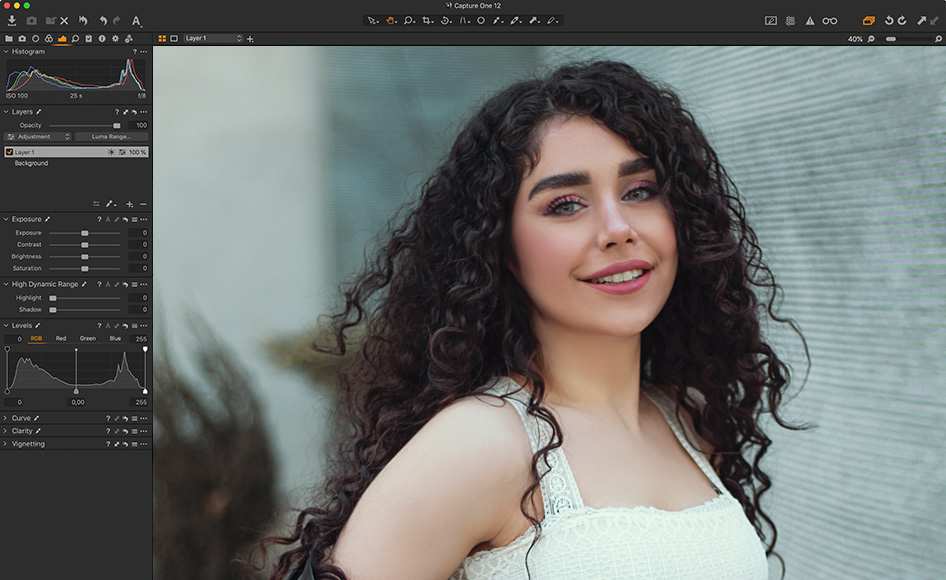
Capture One has long been a favourite with professional studio photographers for its best-in-class RAW processing engine and tethered shooting capabilities.
You’ll notice an immediate difference when importing RAW photos into Capture One, particularly in the level of detail and colour rendition.
With recent updates, Capture One is now well suited to portrait photographers shooting large volumes of photos.
New features such as Smart Adjustments and Layer-based Style edits harness AI to speed up monotonous editing tasks.
Unlike the modular interface of other editing software, everything happens in a single window in Capture One.
You can even change and customise the layout to suit your most-used tools and processes.
Why is Capture One suited for editing portrait photography?
Professional portrait photographers love Capture One for its excellent RAW processing results and tethered shooting (also wireless).
The new AI features and updated tools make it all the more appealing, despite the high price tag.
For studio photographers or anyone who needs to collaborate with clients, Capture One Live is especially useful (although it requires a subscription).
The annotation feature is unique and especially convenient for portrait photographers working with clients remotely.
It's easier to get accurate skin tones without complex retouching using Uniformity sliders for hue, saturation and lightness. which can be applied as local adjustment for maximum control.
For advanced amateur portrait photographers and enthusiasts, Capture One is suitable as long as you can devote some time to understanding it.
How to Use AI to Cull Portrait Photos

One thing that none of the portrait editing software in this guide offers is a way to harness AI to not only to cull your portraits but also to edit them automatically.
Fortunately, there's a great downloadable app called AfterShoot that does just this.
Originally known for its lightning-fast AI Culling, Aftershoot can analyse your RAW portrait photos, flag duplicates, closed eyes, or missed focus, and instantly present you with the best images from a shoot.
This makes it perfect for portrait photography sessions with hundreds or even thousands of shots.
What’s new is something called Aftershoot Edits, a powerful addition that learns your personal editing style from previous Lightroom or Capture One edits.
Once trained, it can automatically apply your exposure, white balance, color grading, and even portrait-specific brightening across entire galleries, saving hours of repetitive work.
The combination of AI Culling and AI Edits makes Aftershoot a true end-to-end time-saver: you load your images, let the AI select the strongest ones, and then watch as it applies consistent, professional-looking edits.
(You can still manually tweak the results or export them straight into your preferred editor for final refinements.)
Aftershoot is ideal for portrait and wedding photographers who value speed and consistency without sacrificing their signature look.
Read more in our Aftershoot review, or see below for a free trial and savings.
How to Choose Software for Portrait Photographers: 11 Key Features
Here are the key features that can make photo editing software particularly useful for wildlife photographers:
- High-quality image editing tools: Portrait photographers often need to make detailed adjustments to their photos, such as removing blemishes or enhancing colours. Look for software with advanced editing tools, such as curves and levels, as well as support for RAW image files.
- Batch processing: Portrait photographers often take hundreds or even thousands of photos on a single photoshoot. Editing software with batch processing capabilities can help you quickly edit, process and organize large numbers of images.
- Advanced organization and tagging: Look for editing software with robust organizational tools, such as keyword tagging, colour coding and the ability to create and edit metadata. This will help you keep track of your photos and make it easier to find specific portrait images later.
- Skin smoothing and blemish removal: This is a common editing task for portrait photographers, and having tools specifically designed for this purpose can be very helpful.
- Layers and masks: The ability to work with layers and masks can be very helpful for making selective edits to your portraits, especially if it's done with AI.
- Compatibility with other software and hardware: If you use other software or hardware, such as a specific camera or editing plugin such as Luminar, make sure the software you choose is compatible with these tools.
- File management: Consider how the image editing software handles file management and organization, including the ability to create and edit folders, sort and filter images, and create backups.
- Printing and sharing options: Most famous portrait photographers print or share photos, so make sure you look for software with options for exporting images in a variety of formats and resolutions.
- AI image editing tools: portrait retouching is tricky and time-consuming -using AI can make it much easier and faster.
- Presets and actions: Many portrait photographers use presets or actions to apply common edits to their photos quickly and easily. The ability to create your own presets is also a big plus.
- Tethered shooting: this one is more for professional portrait photographers who shoot in studios, but can be a big timesaver and useful to show clients your work in real-time.
Other Software Options for Editing Portrait Photography
The list above includes the best portrait photography software with special features that will considerably speed up your editing workflow.
Here are some more options that could also be used to edit portraits.
- Radiant Photo – AI-powered photo editor created by photographers. Includes an impressive one-click auto-adjustment, plus granular editing features for more experienced editors (Radiant review.)
- Topaz Photo AI – Another AI-powered editing software with sharpening, noise reduction and image enlargement tools (Topaz Photo AI review.)
- Darktable – a popular free editing app with some handy (but limited) features similar to Lightroom. (Darktable review.)
Final Words
We hope this guide to the best photo editing software for portrait photography was helpful to you.
If you have any questions or comments, leave them below, and we'll do our best to answer them.
Make sure also to check our guide to the best photo editing software for wildlife photographers.
Good luck with your shooting, and happy editing!
Easy to use, affordable & fun photo editing software with useful AI-powered portrait retouching tools.
Use code shotkit10 to save 10%

Mark Condon is a British wedding photographer and editor of Shotkit. When he’s not taking photos or reviewing the latest camera gear and software, Mark can be found cycling around the northern rivers.
2 Comments
Leave a Comment
👋 WELCOME TO SHOTKIT!
🔥 Popular NOW:

I am just curious why you left out PortraitPro when you review portrait photography software? Is it something a photographer who shoots model portraits, for example, should consider using? Thanks
I didn’t get a chance to actually use PortraitPro before this article was published, Bob. I agree it should be included, though, so will try and get to a review on the site soon and update the article.