






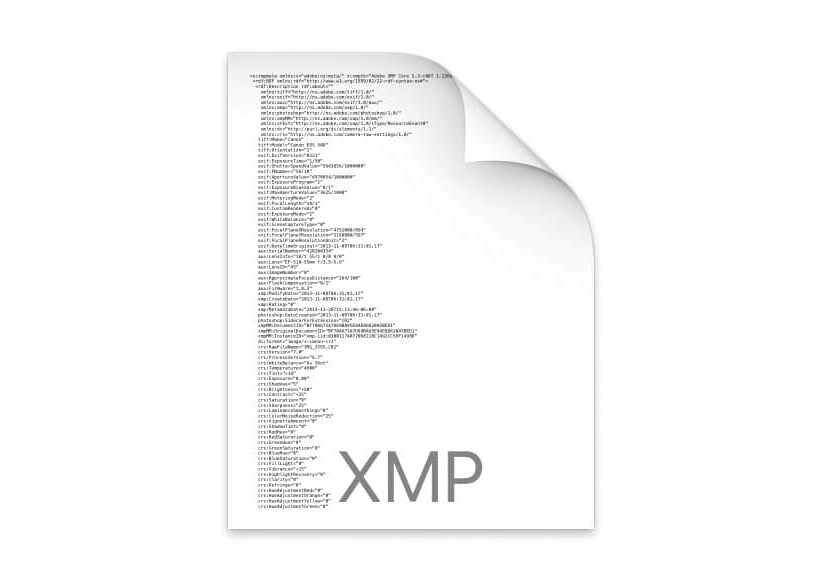
Everything to Know about the XMP File Format
XMP files contain edits done to raw files and camera metadata. Can you convert or delete XMPs? Should you write changes to them? Find out the answers here.
Image File Formats | Learn | By Ana Mireles
Shotkit may earn a commission on affiliate links. Learn more.
Have you found an XMP file, and you don't know what it is?
Don't worry – here's a quick guide that will tell you everything you need to know about XMPs, also known as extensible metadata platform files.
You should also check out the guide to image formats.
What is an XMP file?
So, what is .XMP file exactly? An XMP file is what's known as a sidecar file. Whenever you open a raw file with Adobe software such as Photoshop, it creates an XMP file.
XMP stands for Extensible Metadata Platform, and it contains the edits done to raw files and the metadata from the camera.
What are XMP files? TLDR: they are companion files that contain information about the raw file.
How do I Open an XMP file?
All Adobe extensible metadata platform files have a corresponding camera raw file. Users normally don't interact with the XMP format.
Usually, you don't open the XMP file – instead, you use a photo editing program to open the image file.
The Adobe programs that can open or reference an XMP file are:
- Adobe Photoshop
- Adobe Bridge
- Adobe Prelude
- Adobe XMP Toolkit
However, any text editor can open an XMP file because Adobe's extensible metadata platform stores the information as plain text so that XMP-compatible applications can search it.
How to Open XMP Files in Photoshop
Here's how to open XMP file in Photoshop.
To open an XMP file in Photoshop, you only need to open the corresponding camera raw file – it will automatically load with the metadata file.
Also, an XMP file extension could be a preset because it contains a series of edits done to an image.
To apply the edits from the Adobe extensible metadata platform to your photos, you can import them through the Camera Raw Filter.
In the Adobe Camera Raw (ACR) workspace, go to the Presets section and select Import Profiles & Presets. You'll be able to upload XMP file types that you can apply to any of your photos.
How to Open XMP Files in Lightroom
When you open and edit a raw file with Lightroom, it won't create any XMP file formats – instead, it saves the information in your Lightroom Catalog.
This doesn't mean that it doesn't support XMP files. Using a Desktop version of Lightroom, you can upload presets with XMP file extensions. Once installed, you can also use them in the mobile version.
To do so, you need to open a photo and click the Presets button in the bottom right. Then, select Import Prestes from the menu and select the files you want to upload.
With this operation, you can't edit XMP files, but you can apply the edits to your photos. Once you apply this, you can continue to edit your image, and the changes will be saved in the LR catalog.
If you want to store metadata as an Adobe extensible metadata platform, you can go to Catalog Settings and tick the choice Automatically write changes into XMP.
XMP File Converter Download
The XMP file extension is a text file with information that can be applied or embedded into a photo. I've tried some websites and programs that advertise they can do the conversion, but none of them worked.
At this point, I don't know any program that can convert XMP files into another file format.
XMP File FAQs
- Do I need XMP files?
XMP is a standard metadata format that saves new information associated with a raw file because you can't save it directly. So, if you want your raw files to keep the editing you've already done, then yes, you need the XMP file type.
- Can you delete XMP files?
You can delete an XMP file without losing or altering your camera raw files. However, you'll lose all the file info regarding metadata and edits – it's like hitting reset and going back to the original raw file as shot.
- How do I convert an XMP file to JPEG?
You can't convert an XMP file directly into a JPEG or any other picture file format. You need to open an image, apply the XMP preset and save it as a JPEG.
- Does Lightroom read XMP files?
Yes, Lightroom supports an XMP file extension and can be uploaded as a preset.
- What happens if you delete an XMP file?
If you delete an XMP file, you lose the edits you've made to your raw files.
- Can you convert XMP to DNG?
You can't convert an XMP file to DNG directly because an XMP file format contains text while a DNG is an image file extension. You can, however, embed the XMP data into a DNG to avoid having two files.
- How do I view XMP metadata?
When you open files in a text editor, you'll be able to see the file description and all the metadata in them. Also, programs from Adobe Systems Incorporated can read the metadata from an XMP file extension and associate it with an image.
- Where are XMP files stored?
XMP files get stored in the same directory as the raw file that's associated with it.
- Should I automatically write changes to XMP?
I recommend you do it – this way, you're making a backup of your edits separate from the LR catalog in case something goes wrong.
- Does Lightroom import XMP files?
Yes, you can import an XMP file as a presets, but you can't directly open or edit the file.
- What is the connection between HEIC files and XMP?
HEIC files and XMP (Extensible Metadata Platform) are connected in the context of metadata storage. While HEIC is an image file format, XMP, developed by Adobe, is a standard for embedding metadata into files.
HEIC files, like many other image formats, can contain embedded XMP data, allowing photographers and software to store, retrieve, and manipulate additional information within the HEIC file without affecting the actual image.
This makes it easier to organize, tag, and process images in post-production software that supports XMP.
Final Words
File formats are always rather confusing – we've already covered Sony ARW files, Canon CR2 files, Nikon NEF files and even GoPro LRV & THM files elsewhere on Shotkit… and there are more to come!
Usually, there's no need to take special care of the various file extensions – just leave them as they are. You can delete XMPs if you really want to, but there really isn't any need.
At least you now know what they are and why they're there! Feel free to ask us any questions about the XMP file type in the comments below.


Check out these 8 essential tools to help you succeed as a professional photographer.
Includes limited-time discounts.

Ana Mireles is a Mexican researcher that specializes in photography and communications for the arts and culture sector.
7 Comments
Leave a Comment
👋 WELCOME TO SHOTKIT!
🔥 Popular NOW:

so I exported about a thousand files from Apple Photos for archival purposes. Since I have never altered my original files, any extra xmp files can be deleted.
If you delete a .xmp file, does that affect descriptions, tags, edits to dates, etc that you have made to the image in the Photos App?
No, deleting a .xmp file does not affect any metadata, descriptions, tags, or edits made within the Photos App (such as Apple’s Photos app on a Mac).
The .xmp sidecar file is typically associated with RAW files and is used by software like Lightroom, Photoshop, or other image editors to store non-destructive edits and metadata separately from the original image file.
The Photos App stores all changes and metadata edits (e.g., descriptions, tags, or dates) internally within its database, not in .xmp sidecar files. So removing the .xmp file will not impact your images or edits in the Photos App.
However, if you’re using software that relies on .xmp files (like Lightroom or Adobe Bridge), deleting the .xmp file will remove the associated metadata and non-destructive edits for that software.
I have recently attempted to open photograph files that were originally saved as Tiff, JEPG, or DNG. They had not been opened for many years and many of them now opened as XMP files. How could this occur and can I get the original back. Thanks for any help you can give me.
Harris
A client has given me an XMP template to attach to a series of photos I am taking for their organisation.
How do I do this?
Do I just add the xmp file to the same folder I import the raw file into?
Thanks for the write up on XMP files, Ana.
However, I messed up and converted one of my xmp files to open in Photoshop (by right clicking on the icon). Now whenever I download files from my camera it automatically converts all the xmp files to Photoshop files. And now I cannot uploads files to Helicon Stacking software.
Any help you can pass along would be great.
Thank you!
LInda
Thanks for reading my article, let me know if you have any questions.