







12 Best Apps to Turn Photos into Paintings (FREE & Paid)
Transform your photos into works of art with these fun and free apps for your phone and computer. Discover 12 creative watercolor and oil painting styles!
Mobile Apps | Software | By Greg Cromie | Last Updated: January 6, 2026
Shotkit may earn a commission on affiliate links. Learn more.
Do you want to make your photos look like artworks? Ever wanted to make a photo look like a painting?
If the answer is yes, you're not alone! That's why there are plenty of great apps that turn photos into paintings with just a few taps! And thanks to AI, these tools are even more popular.
This guide reveals some of the best apps for iOS (iPhone and iPad) and Android smartphones that'll apply painting styles to your favourite photos.
We've also included a couple of great picture-painting apps you can use on your computer, whether Mac or Windows, because they work in any browser.
Share your artworks with the world or use one for a new social media profile pic – the choice is yours.
Ready to transform your photos into works of art with the latest watercolour or oil painting effects?
Let's dive right in!
10 Best Phone Apps to Turn Photos into Paintings
If you've ever wondered how to turn a picture into a painting for free, several great picture painting iPhone and Android apps can help.
Some apps require a small payment to download, while others are free but require a fee for additional features.
(You may also be interested to learn about other apps that can turn your photos into sketches and drawings, too.)
Let's have a look at the best options so you can start turning your photos into art.
1. Fotor (Android & iOS)

Fotor is by far my top pick. It's available for Android and iPhone, and you can use it in any browser, which means you can use it on your computer as well.
Fotor is a complete photo editor with many AI-powered tools and one-click solutions. Some are designed to turn your photos into artworks and offer a wide range of styles to choose from.
As soon as you launch the app, you'll find AI Art Effects and AI Cartoon among the shortcuts. Any of these choices is great for turning photos into paintings.
You can also click on the three dots to open more options. Here, you'll find AI Avatar and AI Sketch to further expand your style options.
2. PicsArt (Android & iOS)

PicsArt is one of the iPhone and Android apps that provides a comprehensive toolkit for editing photos on the go. You can also use it on your browser.
PicsArt is incredibly popular, with staggering downloads to date. In addition to its filters, text options, collage builder, and sticker maker, it also features the ability to turn the pictures from your camera roll into cartoons or paintings – all of it powered by AI.
With PicsArt, you can take a standard selfie and use any Canvas effect tool to add hand-painted and drawn finishes around and over the top of your photo. You can even add a background to photos.
While it's a very comprehensive and capable app, there are many options to scroll through to get the desired effects. It's often the case with apps that do it all – not a huge negative, but if you wish to turn a photo into a painting, there are more straightforward options.
3. Brushstroke (iOS)

Brushstroke is an iPhone app ideal for turning your photos into unique works of art.
Selecting an image is quick and easy, and the app will automatically start the transformation.
In addition, Brushstroke offers a wide selection of filters and creative applications that you can apply to your photos. This way, you'll achieve a truly unique look every single time.
Filters for colour, canvas, and effects are all represented by icons, which you swipe to browse and tap to add.
For an authentic artistic experience, Brushstroke presents a blank section for you to use the touchscreen and sign your name below your painting when completing the photo-to-art process.
Once your creation is complete, you can share your painting directly on social media. Brushstroke is one of the best ‘turn picture into painting' apps on the iOS App Store.
4. Glaze (iOS)
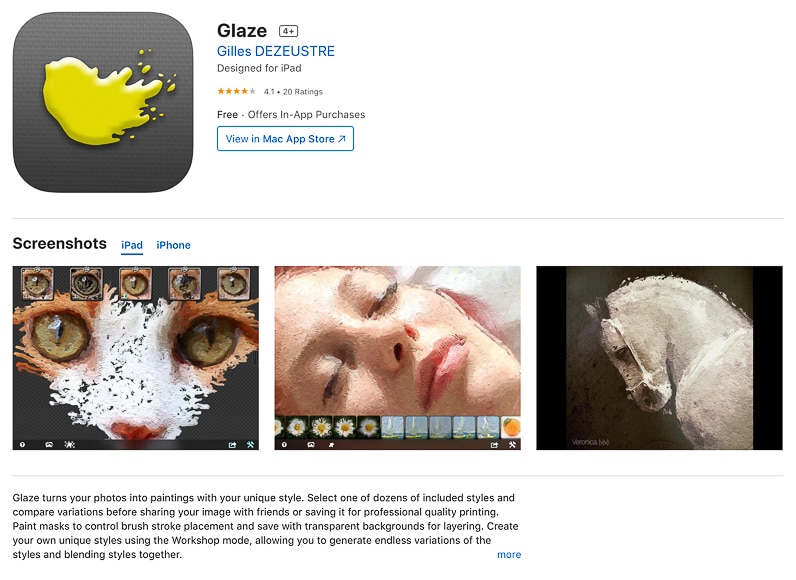
The Glaze iOS app has been hanging around the App Store for several years now, but it's still an impressive photo-to-painting app on iPhone.
Glaze provides users with comprehensive image-editing tools to apply painting styles to photos and fine-tune the results.
Its best feature is that you can create custom styles by blending existing Glaze styles in the Workshop mode. Then, you can apply the painting style to your photo and others in your camera roll.
And for a truly artistic experience, you can edit your portrait photos in portrait orientation and your landscape shots in landscape orientation.
Glaze's user interface and menu are very intuitive and provide simple navigation from start to finish. At the end of the day, it's a simple tool for exploring how to make a photo look like a painting.
5. Waterlogue (iOS)

There are many different media for creating art—pencil, charcoal, pastels, acrylics, and oils. But by far, one of the most mesmerizing is using watercolours to bring art to life.
Fortunately, Waterlogue for iPhone is an app that does a tremendous job of transforming your photos into watercolour works of art.
The Waterlogue app offers a comprehensive set of tools. It has several watercolour painting style presets that allow you to get the base look of your photos.
Further to this, you can fine-tune the level of detail, size of the file, brightness and finally, how the finished border appears.
The Waterlogue app is super easy to navigate, and the user interface is simple with big icons making it obvious what your next step in the process is.


It's one of my favourite apps out of the lot, and I enjoyed converting some travel images into paintings such as the one above. I especially like how you can see the clouds blend into the blue sky above the building.
6. Portrait Painter (iOS)
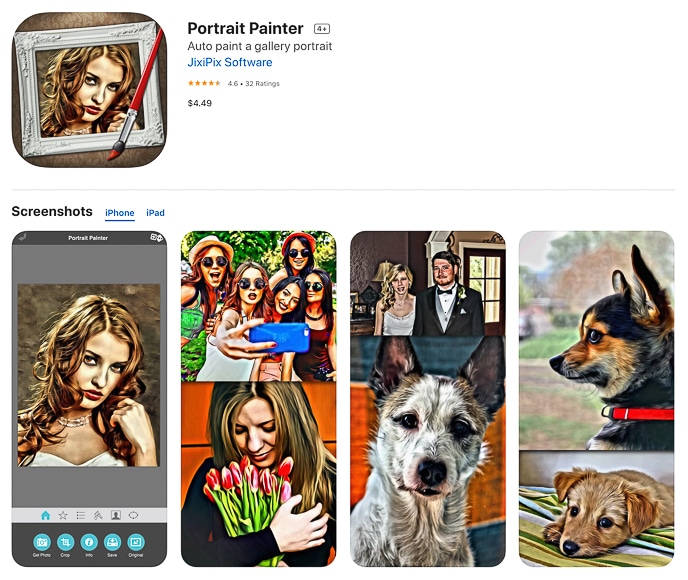
Portrait Painter is an iPhone app that performs a great job of turning your portrait shots into gorgeous paintings.
It's available on all major mobile and desktop platforms and is hugely popular for simulating painted portraits.
The user interface is straightforward and includes an ellipse tool to mask areas. With the ellipse, you control the detail of the brushstrokes within the designated space.
Brushstrokes rendering is realistic and results in lifelike paintings in oils and acrylics.
Finally, choose the paint surface so the finished product replicates canvas types.
Once you're satisfied with the painting style created, you can share your images directly to social media for the world to enjoy.
7. Tangled FX (iOS)
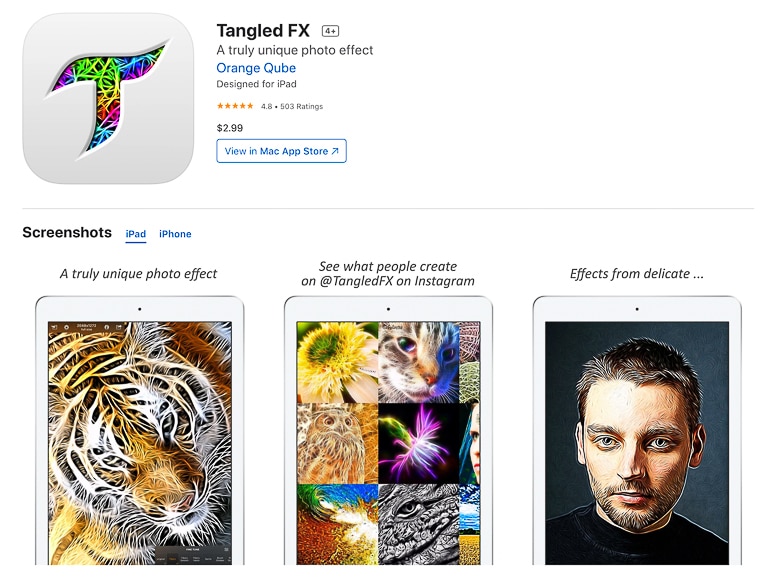
Tangled FX is an iPhone app that transforms even your least liked photos into unique paint-like canvases.
The app uses a straightforward user interface to offer 16 presets to turn photos into painted scenes.
Tangled FX has a large range of effects. I particularly like the fibre effects that use the existing lines within the photo to create fibrous textures across the scene.
While that look may not be for everyone, it's undoubtedly unique, and many will find at least a handful of images within their smartphone gallery worthy of this transformation.
Tangled FX can render photos within the original native HD format. The app also upscales smaller pictures before the transformation process to allow for greater detail—something that not even the native iPhone camera app can do.
As with many of these apps, Tangled FX allows you to share your finished works with online content and its community.
8. Prisma (Android & iOS)

Prisma is a remarkable app available on Android and iOS. A few years back, it even won an App Store ‘App Of The Year' Award.
It's no wonder, given that Prisma has over 300 painting and art-style filters available to transform your photos in countless ways.
There's so much choice here that you could spend a whole lunch break editing and converting a single photo to a painted masterpiece.
Having said that, once you get the hang of Prisma and find your favourite presets, you'll likely stick to styles that you prefer the look of. But the choices don't stop there, as Prisma releases a new filter daily.
A feature that Prisma offers over other apps is the ability to transform your photos into paintings that adopt the style of history's most noted artists. Add a style like a touch of Dali or even Picasso to your selfie to update your profile pic with style.
The app's navigation is straightforward, thanks to a sensible menu system. It's a powerful iPhone tool that creates a work of art with the click of a screen.
9. CreArt (Android & iOS)

CreArt is a fun and easy-to-use app that's available for both Android and iOS.
You'll find all sorts of creative tools in CreArt that leverage AI – including a text-to-image generator.
Using this same technology, you can edit your images with a prompt. Simply describe how you want your image to look, and wait to see the magic.
If you're unsure about how to type your own prompt, you can find inspiration by using some of the preset tools. Simply scroll down the main page, and you'll find the Cartoonize and the Art Style section.
Each of these has plenty of choices – some are free, and some require a Pro subscription.
Scrolling further down, you'll find a gallery called Get Inspired. Once you find an effect you like, click on it. This will open it full screen and give you the option to try it.
This way, you'll see the prompt used on those pictures, and you'll be able to use it to generate or edit new images.
10. Canva (Android & iOS)

Canva is a design platform with many photo editing tools. Canva is available for Android and iPhone, plus you can use it on any browser.
I'm a big fan of Canva as a whole, but I left it until the end of the list because the photo-to-painting options are external apps working inside Canva.
There's nothing wrong with this. I only mention it because you'll often have to buy credits or subscribe to these third-party services to be able to use them, regardless of whether you use Canva Pro or the free version.
However, you can use them inside of Canva, and they're fully integrated into the workspace. This means that you can easily use your newly created artworks in any of your Canva projects.
Plus, there are plenty of options to choose from. Just to name a few, you have a Photo to Sketch, Photo to Cartoon, and Impressionistify.
You can browse all your options from the app's search tool by typing different keywords according to the style you're looking for.
2 Free Desktop Software to Turn Photos into Paintings
If you're wondering how to turn a photo into a painting online using your computer, there are a number of free sites that allow you to add realistic painting styles to anything you upload.
Of course, you can also use them on your phone's browser if you want to work on the go without installing new apps.
In addition, most of the popular photo editing software tools include some kind of portrait painting filter that gives that photo-to-painting effect you're looking for.
Here are the two browser-based recommended options.
1. Colorcinch (Web)

Channel your inner Picasso with the ‘turn photo into painting' app Colorcinch and transform your photos into incredibly realistic paintings and sketches in just one click.
This best-in-class tool comes with hundreds of AI-powered photo effects, filters and overlays to add some creative intrigue to otherwise dull portrait and landscape photos.
Furthermore, you can really fine-tune their painting effects by adjusting intensity, color, and other details to achieve truly unique works of art.
Colorcinch also comes with a variety of handcrafted frames, masks, and overlays to further personalize your photos.
2. Tuxpi Photo Editor
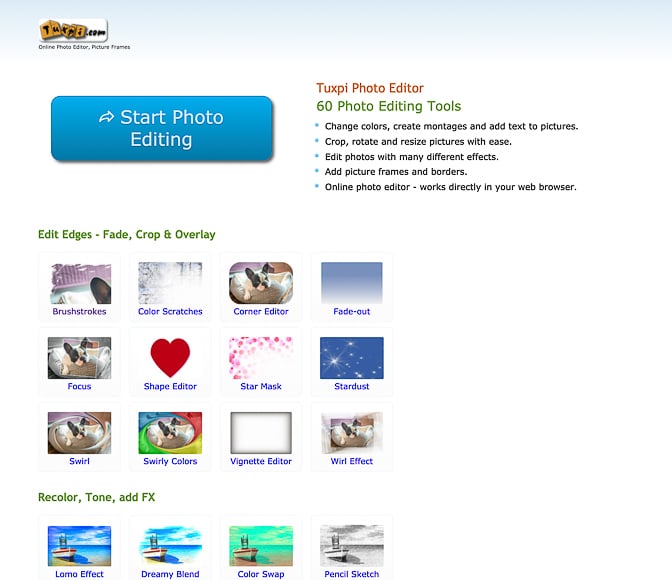
Tuxpi is a free online photo editor that offers a range of photo editing tools, including the ability to add frames to existing images.
If you want to use a computer to edit your photos, add text, and apply a range of filters, it doesn't get simpler than this.
Upload your picture and apply any of the 60 photo editing tools. Tuxpi allows you to add multiple effects on top of one another. For example, you can fade your photo's edges, then apply the photo to the painting process and frame it up. Plus, a preview of each change loads within seconds.


Download and share on your social channels to show your friends how clever you are.
While Tuxpi is fun, the effects' strength, brush sizes, and mask cannot be fine-tuned. Here's a before-and-after shot with the help of Tuxpi—I'm really happy with the outcome.
General Tips for Turning a Picture into a Painting Using Apps
- Select your photo: Choose a high-quality, well-lit photo with clear subjects. Images with good contrast and vibrant colors often convert more strikingly into paintings.
- Pick a style: Experiment with the app's different artistic styles. Options might include watercolor, oil painting, impressionism, or modern art. Consider the mood and subject of your photo when choosing a style.
- Adjust the settings: Use the app's sliders or settings to adjust the intensity of the paint effect, brush size, and texture to your liking. Subtle adjustments can make a big difference in the final result.
- Fine-tune the details: Some apps allow for localized adjustments. Use this feature to enhance or reduce the painting effect on specific photo areas, like faces or focal points, for a more realistic effect.
- Preview and revise: Review the converted photo closely. If the app allows, switch between the original and converted image to ensure you're happy with the transformation. Make any necessary revisions.
- Save and export: Save or export the final painted image once satisfied. Ensure you choose a high-resolution format to preserve the quality of your digital painting.
- Practice: Experiment with various photos and styles. The more you play with the settings, the better you'll understand how to achieve the results you want.
I’m a Melbourne-based street photographer and blogger. I love to travel to Japan to photograph and document its dynamic people and culture.
14 Comments
Leave a Comment
👋 WELCOME TO SHOTKIT!
🔥 Popular NOW:

The apps are truly great. But the best apps are costly to work with. Can anyone suggest to me any free similar app for mac?
I would like to find out if ANYONE out here knows of a program for the Mac to turn a headshot into a Nagel image….would love to find out!!!!
What’s a Nagael image?
Oh, you darling youngster! Nagel was a graphic art creator popular in the ’80s. Once you look him up, I’ll bet you are familiar with the style even though it was long ago.
Photo Pixel Filter for macOS is another App that could turn photos into a painting, aquarel, sketch, etc.
It’s still a free download for the next couple of days!
Thanks for the article. I’ve created Neural Canvas which allow you to create Wall-Art from a photo real easy. Could be part of this article I think ;-)
Thanks for sharing, Tjerk.
You should also include Fotosketcher, which is probably the best free photo-to-artwork application you’ll find anywhere. Been using it for years and nothing else I’ve tried comes close.
Thanks for the tip, Delegard – we’ll take a look and possibly include it when we update this article.
Thanks
There is a number of not mentioned online tools for adding complex artistic effects, e.g. alterdraw.com, deepart.io and ostagram.me
Maybe a little different: deepart.io, developed by AI researchers. It proposes preset styles or you can submit a painting to modify your photos. I found this to be great for cards for example. You can have as many free samples with a watermark as you want, and you pay for hi-res files.
Hi Scott thanks for the update. Sound like a handy app. Thanks for joining the conversation. Others will see your comment and take a look at this app too. Cheers. G
Hi and thanks for checking out my article. Feel free to comment or ask any questions. Also, add a comment about your experiences with apps that convert photos to paintings. Cheers. G